
Thanks for your feedback.
Set up a video exclusion area on Room devices
 Feedback?
How to use
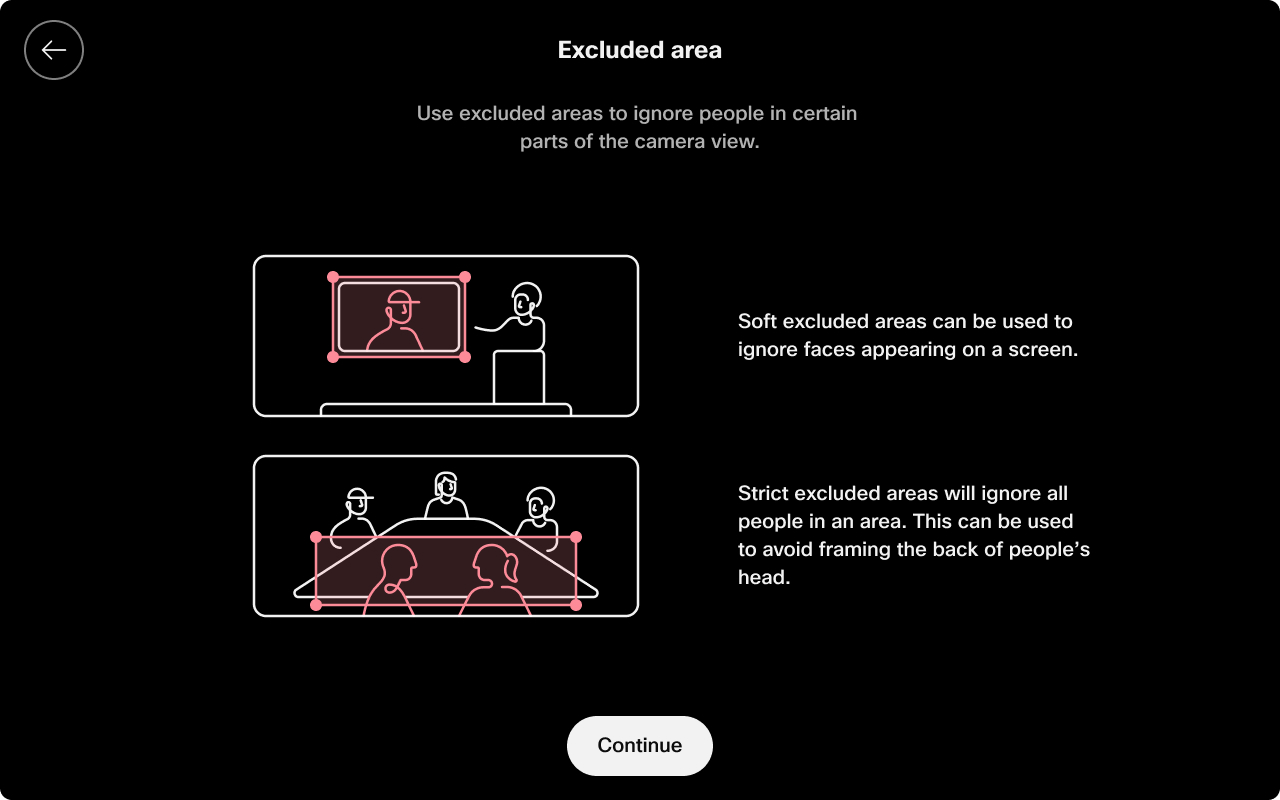
Excluded area allows you to define specific areas within a meeting room where people are not detected or tracked by the camera. This feature improves camera framing and avoids unwanted tracking in complex room setups, ensuring that video tracking and framing focus only on relevant areas.
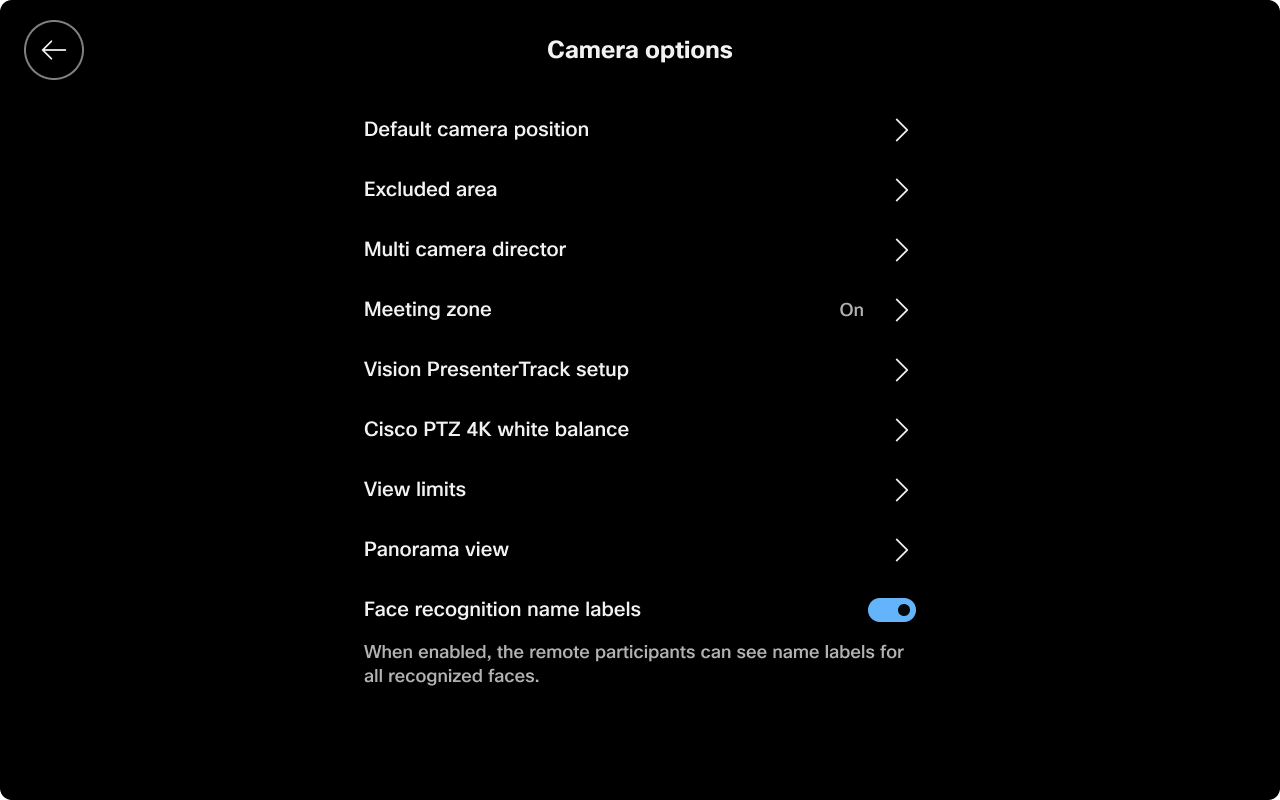
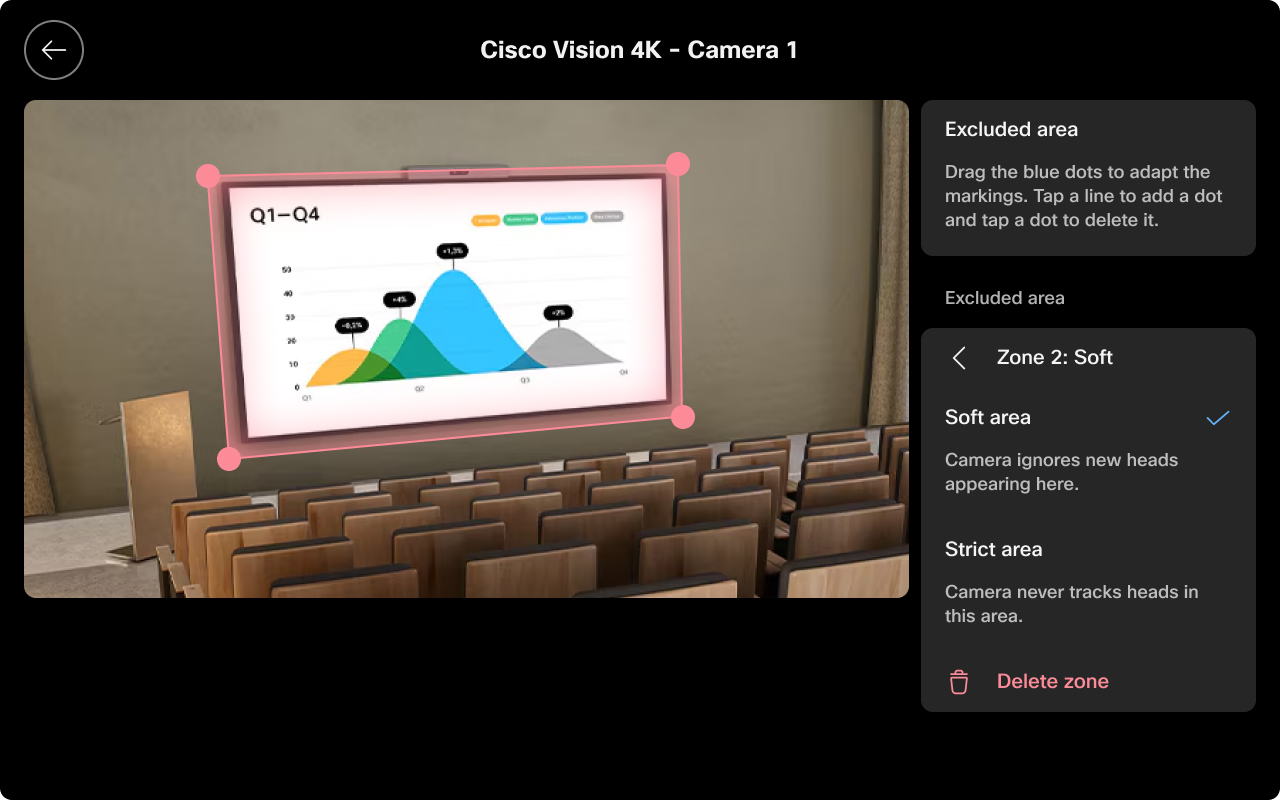
You can set up Excluded area on supported devices using the Room Navigator interface or configure them through xAPI for advanced scenarios and automation. On the Room Navigator interface, navigate to Settings, Camera options, and Excluded area.
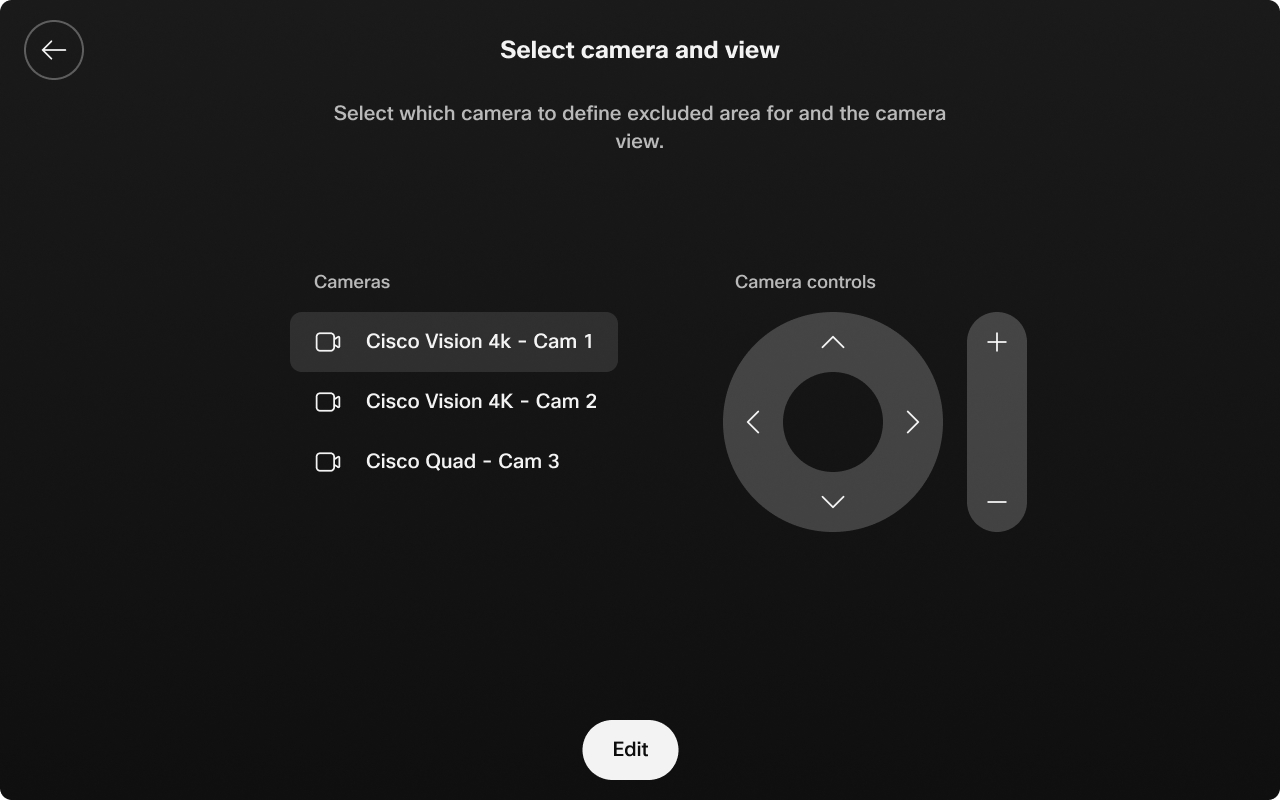
Select which camera to define excluded area for and the camera view.
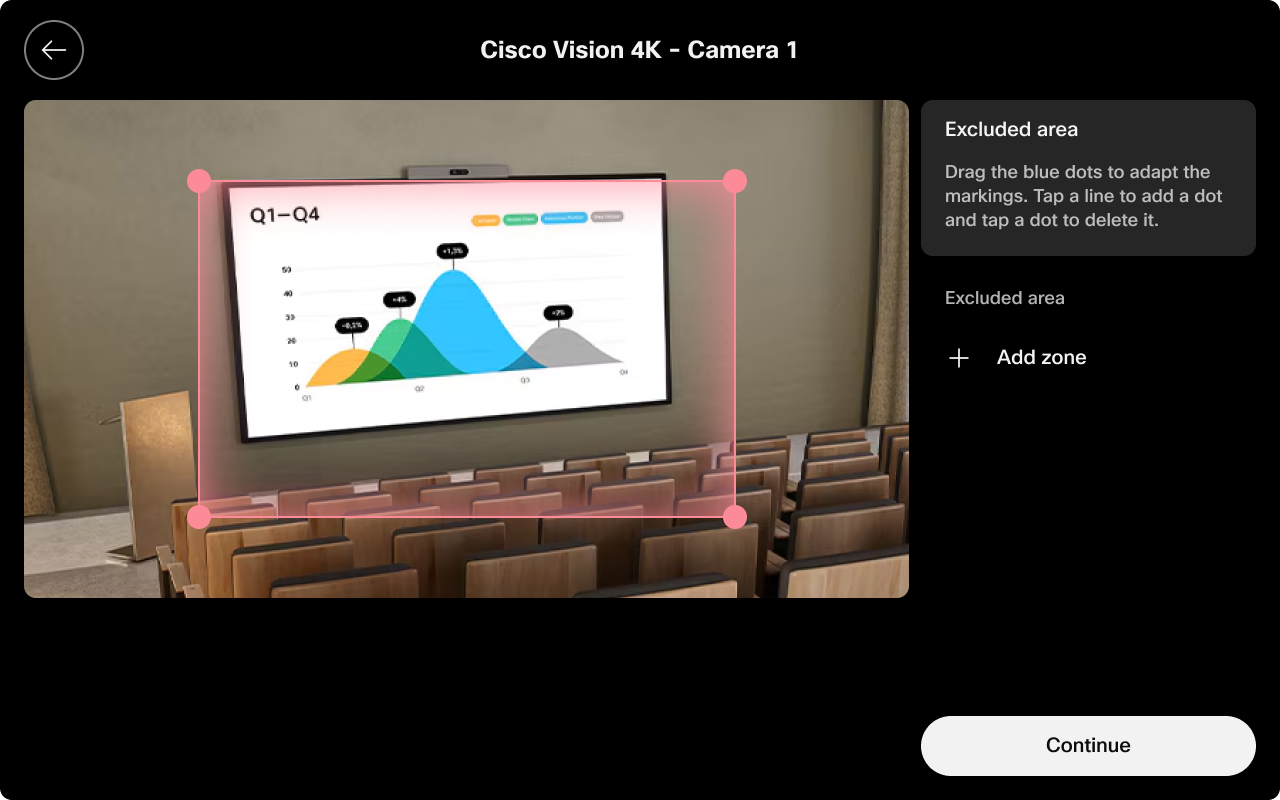
Select Add zone to create the excluded area.
Chooose between Soft area and Strict area.
Supported devices:
- Room Bar and Room Bar Pro
- Room Kit EQ and Room Kit EQX (with Quad Camera)
- Room Kit Pro (with Quad Camera)
Notes and limitations
- Video Exclusion Zones affect video tracking and framing only.
- This feature does not affect audio behavior or microphone zones. Audio exclusion is managed separately.
- The zones help improve meeting experiences by preventing the camera from tracking people or objects in unwanted areas, such as glass walls or open office spaces.


