
Thanks for your feedback.
 Feedback?
Welcome to Step 3 in our article series about setting up your Apple Developer account for your Branded App. At this point, you have your D-U-N-S number, you've enrolled in the Apple Developer Program, and you're ready to invite Webex Events to your Apple Developer Account!
🤔 Not sure what we're talking about? Read our Introduction to Branded Apps to learn more.
🤷 Not enrolled in the Apple Developer Program yet? Follow the steps in our Prepare Your Apple Developer Account article to enroll!
Invite Webex Events as App Manager
-
Use your Apple ID to log in to the Apple App Store Connect Users and Access page.
-
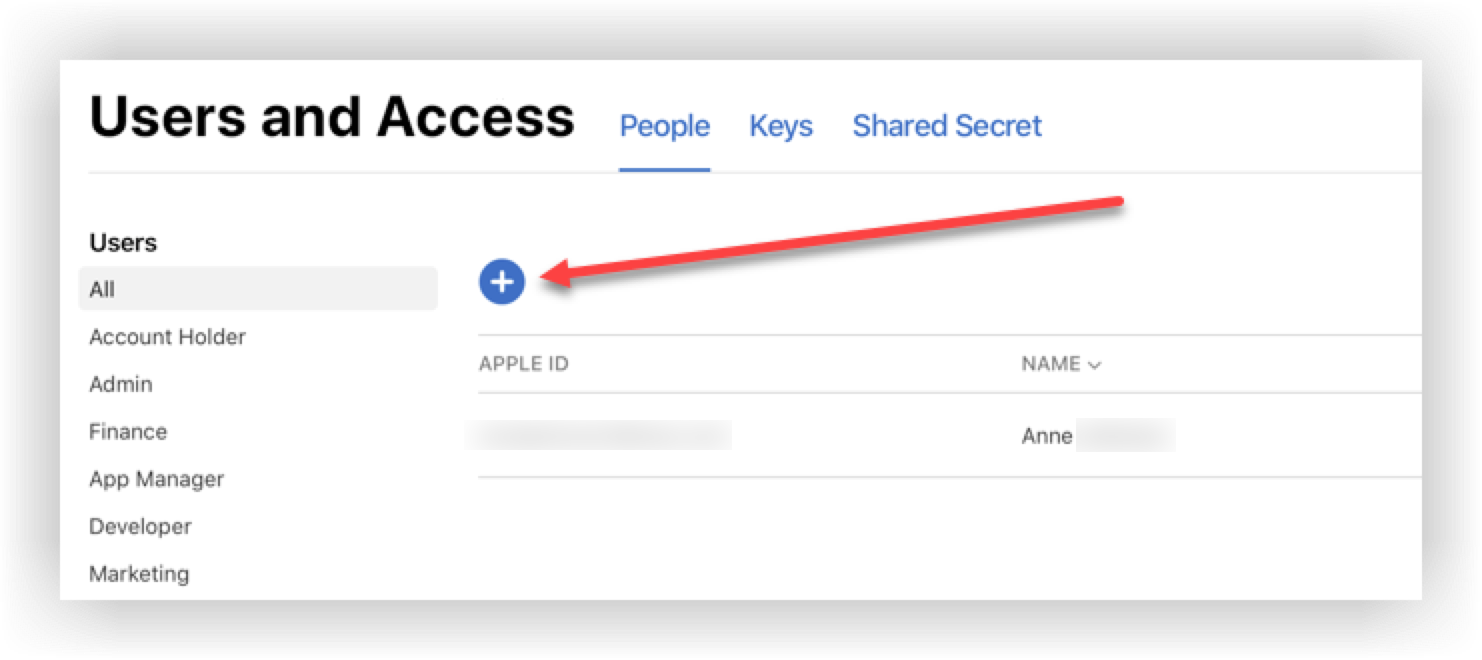
On the Users and Access page, click the Plus (+) icon to add a new user.
- Enter the following information:
- First Name: Webex Events
- Last Name: Team
- Email: brandedapps@atsocio.com
- In the Roles section, check the App Manager box. This automatically selects all
other check boxes under Roles except 'Admin' and 'Finance'.
Keep in mind, 'App Manager' is the minimum role we require. However, we recommend that you also give us 'Sales' and 'Customer Support' roles so that we can best support you.
- Be careful to check the **Access to Certificates, Identifiers & Profiles **box in the
'Additional Resources' section.
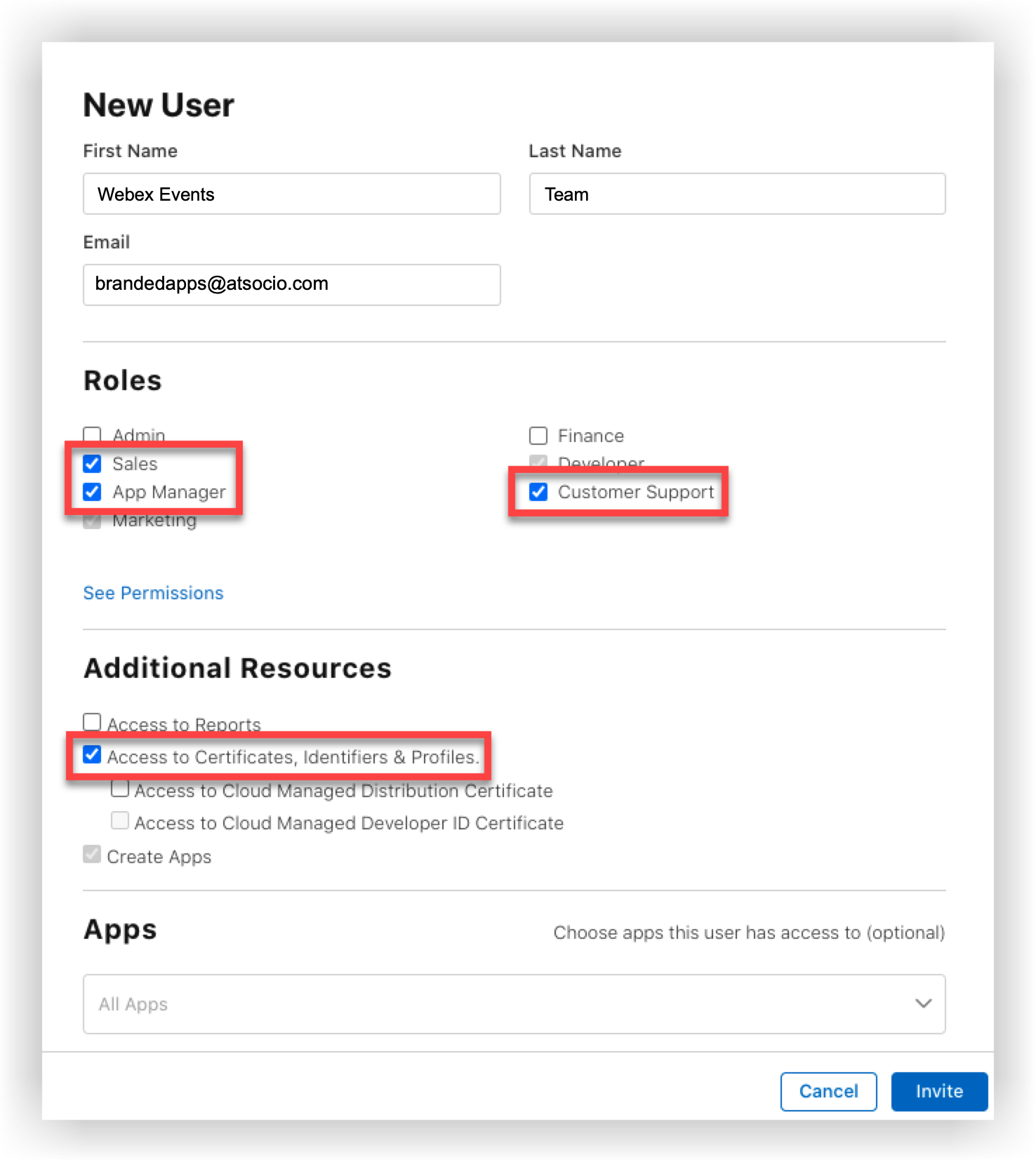
- Click Invite when you're done.
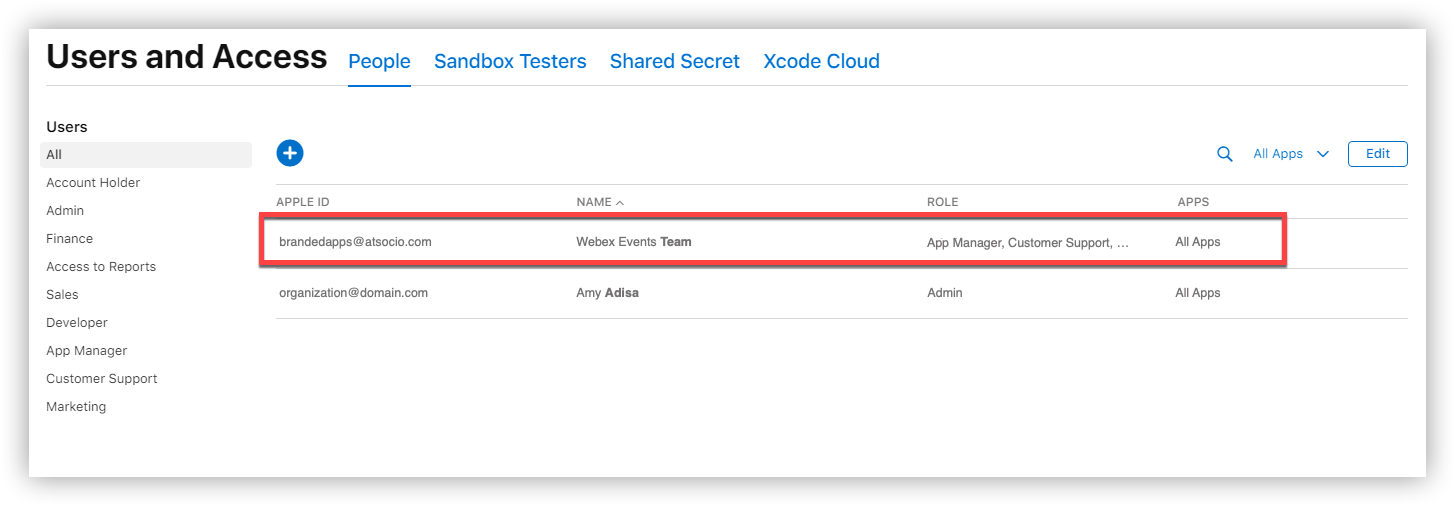
After we've accepted the invite, Webex Events will appear listed as an authorized user on the Users and Access page.
Next steps
Now that you've invited our team to your Apple Developer account, you're ready for the last step — publishing your Branded App! Click the button below to learn how.


