- Home
- /
- Article

Thanks for your feedback.


 In this article
 Feedback?
Auto Answer automatically connects incoming calls for licensed Webex Calling users, reducing manual effort, minimizing missed calls, and improving overall operational efficiency.
In demanding environments such as call centers, IT helpdesks, and reception areas, rapid response times are essential. Because the standard Webex Calling workflow requires manual call acceptance, users may experience delays that affect productivity and the overall customer experience.
Enabling Auto Answer for Webex Calling users automates this process so incoming calls are accepted immediately. This feature streamlines workflows, reduces missed calls, and improves operational efficiency.
Administrators can configure these Auto Answer settings for Webex Calling users, Workspaces, and Virtual Lines in Control Hub:
-
Preferred answering device selection: Choose the preferred answering device, such as Webex App for desktop or a Cisco desk phone.
Preferred answering device is a shared calling setting that can be used by multiple calling features that support automatic answering.
It identifies the device you prefer to use for automatically answered calls. Selecting a preferred answering device doesn't enable Auto Answer; Auto Answer is configured separately.
Users can view and change their preferred answering device from Webex App or User Hub. The setting may remain available even when User Auto Answer is disabled because it is shared across supported calling features.
- Enable or disable Auto Answer: Turn Auto Answer on or off for specific users or Workspaces.
- User permissions: Optional: Turn on Allow the user to turn off Auto Answer by choosing None as preferred device. Turning on this option allows users or agents to disable Auto Answer by choosing None as their preferred device in Webex App or User Hub.
Auto Answer settings are available in Calling Templates. Administrators can use Calling Templates in Control Hub to apply these settings to users in bulk.
Enable or disable Auto Answer for users
Configure Auto Answer and the preferred answering device for an individual Webex Calling user.
| 1 |
Sign in to Control Hub. |
| 2 |
Go to , and choose a user. |
| 3 |
Click Calling. |
| 4 |
In Call handling, click Answer settings. 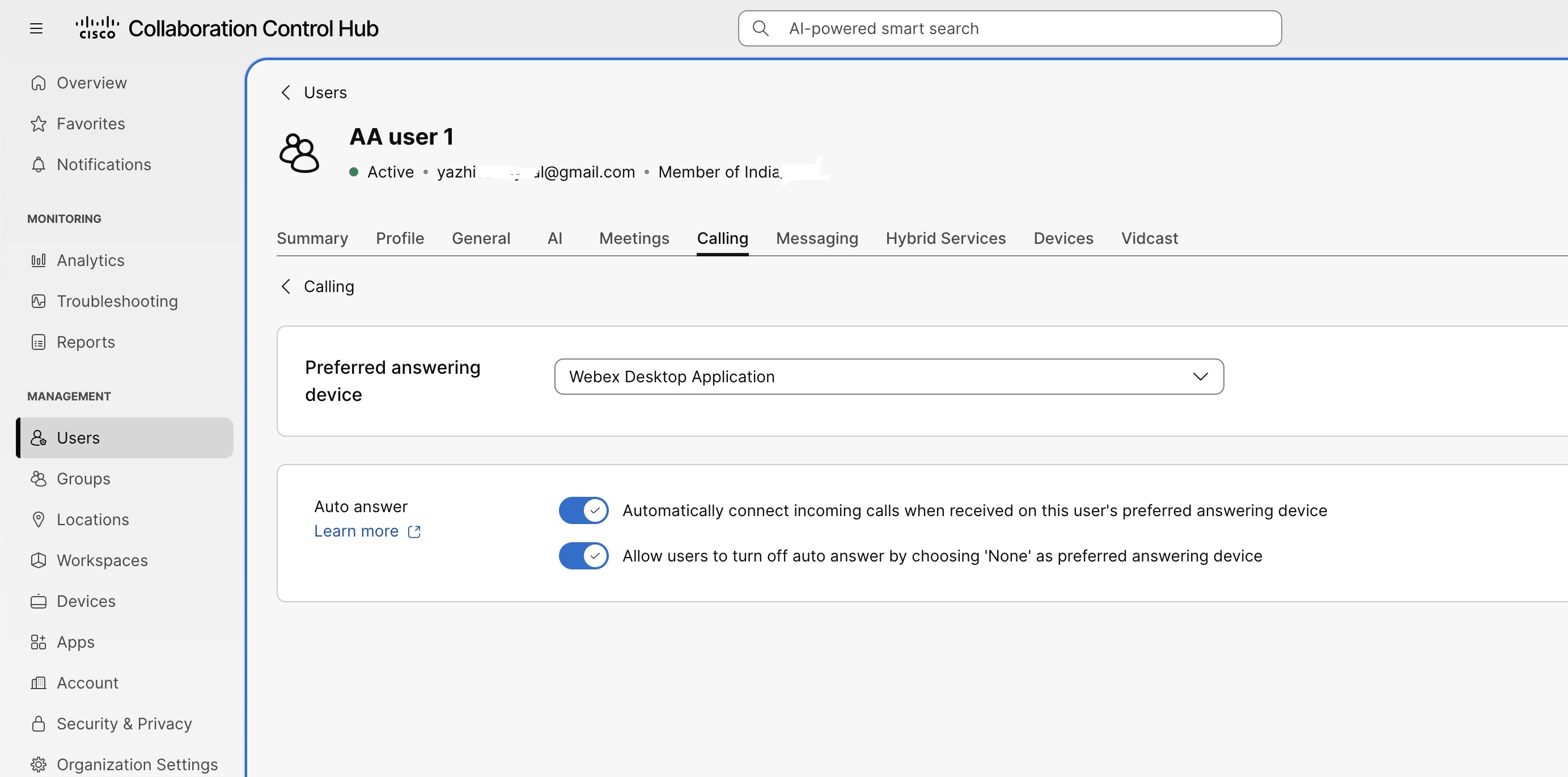
|
| 5 |
By default, the Preferred answering device is set to None. Use the drop-down menu to select a device for Auto Answer. You can select Webex App for desktop or Cisco desk phone. If preferred answering device is set to None, Auto Answer may still use an eligible device when only one supported device or client is available. If multiple eligible devices or clients are available, then select a preferred answering device to automatically answer the calls. When Auto Answer is enabled and Preferred answering device is set to None, Control Hub displays one of the following messages:
|
| 6 |
Toggle the Auto Answer to on or off. Turn on Auto Answer to enable the feature. Select a Preferred answering device to specify the endpoint that automatically answers eligible incoming calls. Webex application assignments aren't specific to User Auto Answer. When preferred answering device is set to None, the system evaluates all eligible Webex clients to determine Auto Answer availability:
|
| 7 |
By default, Allow users to turn off Auto Answer by choosing None as preferred answering device is turned on. When enabled, the user can turn off Auto Answer by selecting None as the preferred answering device in Webex App or User Hub. Turn off this setting to prevent the user from selecting None and turning off Auto Answer. |
| 8 |
Click Save. Control Hub confirms that the Auto Answer settings were updated. |
Configure Auto Answer for virtual lines
Configure Auto Answer for a virtual line and choose the assigned device that answers incoming calls.
| 1 |
Sign in to Control Hub. |
| 2 |
Go to . |
| 3 |
Click Virtual Lines, and choose a virtual line. |
| 4 |
Click the Calling tab. |
| 5 |
In Call handling, click Answer settings. |
| 6 |
By default, the Preferred answering device is set to None. Use the drop-down menu to select a device for Auto Answer. You can select Webex App for desktop or Cisco desk phone. |
| 7 |
Toggle the Auto Answer to on or off. Turn on Auto Answer to enable the feature. Select a Preferred answering device to specify the endpoint that automatically answers eligible incoming calls. If the virtual line has no assigned device that can make or receive calls, open the Devices tab and assign the virtual line to a supported device before you configure Auto Answer. If multiple supported devices are available, configure a preferred answering device. |
| 8 |
By default, Allow users to turn off Auto Answer by choosing None as preferred answering device is turned on. When enabled, the user can turn off Auto Answer by selecting None as the preferred answering device in Webex App or User Hub. Turn off this setting to prevent the user from selecting None and turning off Auto Answer. |
| 9 |
Click Save. Control Hub confirms that the Auto Answer settings were updated. |
For both shared and non-shared Virtual Lines, if Auto Answer is enabled and the line has only one compatible endpoint, the system will automatically answer incoming calls to that endpoint.
Configure Auto Answer for Workspaces
Configure Auto Answer and the preferred answering device for a Webex Calling Workspace.
| 1 |
Sign in to Control Hub. |
| 2 |
Go to , and choose a Workspace. |
| 3 |
Click the Calling tab. |
| 4 |
In Call handling, click Answer settings. 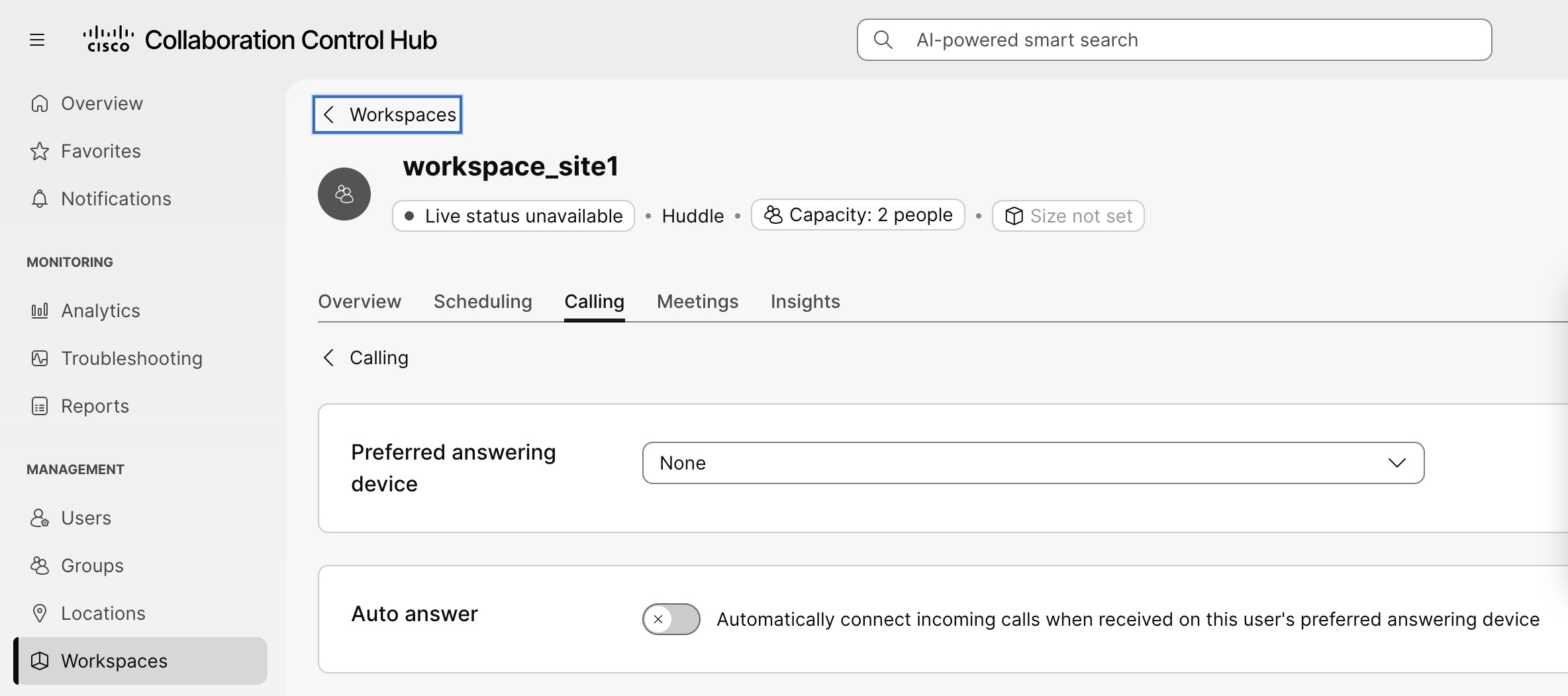
|
| 5 |
By default, the Preferred answering device is set to None. Use the drop-down menu to choose a supported Cisco desk phone. |
| 6 |
Toggle the Auto Answer to on or off. Turn on Auto Answer to enable the feature. Select a Preferred answering device to specify the endpoint that automatically answers eligible incoming calls. If multiple supported devices are available, configure a preferred answering device. |
| 7 |
Click Save. Control Hub confirms that the Auto Answer settings were updated. |
Configure Auto Answer using a Calling template
Create a Calling Template to apply consistent Auto Answer settings to users in bulk.
| 1 |
Sign in to Control Hub. |
| 2 |
Go to . |
| 3 |
Click Create template. |
| 4 |
In General, enter the template name and description. |
| 5 |
In Answer settings, turn on Auto Answer. |
| 6 |
Choose what to prioritize for the target users:
|
| 7 |
By default, Allow users to turn off Auto Answer by choosing None as preferred answering device is turned on. When enabled, the user can turn off Auto Answer by selecting None as the preferred answering device in Webex App or User Hub. Turn off this setting to prevent the user from selecting None and turning off Auto Answer. |
| 8 |
Click Create template and next. |
| 9 |
Search for and choose the groups or locations to which you want to apply the template. |
| 10 |
Click Done. |
Control Hub creates the Calling Template and applies its Auto Answer settings to the selected groups or locations.
Supported devices for Auto Answer
Auto Answer requires a registered device that supports automatic answering.
These devices support Auto Answer:
-
Cisco Multiplatform Phones (MPP)
-
Cisco Desk Phone 9841, 9851, 9861, and 9871
-
Webex App for desktop
-
Polycom devices
-
Yealink devices
-
Supported AudioCodes phones
-
Supported SNOM phones
Auto Answer support varies by device model. The feature may not be available on all models listed in this section.
These devices do not support Auto Answer:
-
RoomOS user endpoints, such as Cisco Desk Pro
-
Webex App for mobile devices, tablets, and WebRTC
-
Analog phones
-
DECT devices
-
Customer-managed and partner-managed devices
Limitations
-
Auto Answer doesn't work when the preferred device is unregistered or doesn't support Auto Answer. Incoming calls follow the regular ringing behavior.
-
Calling Template Auto Answer settings are skipped, if the prioritized device isn't available for the user.
-
Hot desk and non-primary devices aren't supported as preferred answering devices during Calling Template bulk provisioning.
-
Auto Answer doesn't apply to Hunt Groups with simultaneous ringing, user Simultaneous Ring, or Executive Assistant scenarios where the Executive and Assistant are alerted at the same time. These calls continue to ring normally.
-
User Auto Answer and Customer Assist Queue Auto Answer are configured separately. Customer Assist Queue Auto Answer takes precedence over User-level Auto Answer.
-
Auto Answer isn't honored for call-waiting calls.


