
Thanks for your feedback.
Webex App | Schedule a meeting from an action item
 Feedback?
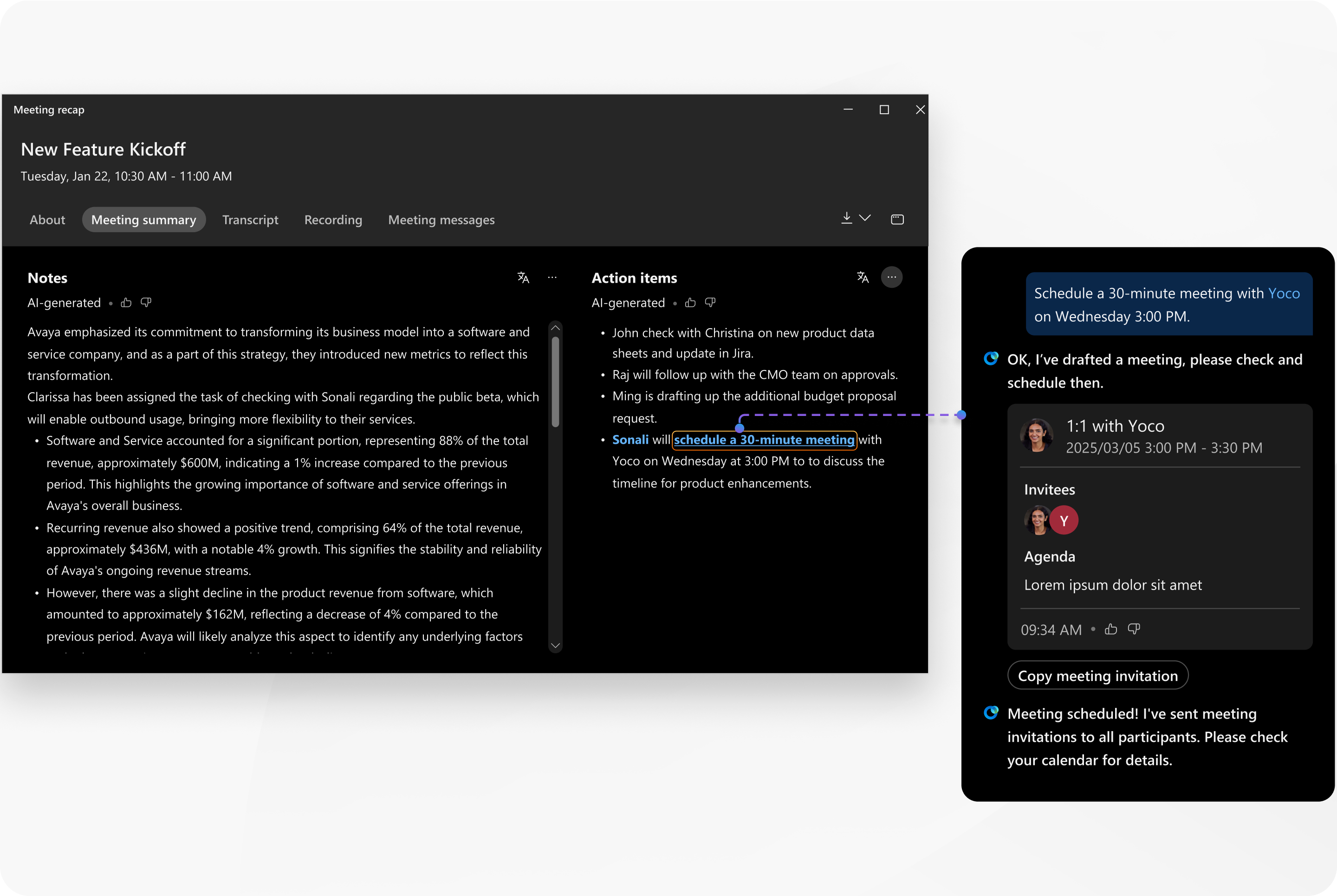
A meeting summary is created when the meeting host turns on Cisco AI Assistant in a meeting.
When you view the meeting summary in Webex App, any action items assigned to you are easy to find—your name is highlighted next to them. If one of your action items is to schedule a meeting, you'll see "schedule a meeting" as a clickable link in the item. Keep in mind that on User Hub or in the email notification about the meeting content, your name won’t be highlighted and the clickable link won’t appear.
If an action item is assigned to someone who wasn’t invited to the meeting, AI Assistant isn't able to identify them, so their name won’t appear in the summary.
If you don't see an action item to schedule a meeting, you can still use AI Assistant to set one up.
Before you begin
This feature is available on our Webex Suite meeting platform. Find out if your meetings use the Webex Suite meeting platform.
| 1 |
Open Webex and sign in. |
| 2 |
Go to |
| 3 |
Locate the meeting and click Meeting summary. |
| 4 |
Under Action items, locate the action item and click schedule a meeting. In the Cisco AI Assistant panel, AI Assistant suggests some meeting details. |
| 5 |
Review the meeting details and let AI Assistant know if you'd like to confirm or make any changes. AI Assistant schedules the meeting. |
| 6 |
Verify that the meeting appears on your calendar and that the invites are sent. |
 Meetings


