
Thanks for your feedback.
 Feedback?
-
Settings and their values are not currently localized in the users configured language.
-
Changing settings at the organization level applies to all locations.
-
For steps on how to customize settings for Cisco Video Phone 8875 and Cisco Desk Phone 9800 Series, see Configure phone settings on Control Hub.
| 1 |
Sign in to Control Hub. |
| 2 |
In the Services menu, go to |
| 3 |
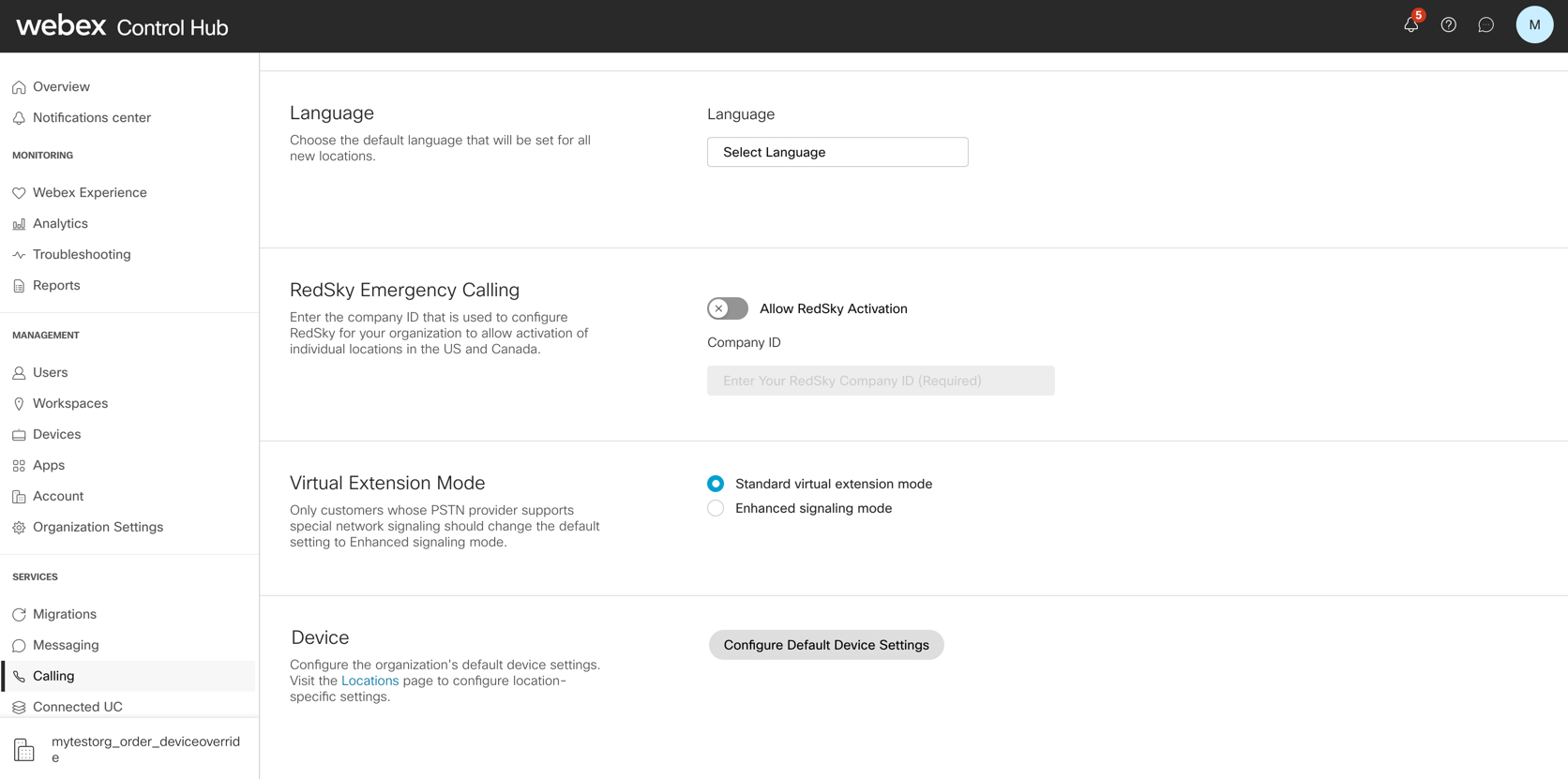
In the Device section, click Configure Default Device Settings.
|
| 4 |
Select type of device from the drop-down menu, such as MPP, ATA, DECT or third-party devices. 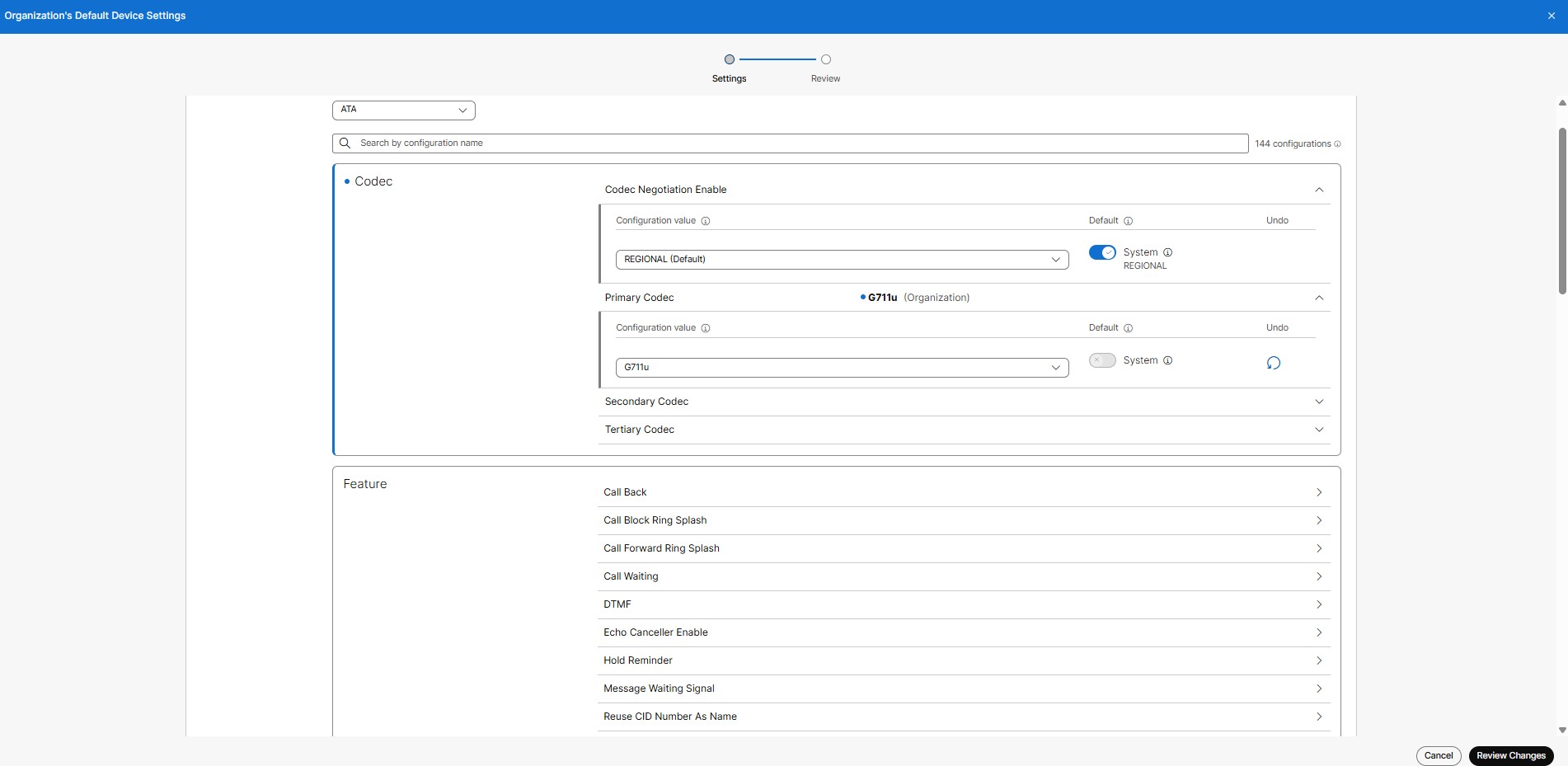
|
| 5 |
Update the required device settings and click Review changes . Use tooltip next to the setting to view its definition.
|
| 6 |
Click Start Processing. Devices with custom settings that override organization or location defaults will not be updated. Once the process begins, you can track progress on the Tasks page. Device settings will be locked until the update is complete. |
What to do next
After the process is completed, resync the devices from Control Hub, or have users resync their devices from the device settings menu for the changes to take effect.
-
Settings and their values are not currently localized in the users configured language.
-
Time and date are set by the location address and timezone selected. You can only configure time and date from the local device.
-
For steps on how to customize settings for Cisco Video Phone 8875 and Cisco Desk Phone 9800 Series, see Configure phone settings on Control Hub.
| 1 |
Sign in to Control Hub. |
| 2 |
Go to |
| 3 |
Select the location you want to update. |
| 4 |
Select the Calling tab, and click Manage next to Device management . 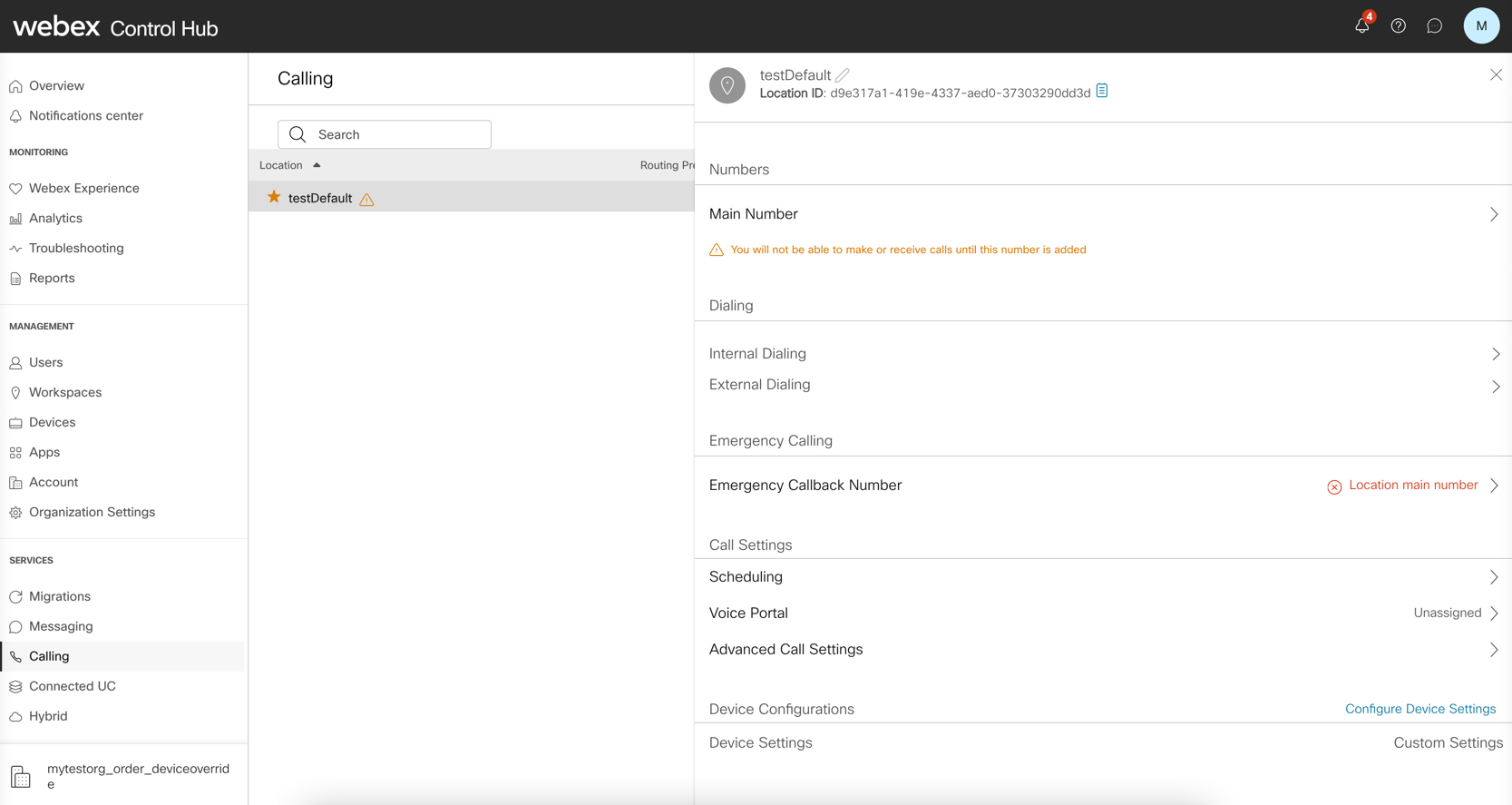
|
| 5 |
Select type of device from the drop-down menu, such as MPP, ATA, DECT or third-party devices.
|
| 6 |
Update the required device settings and click Review changes . Use tooltip next to the setting to view its definition.
|
| 7 |
Click Start Processing. Devices with custom settings that override organization or location defaults will not be updated. Once the process begins, you can track progress on the Tasks page. Device settings will be locked until the update is complete. |
What to do next
After the process is completed, resync the devices from Control Hub, or have users resync their devices from the device settings menu for the changes to take effect.
In Control Hub, configure settings on the device level for device modifications.
Control Hub configurations override manual configurations on devices.
Before you begin
-
Devices resync after business hours, with the configuration applied to the device.
-
Configuration to devices are only valid until the next scheduled resync.
-
Settings and their values are not currently localized in the users configured language.
-
Time and date are set by the location address and timezone selected. You can only configure time and date from the local device.
-
For steps on how to customize settings for Cisco Video Phone 8875 and Cisco Desk Phone 9800 Series, see Configure phone settings on Control Hub.
| 1 |
Sign in to Control Hub. |
| 2 |
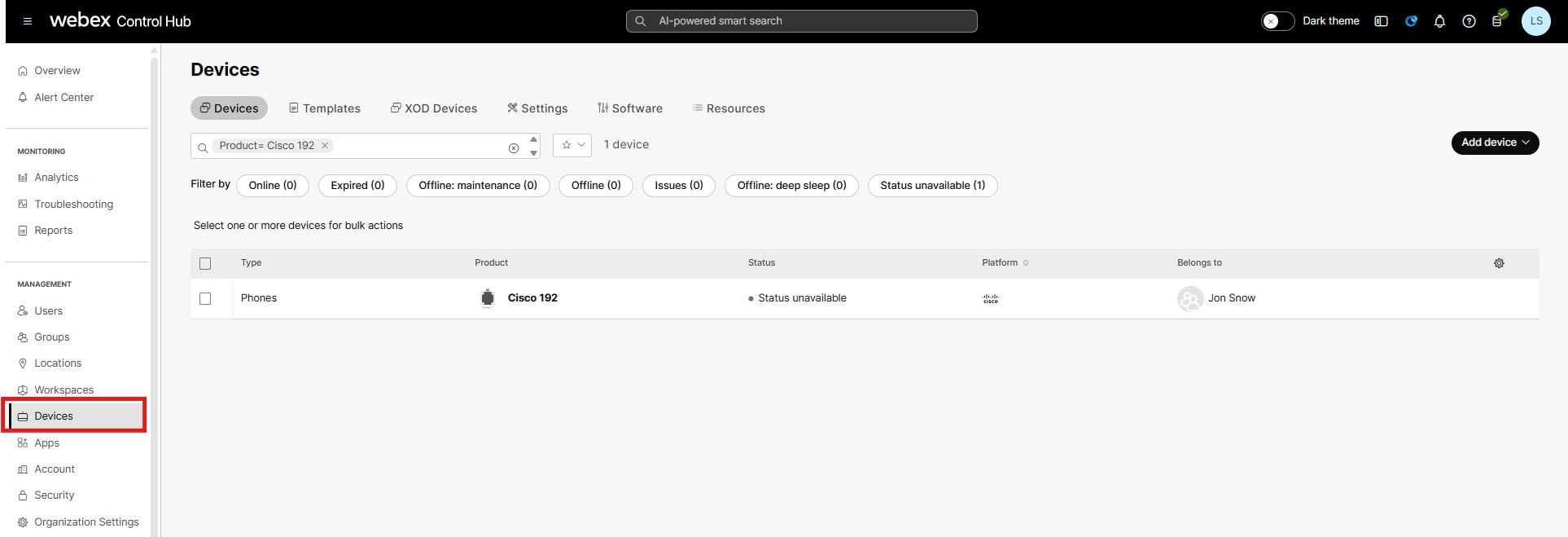
Go to , select the device you want to configure. You can search the required device by selecting status or giving search
criteria in the search drop-down.
 |
| 3 |
Click All Configurations. |
| 4 |
Configure the desired parameters in the respective device settings. In Search by configuration name field, select the
device setting from drop-down menu or enter the name of a specific device
setting that you want to configure.
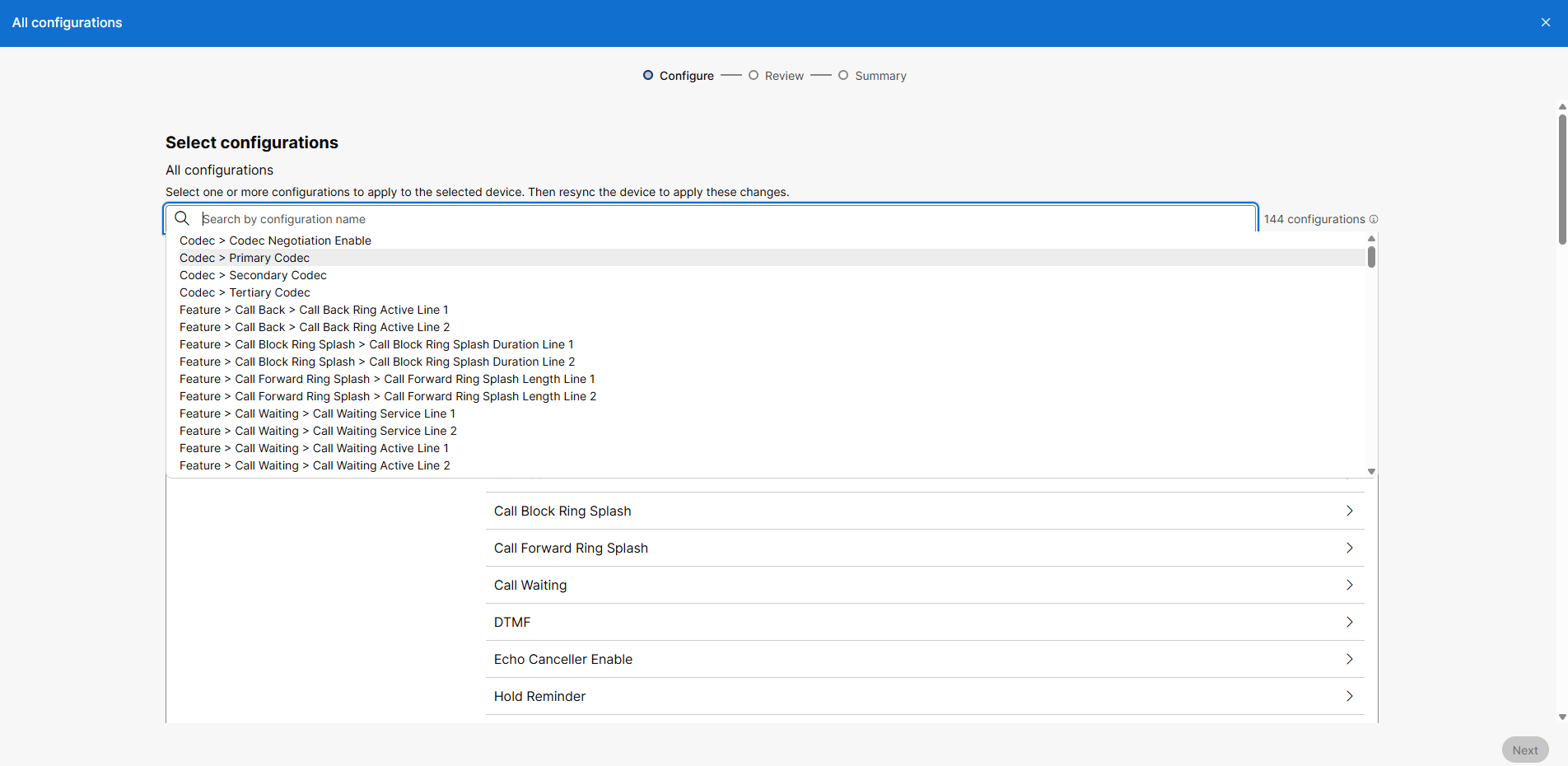
Use tooltip next to the setting to view its definition.
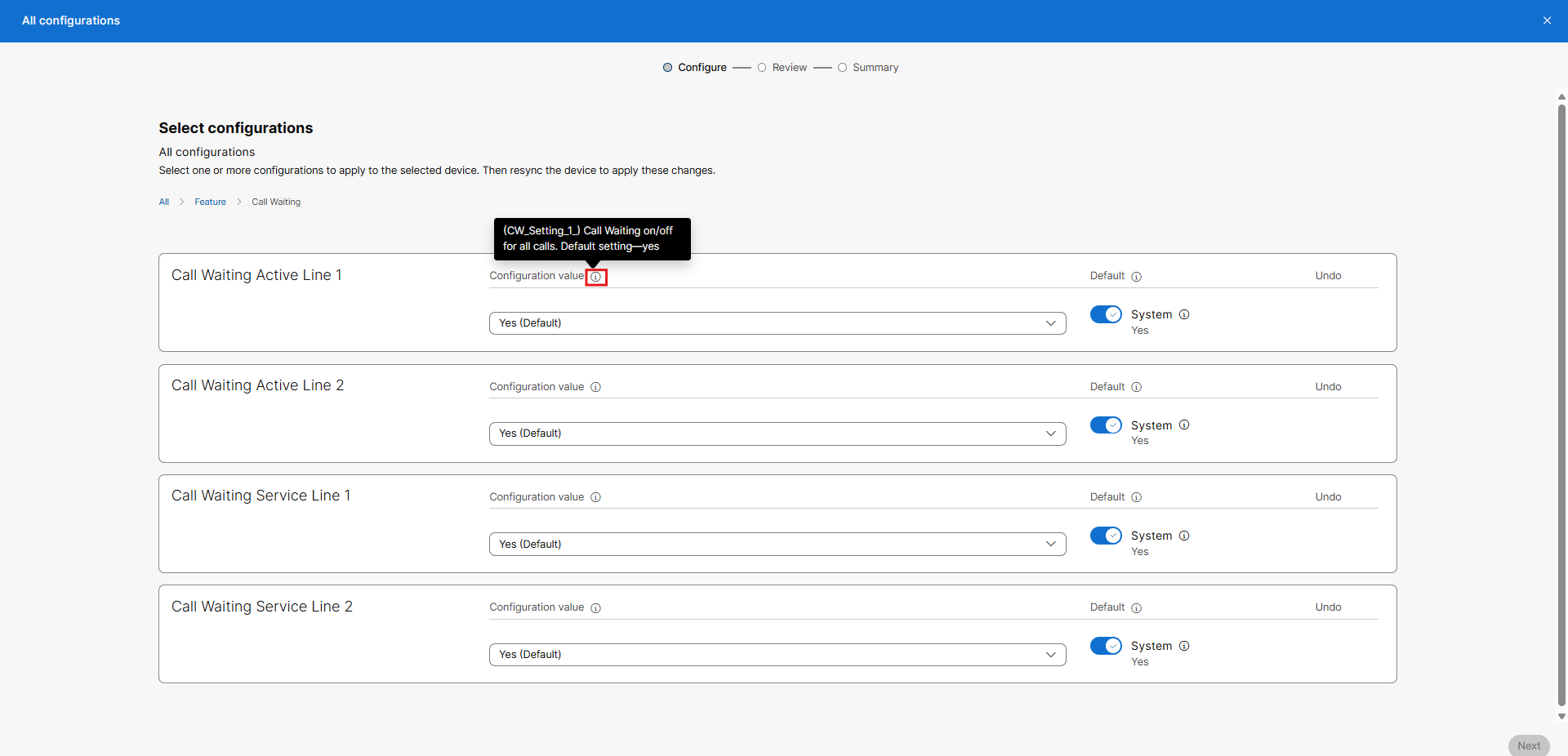
|
| 5 |
Click Next. |
| 6 |
On Review screen, check the configuration changes and click Apply. You can also click on Edit or
Delete icons, to take necessary action.
|
| 7 |
On Summary page, view the changes applied and click Done to close the page. |
|
802.1X |
Enable or disable Port-based Network Access Control for devices. Misconfiguration of devices can cause devices to lose contact with the network. This requires you to revert your changes and do a local factory reset of the devices to bring them back online. |
|
Accessibility voice feedback |
Sets the availability of the Voice Feedback service on the phone. |
|
ACD |
Choose the location of the Call Queue Agent login or logout Softkey on MPP devices. This parameter isn’t supported for MPP 8875 devices. |
|
Active Call Focus |
Controls the default screen behavior when inbound calls are received. |
|
Audio Codec Priority |
Choose from one of the three predefined codec priority schemes available for your region. We recommend consulting a Certified Cisco Voice engineer before making changes and to avoid any impact to voice quality. |
|
Background Image |
Choose from the image options or select None to use the phone default background. This option only works on phones that have a 800x480 screen size. The maximum file size should be 640 KB. |
|
Backlight Timer |
Controls the use of the Backlight feature on 6800 and 7800 Series devices. |
|
Bluetooth Menu |
Controls the use of the Bluetooth option and mode on the phone. |
|
Call Forward Expanded Softkey |
Sets the default Call Forward Softkey behavior between the multiple menu option and single option versions. |
|
Calls per Line Limit |
Controls the number of calls supported for each unique line appearance on the phone. |
|
Cisco Discovery Protocol (CDP) |
This parameter allows you to enable or disable CDP for local devices. Misconfiguration of devices can cause the devices to lose contact with the network. This requires you to revert your changes and do a local factory reset of the devices to bring them back online. |
|
Default Volume Settings |
Choose the desired volume level for the MPP devices. |
|
Default logging level |
Choose the desired logging level for the MPP devices. The debugging level may affect the performance of the phone and it’s advisable to use it only during troubleshooting. |
|
Dial Assist |
Sets the ability to use the Dial Assist feature on the phone. |
|
Display Name |
Displays the user name, user phone number, or user location number on the phone screen. If the user doesn't have a phone number, then the location number displays. |
|
DND Services |
Enable or disable the Do Not Disturb capability on the MPP phones. |
|
HTTP Proxy |
Displays the number of the HTTP proxy port. The default is 80. |
|
Interdigit Short Timer |
Defines the amount of time that the phone waits for the user to enter a digit. A smaller timer value requires digits to be entered quickly. |
|
Interdigit Long Timer |
Defines the amount of time that the phone waits when no digit patterns match before the phone dials the number. A smaller time value causes unmatched dialed digits to be dialed quickly. |
|
Line Key Label |
Line key labels define the format of what's shown next to line keys. Selecting User Extension or First Name displays the user extension. If the user doesn’t have an extension, then it displays the user's first name. |
|
Line Key LED Pattern |
LED patterns define lightning schemes for the line keys on the MPP device. The line key LED behavior in your multiplatform phones has two optional settings:
The CUSTOM option isn’t supported on Webex Calling. This parameter isn’t supported on the MPP 8875 devices. For more details, see Cisco IP Phone 8800 Series Multiplatform Phone Administration Guide. |
|
Link Layer Discovery Protocol (LLDP) |
Enable or disable the Link Layer Discovery Protocol for local devices. Misconfigured devices can lose contact with the network, requiring that you revert your changes and do a local factory reset of the devices to bring them back online. |
|
Missed Call Notification |
Controls the option to display a visual indication for a missing call. |
|
Monitor list |
Controls whether the user’s monitored lines must appear for ALL devices or only the primary device. Default is OFF where the user's monitor list is shown only for the primary device. |
|
MPP Web Access (User) |
Enable or disable user-level access to the web interface of Multi-Platform Phones. Enabling user web access could result in security issues. |
|
Multicast |
Set up Multicast paging to allow users to page to phones. The page can go to all phones or a group of phones in the same network. Any phone in the group can initiate a multicast paging session. The page is received only by the phones that are set to listen for the paging group. Select up to 10 Multicast Group URLs (each with a unique Listening Port).
Specifying a common use port may adversely affect the device. This parameter isn’t supported on the MPP 8875 devices. |
|
Nightly Resync |
Controls the phone's default behavior regarding the nightly maintenance synchronization with Webex Calling. |
|
Noise Cancellation |
Controls the local active noise cancellation on active calls from the device. |
|
Off-Hook Timer |
Specify the amount of time (in seconds) a phone can remain off-hook. |
|
Passthrough Port |
Controls the use of the computer passthrough Ethernet port on supported phone models. |
|
Peer Firmware Sharing |
The Peer Firmware Sharing feature adds support for image upgrade optimization for the IP Phones. When enabled on a root IP phone, Peer Firmware Sharing designates the phone to make a request for an image file. This establishes a transfer hierarchy and transfers the firmware image file from the root IP phone, down to the other IP phones in the hierarchy. |
|
Phone Language |
Select the language for your MPP phone. Setting this overrides the default language setting in place for your provisioned location. Select from the available languages for your MPP phone. |
|
POE Mode |
Enable or disable the Power-Over-Ethernet mode for Multi-Platform Phones. Misconfigured devices can lose contact with the network, requiring that you revert your changes and do a local factory reset of the devices to bring them back online. |
|
Quality of Service (QOS) |
This parameter allows you to enable or disable tagging of packets from the local device to Webex Calling. |
|
Rear USB Port |
Enable or disable the use of the rear USB port on MPP devices. Disabling this parameter can cause the peripheral devices to stop functioning. This parameter isn’t supported on the MPP 8875 devices. |
|
SIP IP Preference |
SIP IP Preference defines the IP address family (IPv4 or IPv6) the phone will attempt to use first when sending SIP messages. This preference controls the order in which the phone tries the IP addresses resolved from DNS or configured addresses for SIP signaling. |
|
Screensaver |
Specify the inactivity time in seconds before the phone's screen saver turns on. This parameter is supported on MPP 8875 devices. |
|
Show user password menu |
Allows an end user to set a local password on the phone and restrict access to the device. |
|
Softkey Layouts |
Softkey layout configuration allows the administrator to manage softkeys that the Cisco IP Phones support. For details on softkey configuration for Webex Calling phones running MPP firmware, see Programmable Softkeys Configuration. |
|
VLANs |
Specify a numeric VLAN ID for the devices. Misconfigured devices could lose contact with the network, requiring that you revert your changes and do a local factory reset of the devices to bring them back online. |
|
Wifi Network |
Specify the Wi-Fi SSID and password for wireless-enabled MPP phones.
Misconfiguration of devices can cause the devices to lose contact with the network. This requires you to revert your changes and do a local factory reset of the devices to bring them back online. |
|
Webex Meetings |
Enable or disable Webex Meetings on Multi-Platform phones. |
|
USB Ports |
Enable or disable the use of the USB ports on Multi-Platform phones. Disabling this feature may cause peripheral devices to stop functioning.
|
|
XML application URL |
Enter the XML path for the multicast server. This field allows MPP phones to receive pages from an Informacast Fusion server to display a UI element or an image. The "URL is invalid" error is shown for incorrect URL paths. |
|
Attended Transfer Enable |
Attended call transfer service. The user answers the call before transferring it. Perform one of the following:
Valid inputs—Yes and No |
|
Blind Attended Transfer Enable |
This allows a user to perform a blind call transfer, where the call is transferred without speaking to the recipient first. |
|
Blind Transfer Enable |
Blind call transfer service. The user transfers the call without speaking to the caller. Perform one of the following:
Valid inputs—Yes and No |
|
Block Anonymous Call Enable |
This service automatically rejects incoming calls that don’t display caller ID, enhancing call control by blocking anonymous callers on Cisco Multiplatform Phones. |
|
Block CID Enable |
This service allows blocking of the caller ID on outbound calls, preventing the caller's number from being displayed to the call recipient. |
|
Busy Tone |
The busy tone is a call progress tone indicating that the called party is currently busy. |
|
Dialed in Call History Enable |
This feature enables the phone to maintain and display history of the dialed calls, allowing users to view and redial from a list of recent outgoing calls. |
|
Call Park Enable |
Allows a user to call on hold at a designated extension or call park extension so it can be retrieved by another authorized endpoint. Users can park calls and then use feature access codes or softkeys to retrieve them. Call Park Groups enable automatic parking against available extensions within a group. |
|
Call Pick Up Enable |
Enables users to answer calls ringing on another user’s phone within the same pickup group or through directed call pickup using feature access codes. Pickup groups are location-based and allow members to answer calls for others in the group. |
|
Call Pickup Tone |
An audible alert tone is played to notify users when a call pickup event occurs, such as when a call is being answered from another extension or group. |
|
Call Pickup Tone Enable |
Lets a customer override the tone that plays when a call pickup event occurs, such as when they answer a call from another extension or group. |
|
Call Recording Enable |
Allows enabling or disabling of call recording services on the phone, which can capture audio of calls for compliance or quality purposes. |
|
Conference Tone |
A tone played during conference calls to indicate joining or leaving participants or other conference-related events. |
|
Custom CA Rule |
A customizable call authorization rule that manages call access based on authorization codes or other criteria. |
|
Dial Tone |
The audible tone indicating the phone is ready to accept dialing input. |
|
Directory Max Display Records |
Maximum display records for a directory. |
|
Disable Local Name to Header |
Controls the display name in “Directory”, “Call History”, and in the “To” header during an outgoing call. Perform one of the following:
Valid inputs—Yes/No |
|
Display Diversion Info |
Display the diversion information included in the SIP message on LCD or not. Perform one of the following.
|
|
PACK URL |
The URL that instructs the phone to retrieve a Proxy Auto-Configuration
( The parameter configuration takes effect when the Proxy Mode is Auto and Use Auto Discovery (WPAD) is set to No. |
|
PC Port VLAN ID |
Allows you to enter a VLAN ID for the PC port.
|
|
PoE Power Required |
The amount of Power over Ethernet (PoE) power the device requires to operate, which varies by model and attached accessories such as key expansion modules. |
|
Video RTP TOS DiffServ Value |
A setting that defines the Type of Service (TOS) or Differentiated Services Code Point (DSCP) value for video RTP packets to prioritize video traffic on the network. |
|
VLAN ID |
If you use a VLAN without CDP (VLAN is enabled and CDP is disabled), enter a VLAN ID for the IP phone.
Only voice packets are tagged with the VLAN ID. Don’t
use 1 for the VLAN ID.
|
|
Frequency Band |
The wireless frequency band (for example, 2.4 or 5 GHz) used by the device for Wi-Fi connectivity. |
|
Device Administration Menu Enable |
Controls whether to show the Device administration menu on the phone screen. Set this field to Yes to show the menu. Otherwise, set it to No. |
|
Auto Answer Page On Active Call |
A feature that allows the phone to automatically answer a page or intercom call even when the user is already on an active call. |
|
Personal Directory Enable |
Enables the personal address book directory for the phone user. When you disable the directory,
|
|
Network Configuration Menu Enable |
Controls whether to show the Network configuration menu on the phone screen. Set this field to Yes to show the menu. Otherwise, set it to No. Perform one of the following:
Valid inputs—Yes and No. |
|
Proxy Settings Menu Enable |
Enables access to the proxy settings menu on the phone for configuration of SIP or other proxy parameters. |
|
Report Problem Menu Enable |
Controls whether to show the Report problem menu on the phone screen. Set this field to Yes to show the menu. Otherwise, set it to No. When the Status menu is invisible on the phone, the Report problem menu is invisible as well. |
|
Programmable Softkey Enable |
Enables or disables the programmable softkeys. Set this field to Yes to enable the programmable softkeys. |
|
Speed Dial Menu Enable |
Controls whether to show the Speed dials menu on the phone screen. Set this field to Yes to show the menu. Otherwise, set it to No. |
|
Status Menu Enable |
Controls whether to show the Status menu on the phone screen. Set this field to Yes to show the menu. Otherwise, set it to No. |
|
User Preferences Menu Enable |
Controls whether to show the User preferences menu on the phone screen. Set this field to Yes to show the menu. Otherwise, set it to No. |
|
Exec Assistant Key List |
A configurable list of keys or softkeys that support executive and assistant call handling features, such as call push or call initiation. |
|
Idle Key List |
Programmable softkey fields. Enter a string in these fields to configure softkeys that display on the phone screen. You can create softkeys for speed dials to numbers or extensions, vertical service activation codes (* codes), or XML. Configure the PSKs in this format:
When you add a programmable softkey to a softkey list, such as Idle Key List, Missed Call Key List, and so on, the programmable softkey displays on the phone screen. Perform one of the following:
|
|
Replace Unresolved Caller Name with Number |
Controls whether to replace the caller name with the phone number when installed font can’t resolve the full caller name. |
|
Restrict MWI |
Indicates the message waiting indicator lights only for messages on private. Perform one of the following:
Valid inputs—Yes or No |
|
RTP Before ACK |
Allows you to specify whether an RTP session starts before or after an ACK is received from the calling party. Perform one of the following:
Valid inputs—Yes or No |
|
Secondary NTP Server |
The IP address or name of the secondary NTP server used to synchronize its time. You can set a primary NTP server for both IPv4 and IPv6. Perform one of the following:
|
|
Syslog Server |
Specify the server for logging the phone system information and critical events. If both Debug Server and Syslog Server are specified, Syslog messages are also logged to the Debug Server.
|
|
Bandwidth Allowance |
The allocated network bandwidth for the device or call session, which can affect call quality and video resolution. |
|
Video Service Enable |
Enables video calling services on the device, allowing video RTP streams and related features. |
|
Call Waiting Enable |
Enables synchronization of Call Waiting between a specific line and a BroadSoft server. |
|
Directory Name |
Name of the directory. Displays on the phone as a directory choice. Perform one of the following:
|
|
Primary NTP Server |
The IP address or name of the primary NTP server used to synchronize its time. You can set a primary NTP server for both IPv4 and IPv6. Perform one of the following:
|
|
Force NAT64 |
Ensure DNS64 is enabled on the DNS Server. You can check this from the phone log by searching for the keyword ipv4only.arpa. If the phone sends an AAAA query with ipv4only.arpa and gets a response, DNS64 is enabled. When Force NAT64 is enabled, device will use IPv6. |
|
SCA Wait Tone |
This parameter enables playing a call waiting on a shared line device. |
|
Call History |
Sets call history to either use the local device information only or the unified call history from all of the end user's devices. This setting currently only applies to user devices and not workspace devices. |
|
Contacts |
Sets directory services to either use the standard xsi query method from the device or the Webex enterprise directory. Select Yes for Webex directory or No for xsi directory. |
|
Distinctive Ring Patterns |
This setting have ring Cadence 1 to Cadence 9. The cadence script format is: For example, a normal ring cadence might be 60(2/4), it means the ring tone sounds for 2 seconds and silent for 4 seconds, repeating for 60 seconds. Distinctive ring patterns can have multiple on/off segments, such as 60(.2/.2,.2/.2,.2/.2,1/4). This represents a pattern of three short rings followed by a longer ring. |
|
LCD Off > Display Off Idle Timeout |
Set the timeout period for the phone to turn of the screen. Default setting—5. The LCD Off feature is only supported on MPP 8800 devices. |
|
LCD Off > LED Indicator In Display Off Mode |
If set to disable, the Select button's backlight will turn off in display off mode. Default setting—Enabled. |
|
LCD Off > Office Hours Enable |
You can enable or disable office hours. If set to Default setting—False. |
|
LCD Off > Work Days |
Set the workdays, if the Office Hours Enabled is set to True, the phone will
display off on non-working day. Entries must follow the format:
|
|
LCD Off > Working Hours End |
Set the end of the working hours using 24 hours format. Accepted inputs are 00:00 to 23:59. |
|
LCD Off > Working Hours Start |
Set the start of the working hours using 24 hours format. Accepted inputs are 00:00 to 23:59. |
|
ICE |
Controls the option to allow SIP media stream to go direct between phones on the same local network. Default setting—Yes. |
|
DF Disable |
Controls whether an IP packet can be fragmented. When the parameter is set to Yes, the Don't Fragment (DF) bit is disabled. In this case, the network can fragment the IP Packet. This is the default behavior. When the parameter is set to No, the Don't Fragment (DF) bit is enabled. In this case, the network can't fragment the IP Packet. This setting doesn't allow fragmentation in cases where the receiving host doesn’t have the sufficient resources to reassemble internet fragments. Default setting—Yes. |
|
Hold Reminder Ring |
It specified the ring pattern used as a reminder for a call that in on hold when the call in on-hook. This feature provides an audible alert (ring splash) to notify the user that there is call currently on hold. |
|
Off Hook Timer |
Specify the amount of time a phone can remain off-hook. Default setting—30. |
|
Call appearances per line |
Controls the number of calls per unique line appearance on the phone. Default setting—6. |
|
Directory > Disable Local Name to Header |
Controls the display name in Directory, Call History, and To header during an outgoing call. Perform one of the following:
Default setting—No. |
|
Ringtone |
Select from any of the preloaded ringtone options. |
|
Messages Button |
Configures a voicemail portal number for the Messages button. Valid input—A string up to 79 characters. |
|
IP mode override |
Controls whether an administrator can override the defined IP mode. In preserve-value mode, the device uses the defined setting. In override mode, an administrator can override the defined setting. Valid inputs— |
|
IP mode |
Configures the device to use IPv4 only, IPv6 only, or dual-stack mode. Set IP mode override to Valid inputs— |
|
Dial plan |
Defines how the phone interprets, matches, and transmits dialed digits. Valid input—A regular-expression string up to 2,047 characters. |
|
Hold Reminder Timer |
Sets the delay before a ring splash plays on an active call when another call is on hold. Valid inputs—0–60 seconds. This setting is currently available only in SI. |
|
Time Format |
Choose whether the phone displays time in a 12-hour format (for example, 2:30 PM) or a 24-hour format (for example, 14:30). |
|
Auto Collapse into Line Key Enable |
When you make or answer a call, the active call window minimizes. Call details, such as the caller or callee name, number, call duration, call state, and icons for features such as secure calls or call recording, appear in the line label. This lets you view the status of other lines and BLF/SD features along with the current call information. During multiple calls, the line icon switches between the call count and the current call icon. |
| Type | Settings | Description |
|---|---|---|
| Codec |
Codec Negotiation Enable |
Enables Custom Codec Negotiation. Values are:
Set to CUSTOM in order to set primary, secondary, and tertiary tags. |
|
Primary Codec |
Select primary codec. WARNING - Primary, secondary, and tertiary codec cannot be the same values. Set Codec Negotiation Enable to CUSTOM in order to set primary, secondary, and tertiary tags. |
|
|
Secondary Codec |
Select secondary codec. WARNING - Primary, secondary, and tertiary codec cannot be the same values. Set Codec Negotiation Enable to CUSTOM in order to set primary, secondary, and tertiary tags. |
|
|
Tertiary Codec |
Select tertiary codec. WARNING - Primary, secondary, and tertiary codec cannot be the same values. Set Codec Negotiation Enable to CUSTOM in order to set primary, secondary, and tertiary tags. |
|
| Feature |
Call Back > Call Back Ring Active Line |
Ring pattern for call back notification. Default setting—7 |
|
Call Block Ring Splash |
Duration of ring splash when a call is blocked (0 – 10.0s) Default setting—0 |
|
|
Call Forward Ring Splash |
Duration of ring splash when a call is forwarded (0 – 10.0s) Default setting—0 |
|
|
Call Waiting |
Call Waiting on/off for all calls. Default setting—yes |
|
|
DTMF > DTMF Process AVT |
To use the DTMF process AVT feature, select yes. Otherwise, select no. Default setting—yes |
|
| DTMF > DTMF Transfer Mode |
DTMF Detection Tx Mode is available for SIP information and AVT. Options are: Strict or Normal. Default setting—Strict for which the following are true:
|
|
|
DTMF > DTMF Transfer Method |
Select the method to transmit DTMF signals to the far end: InBand, AVT, INFO, or Auto.
|
|
|
Echo Canceller Enable |
To enable the use of the echo canceller, select yes. Otherwise, select no. Default setting—yes |
|
|
Hold Reminder |
Ring pattern for reminder of a holding call when the phone is on-hook. Default setting—8 |
|
|
Message Waiting Signal |
Setting this value to yes can activate stutter tone and VMWI signal. This parameter is stored in long term memory and will survive after reboot or power cycle. Default setting—no |
|
|
Reuse CID Number As Name |
Use the Caller ID number as the caller name. Default settings: yes |
|
|
Silence Suppression Enable |
To enable silence suppression so that silent audio frames are not transmitted, select yes. Otherwise, select no. Default setting—no |
|
|
Silence Threshold |
Select the appropriate setting for the threshold: high, medium, or low. Default setting—medium |
|
|
Voice Mail > Ring On No New Voice Mail Line |
The parameter controls when a ring splash is played when a the VM server sends a SIP NOTIFY message to the ATA indicating the status of the subscriber's mail box. You can set voice mail line 1 and line 2. Following three settings are available:
Default setting—New VM Available |
|
|
Voice Mail > Voice Mail Waiting Indicator Refresh Interval |
Interval between VMWI refresh to the device. Range: 0–65535 seconds. Default setting—0 |
|
|
Voice Mail > Voice Mail Waiting Indicator Ring Policy Line |
Duration of ring splash when new messages arrive before the VMWI signal is applied (0 – 10.0s). Default setting—0 |
|
|
Voice Mail > Voice Mail Waiting Indicator Ring Splash Length Line |
Duration of ring splash when new messages arrive before the VMWI signal is applied (0 – 10.0s). Default setting—0 |
|
| Logging |
Debug Enable |
Enable debug level. |
|
Syslog Server |
The IP address (in dotted-decimal notation) of the computer you are using to run the Syslog server. |
|
|
Modules |
Value that indicates the debug flag of modules:
|
|
| Network |
Time Server |
IPv4 address or domain name of an NTP server. Valid inputs—IPv4 address or domain name Default—0.ciscosb.pool.ntp.org |
|
CDP ENABLE |
Enables or disables Cisco Discovery Protocol (CDP). Valid inputs are 0 and 1. 0 means that the CDP is disabled. 1 means that the CDP is enabled.
Misconfiguration could cause local devices to lose contact with the network. WARNING, setting this option incorrectly may cause devices to become disconnected from the network and require a local factory reset of the device to bring it back online. |
|
|
LLDP ENABLE |
Enables or disables Link Layer Discovery Protocol (LLDP) Valid inputs are 0 and 1. 0 means that the LLDP is disabled. 1 means that the LLDP is enabled.
Misconfiguration could cause local devices to lose contact with the network. WARNING, setting this option incorrectly may cause devices to become disconnected from the network and require a local factory reset of the device to bring it back online. |
|
|
Web Utility Access HTTP(S) |
Controls user level web access to the local device. |
|
|
Flow Control |
Enables or disables flow control. User Interface—Interface Setup > Advanced Settings > Port Setting page, Flow Control field. Values are: 0—Disabled and 1—Enabled Default—1 |
|
|
Speed Duplex |
The port speed and duplex mode. User Interface—Interface Setup > Advanced Settings > Port Setting page, Speed Duplex field. Values are: auto, 10h, 10f, 100h, and 100f. Default—auto Example—100 Mbps, half-duplex mode 100h |
|
|
QoS Enable |
Enable or disable the QOS tagging of packets from the local device to the Webex Calling platform. |
|
|
Jitter > Jitter Buffer Line |
Choose yes to enable or no to disable this feature. Default setting—yes |
|
|
Jitter > Jitter Level Line |
Determines how jitter buffer size is adjusted by the ATA. Jitter buffer size is adjusted dynamically. The minimum jitter buffer size is 30 milliseconds or (10 milliseconds + current RTP frame size), whichever is larger, for all jitter level settings. However, the starting jitter buffer size value is larger for higher jitter levels. This setting controls the rate at which the jitter buffer size is adjusted to reach the minimum. Select the appropriate setting: low, medium, high, very high, or extremely high. There are Jitter Level Line 1 and 2. Default setting—high |
|
|
Modem |
Enable an alternate method to make the modem call without Modem Line Toggle Code pre-dialing. Default setting: 0 |
|
|
RTP > RTP CoS Value |
CoS value for RTP data. Valid values are 0 through 7. Default setting—6. |
|
|
RTP > RTP TOS DiffServ Value |
ToS/DiffServ field value in IP packets carrying RTP data. Default setting: 0xb8 |
|
|
SIP > Refer Target Bye Delay Line |
The number of seconds to wait before sending a BYE to the refer target to terminate a stale call leg after a call transfer. |
|
|
SIP > Referee Bye Delay Line |
The number of seconds to wait before sending a BYE to the referee to terminate a stale call leg after a call transfer. |
|
|
SIP > Referor Bye Delay Line |
The number of seconds to wait before sending a BYE to the referrer to terminate a stale call leg after a call transfer. |
|
|
SIP > SIP CoS Value |
CoS value for SIP messages. Valid values are 0 through 7. Default setting—3 |
|
|
SIP > SIP TOS DiffServ Value |
TOS/DiffServ field value in IP packets carrying a SIP message. Default setting: 0x68 |
|
|
SNMP > Auth Password |
Password for SNMPv3 authentication. User Interface—Administration > Management > SNMP page, Auth-Password field for SNMPv3. Valid inputs—string. Default—1111111111. Example—MyPassword. |
|
|
SNMP > Auth Protocol |
SNMPv3 authentication protocol User Interface—Administration > Management > SNMP page, SNMPV3 section, Auth-Protocol field Valid inputs are: MD5 and SHA. Default—MD5. Example—SHA enabled SHA. |
|
|
SNMP > Get Community Authentication |
A community string for authentication for SNMP GET commands. User Interface—Administration > Management > SNMP page, SNMP section, Get/Trap Community field. |
|
|
SNMP > Set Community Authentication |
A community string for authentication for SNMP GET commands. User Interface—Administration > Management > SNMP page, SNMP section, Set Community field. |
|
|
SNMP > Privacy Password |
Privacy authentication protocol for SNMPv3. User Interface—Administration > Management > SNMP page, SNMPV3 section, privprotocol field. Valid inputs are: None and DES. Default—DES. Example—DES enabled DES. |
|
|
SNMP > Privacy Password |
Privacy authentication password for SNMPv3. User Interface—Administration > Management > SNMP page, SNMPV3 section, Privacy Password field Valid inputs—string Default—1111111111 Example MyPrivacyPassword |
|
|
SNMP > SNMP Enabled |
Enables or disables SNMP User Interface—Administration > Management > SNMP page, SNMP section, Enabled and Disabled options. Valid inputs are: 0—Disabled and 1—Enabled. |
|
|
SNMP > SNMP Trusted IP |
Trusted v4 IP address that can access the ATA through SNMP. User Interface—Administration > Management > SNMP page, SNMP section, Trusted IP field. Valid inputs—IPv4 address and subnet mask in this order: 0.0.0.0/0.0.0.0. |
|
|
SNMP > SNMP User |
A username for SNMP authentication. User Interface—Administration > Management > SNMP page, SNMPV3 section, R/W User field. Valid inputs—username Default—v3rwuser Example—MyUsername |
|
|
SNMP > SNMPV3 |
User Interface—Administration > Management > SNMP page, SNMPV3 section, Enable and Disable fields. Valid inputs are: 0—Disabled and 1—Enabled |
|
|
SNMP > TRAP > TRAP IP Address |
The IP Address of the SNMP manager or trap agent. User Interface—Administration > Management > SNMP page, Trap Configuration section, IP Address field. Valid inputs—IPv4 address Default—192.168.15.100 Example—209.165.202.129 |
|
|
SNMP > TRAP > TRAP Port |
The SNMP trap port used by the SNMP manager or trap agent to receive the trap messages. User Interface—Administration > Management > SNMP page, Trap Configuration section, Port field Valid inputs—162 or 1025~65535 Default—162 |
|
|
SNMP > TRAP > TRANP SNMP Version |
The SNMP version in use by the SNMP manager or trap agent. User Interface—Administration > Management > SNMP page, Trap Configuration section, SNMP Version field. Valid inputs—One of the SNMP version number listed below:
Default—v1 |
|
|
VLAN > WAN VLAN ID |
A number that identifies the VLAN. User Interface—NetworkSetup > AdvancedSettings > VLAN page, VLAN ID field. Valid inputs are—1~4094.
Setting this parameter incorrectly may cause devices to become disconnected from the network and require a local factory reset of the device to bring it back online. |
|
|
VLAN > WAN VLAN Enable |
Enables or disables a VLAN on your network. User Interface—NetworkSetup > AdvancedSettings > VLAN page, Enable VLAN field Valid inputs are: 0—Disabled and 1—Enabled. |
|
| Phone settings |
Callee On Hook Delay |
This is the on-hook time required before the analog telephone adapter will tear down the current inbound call. The range is 0 seconds to 255 seconds. |
|
Reorder Delay |
Delay after far end hangs up before reorder tone is played.
|
|
|
Call Back Expires |
Expiration time in seconds of a call back activation. Range: 0–65535 seconds. Default setting—1800 |
|
|
Call Back Retry Interval |
Call back retry interval in seconds. Range: 0–255 seconds. Default setting—30 |
|
|
Call Back Delay |
Delay after receiving the first SIP 18x response before declaring the remote end is ringing. If a busy response is received during this time, the ATA still considers the call as failed and keeps on retrying. Range: 0–65 seconds Default setting—0.5 |
|
|
Interdigit Short Timer |
Short timeout between entering digits when dialing. The Interdigit_Short_Timer is used after any one digit, if at least one matching sequence is complete as dialed, but more dialed digits would match other as yet incomplete sequences. Range: 0–64 seconds. Default setting—3 |
|
|
FXS Port Impedance |
Sets the electrical impedance of the PHONE port. Choices are: 600, 900, 600+2.16uF, 900+2.16uF, 270+750 |
|
|
Interdigit Long Timer |
Long timeout between entering digits when dialing. The interdigit timer values are used as defaults when dialing. The Interdigit_Long_Timer is used after any one digit, if all valid matching sequences in the dial plan are incomplete as dialed. Range: 0–64 seconds. |
|
|
MAC Address Clone Enabled |
Enables or disables MAC address cloning. User Interface—InterfaceSetup > AdvancedSettings > MAC Address Clone page, MAC Clone field Values are: 0—Disabled and 1—Enabled. Default—0 Example—MAC clone enabled 1 |
|
|
Nightly Resync |
Allows the automatic nightly configuration resync of the MPP device to be disabled.
By disabling the nightly resync, any configuration changes to the phone will not be applied unless a manual Apply Changes request is issued from Control Hub or if the phone is manually rebooted. |
|
|
Hook Flash > Hook Flash Timer Minimum |
Minimum on-hook time before off-hook qualifies as hook flash. Less than this the onhook event is ignored. Range: 0.1–0.4 seconds. Default setting—0.1 |
|
|
Hook Flash > Hook Flash Timer Maximum |
Maximum on-hook time before off-hook qualifies as hook flash. More than this the onhook event is treated as on hook (no hookflash event) Range: 0.4–1.6 seconds. Default setting—0.9 |
|
|
Polarity > Callee Connected Polarity Line |
Polarity after an inbound call is connected: Forward or Reverse. Default setting—Forward |
|
|
Polarity > Caller Connected Polarity Line |
Polarity after an outbound call is connected: Forward orReverse. Default setting—Forward. |
|
|
Polarity > Idle Polarity Line |
Polarity before a call is connected: Forward or Reverse. Default setting—Forward |
|
| Ring |
Ring Voltage |
Ringing voltage. Choices are 60–90 (V) |
|
Ring Waveform |
Waveform for the ringing signal. Choices are Sinusoid or Trapezoid. Default setting—Sinusoid |
|
| Security |
Custom CA |
The URL of a file location for a custom Certificate Authority (CA) certificate. Either the IP address or the FQDN of the server can be specified. The file name can have macros, such as $MA, which expands to the ATA MAC address. Default setting—blank. |
|
Custom CA URL |
The URL of a file location for a custom Certificate Authority (CA) certificate. Either the IP address or the FQDN of the server can be specified. The file name can have macros, such as $MA, which expands to the ATA MAC address. |
|
|
Conference Act Code |
If this code is specified, the user must enter it before dialing the third party for a conference call. Enter the code for a conference call. Default setting—blank. |
|
| Tone |
Call Forward Dial Tone |
Played when all calls are forwarded. Default setting—350@-5,440@-5;2(.2/.2/1+2);10(*/0/1+2) |
|
Holding Tone |
Informs the local caller that the far end has placed the call on hold. Default setting—600@-5;*(.1/.1/1,.1/.1/1,.1/9.5/1) |
|
|
Secure Call Indication Tone |
Played when a call has been successfully switched to secure mode. It should be played only for a short while (less than 30 seconds) and at a reduced level (less than -19 dBm) so it does not interfere with the conversation. Default setting—397@-5,507@-5;15(0/2/0,.2/.1/1,.1/2.1/2) |
|
|
Feature Invocation Tone |
Played when a feature is implemented. Default setting—350@-4;*(.1/.1/1) |
|
|
Call Remind Tone |
The holding tone is played on the Phone ports during the active call to remind you of the held call. Default setting: blank |
|
|
Conference Tone |
Played to all parties when a three-way conference call is in progress. Default setting—350@-5;20(.1/.1/1,.1/9.7/1) |
|
|
Dial Tone |
Prompts the user to enter a phone number. Reorder Tone is played automatically when Dial Tone or any of its alternatives times out. Default setting—350@-5,440@-5;10(*/0/1+2) |
|
|
Busy Tone |
Played when a 486 RSC is received for an outbound call. Default setting—480@-5,620@-5;10(.5/.5/1+2) |
|
|
Reorder Tone |
Played when an outbound call has failed, or after the far end hangs up during an established call. Reorder Tone is played automatically when Dial Tone or any of its alternatives times out. Default setting—480@-5,620@-5;10(.25/.25/1+2) |
|
|
MWI Dial Tone |
Played instead of the Dial Tone when there are unheard messages in the caller's mailbox. Default setting—350@-5,440@-5;2(.1/.1/1+2);10(*/0/1+2) |
|
|
Cadence > Ring Cadence |
Cadence script for distinctive ring. There are Ring Cadence from ring 1 to ring 8. Default setting—60(0.25/9.75) |
|
|
Cadence > CWT |
Cadence script for distinctive CWT. There are CWT 1 to CWT 8 cadence. Default setting—30(.3/9.7) |
|
|
Ring Back |
Played during an outbound call when the far end is ringing. Default setting: 440@-19,480@-19;*(2/4/1+2) |
|
|
SIT |
Alternative to the Reorder Tone played when an error occurs as a caller makes an outbound call. The RSC to trigger this tone is configurable on the SIP screen. There are SIT 1 and SIT 2 tones. Default setting—985@-4,1428@-4,1777@-4;20(.380/0/1,.380/0/2,.380/0/3,0/4/0) |
In the Default Value column of the following settings table, some parameters are listed
with Empty as default value. If a parameter hasn’t been previously
configured from Webex or the device CLI command, it uses the device’s factory default
value. If the parameter is configured before, either from Webex or the device CLI, the
parameter with an Empty value retains the last configured valid
value.
|
Settings |
Default value |
Description |
|---|---|---|
|
Preferred Codec |
G711u or G711a |
This parameter specifies the primary codec that the Voice Gateway (VG4xx ATA) should use for audio compression and transmission during calls. The preferred codec is chosen based on its balance of audio quality and bandwidth usage (for example, G.711, G.729). If the preferred codec is unavailable, the device may fall back to secondary codecs if configured.
The Preferred Codec is based on per region. So the default system Tag value reflects what region they are in as its a Per Region Tag. For example, USA location preferred codecs are :
For UK or Europe location Preferred codecs are :
|
|
Second Preferred Codec |
G711u or G711a |
This parameter specifies the second-choice codec that the Voice Gateway (VG4xx ATA) should use for audio compression and transmission during calls. If the primary (preferred) codec is unavailable, it is used as a fallback option. This ensures continued call functionality with an alternative codec that maintains a balance between audio quality and bandwidth efficiency. |
|
Third Preferred Codec |
G729a |
This parameter specifies the third-choice codec that the Voice Gateway (VG4xx ATA) should use for audio compression and transmission during calls. It acts as a fallback option if both the primary (Preferred_Codec_1_) and secondary (Second_Preferred_Codec_1_) codecs are unavailable. This ensures robust codec selection to maintain communication in diverse network conditions. |
|
Settings | Default value |
Description |
|---|---|---|
|
Time Server |
IPv4 address or domain name of an NTP server. Valid inputs—IPv4 address or domain name | |
|
Web > Enable protocol |
|
Enables Valid inputs— |
|
Web > Enable Web Server |
Yes |
Enables access to the VG4xx ATA's web interface. Set this parameter to Yes by default to allow users or administrators to access the VG4xx ATA's web interface. |
|
Settings | Default value |
Description |
|---|---|---|
|
Modem passthrough |
Empty |
This is a system level setting to implicitly enable or disable the NSE-based Modem Passthrough feature on Voice Gateway (VG4xx ATA) based on the VBD Codec of G711ulaw, G711alaw, or none being passed as an input. Valid inputs—G711ulaw, G711alaw, or Empty |
|
Settings | Default value |
Description |
|---|---|---|
|
Phone settings > Modem Passthrough |
Empty |
This is a port or extension level setting to implicitly enable or disable NSE-based Modem Passthrough feature on Voice Gateway (VG4xx ATA) based on the VBD Codec of G711ulaw or G711alaw or none being passed as an input. Valid inputs—G711ulaw, G711alaw, or Empty |
|
Phone settings > Interdigit Timeout |
4 |
This is a port or extension level setting that allows the user to configure the number of seconds for which the system waits (after the caller inputs the initial digit) for the caller to input a subsequent digit of the dialed digits. Valid inputs—0–120 seconds |
|
Phone settings > Initial Timeout |
Empty |
This is a port or extension level setting that allows the user to configure the initial timeout which is the time to wait for the first digit after the user picks up the phone or goes off-hook. Valid inputs—0–120 seconds |
|
Phone settings > Call Disconnect Timeout |
Empty |
This is a port or extension level setting that allows the user to configure the time for which the voice port remains connected after the Calling party stop responding. Valid inputs—0–120 seconds or infinity |
|
Phone settings > Power Denial Timeout |
Empty |
This is a port or extension level setting that allows the user to set the duration of the power denial that the Voice Gateway (VG4xx ATA) applies to the FXS port when a call disconnects. During the power denial duration, the caller hears silence. Valid inputs—0-2500 |
|
Phone settings > Ringing Timeout |
Empty |
This is a port or extension level setting on the Voice Gateway(VG4xx ATA) that allows the user to set the timeout duration for the ringing of an incoming call. This setting governs how long the phone rings before considering the call unanswered. Valid inputs—5-60000 or infinity |
|
Phone settings > Wait Release Timeout |
Empty |
This is a port or extension level setting on the Voice Gateway(VG4xx ATA) that allows the user to set the timeout duration to wait for a call to fully release after disconnection. Applicable during call termination scenarios where resources need to be freed up. Valid inputs—1-3600 or infinity |
|
Phone settings > DTMF Duration |
Empty |
This is a port or extension level setting on the Voice Gateway(VG4xx ATA) that allows the user to set the dual-tone multi-frequency (DTMF) digit signal duration for handling individual digits entered during dialing at the designated voice port. Valid inputs—50-5000 |
|
Phone settings > Interdigit Timing |
Empty |
This is a port or extension level setting on the Voice Gateway(VG4xx ATA) that allows the user to set the interdigit timing in milliseconds, specifying how much time is configured between two digits being entered. Valid inputs—50-500 milliseconds |
|
Phone settings > Hook Flash Timing |
Empty |
This is a port or extension level setting on the Voice Gateway(VG4xx ATA) that allows the user to set the timing for detecting a hook flash signal. A hook flash is a momentary interruption (within a specific time frame) in the line current or voltage for call switch operations. Valid inputs—<50-1550> <0-400> |
|
Phone settings > Caller ID Enable |
Yes |
This is a port or extension level setting on the Voice Gateway(VG4xx ATA) that allows the user to enable the FXS voice port to send caller-ID information during call setup Valid inputs—Yes or Empty |
|
Phone settings > Voice Activity Detection (VAD) Enable |
Empty |
This is a port or extension level setting to disable or enable the Voice Activity Detection (VAD) function on the Voice Gateway (VG4xx ATA). Enabling VAD optimizes bandwidth usage by sending packets only when voice activity is detected. This setting is enabled by default. Select No to disable VAD. Valid inputs—No or Empty |
|
Phone settings > Echo Canceller Enable |
Empty |
This is a port or extension level setting on the Voice Gateway(VG4xx ATA) that allows the user to enable Echo Canceller which aids in eliminating echo from call audio to improve user experience. When activated during calls, echo cancellation measures active feedback noise and cancels it algorithmically. Default is enable. To disable it, select No. Valid inputs—No or Empty |
|
User preferences > Message Waiting Indicator (MWI) |
Yes |
This is a port or extension level setting on the Voice Gateway(VG4xx ATA) that allows the user to enable Message Waiting Indicator (MWI) to notify users about voicemail when going off-hook through stutter tone. Yes - Enable. Empty - Disable Valid inputs—Yes or Empty |
|
User preferences > Call Progress Tone (CPTONE) |
Empty |
This is a port or extension level setting on the Voice Gateway(VG4xx ATA) that allows the user to set the Call Progress Tone (CPTONE) based on countries or regions as they often have different call progress tones (for example, dial tone or busy tone). So CPTONE configures tones to meet local PSTN requirements. |
|
User preferences > Output Attenuation |
Empty |
This is a port or extension level setting on the Voice Gateway(VG4xx ATA) that allows the user to configure voice output attenuation in decibels (dB). This helps adjust the output volume transmitted by the device to a connected endpoint and can reduce or amplify the volume to address audio clarity issues. Valid inputs—'-6' to '+14' |
|
User preferences > Visual Message Waiting Indicator (VMWI) |
FSK |
This is a port or extension level setting on the Voice Gateway(VG4xx ATA) that allows the user to enable DC voltage or FSK visual message-waiting indicator (VMWI) on an analog FXSLS voice port. Valid inputs—DC voltage or Empty |
|
Settings | Default value |
Description |
|---|---|---|
|
PRT Upload Enable |
Disable |
Specifies whether the device automatically uploads test results to the Product Reporting Tool (PRT) after test execution. When enabled, the system enables automatic upload of test logs, configuration data, and status reports from the VG ATA to the centralized PRT server. When disabled, data uploads are disabled, and results remain stored locally on the device or test system. Valid inputs—Enable or Disable |
|
Debug Level |
off |
The Debug_Level parameter typically offers several choices for the level of debugging with warnings and errors. Valid inputs—off, info, or debug |
|
Daylight Savings Time > Daylight Saving Time Rule |
|
Enter the rule for calculating daylight saving time. This rule is comprised of three fields. Each field is separated by a semicolon (;). Optional values inside brackets [ ] are assumed to be 0 if they aren’t specified. Midnight is represented by colons. For example, 0:0:0 of the given date. This is the format of the rule: Start = ; end=; save = . The end values specify the start and end dates and times of daylight saving time. Each value is in this format: / / [/HH:[mm[:ss]]]. The value is the number of hours, minutes, and/or seconds to add to the current time during daylight saving time. The value can be preceded by a negative (-) sign if subtraction is desired instead of addition. The value is in this format: [/[+. |
|
Quality of Service (QOS) |
Enable or disable quality of service tagging of packets from the local device to Webex Calling. |
|
Enable or Disable CDP & LLDP |
Enable or disable Cisco Discovery Protocol and Link Layer Discovery Protocol for local devices. Misconfigured devices can lose contact with the network, requiring that you revert your changes and do a local factory reset of the devices to bring them back online. |
|
Nightly Resync |
Controls the phone's default behavior regarding the nightly maintenance synchronization with Webex Calling. |
|
Set the Hoteling Guest Association Timer |
Choose the duration (in hours) of Hoteling guest login. |
|
Set a VLan |
Specify a numeric Virtual LAN ID for devices. Misconfigured devices can lose contact with the network, requiring that you revert your changes and do a local factory reset of the devices to bring them back online. |
|
DECT 6825 Top Button |
Specify the destinaton number to be dialed from the DECT Handset top button when pressed. Excessive misdials to emergency service numbers may result in penalties or fines. |
|
Web Access |
Allows or blocks the access to the phone administration pages:
When set to No, the web page for administrator is inaccessible. Only the web page for user is accessible. To allow access to the administration web page after the access is blocked, perform a factory reset from the phone. |
|
Choose from a list of predefined Codec Priorities — Coming soon |
Choose up to three predefined codec priority options available for your region. Misconfigured devices can lose contact with the network, requiring that you revert your changes and do a local factory reset of the devices to bring them back online. |
|
Audio Codec Priority |
Choose from one of the three predefined codec priority schemes available for your region. We recommend consulting a Certified Cisco voice engineer before making changes and to avoid any impact to voice quality. |
|
Phone Security Password |
Administrators can allow users to protect their MPP phones with a password for added security. Enter the password while booting the phone for the first time, or after the phone is reset to its factory default settings, to prevent unauthorized changes to phone settings. |
|
Lightweight Directory Access Protocol (LDAP) |
Enable or disable the Lightweight Directory Access Protocol. The IP Phone supports LDAP, which allows a user to search a specified LDAP directory for a name, phone number, or both. LDAP-based directories, such as Microsoft Active Directory 2003 and OpenLDAP-based databases, are supported. |
|
Web Access |
Allows or blocks the access to the phone administration pages:
When set to No, the web page for administrator is inaccessible. Only the web page for user is accessible. To access the administration web page again after the access is blocked, perform a factory reset from the phone. |
Poly and Yealink devices are available as Webex Calling managed devices. To configure these third-party device settings, see the following:
-
To configure an AudioCodes device, see https://www.audiocodes.com/solutions-products/products/ip-phones
-
To configure a Yealink device, see https://support.yealink.com/en/portal/knowledge
-
To configure a Poly device, see https://docs.poly.com/
Use this reference topic to understand the supported Polycom device settings that you can configure in Control Hub.
|
Parameter |
Description |
Supported values |
|---|---|---|
|
G.711 U Preference Order |
(voice.codecPref.G711Mu) Specifies the preference order for the G.711 U-law codec. |
Integer 0-10 |
|
Preferred Display Name |
Preferred Display Name appears for Line Key Label on the phone screen |
USER_PHONE_NUMBER, USER_FIRST_LAST_NAME, USER_LAST_FIRST_NAME |
|
Voice Mail Portal Number |
Configure 3rd Party Voice Mail Portal number |
String (max 24 characters) |
|
Monitor List on Non-Primary Devices |
The monitoring list can appear on primary devices and optionally on non-primary devices. |
Yes, No |
|
Password |
(device.auth.localUserPassword) Set the phone user’s local password. |
String (max 32 characters) |
|
G.711 A Preference Order |
(voice.codecPref.G711A) Specifies the preference order for the G.711 A-law codec. |
Integer 0-10 |
|
G.722 Preference Order |
(voice.codecPref.G722) Specifies the preference order for the G.722 wideband codec. |
Integer 0-10 |
|
G.729 AB Preference Order |
(voice.codecPref.G729_AB) Specifies the preference order for the G.729 AB codec. |
Integer 0-10 |
|
Opus Codec Order |
(voice.codecPref.Opus) Specifies the preference order for the Opus codec. |
Integer 0-10 |
|
Bluetooth Enable |
(feature.bluetooth.enabled) Enables or disables the Bluetooth function. |
1, 0 |
|
Bluetooth Radio On |
(bluetooth.radioOn) Controls whether the Bluetooth radio is powered on. |
1, 0 |
|
Bluetooth Device Discoverable |
(bluetooth.device.discoverable) Sets whether the Bluetooth device is discoverable. |
1, 0 |
|
Bluetooth Device Name |
( bluetooth.device.name ) Specifies the Bluetooth device name. |
String (max 255 characters) |
|
Paired Memory Device Size |
(bluetooth.pairedMemoryDeviceSize) Maximum number of previously paired Bluetooth devices. |
Integer 0-10 |
|
Calls Per Line Key |
(call.callsPerLineKey) Number of calls that can be managed on each line key. |
Integer 1-24 |
|
Shared Reject |
(call.shared.reject) Controls whether shared calls can be rejected. |
1, 0 |
|
Menu Background |
(ui.menu.background) Sets the background color of the menu (#RRGGBB). |
Hex color code (#RRGGBB) |
|
Menu Item Background |
(ui.menu.item.background) Background color for individual menu items (#RRGGBB). |
Hex color code (#RRGGBB) |
|
Menu Item Text Color |
(ui.menu.item.text.color) Text color for menu items (#RRGGBB). |
Hex color code (#RRGGBB) |
|
Menu Title Background |
(ui.menu.title.background) Background color for the menu title (#RRGGBB). |
Hex color code (#RRGGBB) |
|
Idle Intensity |
(up.backlight.idleIntensity) Backlight intensity level when idle. |
0, 1, 2, 3 |
|
On Intensity |
(up.backlight.onIntensity) Backlight intensity when active. |
0, 1, 2, 3 |
|
Timeout |
(up.backlight.timeout) Timeout duration in seconds before backlight turns off. |
Integer 5-60 |
|
Direct Inward Dialing (DID) Format |
Determines the DID number display format. |
NumberAndExtension, NumberOnly |
|
ACD Line Registration |
Register line index of the line, which synchronizes the ACD or Flexible Seating state. |
1, 0 |
|
Video Mute |
(call.autoAnswer.videoMute) Video begins transmitting automatically after call is auto-answered. |
1, 0 |
|
Call Waiting Ring Tone |
(call.callWaiting.ring) Specifies the ringtone of incoming calls when another call is active. |
beep, ring, silent |
|
Local Reminder Enable |
(call.hold.localReminder.enabled) Enable hold reminders. |
1, 0 |
|
Local Reminder Period |
(call.hold.localReminder.period) Time in seconds between subsequent hold reminders. |
Integer 0-1000000 |
|
Local Reminder Start Delay |
(call.hold.localReminder.startDelay) Time in seconds to wait before the initial hold reminder. |
Integer 0-1000000 |
|
CDP Enable |
( device.net .cdpEnabled) Attempt to negotiate VLAN ID and power through CDP. |
1, 0 |
|
LLDP Enable |
( device.net .lldpEnabled) Attempt to negotiate VLAN ID and power through LLDP. |
1, 0 |
|
VLAN ID |
( device.net .vlanId) Set the phone’s 802.1Q VLAN identifier. |
Numeric string (0-4094) |
|
Enable ACD Advanced Features |
Enables or disables ACD features such as login/logout. |
1, 0 |
|
Basic Call Logs Redial Enable |
Enables or disables the option to redial the last number. |
1, 0 |
|
Call Logs Enable |
Enables or disables the call logs feature. |
Disabled, Basic |
|
Directory Enable |
Enables or disables enterprise directory. |
1, 0 |
|
Show Default Search |
(feature.Webex Callingdir.showDefaultSearch) Show contacts for empty search. |
1, 0 |
|
Group Directory Enable |
(feature.Webex CallingGroupDir.enabled) Enables Group Directory. |
1, 0 |
|
Personal Directory Enable |
(feature.Webex CallingPersonalDir.enabled) Enables Personal Directory. |
1, 0 |
|
Directed Call Pickup Enable |
(feature.directedCallPickup.enabled) Enables directed call pickup. |
1, 0 |
|
Local Directory Enable |
(feature.directory.enabled) Enables local contact directory. |
1, 0 |
|
Do Not Disturb Enable |
(feature.doNotDisturb.enable) Enables DND. |
1, 0 |
|
Enhanced Call Display Enable |
(feature.enhancedCallDisplay.enabled) Enables enhanced call display. |
1, 0 |
|
Enhanced Call Park Allow Audio Notification |
(feature.enhancedCallPark.allowAudioNotification) Audio alerts for parked calls. |
1, 0 |
|
Intercom Enable |
(feature.intercom.enable) Enables Intercom. |
1, 0 |
|
Home Screen Enable |
(homeScreen.wifi.enable) Display Wi-Fi icon on Home screen. |
1, 0 |
|
Web GUI Enable |
(httpd.cfg.enabled) Enables system web interface. |
1, 0 |
|
HTTPD Enable |
(httpd.enabled) Enables the web server. |
1, 0 |
|
RTP DSCP |
(qos.ip.rtp.dscp) Specify the DSCP of packets. |
EF, AF11-AF43, NULL |
|
Busy Tone Frequency 1 |
(tone.chord.callProg.busyTone.freq.1) |
Integer 0-1000000 |
|
Busy Tone Frequency 2 |
(tone.chord.callProg.busyTone.freq.2) |
Integer 0-1000000 |
|
Busy Tone Level 1 |
(tone.chord.callProg.busyTone.level.1) |
Integer -33 to 3 |
|
Busy Tone Level 2 |
(tone.chord.callProg.busyTone.level.2) |
Integer -33 to 3 |
|
Off Duration |
(tone.chord.callprog.busyTone.offDur) |
Integer 0-1000000 |
|
On Duration |
(tone.chord.callprog.busyTone.onDur) |
Integer 0-1000000 |
|
Repeat |
(tone.chord.callprog.busyTone.repeat) |
Integer 0-1000000 |
|
Dial Tone Frequency 1 |
(tone.chord.callProg.dialTone.freq.1) |
Integer 0-1000000 |
|
Dial Tone Frequency 2 |
(tone.chord.callProg.dialTone.freq.2) |
Integer 0-1000000 |
|
Dial Tone Level 1 |
(tone.chord.callProg.dialTone.level.1) |
Integer -33 to 3 |
|
Dial Tone Level 2 |
(tone.chord.callProg.dialTone.level.2) |
Integer -33 to 3 |
|
Off Duration |
(tone.chord.callprog.dialTone.offDur) |
Integer 0-1000000 |
|
On Duration |
(tone.chord.callprog.dialTone.onDur) |
Integer 0-1000000 |
|
Repeat |
(tone.chord.callProg.dialTone.repeat) |
Integer 0-1000000 |
|
Ringback Frequency 1 |
(tone.chord.callProg.ringback.freq.1) |
Integer 0-1000000 |
|
Ringback Frequency 2 |
(tone.chord.callProg.ringback.freq.2) |
Integer 0-1000000 |
|
Ringback Level 1 |
(tone.chord.callProg.ringback.level.1) |
Integer -33 to 3 |
|
Ringback Level 2 |
(tone.chord.callProg.ringback.level.2) |
Integer -33 to 3 |
|
Off Duration |
(tone.chord.callProg.ringback.offDur) |
Integer 0-1000000 |
|
On Duration |
(tone.chord.callProg.ringback.onDur) |
Integer 0-1000000 |
|
Repeat |
(tone.chord.callProg.ringback.repeat) |
Integer 0-1000000 |
|
Tone Level |
(tone.dtmf.level) Level of high frequency component of DTMF digit. |
Integer -33 to 3 |
|
25MM |
(up.25mm) |
Integer 0-1000000 |
|
25MM Real Time |
(up.25mmRealTime) |
Integer 0-1000000 |
|
25MM Jack Mode |
(up.2P5mmJack.mode) |
Integer 0-1000000 |
|
Accessibility Features |
(up.accessibilityFeatures) |
Integer 0-1000000 |
|
Analog Headset Option |
(up.analogHeadsetOption) EHS mode for analog headset jack. |
Integer 0-3 |
|
Audio Mode |
(up.audioMode) Use handset or headset for audio. |
1, 0 |
|
Auxiliary Input |
(up.audioSetup.auxInput) |
Integer 0-1000000 |
|
Auxiliary Output |
(up.audioSetup.auxOutput) |
Integer 0-1000000 |
|
Order Voice |
(up.callTypeOrderVoice) |
Integer 0-1000000 |
|
Prompt Preference |
(up.callTypePromptPref) |
Integer 0-1000000 |
|
Config Warnings Enable |
(up.cfgWarningsEnabled) Whether a warning displays on a phone. |
1, 0 |
|
Display Mode |
(up.displayOperMode) |
Integer 0-1000000 |
|
Enable Call Type Prompt |
(up.enableCallTypePromp) |
Integer 0-1000000 |
|
Hands Free Mode |
(up.handsfreeMode) Enable handsfree mode. |
1, 0 |
|
Phone Volume Control |
(up.headset.phoneVolumeControl) Enable/Disable volume control from headset. |
Enable, Disable |
|
Headset Mode |
(up.headsetMode) Enables the headset port. |
1, 0 |
|
Headset Only Alerting |
(up.headsetOnlyAlerting) |
Integer 0-1000000 |
|
Hearing Aid Compatibility |
(up.hearingAidCompatibility.enabled) Audio Rx equalization. |
1, 0 |
|
Hide Date/Time When Not Set |
(up.hideDateTimeWhenNotSet) |
1, 0 |
|
Idle Browser Enable |
(up.idleBrowser.enabled) Enables or disables idle browser. |
1, 0 |
|
Idle State View |
(up.idleStateView) Sets the phone default view. |
1, 0 |
|
Idle Timeout |
(up.idleTimeout) Number of seconds before leaving a menu. |
Integer 0-65535 |
|
Line Key Call Terminate Enable |
(up.lineKeyCallTerminate) Press line key to end an active call. |
1, 0 |
|
Line Key Call Terminate SoundPoint IP 235T Enable |
(up.lineKeyCallTerminate.SPIP235T) |
1, 0 |
|
Local Clock Enable |
(up.localClockEnabled) Date and time shown on idle display. |
1, 0 |
|
Manual Protocol Routing |
(up.manualProtocolRouting) Choose protocol routing or default. |
Integer 0-1000000 |
|
Manual Protocol Routing Soft Keys |
(up.manualProtocolRouting.softKeys) Display soft keys for protocol routing. |
1, 0 |
|
Message Waiting Indicator (MWI) Visible |
(up.mwiVisible) Specify if message waiting indicators display. |
1, 0 |
|
Messages Button |
Configure a voicemail portal number for the Messages button. |
String (max 79 characters) |
|
Number First CID Enable |
(up.numberFirstCID) What is displayed first on Caller ID. |
1, 0 |
|
No Off Hook Action |
(up.offHookAction.none) |
Integer 0-1000000 |
|
One Touch Voice Mail Enable |
(up.oneTouchVoiceMail) Call voicemail directly. |
1, 0 |
|
On Hook Dialing Enable |
(up.onHookDialingEnabled) |
1, 0 |
|
Pagination Enable |
(up.Pagination.enabled) Enable smart pagination. |
1, 0 |
|
Folder |
(up.pictureFrame.folder) Path name for images. |
String (max 40 characters) |
|
Time Per Image |
(up.pictureFrame.timePerImage) Seconds to display each picture. |
Integer 3-300 |
|
Prioritize Background Menu Item Enable |
(up.prioritizeBackgroundMenuItem.enabled) |
1, 0 |
|
PSTN Setup |
(up.pstnSetup) |
Integer 0-1000000 |
|
Screen Capture Enable |
(up.screenCapture.enabled) Screen Capture menu visibility. |
1, 0 |
|
Screen Saver Enable |
(up.screenSaver.enabled) Screen saver feature. |
1, 0 |
|
Screen Saver Type |
(up.screenSaver.type) |
Integer 0-1000000 |
|
Wait Time |
(up.screenSaver.waitTime) Minutes phone waits before screen saver starts. |
Integer 1-9999 |
|
Secondary Line Label |
(up.secondaryLineLabel) |
Disable, Enable |
|
Simplified SIP Call Information |
(up.simplifiedSipCallInfo) |
Integer 0-1000000 |
|
Bass |
(up.toneControl.bass) |
Integer 0-1000000 |
|
Treble |
(up.toneControl.treble) |
Integer 0-1000000 |
|
Use Directory Names |
(up.useDirectoryNames) Use local contact directory name for Caller ID. |
1, 0 |
|
Warning Level |
(up.warningLevel) Warning icon/message display settings. |
Integer 0-2 |
|
Welcome Sound Enable |
(up.welcomeSoundEnabled) Welcome sound played on reboot. |
1, 0 |
|
Welcome Sound on Warm Boot Enable |
(up.welcomeSoundOnWarmBootEnabled) Welcome sound on warm boot. |
1, 0 |
|
Headset Noise Suppression Enable |
(voice.ns.hd.enhanced) Acoustic Fence for headsets. |
1, 0 |
|
Handset Noise Suppression Enable |
(voice.ns.hs.enhanced) Acoustic Fence for handsets. |
1, 0 |
|
Call Recording Enable |
(voIpProt.SIP.serverFeatureControl.callRecording) |
1, 0 |
|
Missed Call Tracking Enable |
(call.missedCallTracking.1.enabled) |
1, 0 |
|
Line 1 |
(reg.1.ringType) Ringer for registration. |
String (max 255 chars) |
|
Line 10 |
(reg.10.ringType) Ringer for registration. |
String (max 255 chars) |
|
Line 11 |
(reg.11.ringType) Ringer for registration. |
String (max 255 chars) |
|
Line 12 |
(reg.12.ringType) Ringer for registration. |
String (max 255 chars) |
|
Line 13 |
(reg.13.ringType) Ringer for registration. |
String (max 255 chars) |
|
Line 14 |
(reg.14.ringType) Ringer for registration. |
String (max 255 chars) |
|
Line 15 |
(reg.15.ringType) Ringer for registration. |
String (max 255 chars) |
|
Line 16 |
(reg.16.ringType) Ringer for registration. |
String (max 255 chars) |
|
Line 2 |
(reg.2.ringType) Ringer for registration. |
String (max 255 chars) |
|
Line 3 |
(reg.3.ringType) Ringer for registration. |
String (max 255 chars) |
|
Line 4 |
(reg.4.ringType) Ringer for registration. |
String (max 255 chars) |
|
Line 5 |
(reg.5.ringType) Ringer for registration. |
String (max 255 chars) |
|
Line 6 |
(reg.6.ringType) Ringer for registration. |
String (max 255 chars) |
|
Line 7 |
(reg.7.ringType) Ringer for registration. |
String (max 255 chars) |
|
Line 8 |
(reg.8.ringType) Ringer for registration. |
String (max 255 chars) |
|
Line 9 |
(reg.1.ringType) Ringer for registration. |
String (max 255 chars) |
|
Dialplan Timeout |
(dialplan.digitmap.timeOut) Timeout for digit map segments. |
String (regex format) |
Use this reference topic to understand the supported Yealink device settings that you can configure in Control Hub.
|
Parameter |
Description |
Supported values |
|---|---|---|
|
Interdigit Short Timer |
(dialplan.digitmap.interdigit_short_timer) Configures the timeout interval (in seconds) for any string of digit map. |
Integer 0-255 |
|
Voice Mail Portal Number |
Configure 3rd Party Voice Mail Portal number |
String (max 24 characters) |
|
Messages Button |
Configure a voicemail portal number for the Messages button. |
String (max 79 characters) |
|
Monitor List on Non-Primary Devices |
The monitoring list can appear on primary devices and optionally on non-primary devices. |
Yes, No |
|
Interdigit Long Timer |
(dialplan.digitmap.interdigit_long_timer) Configures the time (in seconds) for the phone to wait before dialing an entered number. |
Integer 0-255 |
|
BLF Ring Type Enable |
Enables or disables the phone to play an audio alert when the monitored user receives an incoming call. |
1, 0 |
|
BLF Ring Type |
Configures an alert tone to play when a monitored line rings. |
Ring1.wav, Ring2.wav, Ring3.wav, Ring4.wav, Silent.wav, Splash.wav |
|
BLF Parked Call Monitor Ring Type |
Configures an alert tone to play when a call is parked against the monitored line. |
Ring1.wav, Ring2.wav, Ring3.wav, Ring4.wav, Silent.wav, Splash.wav |
|
HTTPS Enable |
(static.wui.https_enable) Enables/disables accessing the web UI over HTTPS. |
1, 0 |
|
Wifi Enable |
(static.wifi.enable) Activates or deactivates the Wi-Fi mode. |
1, 0 |
|
Semi-attended Transfer Enable |
(transfer.semi_attend_tran_enable) Enables or disables the semi-attended transfer. |
1, 0 |
|
Blind Transfer On Hook Enable |
(transfer.blind_tran_on_hook_enable) Enables or disables completing blind transfer through on-hook. |
1, 0 |
|
Transfer Others After Conference Enable |
(transfer.tran_others_after_conf_enable) Enables or disables transferring the local conference call to other parties after the initiator drops. |
1, 0 |
|
On Hook Transfer Enable |
(transfer.on_hook_trans_enable) Enables or disables completing semi-attended/attended transfer through on-hook. |
1, 0 |
|
DSS Key Transfer Mode |
(transfer.dsskey_deal_type) Configures the transfer mode for the DSS key. |
0, 1, 2, 4 |
|
Missed Call Popup Enable |
(features.missed_call_popup.enable) Enables or disables the missed call popup message. |
1, 0 |
|
Forward Call Popup Enable |
(features.forward_call_popup.enable) Enables or disables the forward call popup message. |
1, 0 |
|
Voice Mail Popup Enable |
(features.voice_mail_popup.enable) Enables or disables the voice mail popup message. |
1, 0 |
|
Ringer Device Mode |
(features.ringer_device.is_use_headset) Configures the ringer device (0: phone, 1: headset, 2: both). |
0, 1, 2 |
|
DND Enable |
(features.dnd.allow) Enables or disables the DND feature. |
1, 0 |
|
BLF List Sequence Type |
(phone_setting.blf_list_sequence_type) Configures the order of BLF list DSS keys. |
0, 1, 2, 3 |
|
BLF LED Mode |
(features.blf_led_mode) Configures the LED behavior for BLF keys. |
0, 1, 2, 3 |
|
Preferred Display Name |
Preferred Display Name appears for Line Key Label on the phone screen |
USER_PHONE_NUMBER, USER_FIRST_LAST_NAME, USER_LAST_FIRST_NAME |
|
User Name |
(security.user_name.user) Configures the user name for web UI access. |
String (max 32 characters) |
|
Password |
(security.user_password) Configures the password. |
String (max 32 characters) |
|
Group Directory Enable |
(bw_phonebook.group_enable) Enables or disables display of the group directory. |
1, 0 |
|
Enterprise Directory Enable |
(bw_phonebook.enterprise_enable) Enables or disables display of the enterprise directory. |
1, 0 |
|
Enterprise Common Directory Enable |
(bw_phonebook.enterprise_common_enable) Enables or disables display of the enterprise common directory. |
1, 0 |
|
Group Common Directory Enable |
(bw_phonebook.group_common_enable) Enables or disables display of the group common directory. |
1, 0 |
|
Personal Directory Enable |
(bw_phonebook.personal_enable) Enables or disables display of the personal directory. |
1, 0 |
|
Time Format |
(local_time.time_format) 0-12 hr format, 1-24 hour format. |
0, 1 |
|
Date Format |
(local_time.date_format) Configures the date format. |
0, 1, 2, 3, 4, 5, 6 |
|
Interdigit Time |
(phone_setting.inter_digit_time) Delay time (seconds) for auto-dialing. |
Integer 1-14 |
|
Display Warnings Enable |
(phone_setting.warnings_display.mode) Enables or disables phone warnings. |
1, 0 |
|
Use 23 as Pound Enable |
(sip.use_23_as_pound) Reserves the pound sign (#) in the user name. |
1, 0 |
|
Handsfree Speaker Volume |
(voice.handfree.spk_vol) |
Integer 1-15 |
|
Handsfree Tone Volume |
(voice.handfree.tone_vol) |
Integer 1-15 |
|
Handset Speaker Volume |
(voice.handset.spk_vol) |
Integer 1-15 |
|
Handset Tone Volume |
(voice.handset.tone_vol) |
Integer 1-15 |
|
Headset Speaker Volume |
(voice.headset.spk_vol) |
Integer 1-15 |
|
Headset Tone Volume |
(voice.headset.tone_vol) |
Integer 1-15 |
|
Ringer Volume |
(voice.ring_vol) |
Integer 1-15 |
|
Group Speaker Volume |
(voice.group_spk_vol) |
Integer 1-15 |
|
Call Center Info Enable |
(account.1.call_center.call_info_enable) Enables call center info feature. |
1, 0 |
|
Call Waiting Tone Enable |
(call_waiting.tone) |
1, 0 |
|
Add MAC to REGISTER Enable |
(account.1.register_mac) Enables adding MAC address to SIP header. |
1, 0 |
|
Backlight Timer |
(phone_setting.backlight_time) Delay time (seconds) to change LCD intensity. |
0, 1, 15, 30, 60, 120, 300, 600, 1800, 3600, 7200, 14400, 21600, 28800, 43200 |
|
Power Saving Enable |
(features.power_saving.enable) Enables or disables power saving. |
1, 0 |
|
Enable VLAN |
(static.network.vlan.internet_port_enable) Enables or disables VLAN for Internet port. |
1, 0 |
|
VLAN ID |
(static.network.vlan.internet_port_vid) Configures VLAN ID for Internet port. |
Integer 1-4094 |
|
Dial Out Lines (HS-1) |
Configures the lines to place outgoing calls for a specific handset. |
"1", "1,2,3,4,5,6,7,8,9,10" |
|
Handset 02 |
Configures the lines to place outgoing calls for a specific handset. |
"2", "1,2,3,4,5,6,7,8,9,10" |
|
Handset 03 |
Configures the lines to place outgoing calls for a specific handset. |
"3", "1,2,3,4,5,6,7,8,9,10" |
|
Handset 04 |
Configures the lines to place outgoing calls for a specific handset. |
"4", "1,2,3,4,5,6,7,8,9,10" |
|
Handset 05 |
Configures the lines to place outgoing calls for a specific handset. |
"5", "1,2,3,4,5,6,7,8,9,10" |
|
Handset 06 |
Configures the lines to place outgoing calls for a specific handset. |
"6", "1,2,3,4,5,6,7,8,9,10" |
|
Handset 07 |
Configures the lines to place outgoing calls for a specific handset. |
"7", "1,2,3,4,5,6,7,8,9,10" |
|
Handset 08 |
Configures the lines to place outgoing calls for a specific handset. |
"8", "1,2,3,4,5,6,7,8,9,10" |
|
Handset 09 |
Configures the lines to place outgoing calls for a specific handset. |
"9", "1,2,3,4,5,6,7,8,9,10" |
|
Handset 10 |
Configures the lines to place outgoing calls for a specific handset. |
"10", "1,2,3,4,5,6,7,8,9,10" |
|
HTTPS Enable |
(static.wui.https_enable) Enables/disables secure web UI access. |
1, 0 |
|
User Name |
(security.user_name.user) Configures the user name for web UI access. |
String up to 32 characters |
|
Password |
(security.user_password) Configures the password. |
String up to 32 characters |
|
Group Directory Enable |
(bw_phonebook.group_enable) Enables/disables group directory display. |
1, 0 |
|
Enterprise Directory Enable |
(bw_phonebook.enterprise_enable) Enables/disables enterprise directory display. |
1, 0 |
|
Personal Directory Enable |
(bw_phonebook.personal_enable) Enables/disables personal directory display. |
1, 0 |


