- Home
- /
- Article

Thanks for your feedback.


 In this article
 Feedback?
By enabling Zoom in Control Hub, participants invited to a Zoom Meeting can join the meeting directly from their devices with One Button to Push (OBTP) or by selecting the Zoom button.
Introduction
There are four different ways a Cisco device can join Zoom Meetings:
- SIP video interop
- Conference Room Connector (CRC)
- Guest mode
- Signed-in mode
Users can join Zoom Meetings by pressing the green Join button for scheduled meetings (if Hybrid Calendar is enabled) or by selecting the Zoom Meetings app on the Cisco device to enter a Meeting ID. This launches the Zoom Meetings application on the device. Once the meeting concludes, the device automatically returns to the Cisco Rooms home screen.
For devices linked with Webex Edge for devices, you need to enable Allow Control Hub to manage configurations.
For information on Zoom Rooms on Cisco devices, see the administration and user collections.
Available modes
Guest mode and signed-in mode are an enhanced interoperability with Zoom. With this interoperability, the Zoom Rooms app launches directly on the Cisco device and users join Zoom Meetings on their devices with the familiar Zoom Meetings UI. This ensures that you get up-to-date features from the newest Zoom Room release.
In CRC and SIP interop modes, a RoomOS app is launched to connect to a Zoom Meeting. The users can use Cisco's custom Zoom UI for in-meeting controls.
| Zoom Meetings for Cisco devices | SIP-based | |||
|---|---|---|---|---|
|
Guest mode |
Signed-in mode |
CRC | SIP video interop | |
|
UI |
Zoom Rooms |
Zoom Rooms |
Cisco's custom Zoom UI |
Cisco's custom Zoom UI |
|
Maximum resolution |
720p |
1080p |
1080p |
720p |
| Protocol |
SIP, H.323 |
SIP | ||
| Dual screen support |
Yes |
Yes |
Yes |
No |
|
Zoom Room management |
No |
Yes |
Yes |
No |
|
Join as meeting host |
No |
Yes |
Yes |
No |
|
Zoom Webinar support |
Attendee |
Panelist and Attendee |
Panelist and Attendee |
Attendee |
|
Breakout room support |
Attendee only |
Yes |
No |
No |
|
Zoom direct share |
No |
Yes |
No |
No |
|
Start instant meeting |
No |
Yes |
No |
No |
|
Invite participants |
No |
Yes |
Yes |
No |
|
Whiteboarding |
Yes |
Yes |
One-way whiteboarding |
One-way whiteboarding |
|
Live reactions |
Yes |
Yes |
No |
No |
|
License required |
No |
CRC license |
No | |
In guest and signed-in mode, you can use the Zoom in-meeting controls.
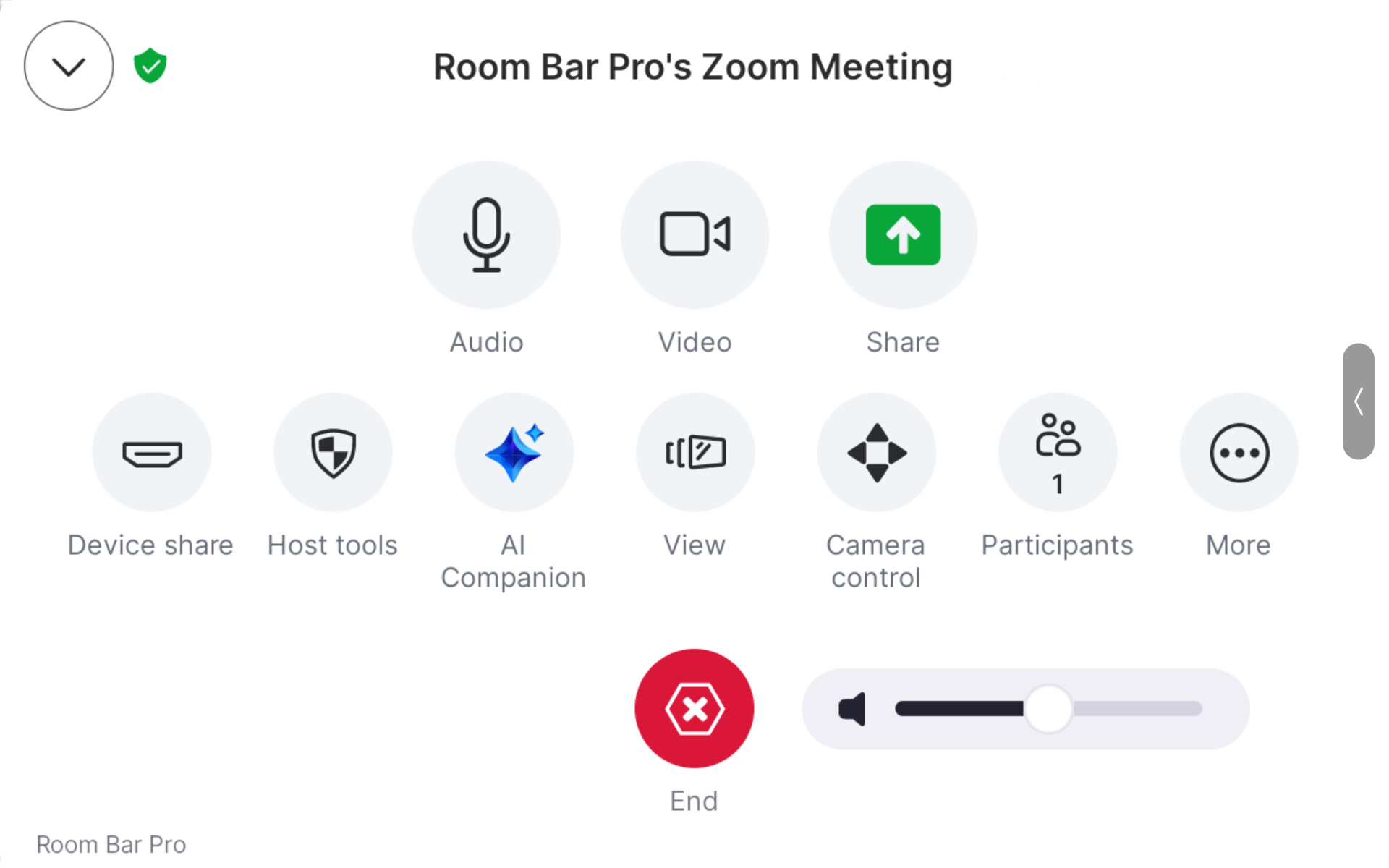
The following RoomOS features are also available in Zoom Meetings in guest and signed-in mode:
- Camera controls and advanced camera modes. Not supported: Briefing room mode, Presenter and audience
- Device sharing menu with wired and wireless sharing options: HDMI and USB-C, Miracast, AirPlay
- Audio control through noise cancellation
- One-way whiteboarding on devices that support whiteboarding. These whiteboards are not saved or available after the meeting has ended.
Requirements for guest and signed-in mode
For the signed-in experience, you’ll also need a Zoom Rooms subscription.
Supported devices
-
Cisco Room Bar
-
Cisco Room Bar Pro
-
Cisco Board Pro
-
Cisco Board Pro G2
-
Cisco Desk Pro
-
Cisco Desk Pro G2
-
Cisco Room Kit EQ
-
Cisco Room Kit EQX
-
Cisco Room Kit Pro
-
Cisco Room Kit Pro G2
Supported Room Navigator versions
-
CS-T10-TS-L-K9
-
CS-T10-WM-L-K9
-
CS-T10-TS-C-K9
-
CS-T10-WM-C-K9
If an usupported Room Navigator is connected to a device in Zoom guest or signed-in mode, a diagnostics error is visible in Control Hub and the device's web interface.
Network
Enable guest mode, CRC, and SIP interop
You can enable Zoom Rooms meetings as a global setting for all your devices in Control Hub.
Guest mode only applies to supported devices. Other devices in your organization continue to use the CRC or SIP inter op solution that has been available previously.
If Zoom Meetings is enabled from before, you need to go through step three to enable the guest mode experience.
| 1 |
From the customer view in https://admin.webex.com, go to the Devices page. |
| 2 |
Select Settings and navigate to Meeting providers. Toggle on Enable Zoom. When users start a Zoom call dialing in from SIP addresses, the device automatically detects it's a Zoom call and switches to Cisco's custom Zoom UI. If you want to disable this behavior, set : Disabled. |
| 3 |
Check the Zoom app experience check box to enable guest mode experience on those devices that support it. The devices that don’t support guest mode use the CRC or SIP interop mode even when the check box is checked. If you don’t check the box, all devices have the CRC or SIP interop experience. |
Enable guest mode on individual devices
You can enable guest mode on individual devices that support it.
Set the configuration Zoom AppExperience Mode to Auto.
You can either:
-
Set the configuration on one device.
-
Set the configuration on multiple devices.
-
Use configuration templates.
-
Use default configurations for your organization or location.
For more details on the different ways to set configurations, see the Device configurations for Board, Desk, and Room Series devices article.
Enable signed-in mode
With signed in mode, you can control the Zoom Meeting settings in the Zoom web portal. The device configuration is done from Control Hub, the local device web interface, or through the xAPI.
For the signed-in experience, you’ll also need a Zoom Rooms license.
Further information on administering Zoom Rooms:
Create a Zoom Rooms activation code
For more information on using the Zoom web portal, go to Adding Zoom Rooms on the web portal.
If you already have an existing Zoom Room, go to step 4.
| 1 |
Sign in to the Zoom web portal and click Room Management then Zoom Rooms. |
| 2 |
Click + Add Room and select the Room Type: Zoom Rooms (for shared spaces) Creates the default Zoom Room configuration. |
| 3 |
Enter the Room Name and Select a location for the room. |
| 4 |
Once the room is created, click on the room name to open its settings page. |
| 5 |
Click the Activation Code button in the top-right section of the room details page. |
| 6 |
Copy this code to enter it on your Cisco device in Control Hub to link it to the Zoom Room. The code expires after ten days. |
Link a device to Zoom Rooms
| 1 |
From the customer view in https://admin.webex.com, go to the Devices page and select the device you want to link to Zoom Rooms. |
| 2 |
On the device details page, go to the Configurations tab. Select Zoom Rooms: Activate and enter the activation code that you created in the Zoom web portal. |
| 3 |
Click Activate. The device reboots and is now able to join Zoom Meetings in signed-in mode. |
What to do next
To see if a device has been linked to Zoom Rooms, go to the device settings menu on the device UI. Swipe to open the control panel and select Settings. Scroll to Network and service. If the device is linked, Zoom Rooms activation states Activated.
Remove Zoom Rooms from a device
| 1 |
From the customer view in https://admin.webex.com, go to the Devices page and select the device you want to remove Zoom Rooms from. |
| 2 |
On the device details page, go to the Configurations tab. Select Zoom Rooms: Activated and click Deactivate. The device reboots and is no longer able to join Zoom Meetings in signed-in mode. |
Zoom Rooms app version for guest and signed-in mode
| RoomOS software version | Zoom Rooms app version |
|---|---|
|
RoomOS September |
ZR 7.1.5 |
|
RoomOS August |
ZR 7.1.0 |
|
RoomOS June |
ZR 6.7.5 |
|
RoomOS May |
ZR 6.7.5 |
|
RoomOS April |
ZR 6.7.5 |
|
RoomOS March |
ZR 6.7.0 |
|
RoomOS February |
ZR 6.7.0 |
|
RoomOS January |
ZR 6.6.10 |
Manual upgrades of the Zoom app through the Zoom web portal are not supported on RoomOS devices. Although the Zoom web portal may allow manual upgrade attempts, the installation of the app on the device will fail.
Known issues and limitations for guest and signed-in mode
| Known Issues |
|---|
| Dynamic camera mode: Cisco's Dynamic camera mode does not have an equivalent camera mode in the Zoom Rooms interface. If the camera is set to Dynamic mode, Zoom Rooms Auto-Framing is unavailable. To use Zoom Rooms Auto-Framing, first switch the camera from Dynamic mode to another supported camera mode. This can be done either from the Zoom Rooms camera controls or from the Cisco camera controls. |
| Room Navigator: If you pair a Room Navigator after the Zoom Rooms application has been activated with an activation code, the Room Navigator won't be able to control Zoom Rooms. Workaround: sign-out Zoom Rooms using Control Hub or by executing xCommand Zoom Reset Confirm: Yes, then reactivate Zoom Rooms while the Room Navigator is already connected. |
| Zoom Experience: Zoom post-experience survey missing, even if configured in Zoom Portal |
| Intelligent Director: Not yet supported |
| Multi-camera setups: USB cameras will show up as additional cameras, but are listed as "Unknown Device" |
| Video mute: When the Zoom App is minimized the Video Mute button does not reflect Muted video in the Zoom App |
| Muti-Camera setups: You are currently unable to manually select between multiple Cisco cameras from the Zoom UI. Workaround: Use the side panel RoomOS UI to select individual cameras |
| Camera modes: If you select a camera mode from the Zoom Camera UI the RoomOS UI will reflect the change. However if you select a camera mode from the RoomOS UI the Zoom Camera UI does not update to show the change. |
| Zoom Device Management: Not yet fully implemented. Unable to upgrade from Zoom Admin Portal. Limited Device Support from Zoom Admin Portal |
| Proxy support: Not working in some cases |
| Zoom Proximity Pairing: Issues for some certain devices |
| Zoom for Government: Known issues with Room Navigator pairing to a device registered to Zoom for Government. Workaround: Test with a touch screen device. |
| IPv6: Devices with IPv6 only is not currently supported. |
| Limitations |
|---|
|
Pairing the Zoom Rooms Controller while Zoom Rooms is signed in The Zoom Rooms Controller cannot be paired when the Zoom Rooms application is already signed in. Workaround: Sign out of Zoom Rooms. Ensure the Zoom Rooms Controller pairs to Zoom Rooms before signing in again. |


