In this article
Customize branding for Webex
Advanced branding color settings
Add Help and support information

Add your organization branding to Webex

list-menuIn this article
list-menuFeedback?

Customer administrators can customize how the Webex App looks for users in their organization. You can add customized colors and logos that reflect your brand and corporate identity.

Customize branding for Webex

Use these settings to modify the look of Webex App with colors and logos that reflect your brand and corporate identity.

Before you begin

Your partner administrator controls your access to the custom branding settings. If you can't access or edit the branding settings in Control Hub, you should contact your partner administrator.
1

Sign in to Control Hub.

2

Go to Organization Settings > Customize branding for Webex.

3

Select Down arrow next to Basic customization or Advanced customization.

4

For Basic customization, add your company logo and primary color and click Save.

5

For Advanced customization, click View Branding and edit the following settings:

  1. On the General tab:

    • Branding—Enter a name for the branding settings. This name is added to the offering on the About page.

    • Dark mode visibility—Turn this on if you want users to be able to use Webex App in either Dark mode or Light mode. Otherwise, only Light mode (the default) is available.

  2. On the Logos tab, upload your company logo. Logos for Light mode and Dark mode must be uploaded separately.

    Your logo is added to both the navigation bar and the About window in Webex. Logos do not display for either mobile or tablet versions of Webex App.

  3. On the Colors tab, enter the hexadecimal color schemes that you want to apply in Light mode and Dark mode.

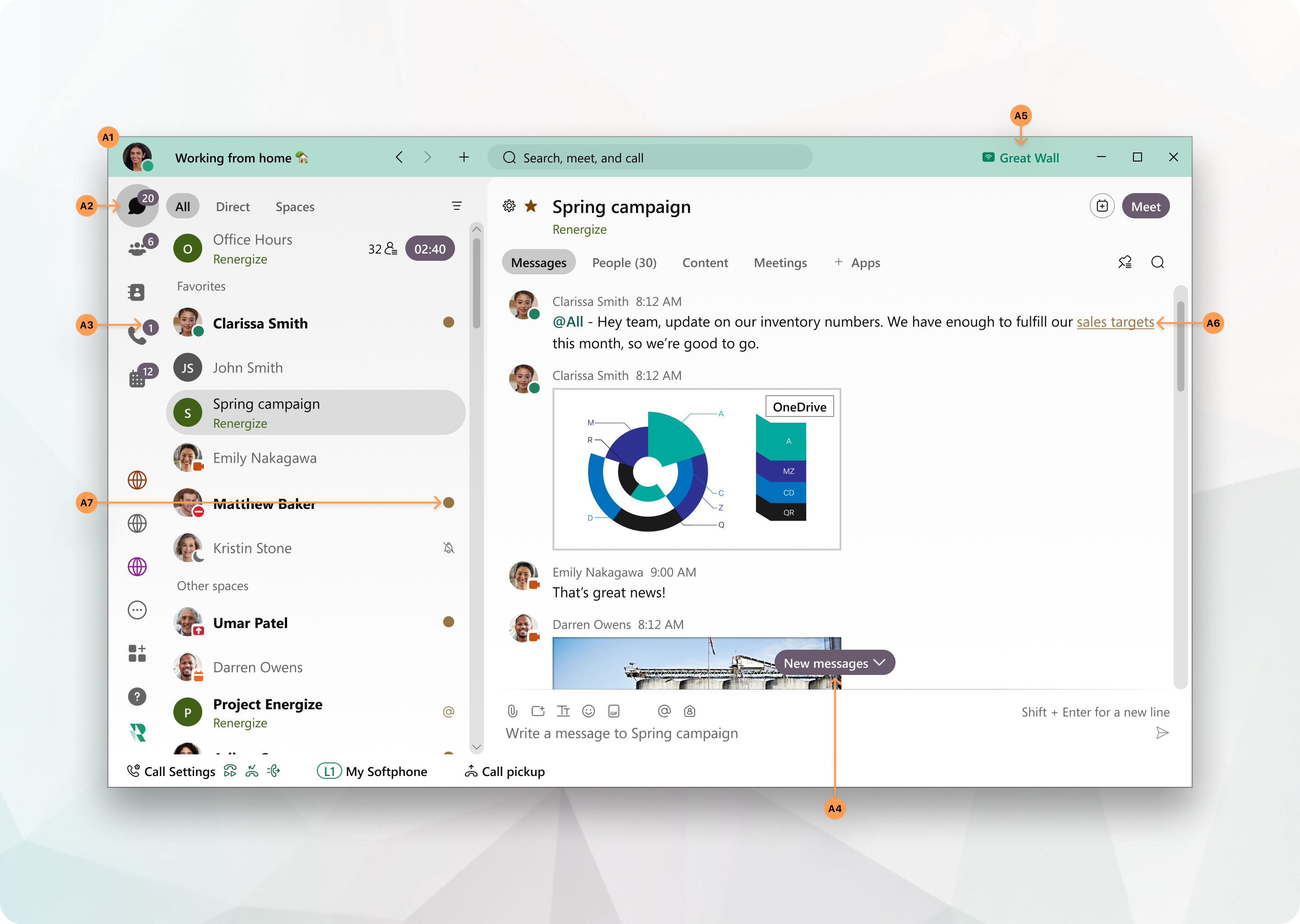
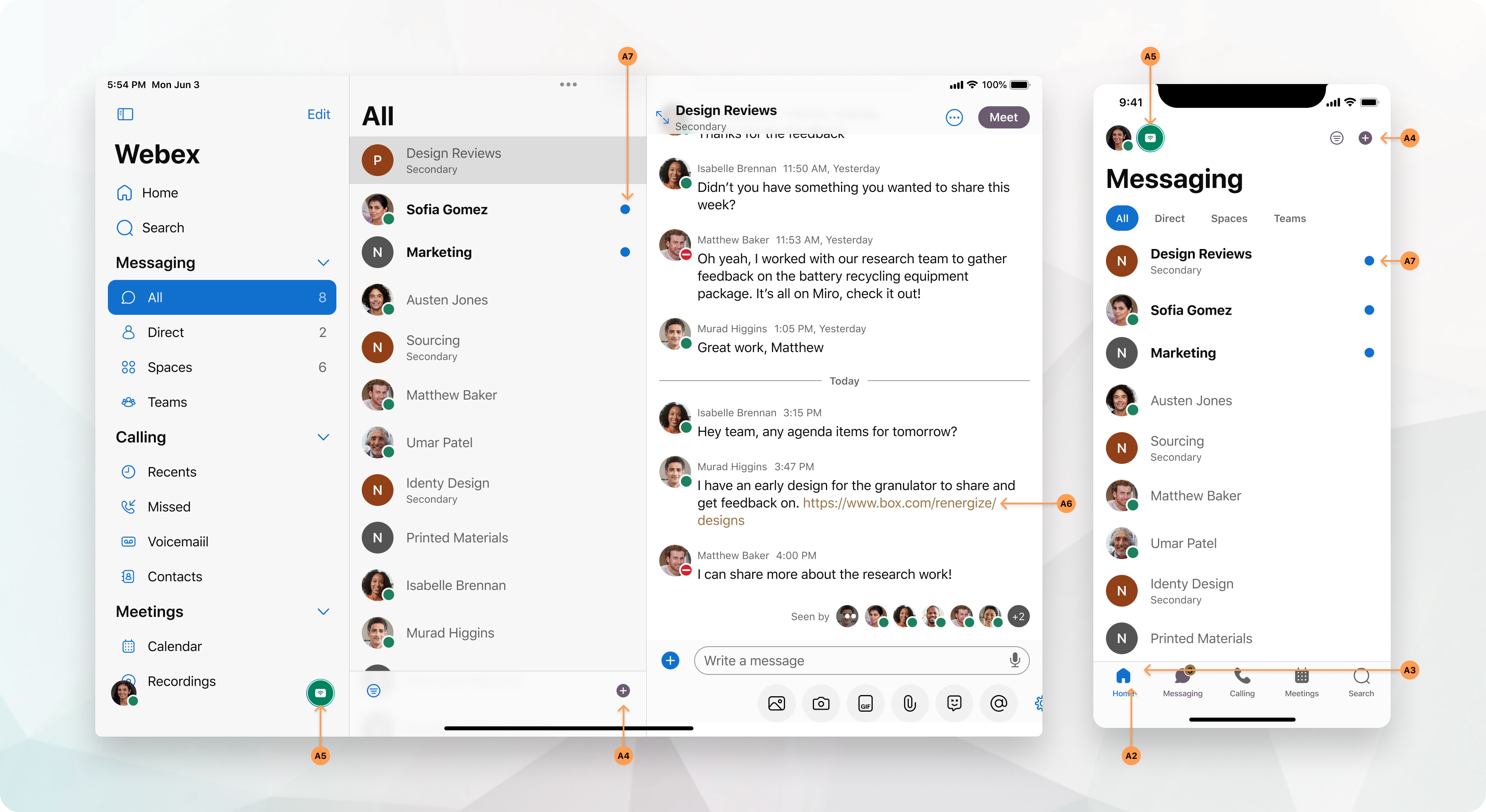
    The screen image maps how each color setting is applied to Webex App. You can use the toggle and the tabs to switch the image between Light mode and Dark mode on various platforms (for example, Windows, iOS, or Android).

  4. Click Save.

Advanced branding color settings

The following table summarizes the color settings from the sample color palettes. Refer to the sample color palettes to see these settings on Webex App.

Image Reference

Setting

A1

Primary Color

A2

Buttons

This control applies only to primary buttons, such as Add and Save.

A3

Navigation icons (active)

A4

Navigation badges

A5

Connect to a device

A6

Hyperlinks

A7

Indicators

Desktop Screen capture with Branding applied
Sample color palette for Webex App on desktop
Tablet and Mobile Screen captures with Branding applied
Sample color palette for Webex App on tablet and mobile

Add Help and support information

You can change the links that your organization uses for Help and support information. The links apply in Webex App for your users, and on your Webex site, and in Cisco Technical Assistance Center (TAC) case open tools.
1

Sign in to Control Hub.

2

Go to Management > Organization Settings, then scroll to Help and support information.

3

To provide direct support to your users through your organization's support team, turn on Redirect user support.

  • When turned on, your users are redirected to the Contact support and Help Site URLs you specify, and see the description you configure. Users cannot open support cases with Cisco TAC through Support Case Manager, the Webex Chat Assistant, or by making a phone call. This setting does not apply to Webex organization administrators, as defined in Assign organization account roles in Control Hub.
  • When turned off, users open cases with Cisco TAC.

    You can still configure the Contact support and Help Site URLs. These are displayed in Webex App under the Help menu, and on your Webex site under Support.

4

In the Contact support section, you can change:

  1. Support URL—URL where your organization's users open support cases.

  2. Description—Specify details to be presented to a user about your Webex organization's support, such as hours of operation or phone number for urgent support.

Your URL and description show in the Support option on your Webex site.
5

In the Help Site section, enter the URL to your company's knowledge base, where users can access self-help resources.

If you use internal links for Contact support and/or Help Site, then Webex App users must be on the network (or VPN) to use these resources.

6

Click Save.

Was this article helpful?