- Home
- /
- Article

Thanks for your feedback.

 In this article
 Feedback?
Use Cisco AI Assistant to catch up, ask questions, review action items, and access AI-generated webinar summaries.
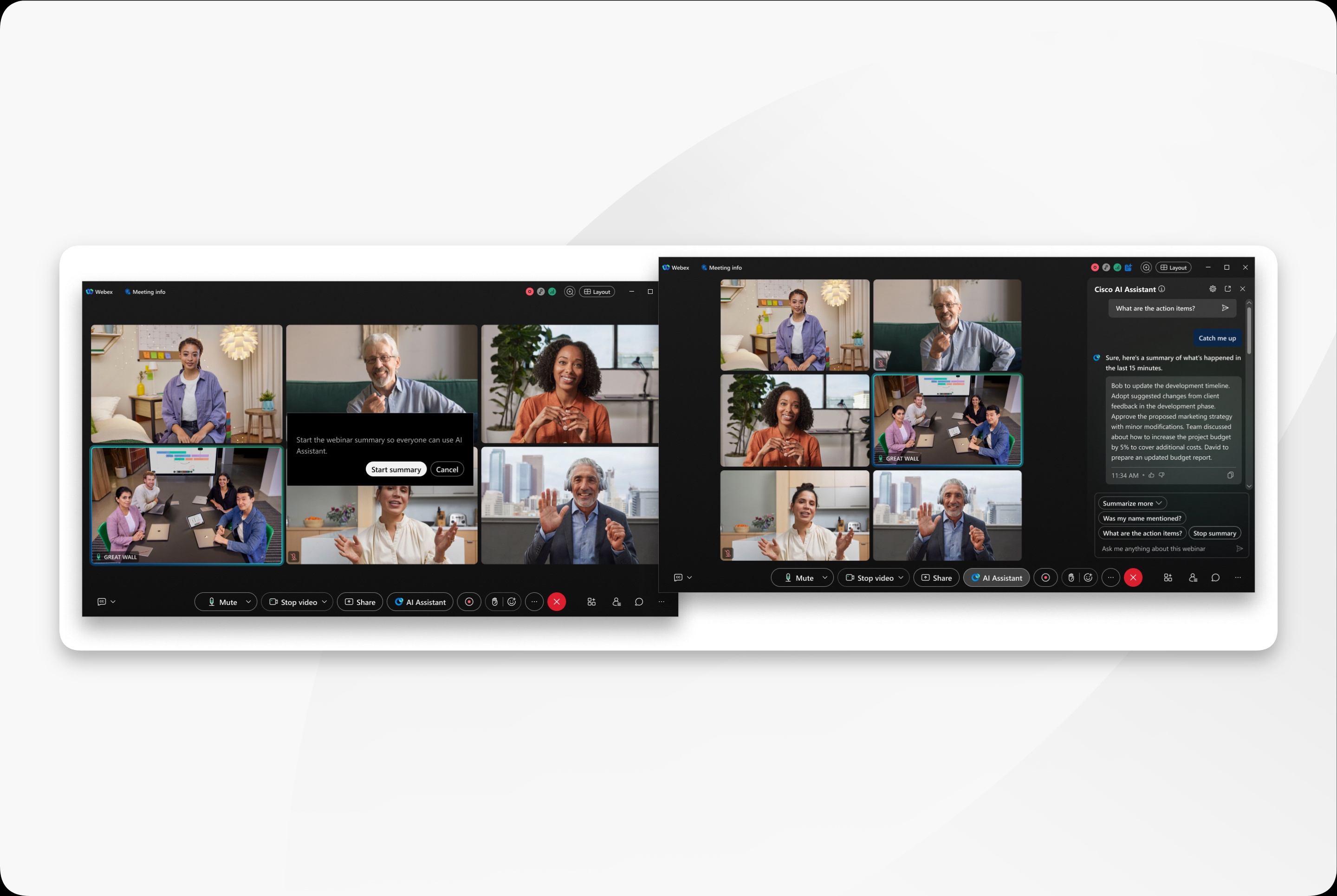
Overview
Cisco AI Assistant helps you stay engaged during a webinar. You can catch up on discussion you missed, ask questions without interrupting the session, identify action items, and review AI-generated content after the webinar.
Available capabilities depend on the webinar type, your webinar role, the AI Assistant settings that your administrator configures in Control Hub, and the meeting options selected by the host or cohost.
Before you begin
- Your administrator must make Cisco AI Assistant available for your organization and users. For webinars, Webex uses the Cisco AI Assistant meeting settings in Control Hub.
- The webinar must use the Webex Suite meeting platform.
- Before a webinar can be recorded, summarized, or transcribed, participants must provide consent when prompted.
- If you don't see AI Assistant, contact your organization administrator.
How access works in webinars
| Experience | Who can use AI Assistant | Permission behavior |
|---|---|---|
| Webinar | Host, cohost, panelist, and attendee | Hosts, cohosts, and panelists have the same AI Assistant rights as hosts and cohosts in a meeting. Attendees have the same rights as meeting participants. |
| Webcast | Host, cohost, and panelist | Webcast attendees can't use Cisco AI Assistant. |
In webinars, attendees can use Cisco AI Assistant when it's available, but they can't start or stop it. In meetings, participants can start or stop AI Assistant when their permissions allow it.
Use Cisco AI Assistant in a webinar
The actions available to you depend on your webinar role and the webinar options.
Cisco AI Assistant can start in a webinar in the same ways that it starts in a converged meeting. A host can set AI Assistant to turn on automatically when the webinar starts. Starting a recording can also start AI Assistant when that webinar option is enabled. If AI Assistant doesn't start automatically, an authorized host, cohost, or panelist can start it manually from the AI Assistant panel.
| 1 |
Start or join the webinar. |
| 2 |
In the webinar controls, select AI Assistant to open the AI Assistant panel. |
| 3 |
If AI Assistant hasn't started automatically, start the summary or request that an authorized host, cohost, or panelist start it. |
| 4 |
Choose an available option in the AI Assistant panel. |
| 5 |
To end the summary for everyone, an authorized host, cohost, or panelist selects Stop summary. |
Content from any period when the summary is stopped isn't included in the saved summary or transcript.
What you can do with Cisco AI Assistant
- Catch me up : Get a summary of the recent webinar discussion.
- Summarize more : Summarize the last part of the webinar or the webinar from the beginning.
- Was my name mentioned : Check whether your name was mentioned in the webinar.
- What are the action items : Review action items mentioned during the webinar.
- Ask AI Assistant : Ask questions about the current webinar. Questions you ask and answers you receive are visible only to you and aren't saved after the webinar.
Save and review webinar AI Assistant content
If saving content after the webinar is allowed, hosts and cohosts can choose whether summaries and transcripts are saved after the webinar. Saved AI-generated content is available from Meeting recap or the associated recording, depending on the webinar settings and whether the webinar was recorded.
For cloud recordings, AI Assistant can generate a recording summary with chapters, notes, action items, and a transcript. The host can review, edit, and share the content after the webinar.
Limitations for Cisco AI Assistant in webinars
When the host starts a practice session in a webinar, Cisco AI Assistant and recording are paused. Content from the practice session isn't summarized or recorded. After the practice session ends, confirm that AI Assistant and recording are active before continuing the live webinar.
Keep these limitations in mind:
- Available features can depend on your organization settings, license or entitlement, rollout status, Webex App version, device, webinar type, and webinar role.
- If AI Assistant is stopped and restarted, content from the period when the summary was stopped isn't included in the saved summary or transcript.
- Capabilities that rely on cloud recording are available only when cloud recording is used and the related administrator settings are enabled.
- AI-generated content can contain errors. Review summaries, transcripts, chapters, and action items before sharing or acting on them.
- Some meeting-specific features, such as Step away notifications or scheduling a meeting from an action item, may not apply to webinars.


