- Home
- /
- Article

Thanks for your feedback.


 In this article
 Feedback?
The AI Assistant helps Control Hub administrators ask how-to questions about the Webex Suite, troubleshoot meetings and calls with data context from reports, and get workspace and device insights. Use the assistant to start conversation threads, ask follow-up questions, review past conversations, and provide feedback.
The Cisco AI Assistant in Control Hub can answer questions pertaining to the Webex Suite, which includes products such as Messaging, Meetings, Calling, and Contact Center.
You can also see your previous conversation history, play it back, and ask follow-up questions, while maintaining the full context of your previous interactions.
The AI Assistant is only trained to answer questions directly pertaining to the Webex Suite of product.
The AI Assistant is available only to administrators who can sign in to Control Hub.
To turn off the AI Assistant, see Turn off Cisco AI Assistant below.
Supported features
| Feature | How to access | What it does |
|---|---|---|
|
Data context |
Troubleshoot meetings and calls by person, ID, device, workspace, or time range. | |
|
Workspaces context |
Ask about supported devices, workspaces, utilization, occupancy trends, status, errors, configurations, and event history. | |
|
Conversation threads |
Keep questions and follow-up questions grouped by topic so you can return to the conversation later. |
Tips for best results
The AI Assistant works best when your question includes a specific person, meeting, call, device, workspace, or time range. Broad organization-level questions or questions without a supported identifier may not return the result you expect.
For example, instead of asking how many calls are poor versus good across the organization, ask about calls for a specific person, phone number, correlation ID, Call ID, WXC Session ID, or time range.
| Tip | Why it helps |
|---|---|
|
Use email addresses instead of first names |
Avoids ambiguity when multiple users have similar names. |
|
Include a time range |
Helps narrow the results. If you do not specify one, the AI Assistant uses a default time range of seven days. |
|
Use Conference IDs for meeting-specific questions |
Provides precise results and helps narrow the result set. |
|
Preserve exact capitalization for Call IDs |
Call IDs are case-sensitive. |
|
Start simple, then drill down |
Follow-up questions can refine the answer while keeping conversation context. The context window retains the last five questions. |
|
Allow time for complex questions |
Detailed troubleshooting and analysis can take longer to process. |
Questions not yet supported
Questions that don't include enough specific context may not return useful results, such as:
- How many meetings were held in my organization today?
- How many calls are poor versus good across the organization?
- How many calls were answered versus unanswered?
- How many participants experienced bad audio or video quality?
- Diagnose the last poor quality call made by this user.
- Analyze the Webex Calling call sequence with this correlation ID.
- Get ThousandEyes metrics for this call.
When possible, identify the specific person, meeting, call, device, or workspace that you want to investigate.
Ask the AI Assistant a question
| 1 |
Sign in to Control Hub. |
| 2 |
Click |
| 3 |
Click - or -
Click
 More options, then click
  New thread.
 |
| 4 |
Select a question, or enter your question in the Cisco AI Assistant box. A list of answers is shown. To see the help article from which the answer was provided, click Sources, then click the source article you want. |

What to do next
Your feedback is essential to help improve the Cisco AI Assistant. After each response
click  Thumbs up or
  Thumbs down. You can then click on a reason for why you chose a
rating (optional) and enter additional feedback. This helps us improve the quality of the
information we provide.
Thumbs down. You can then click on a reason for why you chose a
rating (optional) and enter additional feedback. This helps us improve the quality of the
information we provide.
Troubleshoot meetings with data context
Use data context when you want to investigate meeting quality, attendance, packet loss, join behavior, network issues, or related participant details.
Supported meeting identifiers
- Name or email address, such as user@example.com.
- Conference ID.
- Time range, such as last 7 days or a specific date.
- Device name.
- Workspace name.
Example meeting questions
| Goal | Sample question |
|---|---|
| Find poor quality meetings | Show me poor quality meetings for user@example.com. |
| Check attendance | How many meetings did user@example.com attend in the last 7 days? |
| Diagnose quality issues | Check user@example.com quality status for the last 3 days. |
| Isolate packet loss | Was the packet loss on my side or with the other participants in meeting 70826389765? |
| Troubleshoot network issues | Troubleshoot network issues for John Doe in meeting 70826389765. |
| Check join behavior | Did any participants have issues joining meeting 70826389765 on time? |
| Analyze by device | Analyze meetings in the last 7 days for device John Doe desk pro. |
| Analyze by workspace | Tell me about the last meeting in the Tokyo-21 workspace. |
ThousandEyes analysis requires ThousandEyes to be configured in Control Hub.
Troubleshoot calls with data context
Use data context when you want to investigate call quality, calling history, a specific phone number, a correlation ID, or a device used for a call.
Supported call identifiers
- Name or email address.
- Phone number.
- Correlation ID.
- Call ID, using the exact capitalization from Control Hub.
- WXC Session ID.
- Time range, such as last 7 days or a specific date.
Example call questions
| Goal | Sample question |
|---|---|
| Find poor quality calls | Show me calls with poor quality for John Doe. |
| Analyze calling history | Analyze user@example.com Webex Calling calls in the last 7 days. |
| Search by phone number | Show me all calls from phone number +16693084178 in the past 14 days. |
| Search by correlation ID | Search for calls with correlation ID '4505c58b-e183-9e0d-9d16-587455d97487' going back 30 days. |
| Analyze by device | Analyze calls in the last 7 days for device John Doe desk pro. |
Create conversation threads and ask follow-up questions
You can create conversation threads on specific topics and ask follow-up questions. The Control Hub Cisco AI Assistant responds with answers within the context of the previous interaction. Threads are useful if you want to keep your interactions with the AI Assistant on specific topics distinct, so that you can revisit a topic later and continue where you left off. The context of the conversation is maintained and used by the AI Assistant to further refine its responses to follow-up questions.
Context management in threads offers several benefits in organizing and managing conversations in the AI Assistant:
- Relevance—By setting the context of a conversation to a specific topic or project, the AI Assistant can provide more relevant responses and suggestions. This ensures that the information provided is tailored to the specific context, leading to more accurate and helpful assistance.
- Efficiency—Context management allows you to quickly switch between different topics or projects within the AI Assistant. By maintaining separate contexts for each thread, you can easily navigate and find the relevant information you need without getting mixed up in unrelated conversations.
- Organization—Threads and context management provide a structured way to keep track of different topics and projects. You can create separate threads for different conversations, making it easier to locate and reference specific discussions when needed. This helps to maintain a well-organized and clutter-free environment.
Overall, context management in threads improves relevance, efficiency, organization, and collaboration in the AI Assistant.
There is no limit to the number of threads you can create.
Examples of contextual questions using threads
-
What is a virtual background?
-
How do I set it up in Control Hub?
-
What is the maximum size?
You can see your recent conversation threads in the AI Assistant.
| 1 |
Sign in to Control Hub. |
| 2 |
Click |
| 3 |
Click Conversation thread history is limited to 360 days. |
| 4 |
Click any conversation to replay it. You can continue the conversation where you left off. |
Workspaces context
Using workspaces as context in AI Assistant lets you view and manage devices and workspaces across your organization. You can also use it to monitor device issues and workspace utilization. Your questions are answered with insights into your deployment and actionable steps you can take to improve meeting experiences and resource management.
You can get information on Cisco collaboration devices, including IP phones, and third-party peripherals that are connected to a Cisco device.
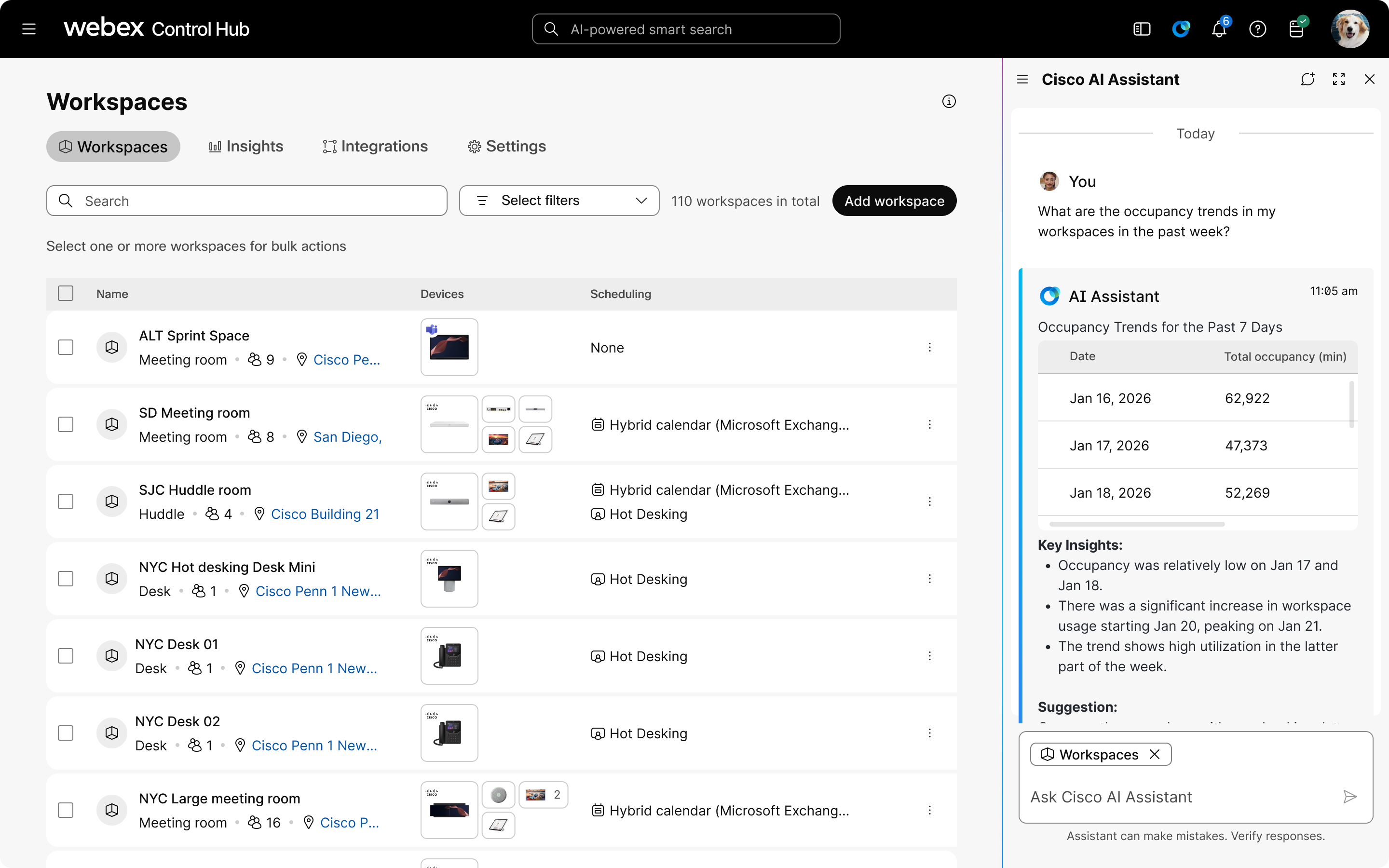
In the AI Assistant you get read-only access to your organization’s workspaces and devices. You can find information on individual devices and workspaces, all devices and workspaces in your organization, or a subset based on location settings. To narrow the response, include a device name, workspace name, location, or time range in your question.
The AI Assistant with Workspace context provides:
-
Comprehensive monitoring: View and track devices and workspaces across the organization.
They also provide comprehensive event history tracking for both individual devices and the entire organization, alongside error code lookups to simplify issue resolution.
-
Configuration management: Monitor device configurations and track changes over time.
Check current configurations and discover the organization's configuration schema. They also support side-by-side configuration comparisons and template-based audits, helping to identify and resolve deviations from standard templates.
-
Utilization analytics: Access detailed insights into how workspaces are being used, including occupancy trends and frequency.
Track environmental and usage metrics, such as temperature, noise, and booking patterns, to help rank room popularity and identify under-utilized or overcrowded spaces.
- Historical diagnostics: Retrieve and analyze device history to identify patterns and resolve recurring issues faster.
Supported identifiers
-
Device name—e.g.,
John Doe desk pro -
Workspace name—e.g.,
tokyo24-11-quiet room 6 -
Time range— e.g.,
last 7 days,26 March 2026
What you can query
| Area | Details |
|---|---|
|
Devices |
Device inventory, status, search, errors, configuration, and event history. |
|
Workspaces |
Workspace utilization, occupancy trends, and environmental metrics. |
|
Locations |
Location search and capacity planning. |
Example prompts
-
Workspace insights and optimization
-
“Analyze workspace usage across all conference rooms this week”
-
“Show me top workspaces that need my attention”
-
“Which rooms have the lowest utilization rates?”
-
-
Troubleshooting
-
“Give me a guide to fix the audio issue in Room 3B”
-
“What are the top unresolved issues in the last 24 hours?”
-
“Show me all devices with connectivity issues”
-
-
Device management
-
“Spot the difference between this device and its template configuration”
-
“Compare device settings across all rooms on Floor 5”
-
“Show me devices that need firmware updates”
-
Known limitations
- Currently limited to read-only operations, where all information presented is observational and does not alter the state of devices, workspaces, or configurations.
- You can only access data from workspaces and devices your role settings gives you access to.
- Charts are currently not available.
Use context for workspaces and devices information
| 1 |
Sign in to Control Hub. |
| 2 |
Click |
| 3 |
Click - or -
Click
More options, then click
New thread. |
| 4 |
Click @Add context and choose Workspaces. 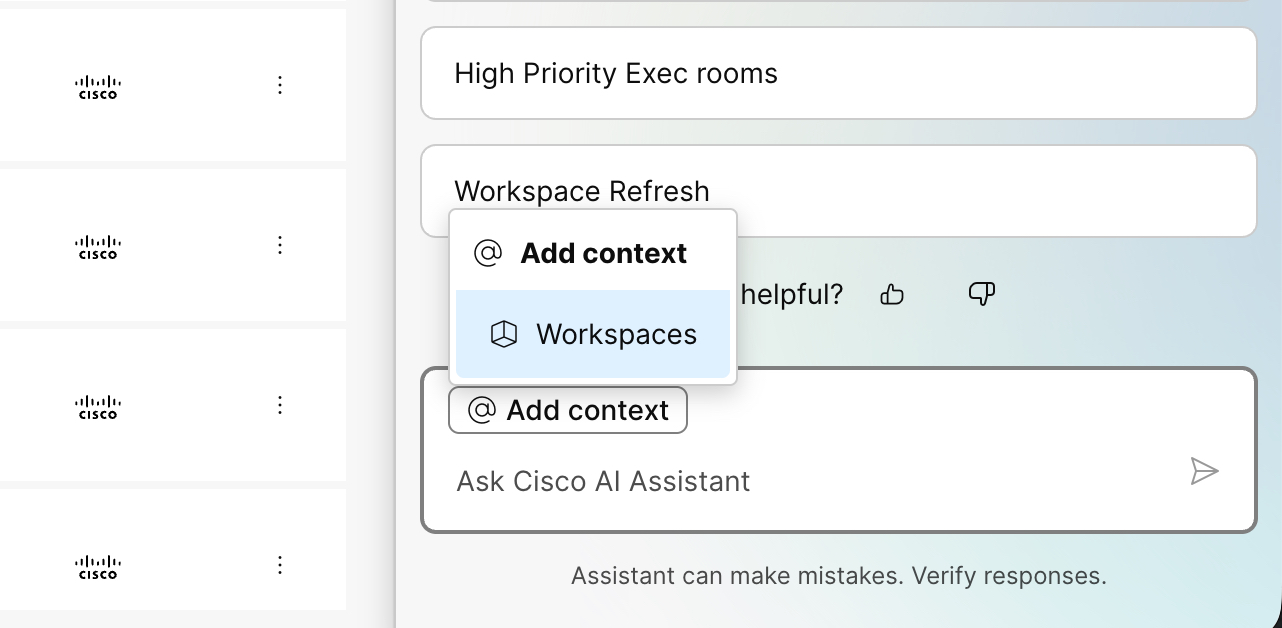
|
| 5 |
Select a question, or enter your question in the Cisco AI Assistant box. A list of answers is shown. To see the help article from which the answer was provided, click Sources, then click the source article you want. |
Turn off the AI Assistant
| 1 |
Sign in to Control Hub. |
| 2 |
Go to . |
| 3 |
Click Customize Cisco AI Assistant & AI features. |
| 4 |
In the Control Hub section, turn off Allow the Assistant in Control Hub. |
| 5 |
Click Save. |
Frequently asked questions
Types of questions you can ask the AI Assistant
You can ask how-to questions about Cisco products and Control Hub tasks, or add supported context to ask about your organization’s meetings, calls, devices, and workspaces.
| Question type | Examples |
|---|---|
| Help and article questions |
|
| Meeting troubleshooting with Data context |
|
| Calling troubleshooting with Data context |
|
| Devices and workspaces with Workspaces context |
|
For meeting and calling questions, use @Add context and choose Data. For device and workspace questions, use @Add context and choose Workspaces.
Meeting questions can include a name or email address, conference ID, device name, workspace name, and time range. Calling questions can include a name or email address, phone number, correlation ID, Call ID, WXC Session ID, and time range. Enter Call IDs with the exact capitalization.
Questions that use ThousandEyes data require ThousandEyes to be configured in Control Hub.
How does the AI Assistant use Artificial Intelligence?
The AI Assistant answers are sourced from the articles available in Webex Help Center using the Retrieval-Augmented Generation (RAG) technique. Questions and answers are provided in English. Support for other languages may be available in future releases.
When you ask a question, the AI Assistant leverages Microsoft Azure infrastructure services, specifically Large Language Models (LLMs), to provide answers. Microsoft processes data, but does not store personal data shared with it, for delivery of this service.


