- Home
- /
- Article

Thanks for your feedback.


Design to migrate from Unified CM to Webex Calling
 In this article
 Feedback?
The design phase of Webex Calling focuses on defining regions, locations, dial plans, and emergency call handling to ensure a scalable deployment. It involves selecting a fixed region, setting up site-specific details, and creating a consistent dial plan. Emergency services, recording configurations, and licensing needs are also addressed. This phase lays the foundation for provisioning, user management, and secure access through SSO, ensuring the deployment meets organizational and regulatory requirements. For a high-level overview of your migration journey, with quick links to explore detailed documentation, see Migrate Unified CM to Webex Calling.
Region selection
Webex Calling is available globally and is delivered from redundant data centers in multiple regions: US (Dallas, Chicago), Canada (Vancouver, Toronto), Europe (Frankfurt, Amsterdam), UK (London, Manchester), Australia (Melbourne, Sydney), Japan (Tokyo, Osaka), Saudi Arabia (Riyadh, Jeddah) and India (Mumbai, Chennai). The media PoPs provide media services to optimize media round-trip times. The Singapore data center for example is used to optimize media round trip times for Webex Calling customers in Asian countries where the round-trip times to either the Australia or Japan region might be suboptimal. The data centers are interconnected by a multi-gigabit and fully redundant backbone. The figure globally distributed data centers shows an overview of all Webex Calling data centers. For the latest list of available Webex Calling data centers, see Data Center locations for Webex Calling.
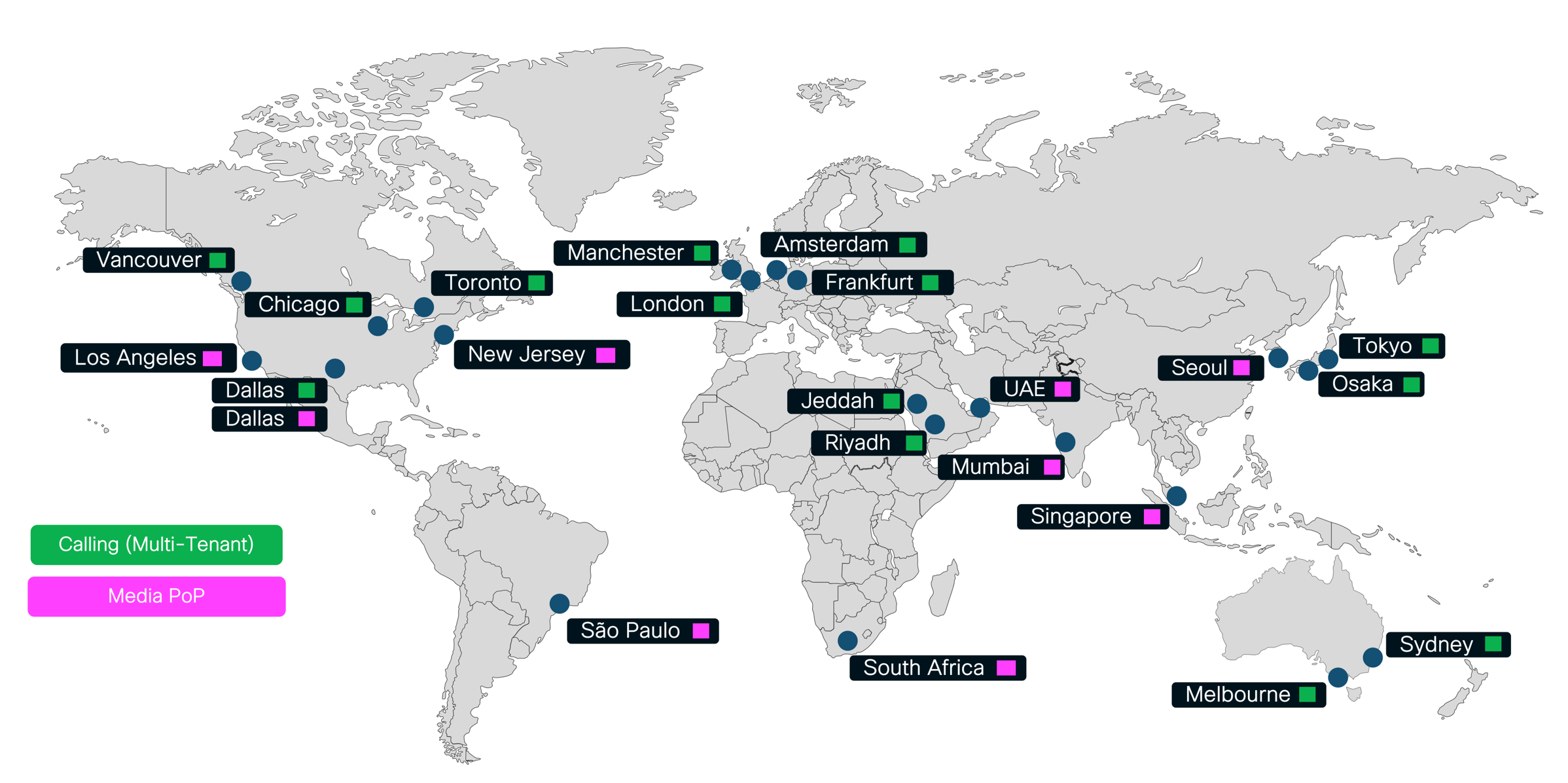
Each Webex Calling customer is provisioned on one of the Webex Calling instances. All provisioning information of that customer is stored in that Webex Calling instance and the SIP signaling of all endpoints and Local Gateways provisioned for that customer is tied to the Webex Calling instance the customer is provisioned on. Because it is hard to change the initial Webex Calling region selection, it is important to consider all relevant factors as part of the decision process leading to the Webex Calling region selection. To avoid excessive signaling round-trip delay, it is important to decide early in the transition process which Webex Calling instance should be used. Cisco recommends selecting the Webex Calling instance which provides the lowest signaling round-trip times for the largest number of users within the deployment.
For Webex Calling country availability, see Where is Webex available?.
Locations
To prepare for the provisioning of locations on Webex Calling the required information for all migration target locations needs to be collected. The information needed for each location is summarized in Information to capture for each location.
| Information | Comment |
|---|---|
| Extension range(s) | Each location in Webex Calling can have extensions starting with different digits. One digit must be spared for
the inter-site dialing steering digit (for example 8) and one for the PSTN
steering digit (for example 9). No extension range can start with either of
these two digits. All extension ranges of all locations must be of equal length. |
| DID range(s) | - |
| PSTN steering digit | - |
| Site code | All site codes of all locations need to be unique and to have the same length. |
| Main number | When creating a location two DIDs need to be provisioned. One as
main number (for example to be assigned to an auto attendant service) and one for
the voicemail portal. Provision one DID for the voicemail number. |
| Voicemail number | |
| Number of licenses | Required licenses by type including Webex Calling Standard, Professional, Workspace, Route List, Outbound Calling Plan. |
| Concurrent calls in the busy hour | Sum of concurrent calls between Webex Calling devices and between Webex Calling devices and the Local Gateway (PSTN and calls to Unified CM devices). Needed to determine the required internet access bandwidth. |
| Country | - |
| Time zone | - |
| Language | - |
| Contact (Name, Phone, Email) | - |
| Address (Street address, City, State, Zip code) | - |
| Emergency services physical dispatchable location for endpoints | Device dispatchable location used for emergency calling generally includes the following: building address, building address + floor number, building address + suite number, or building address + floor number + office/cubical number. |
| Per device unique physical network location for emergency services | Physical network location for emergency calling generally includes the following: switch / switchport for wired devices, wireless Access Point (AP) Basic Service Set Identifiers (BSSIDs) for wireless connected devices, and/or on-premises IP subnet(s) for endpoint devices. |
PSTN
When designing a Webex Calling deployment, customers have three primary PSTN connectivity options: Cisco Calling Plans (a cloud-delivered PSTN service managed by Cisco), Cloud Connected PSTN Providers (CCPP, where providers deliver PSTN service through the cloud), and on-premises PSTN (where local gateways connect the enterprise network to the PSTN). With the introduction of PSTN trunking for hybrid Webex Calling deployments (For more information, see PSTN trunking for hybrid Webex Calling deployments at PSTN trunking), organizations gain additional flexibility in their migration approach. This feature enables customers to move their PSTN to CCPP at the start of the transition journey and begin transitioning to cloud PSTN for Webex Calling users, while leveraging CCPP to maintain PSTN service for users who remain on Cisco Unified CM during a phased migration.
This hybrid approach allows organizations to move select user groups to the cloud first, without immediately overhauling their entire telephony environment. However, it introduces additional complexity and risk, particularly around adapting existing Unified CM call routing logic to support the new architecture. Interoperability with legacy applications, such as fax servers, contact centers, or paging systems, also requires careful consideration. Key technical challenges may include ensuring seamless end-to-end codec negotiation and DTMF (Dual-Tone Multi-Frequency) signaling across the mixed environment, as well as validating compatibility with specialized telephony features. Proper planning and testing are essential to minimize disruption and maintain reliable voice services throughout the migration process. Additionally, commercial considerations are important, as hybrid trunking requires a usage license that is based on the number of concurrent calls between the on-premises environment and the Cloud Connected PSTN Provider (CCPP).
Alternatively, organizations may choose to retain their on-premises PSTN connectivity throughout the transition phase. In this scenario, migration to CCPP can be executed in two ways: as a single, coordinated cutover for all users and locations once the Webex Calling migration is complete, or incrementally, with PSTN migration occurring on a per-location basis as users are moved to Webex Calling. This approach can help streamline coexistence and maintain continuity for legacy integrations, but it introduces several operational complexities. Among these are challenges related to number porting, such as the need for precise coordination of number port orders, potential delays, and provider-imposed limitations like a cap on the number of concurrent port requests or restrictions on porting subsets of large number blocks. Organizations must carefully plan their PSTN transition strategy, factoring in these logistical considerations to avoid service interruptions and ensure a smooth migration experience.
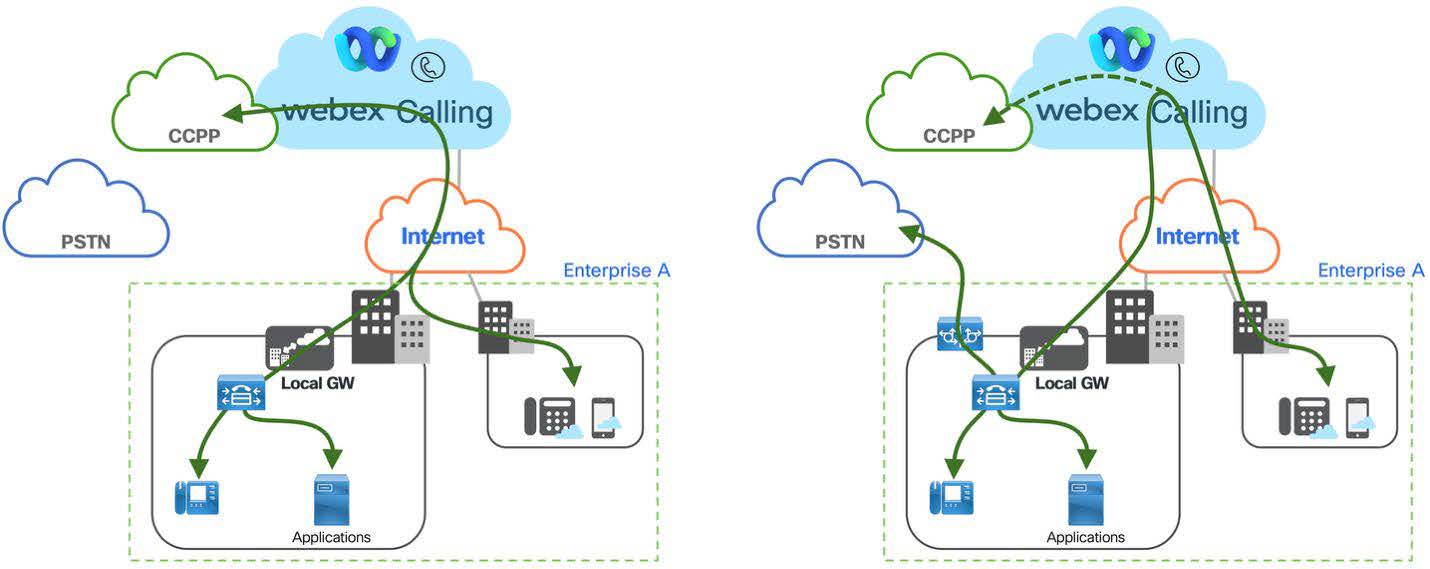
The figure Migration to CCCP at the start vs. keeping on-premises PSTN shows the two PSTN migration options explained above. The illustration on the left shows the scenario where all on-premises users and application consume Cloud Connected PSTN services through an on-premises trunk and a Local Gateway connecting the on-premises Unified CM to Webex Calling while the illustration on the right shows the scenario where the existing on-premises PSTN stays in place and users on Webex Calling utilize on-premises PSTN through the Local Gateway connection between on-premises Unified CM and Webex Calling. During the transition Webex Calling locations can be switched to using Cloud Connected PSTN.
In both scenarios calls between on-premises and Webex Calling user utilize the Local Gateway connection. The connection between on-premises and Webex Calling needs to be designed and sized accordingly based on the expected number of concurrent calls and the required redundancy.
Dial plan
To achieve seamless interoperability between Unified CM and Webex Calling during the migration period, a comprehensive dial plan architecture must be developed and implemented across both platforms. This dual-platform dial plan design ensures consistent call routing, number translation, and feature transparency, enabling users on either system to communicate without service degradation or user experience disruptions throughout the coexistence phase.
On-premises dial plan in Unified CM
During the transition to allow for coexistence of devices registered on Unified CM and on Webex Calling the enterprise dial plan on Unified CM needs to be changed so that at least the following requirements can be met:
-
+E.164 dialing from Unified CM to Webex Calling
-
Extension dialing from Unified CM to Webex Calling (intra-site but also inter-site if the extension ranges are unique)
-
Abbreviated inter-site dialing from Unified CM to Webex Calling
-
Forced on-net dialing from Unified CM to Webex Calling
-
Call-back from missed calls directory to destinations on Webex Calling
-
PSTN calls from Webex Calling to PSTN if during the transition on-premises PSTN is used for Webex Calling
-
PSTN calls from Unified CM to Webex Calling if during the transition PSTN trunking for hybrid Webex Calling deployments is used to provide PSTN access to on-premises Unified CM users through Cloud Connect for Webex Calling
-
Forced on-net from Webex Calling to Unified CM
-
Extension dialing from Webex Calling to Unified CM (inter-site).
If any of the above are not supported dialing habits prior to the transition, for example no abbreviated inter-site dialing habit exists, then they don't necessarily need to be introduced during the transition.
The Figure Best practices dial plan shows the best practice dial plan approach as described in the Preferred Architecture for Cisco Collaboration 12.x Enterprise On-Premises Deployments, CVD. Key characteristics of this approach include:
-
Single partition for +E.164 directory numbers
-
Core routing based on +E.164 route patterns
-
Normalization of all dialing habits to +E.164 using translation patterns
-
Use of translation pattern calling search space inheritance (option Use originator's calling search space set on translation patterns).
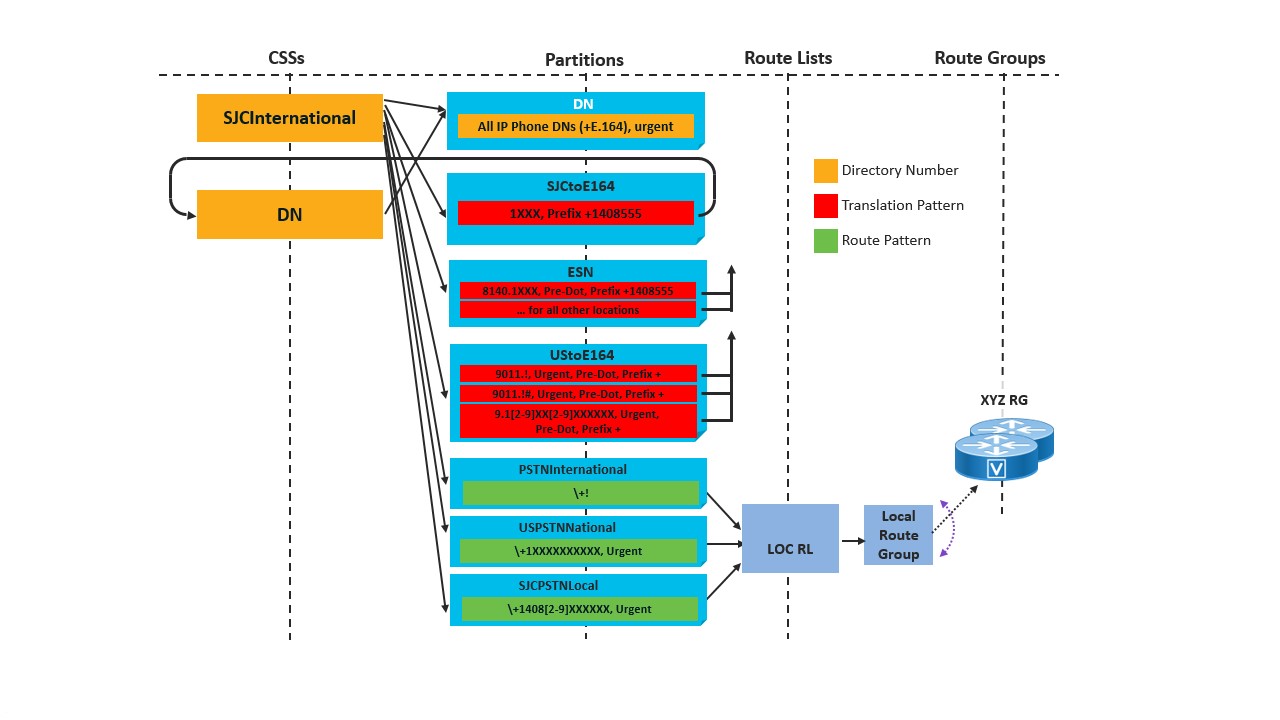
For example, PSTN dialing (9+1+10D) from a device in SJC provisioned with line calling search space SJCInternational will first get matched by the 9.1[2-9]XX[2-9]XXXXXX translation pattern which normalizes the called party number to +E.164. The secondary lookup then uses the same calling search space SJCInternational again (calling search space inheritance) and the +E.164-digit string will either get matched by a +E.164 directory number in the DN partition or by one of the PSTN route patterns in the USPSTNNational or SJCPSTNLocal partition. Abbreviated intra-site and inter-site dialing habits are implemented by the translations in the ESN and SJCtoE164 partition. While the ESN partition is a global partition (accessible for phones in all locations) the SJCTOE164 partition is only accessible for users in location SJC. This is assuming overlapping extension ranges.
The first step to enable calling from Unified CM to Webex Calling is to make sure that +E.164 destinations get routed accordingly. This can be achieved by adding a Webex Calling partition to the dial plan, adding +E.164 route patterns for all Webex Calling destinations to that partition, and finally adding the Webex Calling partition to all calling search spaces representing classes of service which need to be able to reach Webex Calling. Creating a dedicated Webex Calling partition is required to enable creation of a differentiated class of service for calls originating from Webex Calling. To avoid call loops the inbound calling search space on the trunk from the Local Gateway should not have access to the Webex Calling partition.
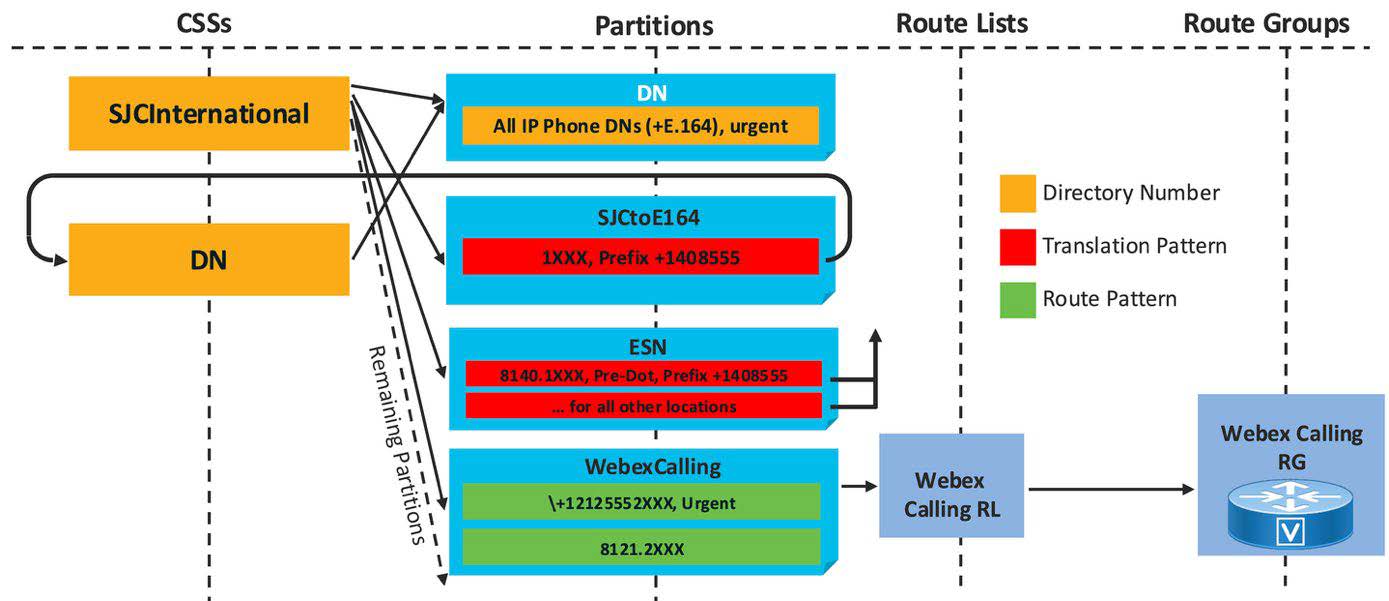
As shown in Figure +E.164 routing to Webex Calling, to enable routing from Unified CM to Webex Calling for a location with +E.164 DID range +1 221 555 2XXX and site code 121, an urgent route pattern matching this +E.164 range needs to be added to the Webex Calling partition.
If no site-specific Local Gateway selection is required, then instead of using a route list with a Webex Calling local route group as the destination for route patterns pointing to Webex Calling a single route group can be provisioned with the Local Gateway as the only member and then the Webex Calling route patterns point to a single Webex Calling route list with this one route group as only entry.
To enable inter-site abbreviated dialing to the Webex Calling site the required route pattern 8121.2XXX is added to the Webex Calling partition. For sites to be transitioned to Webex Calling a dialing normalization pattern 8121.2XXX that normalizes ESN dialing to +E.164 might already exist in the ESN partition. In that case the 8121.2XXX seems to be redundant, but as soon as all DNs of the respective location have been migrated over to Webex Calling the 8121.2XXX dialing normalization translation pattern can be removed and then the 8121.2XXX route pattern enables ESN dialing even for extension only users in that range.
With these dial plan changes calls to the Webex Calling location can be placed not only by dialing abbreviated inter-site and +E.164. Also, international and national PSTN dialing are possible because these dialing habits are first normalized to +E.164 through the already existing dialing normalization translation patterns and then get routed to Webex Calling by matching the +E.164 route pattern in the Webex Calling partition.
The +E.164 route pattern matching on the Webex Calling location's DID range can be provisioned while all DIDs are still hosted on Unified CM. The best match pattern matching algorithm of Unified CM makes sure that when a number hosted on Unified CM is dialed then the +E.164 directory number provisioned on Unified CM is a better match than the wildcarded +E.164 route pattern pointing to Webex Calling so that the calls get extended to a line on Unified CM and not sent to Webex Calling.
Webex Calling dial plan
Each user in Webex Calling is provisioned with an extension and/or a +E.164 phone number. The extension length is a fixed global setting: all extensions in a Webex Calling deployment have the same length. Extension dialing can be used between Webex Calling users both within a location and between locations. Abbreviated inter-site extension dialing (the latter case) only works if the dialed extension is unique.
If abbreviated inter-site dialing between locations is a requirement but there are overlaps between extensions assigned in different locations, then an enterprise specific numbering plan needs to be created by prefixing the extensions with an access code a site code. For more information, see Preferred Architecture for Cisco Collaboration 15 On-Premises Deployments, Design Overview available at Cisco collaboration preferred architectures.
The extension length, inter-location extension dialing behavior, prefix length for inter-location dialing and the steering digit in the routing prefix for inter-location dialing are configured in the calling service settings in Control Hub:
-
Location routing prefix length: Prefix length including the steering digit. Only required if an enterprise numbering plan needs to be established as alternate abbreviated enterprise inter-location dialing habit.
-
Steering digit in routing prefix: Steering digit for abbreviated enterprise inter-location dialing habit. Overlaps with first digit of any location and location outbound dial digits should be avoided. Only required if an enterprise numbering plan needs to be established as alternate abbreviated enterprise inter-location dialing habit.
-
Internal extension length: Standard length of extensions. Can be any value between two and ten.
When extension dialing or dialing using enterprise significant numbers (steering code, site code, extension) is required from an on-premises call control to Webex Calling and the on-premises call control sends an extension as the caller id, then make sure to also set the Maximum unknown extension length parameter in the Call Routing between Webex Calling and premises section to make sure that upstream calls from the on-premises call control to Webex Calling can get classified as on-premises calls correctly. -
Allow extension dialing between locations: Toggle to enable/disable extension dialing between locations. This option should only be enabled if all extensions within the organization are unique. If the option is disabled then enterprise significant numbers (steering code, site code, extension) or phone numbers need to be dialed between locations.
The first three parameters are mainly used to build a dial plan for phones to minimize inter-digit timeouts when using off-hook dialing. Deviations from these global settings are still possible (Example - extensions with a different length can be provisioned), but a warning message will pop up in Control Hub and dialing from phones might require en-block dialing to avoid conflicts within the pre-loaded dial plan.
The table Enterprise numbering example shows an example of three locations where the extension ranges of two locations, NYC and RTP, are identical. Establishing an enterprise numbering scheme with inter-site steering digit 8, followed by a three-digit site code, and the four-digit extension creates a non-overlapping abbreviated inter-site dialing habit.
| Site | Extension range | Site code | Enterprise range |
|---|---|---|---|
| NYC | 2XXX | 202 | 8 202 2XXX |
| SFO | 3XXX | 203 | 8 203 3XXX |
| RTP | 2XXX | 204 | 8 204 2XXX |
To allow for a smooth transition the set of dialing habits for users before and after transitioning to Webex Calling ideally should be the same. To prepare for the transition for each location the DID ranges and extension ranges (or abbreviated intra-site dialing habits) need to be documented. Based on this information then the inter-site steering digit needs to be selected.
The table Fixed length Webex Calling extension ranges shows an example of three locations and fixed length extension ranges. Because overlapping dialing habits need to be avoided, it is important to make sure that for any extension range the first digit of the range does not match the steering digit for abbreviated inter-site dialing. If for example 8 is selected as the steering digit for inter-site dialing, then no extension range in any site can start with 8. Typically, the extensions at a given location match the last few digits of the DIDs assigned to that location. To avoid conflicts the first digit of the extension can be changed. If, for example, DIDs in the +1 408 555 8XXX range are used in a location, then instead of using 8XXX as extension range 7XXX can be used for the extensions in that site
| Site | Extension range | Webex Calling Extensions | Site code | Enterprise range |
|---|---|---|---|---|
| NYC | 2XXX | 2XXX | 202 | 8 202 2XXX |
| SFO | 8XXX | 7XXX | 203 | 8 203 7XXX |
| RTP | 1XX | 11XX | 204 | 8 204 11XX |
Seven digit dial strings dialed on a Webex Calling device using the US Webex Calling dial plan overlap with a seven-digit pattern for local dialing in the pre-loaded US dial plan. To avoid overlaps between any on-net and off-net (PSTN) dialing habits a mandatory outside access code can be used in that location. If the existing enterprise numbering schema and the corresponding abbreviated inter-site dialing overlaps with patterns in the Webex Calling national dial, then during the transition to Webex Calling the numbering schema to avoid overlaps can also be changed to a longer or shorter form. The easiest way to achieve this is to add an additional padding digit to the numbering schema. The new longer inter-site dialing schema only needs to be adopted by users already migrated to Webex Calling. Users still on Unified CM can continue to dial seven digits. The enterprise dial plan on Unified CM in this case needs to make sure that abbreviated seven-digit dialing from Unified CM to Webex Calling gets transformed to either +E.164 or to the abbreviated dialing format deployed on Webex Calling. This needs to be done before sending the call to the Local Gateway.
The Table Transitioning seven-digit dialing shows an example of this renumbering. In this example abbreviated inter-site dialing on Unified CM uses steering digit 8 followed by a two-digit site code and a four-digit extension. To avoid seven-digit abbreviated inter-site dialing for locations on Webex Calling, the site codes can easily be changed to three digits by prefixing an arbitrary padding digit (8 in the example) to the two-digit site codes used in Unified CM so that inter-site dialing from Webex Calling phones uses steering digit 8 followed by the padding digit 8, the old two-digit site code, and the four-digit extension. Users on Webex Calling don’t need to remember new site codes; they only need to remember to use 88 as prefix for inter-site dialing instead of 8 on Unified CM.
| Unified CM | Webex Calling | ||||
|---|---|---|---|---|---|
| Site | Extensions | Site Code | Enterprise range | Site ode | Enterprise ange |
| NYC | 2XXX | 22 | 8 22 2XXX | 822 | 8 822 2XXX |
| SFO | 8XXX | 23 | 8 23 7XXX | 823 | 8 823 7XXX |
| RTP | 1XXX | 24 | 8 24 11XX | 824 | 8 824 11XX |
In a scenario with different enterprise number formats on Unified CM and Webex Calling if enterprise numbers are presented as calling party information for calls from Unified CM to Webex Calling (for example - Calls from devices without a DID), it is important to also implement a mapping between the different number formats for calling party information to ensure callback works. This mapping can be achieved by using calling party transformation pattern on the trunk between Unified CM and the Local Gateway.
Recording
A well-architected call recording solution requires careful consideration of several key design elements to ensure it aligns with organizational goals, regulatory requirements, and technical constraints. Two of the most critical decisions involve provider selection and region selection, both of which may need to be tailored globally and overridden at specific locations, based on business needs.
1. Call recording provider selection
Selecting the appropriate call recording provider is fundamental to meeting business objectives and ensuring feature alignment across the organization:
-
Global provider selection: Organizations typically designate a primary call recording provider at the global level, ensuring consistency in feature set, compliance, and support across all locations
-
Location-based overrides: In scenarios where specific sites or regions have unique business needs or regulatory requirements, it may be necessary to override the global provider selection and specify alternative providers for those locations. This flexibility supports varying compliance mandates and local operational needs
-
Business requirements: The choice of provider should be driven by an assessment of business drivers such as regulatory compliance (Example - MiFID II, HIPAA), quality assurance, dispute resolution, or training needs
-
Feature availability: Providers should be evaluated based on their ability to deliver required features, such as real-time monitoring, search and playback capabilities, encryption, retention policies, integration with analytics platforms, and support for different call types (inbound, outbound, internal).
2. Region selection
Determining the region where call recordings are stored and processed is critical for compliance and performance:
-
Global region selection: By default, organizations may choose a single region for storing call recordings to simplify management and governance
-
Location-based region overrides: Where data residency laws or corporate policies require, it may be necessary to override the global region setting for specific locations, ensuring that call recordings are stored and processed within the required geographic boundaries
-
Data residency requirements: The design must account for international and local data protection regulations (such as GDPR, CCPA, or country-specific mandates) which may dictate where and how call recordings are retained.
Another critical aspect to be addressed during the planning and design of a call recording solution for Webex Calling is the estimation of storage requirements. Accurately forecasting storage needs is essential to ensure that sufficient capacity is available to support ongoing business operations, maintain compliance, and avoid service disruptions.
Several key parameters should be considered when determining the expected storage demand:
-
Volume of recorded calls: Assess the anticipated number of calls that will be recorded within a given time interval (e.g., per day, week, or month). This includes not only external calls but also internal communications, if required by business policy or regulatory mandates
-
Average call duration: Calculate the typical length of recorded calls, as longer calls will consume more storage space. Variations in call duration across different departments or user groups should also be factored into the estimate
-
Retention period: Define the length of time that recordings must be retained, which is often dictated by organizational policies or external regulations (such as industry-specific compliance standards). Longer retention periods will increase overall storage requirements
-
Growth projections: Consider anticipated growth in call volumes or expansion of recording scope, which may result from business scaling, new regulatory requirements, or the onboarding of additional users or locations.
By thoroughly analyzing these parameters, organizations can develop a robust storage strategy that ensures scalability, cost-effectiveness, and regulatory compliance for their Webex Calling call recording solution. It is also advisable to regularly review and adjust storage allocations as usage patterns evolve over time.
Emergency calling
The requirement to route an emergency call to the appropriate dispatch center is a requirement for any calling service that offers PSTN service. With Webex Calling, the routing of emergency calls is native to the solution and includes support for all national emergency numbers in the countries that Webex Calling supports. The routing of an emergency call in Webex Calling is based on the location defined within Control Hub and the PSTN access method of the location. The emergency numbers in Webex Calling are predefined and specific to the country that the Webex Calling users and devices are deployed in.
There are two methods to deliver emergency calls in Webex Calling. There is a basic emergency call routing service and an Enhanced Emergency call routing service. The basic emergency call routing service will use an admin selected number to identify the location and call route to reach emergency services. For basic emergency calling the call path is typically through the customer's PSTN option for that location. Webex Calling also has Enhanced Emergency call routing designed for US and Canada deployments that have regulatory compliance requirements that require the use of a nationwide provider to deliver emergency calls to the correct dispatch center.
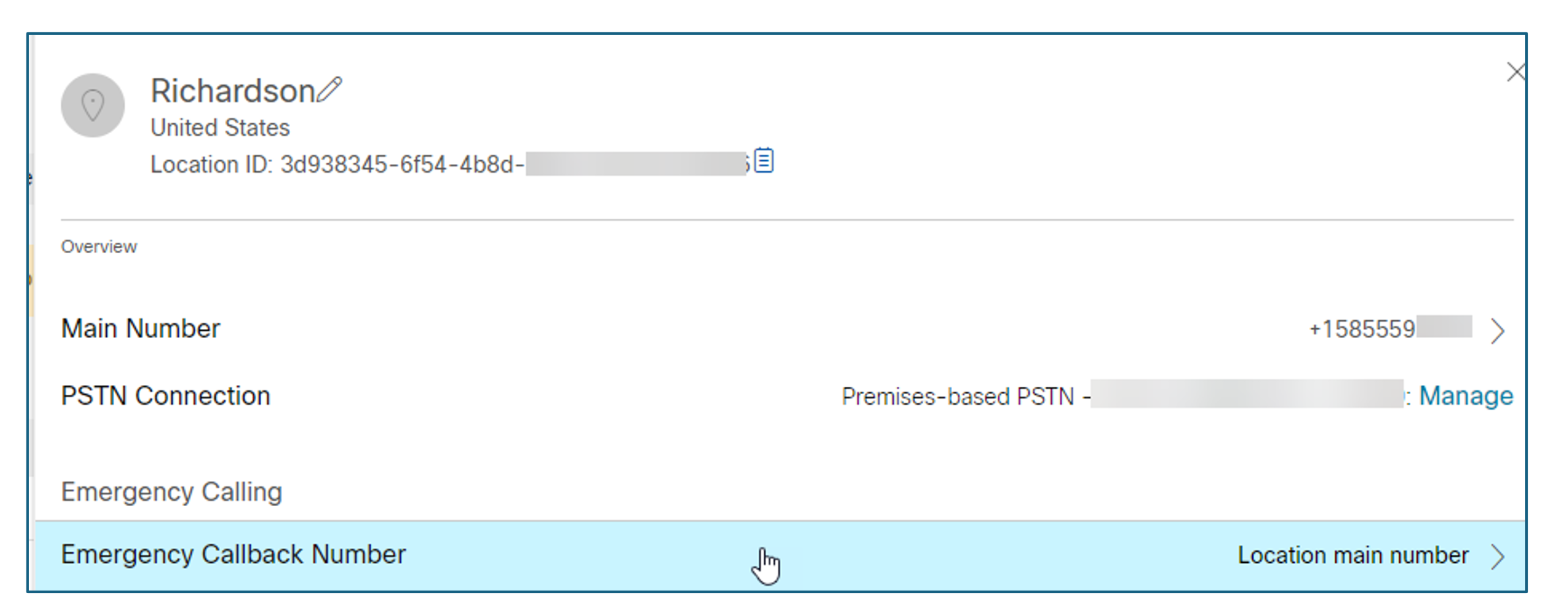
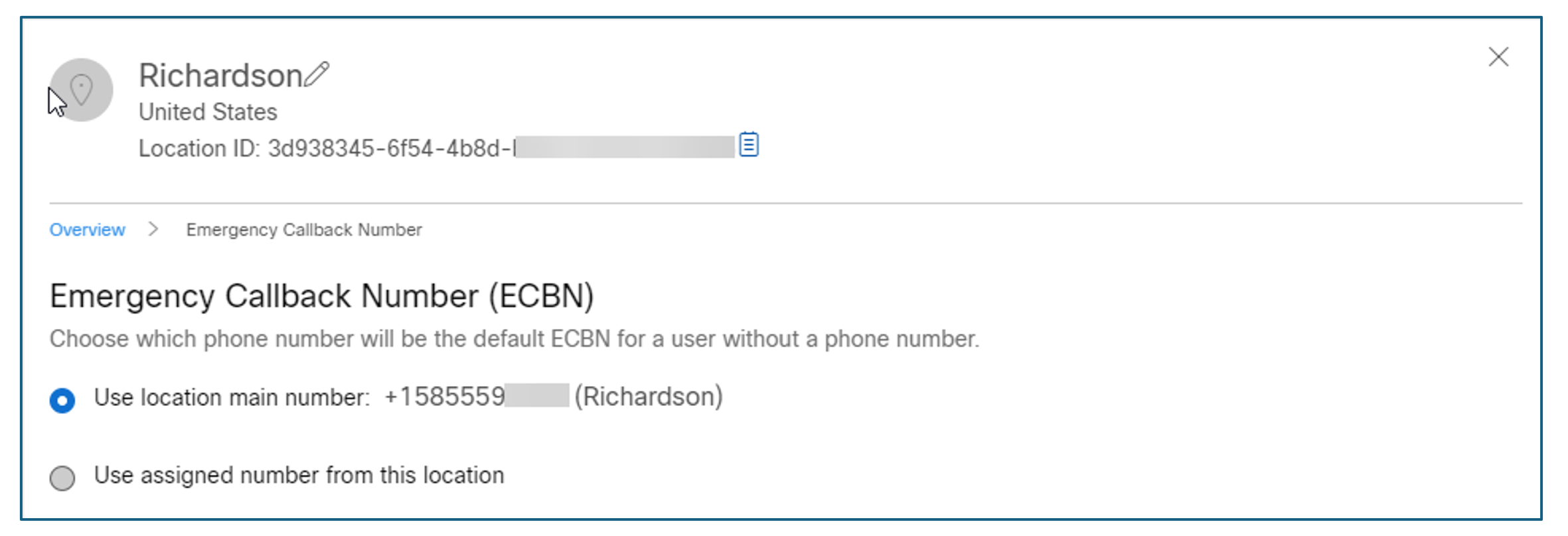
All customers should deploy, at minimum, the basic emergency calling configuration. Basic emergency calling requires that at least one customer owned +E.164 number be assigned to each location defined in Webex Calling. For basic emergency calling, each location will be defined by a street address that police, fire or ambulance services are dispatched to in case of emergency. In most cases, the main number for the location is the best choice to represent the physical location of the emergency. Typically, the assignment of the address to the +E.164 number is coordinated with the PSTN provider. The images below show the assignment of the main number to be used as the emergency callback number for the Richardson location.
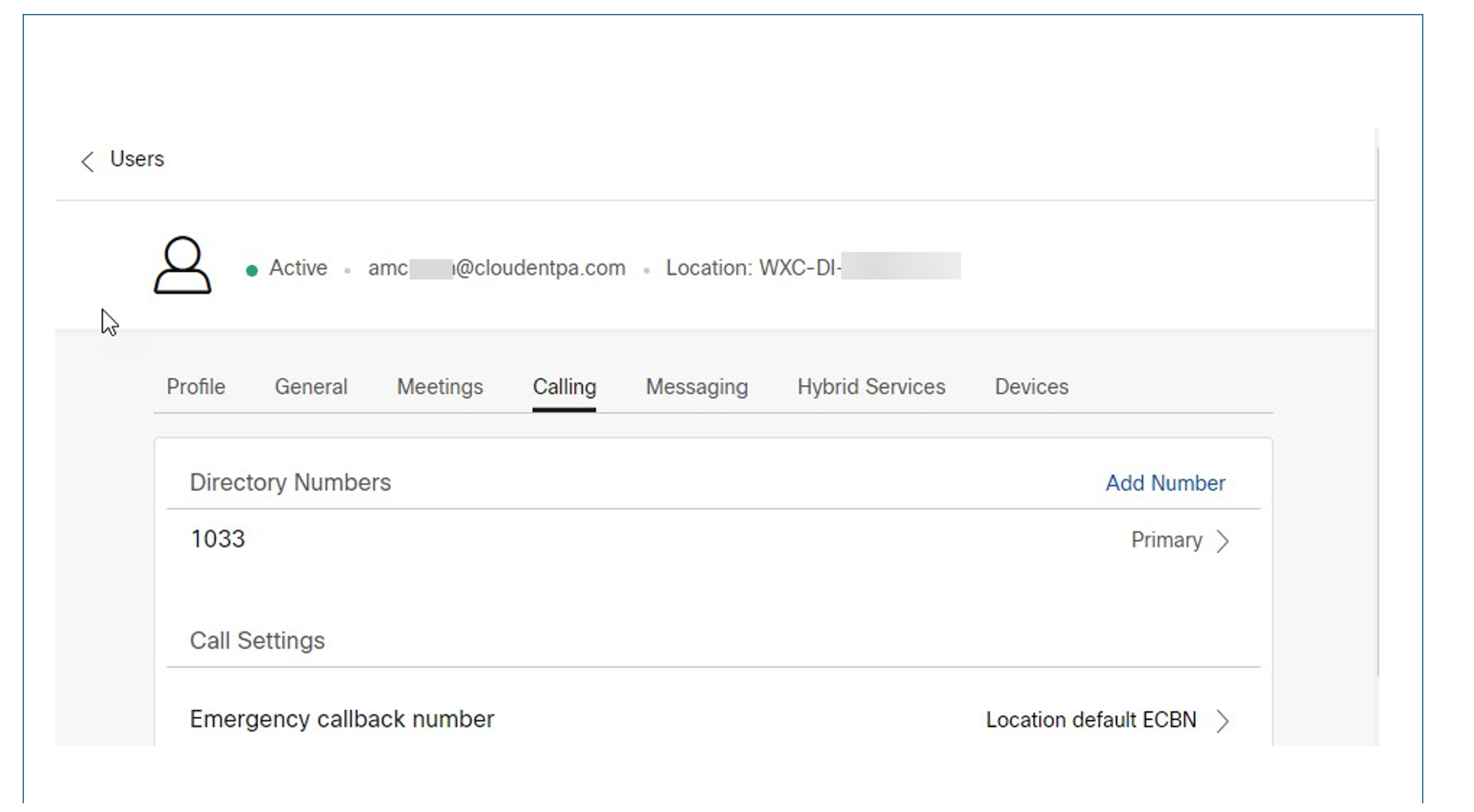
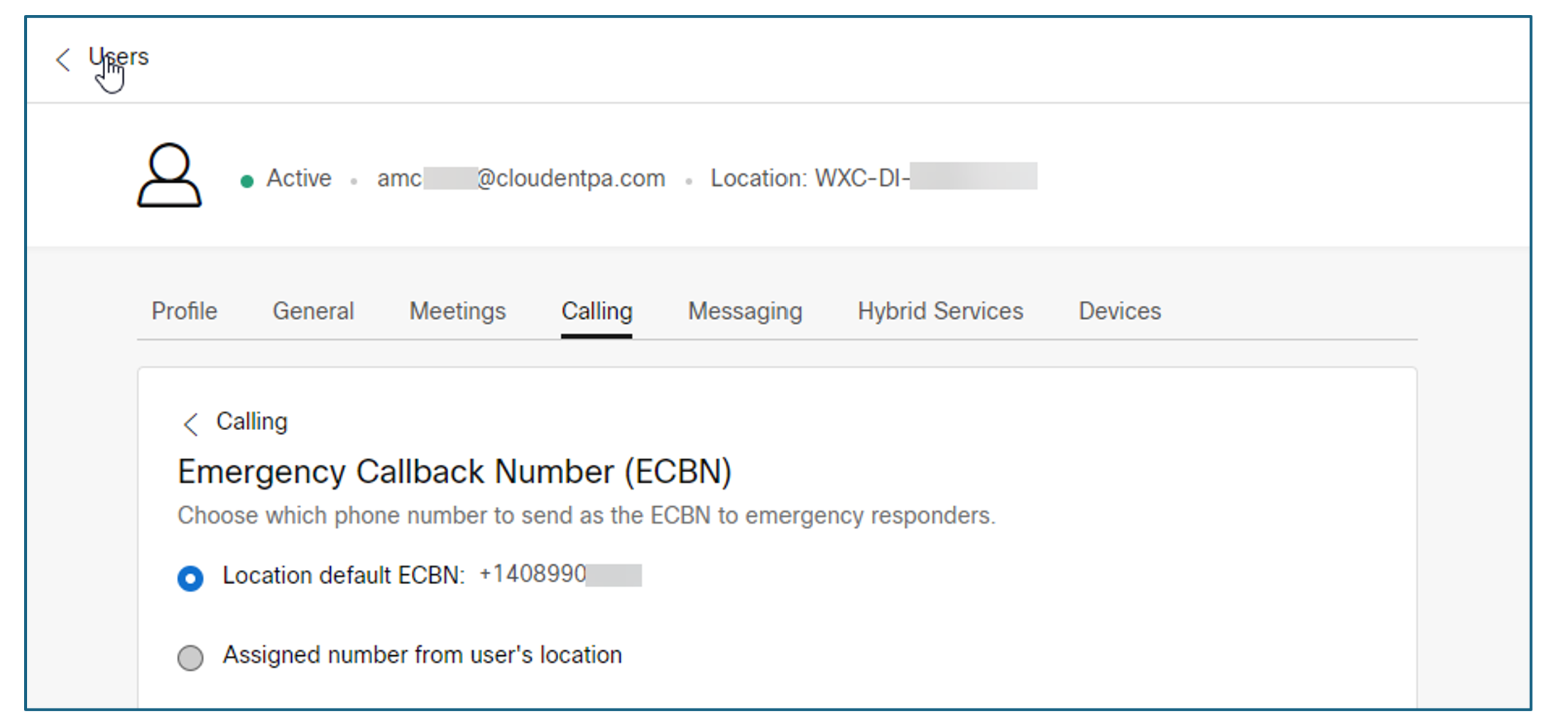
In most situations, a building address is sufficient for the dispatch address for the location. But if additional location details are needed for specific users or devices, then an administrator can use the same process described above and assign those devices to a specific address or a more precise location inside the address (like a floor or room). In User management in Control Hub, the Calling tab allows for a specific number to be used for a user and their devices to get specific dispatch address. The following images illustrate how a specific number can be assigned to a device. The administrator is responsible for making sure the number used by the device will have the correct dispatch address assigned to it. The address assignment is typically done through PSTN provider of that location.
For US based telephony deployments that must provide Enhanced Emergency calling solutions, Webex Calling uses RedSky's Horizon Mobility integrated into Webex Calling for emergency call routing. When using RedSky for call routing, an administrator must enroll for an account through Cisco and configure the appropriate information in the Calling -> Service Settings to enable this feature. Once the RedSky service has been enabled at the system level, an administrator will enable the RedSky service at each Location level. The enablement of Enhanced Emergency Calling in a Webex Calling Location will activate the service for all devices that are assigned to that location. Devices that support Enhanced Emergency calling are Cisco MPP phones, Cisco PhoneOS phones and Cisco's Webex App.
There are two settings for enabling Enhanced Emergency Calling at a location. The Allow RedSky to receive network connectivity information and test calls should be used to verify that the RedSky configuration for device and infrastructure mappings are correct. This setting also allows test calls to be placed to 933 to perform location verification using RedSky's IVR system to read out the location of the caller. Although this document will not cover the RedSky configuration for location tracking, an administrator should ALWAYS test their location discovery prior to activating emergency calls to route to RedSky. Once testing has been completed and verified as accurate, the administrator will route calls to RedSky by toggling the route emergency calls to RedSky. This toggle will direct all emergency calls for the location to RedSky for delivery to the answering center for the location.
The Enhanced Emergency Calling settings also apply to Webex App clients both on-premises and off premises. When on-premises, the Webex App can be tracked the same way that desk phones are tracked. When off-premises, the user will be able to set their location dynamically directly within the Webex App. For more information on emergency calling, see Enhanced emergency calling for Webex Calling.
Licensing
There are multiple options to assign Webex Calling licenses to users.
Manual assignment through Control Hub
Administrators manually assign Webex Calling licenses to individual users through the Control Hub interface.
Admins can edit service licenses for individual users and assign calling licenses directly.
Automatic license assignment templates
Use license assignment templates in Control Hub to automatically assign licenses to users based on group or organizational settings.
Automatic licensing can be done thorugh directory synchronization or manual user updates, but users must have a valid +E.164 formatted phone number and the phone numbers must exist in a Webex Calling location prior to user provisioning. If conditions are not met (e.g. invalid phone number format), Webex Calling licenses will not be assigned.
Bulk assignment through CSV template
Upload a CSV file with user details and license assignments to add or modify multiple users at once.
CSV import supports adding up to 20,000 users and assigning licenses, but Webex Calling licenses require specific fields like phone number and extension.
API-based assignment
Use Webex APIs to programmatically assign licenses and manage users.
Webex supports API operations for user and license management (People, SCIM 2.0 and Licenses APIs), which can be leveraged for license assignment automation. The Licenses API allows simultaneous assignment of licenses, phone numbers and extensions.
| Assignment Method | Pros | Cons |
|---|---|---|
| Manual through Control Hub | Simple for few users. Allows precise and granular control over license assignment. | Not scalable, time-consuming Prone to human error during manual entry. |
| Automatic license templates | Scalable Reduces manual errors Can be applied to new and existing users. | Requires valid phone numbers and locations. More complex to set up Also requires user groups per group of users with equivalent licensing requirements. |
| Bulk CSV Upload | Efficient for large user sets Allows simultaneous assignment of licenses, phone numbers and extensions. | Requires careful CSV formatting Potential for errors if phone numbers or extensions are missing or incorrect. |
| API-based assignment | Automatable, flexible. Allows simultaneous assignment of licenses, phone numbers and extensions. | Requires development and API knowledge. |
The table User provisioning options - summary summarizes user provisioning options and their pros and cons. This overview helps to choose the best license assignment method based on customer organization size, automation capabilities, and user provisioning processes and requirements.
Wherever possible Cisco recommends assigning calling licenses using license templates. This requires that for each group of users that requires a unique set of licenses (Example - Webex Calling Standard vs. Professional) a group with the respective group memberships exists. As discussed in the User Groups sections, user groups can be defined manually in Control Hub or synchronized from a corporate directory. A combination of both approaches is possible.
Users belonging to multiple groups gain licenses from all assignments applied to all their groups. This allows to use Webex Calling license specific security groups in the enterprise directory to manage Webex license assignment where the resulting user license assignment is controlled by the union of group memberships.
For more information, see Set up automatic license assignments in Control Hub and Set up automatic license assignment templates for Webex Calling users.
License requirements
This section only covers Webex Calling related licenses. Other license types (Example - Webex device registration, messaging, meetings) are not covered. As part of the design process the license requirements need to be determined. License counts for the following license types need to be calculated:
-
Webex Calling Standard: number of individual users requiring standard telephony features.
-
Webex Calling Professional: number of users and workspaces requiring advanced telephony features. Virtual lines and group voicemail are entitled to a 1:1 ratio for each professional license. Hence, in rare cases where the number of required virtual lines or group voicemails exceeds the number of users and workspaces requiring advanced telephony features, additional professional licenses need to be accounted for.
-
Webex Calling Workspace for Common Area: number of shared use or common area locations requiring standard calling capabilities.
-
Webex Calling Customer Assist: number of agents and supervisors requiring Webex Calling Customer Assist features. The Webex Calling customer assist includes the Webex Calling Professional license.
-
Route List Calls: number of required Cloud Connected PSTN calls between on-premises Unified CM users and/or on-premises specialized 3rd party applications.
-
Attendant Console: number of Webex Calling users who require access to the attendant console client.
-
Cisco Calling Plan (Outbound Calling Plan): number of users who require a PSTN number and/or outbound PSTN calling access for the Cisco PSTN service.
There is no dedicated license type for professional Workspaces. Professional workspaces consume a Webex Calling Professional license.
Hot-desk only workspaces offer the hot-desking host service and emergency calling from the hot-desking host and don't require any license. For more information, see Add and manage hot desk only devices.
To determine the required license type for each user and workspace based on features needed, see Features available by license type for Webex Calling.
To differentiate between functionality offered by Webex Calling call queues combined with the Webex Calling professional license in contrast to Webex Calling customer assist, see Webex Calling call queue and customer assist feature comparison.
User provisioning
When provisioning users in Webex Control Hub, there are several options available, each suited to different organizational needs and environments:
-
Manual provisioning: Administrators can add and manage individual users directly within Control Hub. This method is straightforward but best suited for small organizations or limited user changes.
-
Bulk provisioning through CSV: For larger user bases, administrators can import and update users in bulk by uploading CSV files into Control Hub. This allows efficient management of up to thousands of users at once.
-
Directory synchronization options:
Directory Connector: This is an automatic synchronization tool used in Microsoft Active Directory environments. It synchronizes user accounts, groups, and attributes on a scheduled basis (hourly, daily, or weekly). It supports multi-domain and multi-forest Active Directory setups and can synchronize profile images and room objects.
Entra ID (Azure AD) wizard app: Designed for organizations using Microsoft Entra ID (Azure AD), this method provides automatic, near real-time synchronization of user accounts and attributes directly from Entra ID to Control Hub. It is fully managed within Control Hub and requires minimal setup.
SCIM 2.0 Applications: For non-Microsoft environments or other identity providers like Okta or Duo, SCIM-based synchronization apps enable automatic user provisioning and deprovisioning with attribute mapping and group synchronization.
-
Unified CM user sync: This option allows creating Webex user accounts based on existing Unified CM end-users by synchronizing from Unified CM to Webex. This requires Cloud Connected UC (CCUC) to be running on the on-premises Unified CM clusters. However, it is generally recommended to synchronize users from a centralized cloud directory like Entra ID rather than directly from Unified CM.
-
API provisioning: Public Webex APIs (People, SCIM 2.0) can be used to provision Webex users. The main benefit of using APIs is the option to integrate the user provisioning with other enterprise systems.
This overview and table reflect the main Webex user provisioning options, their benefits, and limitations to help you choose the best approach for your organization’s needs.Table 6. User provisioning options for Webex Provisioning method Description Pros Cons Manual Create/manage users individually in Control Hub Simple for few users; no infrastructure needed Not scalable; time consuming for many users Bulk (CSV File) Import/update users in bulk through CSV in Control Hub Efficient for groups; no coding required Manual CSV prep; less dynamic People and SCIM 2.0 API Programmatic user management through Webex APIs Flexible; supports automation and integration Requires development and infrastructure Directory sync Automatic sync from AD, Entra ID, SCIM apps, Unified CM Automates lifecycle; supports filtering and mapping Setup complexity: some of the options have limited features or require infrastructure
User groups
User group management in Webex allows administrators to organize users into groups for efficient bulk management of licenses, settings, and resources. Groups help streamline administration by applying policies, licenses, and settings templates to multiple users simultaneously, rather than managing users individually.
User group management offers several benefits including:
-
Simplified administration: Manage licenses, settings, and policies for multiple users at once.
-
Consistency: Apply uniform settings and licenses across users in the same group.
-
Scalability: Supports up to 250,000 members per group.
-
Integration: Synchronize groups from Microsoft Entra ID (Azure AD) or Active Directory for automated user and group management.
-
Flexibility: Create local groups or synchronize security groups; manage group membership manually or through CSV files.
-
Resource allocation: Control access to embedded apps and services based on group membership.
The main use cases for user groups when provisioning Webex Calling are:
-
License assignments: Assign licenses to groups to automatically provision services like Calling, Meetings, Messaging, or Hybrid services to group members.
-
Settings templates: Apply collections of service settings (e.g., messaging, meeting, calling) to groups for consistent user experience.
-
Bulk user management: Add or remove users in bulk through CSV files or directory synchronization.
-
Automation and integration: Use APIs or directory sync for automated user and group lifecycle management.
The following table summarizes the different options to manage user groups and group management in Webex.
| Option | Description | Pros | Cons |
|---|---|---|---|
| Control Hub group provisioning (Webex groups) | Create and manage groups directly in Control Hub. Add/remove members manually or through CSV. | Full control over group membership Immediate application of licenses and templates Easy to create and edit groups |
Manual updates required Risk of errors in manual CSV uploads No automatic sync with external directories |
| Synchronized groups from Entra ID (Azure AD) or Active Directory | Automatically sync security groups and memberships from external directory services. | Automated synchronization reduces manual work Ensures consistency with corporate directory Supports large organizations |
Cannot edit group membership in Control Hub Sync delay up to 12 hours Nested groups require manual selection |
| Groups and SCIM 2.0 API (Webex Groups) | Use Webex Groups or SCIM 2.0 API for programmatic group and membership management | Automation and integration with other systems Scalable for large or complex environments |
Requires development effort Complexity depends on API usage |
While synchronized groups ensures consistency and offers a single point of administration, a hybrid approach combining synchronized groups and Webex groups (either managed in control hub or through APIs) is possible. So, for example groups for license assignment could be synchronized groups and a separate set of Webex groups can be used for assigning user and Webex App calling templates.
This comprehensive approach to user group management in Webex enables organizations to efficiently manage user licenses, settings, and policies, ensuring consistent and scalable collaboration experiences.
Recommended approach when migrating from Unified CM to Webex Calling
The primary data source for users on Unified CM is the Unified CM database, which contains end-user information. However, Unified CM is not typically the authoritative source for user identity management and more importantly will be shut down at the end of the transition and is therefore ruled out as long-term authoritative source for identity information.
Cisco recommends using a centralized cloud directory such as Microsoft Entra ID (Azure AD) as the single source of truth for user identities. Synchronizing users from Entra ID to Control Hub ensures consistency, simplifies management, and supports single sign-on (SSO) capabilities.
To ensure all users on Unified CM are also present in Entra ID, organizations should verify that the user accounts in Unified CM correspond to accounts in Entra ID. This can be done by exporting user lists from Unified CM and comparing them with Entra ID user lists.
In summary, the recommended provisioning method is to synchronize users from Microsoft Entra ID (Azure AD) to Webex Control Hub using the Azure AD Wizard or SCIM apps. Manual and CSV bulk provisioning are available as supplementary methods but are less scalable and more error-prone for large organizations. Ensuring that Entra ID is the authoritative source and that all Unified CM users exist in Entra ID is critical for a successful migration and consistent user experience across Webex Calling and Unified CM environments.
Transitioning from an on-premises directory service, like Active Directory, to a cloud directory service, like Entra ID (Azure ID), is independent from the calling transition. Cisco recommends finishing the transition to a cloud directory service before starting the calling transition.
Designing User Groups
After transitioning the enterprise directory from on-premises to the cloud collect the required user groups driven by licensing and feature template requirements. For each group document:
-
Group Name: unique name of the group.
-
Licenses: licenses to be assigned to this group (if any) and scope (should licenses be assigned to existing users or only to new users)
-
Settings templates: Webex App and User calling templates.
-
Directory sync: Will this group be synced from the enterprise directory or is this a local Webex group provisioned in Control Hub or through an API.
-
Description: how will this group be used and which users should be members of this group
These details will be used later during the implementation phase to create local groups or groups in the enterprise directory and manage group membership of users.
Single Sign-On (SSO)
Cisco recommends the use of SSO for user authentication. Using SSO has some compelling benefits including:
-
Simplified user authentication: Users can sign in once using their corporate credentials (e.g. from Azure ID) to access Webex and other integrated applications, eliminating the need for multiple passwords and reducing login prompts. This enhances security by ensuring corporate passwords are never stored or transmitted to Webex after authentication.
-
Simplified user management: Automates user account creation, updates, and deactivation based on changes in the corporate directory, reducing administrative overhead and ensuring only authorized users have access.
-
Improved security: SSO reduces password fatigue and the risk of password-related breaches by centralizing authentication through trusted identity providers (IdPs).
-
Easy integration of multi-factor-authentication (MFA): MFA can be easily supported either through an Identity Access Management solution like Cisco Duo or through MFA support of the IdP.
There are multiple options to implement SSO for Webex services:
-
SAML 2.0-based SSO: The primary protocol supported for Webex SSO integration, enabling secure exchange of authentication information between the IdP and Webex service provider.
-
OpenID connect (OIDC): Supported as an alternative modern authentication protocol for SSO integration.
-
Webex identity: Also supported as an identity provider option.
SSO is configured and managed centrally through Control Hub, requiring metadata exchange between Webex and the chosen IdP.
After configuration, SSO can be tested within Control Hub before activation to ensure proper setup.
Cisco Webex supports integration with multiple tested and commonly used IdPs and Identity Management Systems (IAM), including but not limited to:
-
Cisco Duo
-
Okta
-
Microsoft Active Directory Federation Services (ADFS)
-
Microsoft Azure
-
PingFederate
-
OpenAM
-
F5 BIG-IP.
These IdPs conform to SAML 2.0 or OpenID Connect standards and have been validated for compatibility with Cisco collaboration solutions.
Multiple IdP support
Webex allows organizations to configure SSO with multiple IdPs to accommodate complex IT environments such as mergers, acquisitions, or decentralized IT departments where different groups use different IdPs. Multiple IdP support can either be implemented using the Multiple IdP feature in Webex or through the integration of an enterprise IAM system like Cisco Duo.
Webex's multiple Identity Provider (IdP) support addresses several key use cases where organizations require flexible and secure authentication across diverse IT environments:
1. Mergers and acquisitions
When companies merge or acquire others, they often have separate IT infrastructures and distinct IdPs that cannot federate. Multiple IdP support allows users from both organizations to authenticate and collaborate securely without needing to unify their identity systems immediately.
2. Multiple independent IT departments
Large organizations or government institutions may have multiple independent IT departments, each managing their own IdP. Webex's multiple IdP feature enables these departments to maintain their own authentication systems while allowing users to access Webex seamlessly.
3. Different user groups or domains
Organizations with various user groups (e.g., employees vs. contractors) or multiple email domains can configure routing rules to direct authentication requests to the appropriate IdP based on domain or group membership. This supports differentiated access policies and security controls.
4. Support for various authentication protocols
Webex supports SAML and OpenID Connect (OIDC) IdPs, allowing organizations to integrate different types of identity providers according to their existing infrastructure and security requirements.
5. Enhanced security and compliance
By enabling multiple IdPs, organizations can implement stronger authentication mechanisms, including multi-factor authentication (MFA) through integrations like Duo, and enforce consistent security policies across diverse user bases.
6. Simplified user experience
Users can authenticate using their existing credentials from their respective IdPs, providing a unified sign-on experience despite the underlying complexity of multiple identity systems.
While multiple IdP support provides flexibility, it requires careful coordination among security and identity teams to maintain consistent security policies and avoid potential vulnerabilities.
Duo MFA with SSO for Webex
Duo Access Gateway (DAG) can authenticate users using existing on-premises or cloud-based directories such as Active Directory (AD) and OpenLDAP. It also supports integration with other identity providers like Microsoft ADFS, Microsoft Azure, Okta, OneLogin, CAS, and Shibboleth. This flexibility allows organizations to use their current directory infrastructure for Webex SSO with Duo MFA.
Duo acts as a strong authentication layer on top of the primary directory authentication. It functions as an identity provider (IdP) using SAML 2.0 to enforce two-factor authentication (2FA) before granting access to Webex. Duo evaluates user, device, and network context against configurable policies to allow or deny access, enhancing security beyond just username and password. Duo also provides flexible policy controls, such as requiring MFA at every login for some apps and less frequently for others.
Benefits of Cisco Duo include:
-
Enhanced Security: Adds phishing-resistant MFA to protect Webex access, reducing risk from compromised passwords.
-
Flexible Policies: Allows granular control over authentication requirements per application or user group.
-
Integration with Existing Directories: Supports on-premises AD, OpenLDAP, cloud directories, and various SSO providers, minimizing infrastructure changes.
-
User Convenience: Supports Single Sign-On (SSO) to reduce password fatigue by enabling users to log in once and access multiple resources securely.
-
Trusted Endpoints: Supports device trust for Webex clients on Windows and macOS, improving security posture.
-
Self-Service Enrollment: Inline enrollment and duo prompt improve user experience during MFA setup.
Duo MFA with SSO for Webex leverages existing directories like Active Directory and OpenLDAP, or cloud identity providers, to authenticate users. Duo's role is to provide a strong, policy-driven second factor of authentication integrated through SAML 2.0, enhancing security while maintaining user convenience through SSO. The benefits include improved security posture, flexible policy enforcement, seamless integration, and a better user experience.
Cisco recommends implementing SSO for Webex users. For enhanced security integration with Cisco Duo is recommended.
The Enterprise IAM and SSO strategy should be deployed before starting the transition from Unified CM to Webex Calling.
Features
Webex Calling has a full complement of core features that are included with the service. This includes many enterprise-grade calling features that have been available in Unified CM for many years. You may not see 100% parity between Webex Calling features and Unified CM features, however as you can see in the below figure, the key Unified CM calling features are available in Webex Calling.
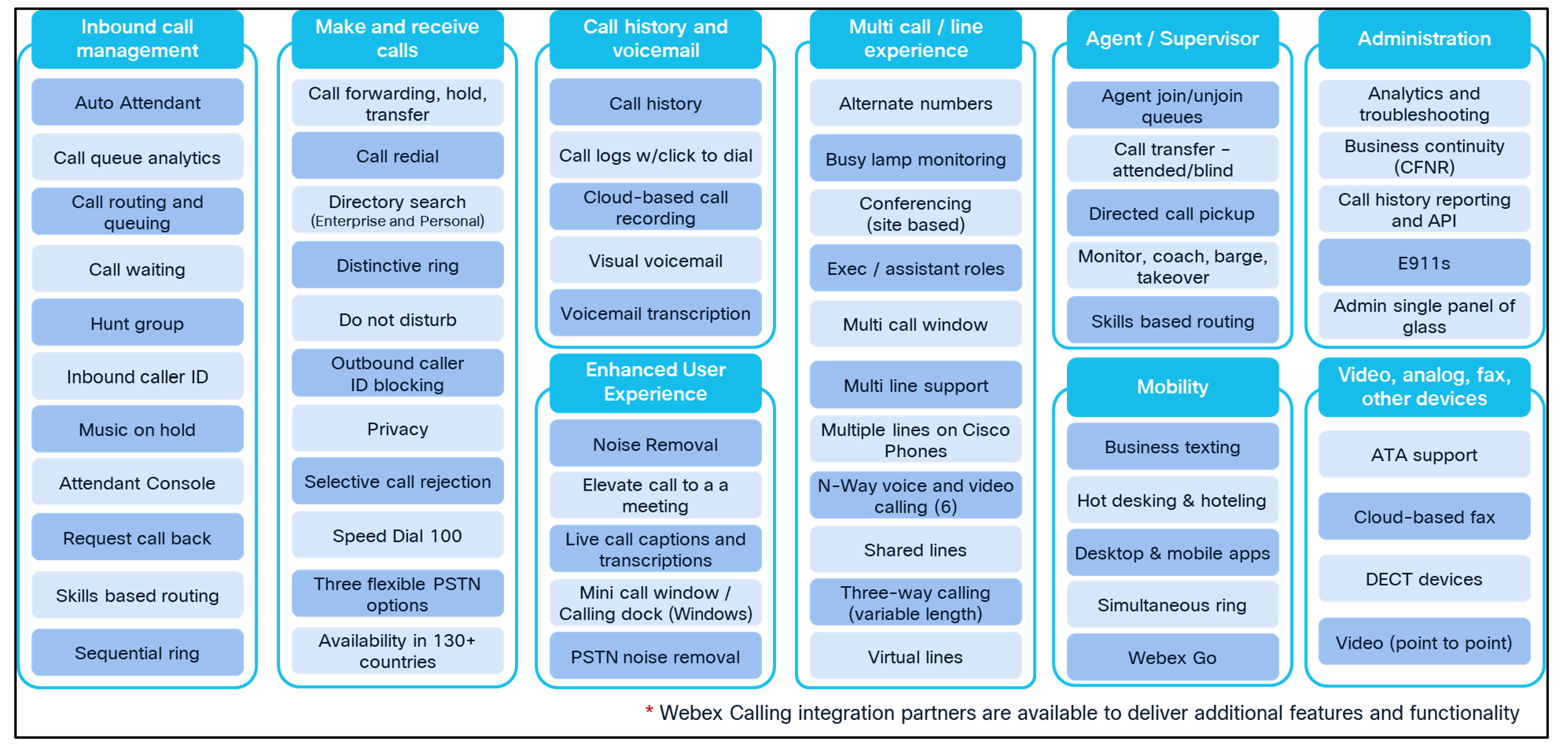
Besides the many user features, Webex Calling has core system features that are included with the platform. These include features like auto attendants, call queues, call park, etc. You can see all the available core system features in Control Hub under Service → Calling →Features as depicted in figure Webex Calling core features.
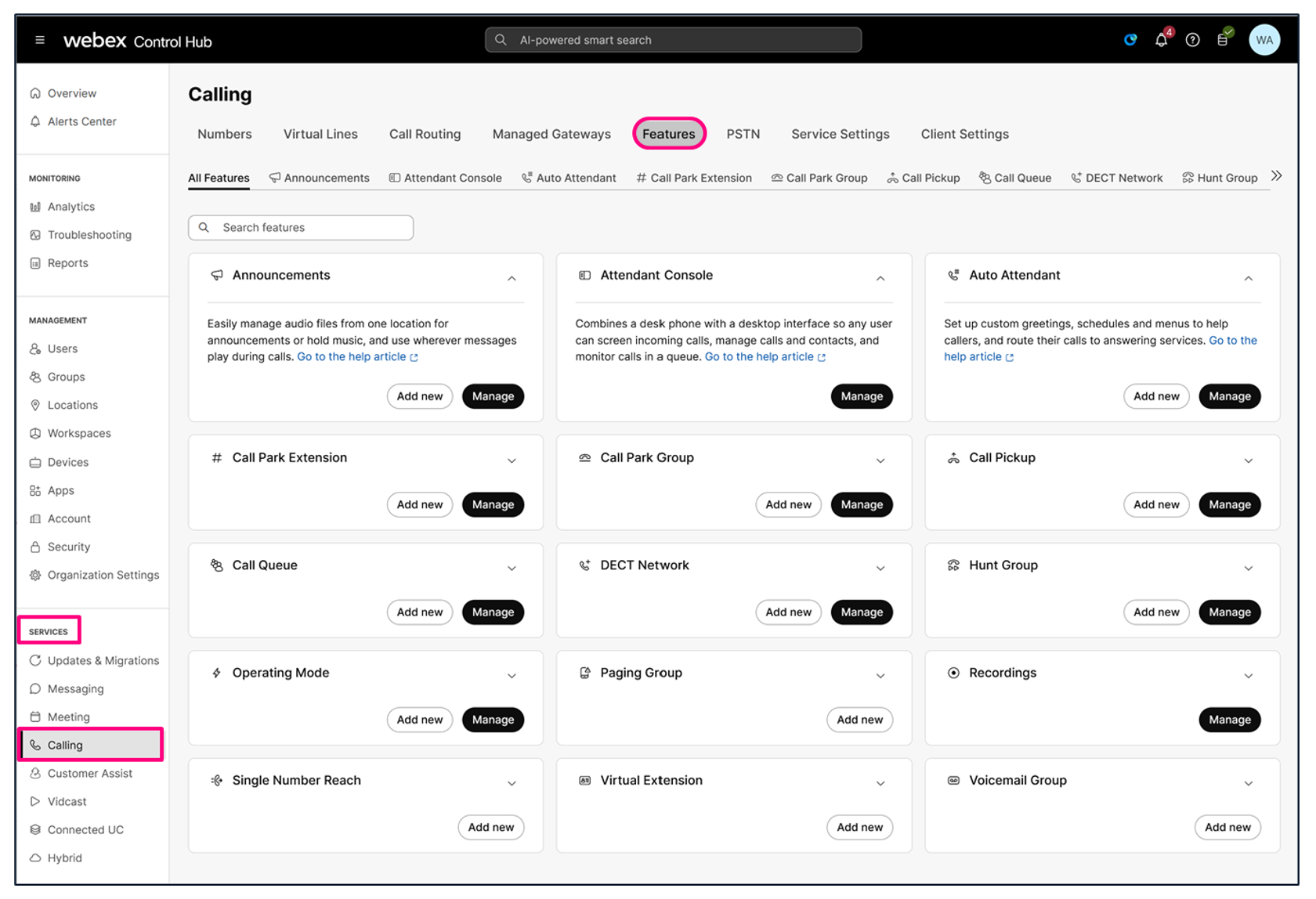
Auto Attendant
The Webex Calling Auto Attendant allows for 24/7 automation of incoming call handling, which allows for efficient call handling without the need for a person to answer every call.
The auto attendant answers incoming calls and provides the caller with a menu of options on where they want to route their call. This could be to a person, a voicemail box or a calling service (e.g. Call Queue). The caller uses their phone's dial pad to enter the number from the auto attendant menu.
The Auto Attendant supports the following key features:
-
Business and after-hour schedules
-
Holiday schedule
-
Dialing menu option to direct your customers to where they need to go
-
Customize greetings
-
Dial by name option
-
Call forwarding options
-
Control Hub analytics and reports.
For more information, see Manage auto attendants.
Call Park
Call park gives users the ability to easily to put a call on-hold for another user to easily retrieve when they are available to take it. It also frees up the user who answered the original call to make or receive other calls while the call is parked.
There are two types of call parks available in Webex Calling:
-
Call park direct - allows for any user to park a call to another user's extension or to a call park extension, as defined by the Administrator
-
Call park group - allows for a defined group of users to automatically park calls against available park destinations defined for the group. These destinations can be the group members' extensions or call park extensions.
Based on the configuration and park type, users can retrieve calls by dialing *88+><extension of parked call>, pressing the line key associated with the call park extension or using a softkey on their IP Phone.
A recall option is available to recall a parked call after a specified period to the user who parked the call or to an alternate user.
For more information, see Manage call park in Control Hub.
Call Pickup
Call pickup allows for an administrator to define a group of users (members) who can answer a call to another member's phone. This gives a user the ability to answer calls when their teammates are busy and unable to answer an incoming call.
The users in a group must be in the same Webex Calling location.
Users can use either the Webex App or their desk phone to pickup a call.
-
Webex App:
-
Supports visual and audio notifications
-
Incoming call notification
-
FAC-based (dial *98) or notification toast call pickup
-
Call pickup notifications for multiline.
-
-
Desk Phones:
-
Incoming call notification
-
Audio chimes and visual notification through the handset LED. The 6821 only supports audio chimes
-
When notification type selected in the Control Hub is not none
-
-
Call pickup notifications only for primary lines only.
-
For more information, see Configure call pickup group.
Call Queue
Webex Calling includes voice-only call queues as part of its core features and any user with a Webex Calling Professional license can be part of a call queue, agent or supervisor. This feature allows users to efficiently engage with customers. Call queues support a subset of some of the call center core capabilities like voice queues, call back, skill or priority routing, agent queue management, analytics, reporting, etc.
Cisco's call for Microsoft Teams integration allows agents to access call queue calls and features directly from their Microsoft Teams client.
Call Queues support the following key features:
-
Greetings and messages (welcome, comfort, whisper, etc)
-
Hold music
-
Callback
-
Queue Routing Policies (night service, holidays, forwarding)
-
Agent queue login/logout
-
Agent queue status management
-
Webex App or Desk Phone support
-
Supervisor agent call monitor, coach, barge or take over through Feature Access Codes (FACs)
-
Control Hub (administrator access) for:
-
queue management
-
Agent and queue analytics and reporting
-
Queue, agent and supervisor management.
-
For more information, see Configure call queue.
Webex Calling has a Customer Assist add-on feature that provides additional call queue capabilities and gives agents and supervisors a better user experience within the Webex App. For a comparison of the Webex Calling Call Queue and Customer Assist features, see Webex Calling call queue and customer assist feature comparison.
Hunt Group
Webex Calling Hunt Groups allow for the routing of incoming calls to specific group of users through a predetermined call routing pattern. This ensures calls are answered by the right group of users or send to a voicemail for follow up.
One big difference between Hunt Groups and Call Queues is that calls are not queued in a Hunt Groups, so if no users in the Hunt Group are available to answer the call it will be disconnected, sent to voicemail or forwarded to another number (user or service).
For more information, see Manage hunt groups in Control Hub.
Operating Modes
The Operating Modes feature allows businesses to efficiently route calls to various destinations (users, voicemail, calling services like a call queue). The where and when a call is routed is based on a time-of-day and day-of-week schedule and any user can be authorized to manage these modes (schedules) to control changes to the call routing.
As an example, calls to a Call Queue can be routed to another Call Queue with agents in a different time zone to answer calls after hours, during business hours be routed to the local agents, and during holidays be routed to voicemail for follow up after agents return to the office.
An authorized user can switch between these different call forwarding scenarios (modes) if they need to change where incoming calls are routed for certain period. These users can manage the modes through their 6800/7800/8800 MPP phones, 9800 phones or in the Webex User Hub at Manage modes.
For more information, see Call routing based on operating modes in Webex Calling.
Paging Group
Paging Groups allow users to place a one-way call to send an audio message to a group of users. Each group can contain up to 75 target users and/or workspaces that are reached by dialing a predefined number or extension.
When a user calls a Paging Group a simultaneous call is made to all the assigned targets in the group at which point the caller can speak their messages and hang up once they are finished.
For more information, see Configure a paging group in Control Hub.
Recordings
Webex Calling supports recording of calls made or received by a user. This may be required for quality, assurance, security or training needs. By default, calls are recorded in Webex, but other third-party recording providers can also be used if other recording features or compliance and regulatory requirements are required.
When using Webex as the recording platform all recorded calls are managed within Control Hub. Full administrators with the Compliance officer role can play and download the recordings. Without the Compliance officer role, the Administrator can only delete the recordings.
For more information about this feature and a list of third-party recording, see Manage call recording for Webex Calling.
Single Number Reach
Single number reach allows calls to a user's phone number to ring multiple devices. This can include other desk phones as well as mobile phones. Calls can also be placed from these devices and users can push and pull calls between them.
For more information about this feature and how an administrator configures it in Control Hub, see Configure single number reach (office anywhere).
For more information on how a user can manage and configure this feature for themselves in the Webex User Hub (portal), see Configure single number reach (office anywhere).
Voicemail Group
Voicemail Groups allow for a shared voicemail box which can be assigned to a user or call routing feature. Some of the reasons a voicemail group may be required are:
-
General purpose voicemail for a department or workgroup
-
Add voicemail option to an auto attendant or hunt group
-
To send overflow calls from a call queue
-
Users who only need a voicemail box.
For more information, see Manage a shared voicemail and inbound fax box for Webex Calling.
Attendant Console is listed on the Calling Features page in Webex Control Hub, however it is an add-on feature that requires the purchase of the attendant console license to use.
For more information, see Get started with the Attendant Console.
For information about all features, including some add-on features, see Features available by license type for Webex Calling.
What do you do next?
To execute the migration plan, performing necessary configuration changes, application migrations, and connectivity validations. Implement phase.


