- Home
- /
- Article

Thanks for your feedback.

Enhanced Browser Content Redirection (BCR) with Webex Progressive Web App (PWA)
 In this article
 Feedback?
Enhance your Virtual Desktop Infrastructure (VDI) collaboration experience by pairing the Webex App for web with a VDI application that supports BCR, such as Omnissa Horizon. This setup eliminates the need for installing a built-in application, providing you with a seamless user experience.
BCR is a technology that virtualization providers use to improve the user experience of video technologies in VDI environments.
Enhanced BCR is optimized for use on Chromebooks, requiring ChromeOS as the local operating system and Windows as the virtual operating system. Support for other operating systems may vary depending on the virtualization providers. Install the Webex App for web (web.webex.com) as a PWA in your environment. As a PWA, it operates in a standalone window, providing functionality similar to traditional desktop applications.
Set up enhanced BCR on Chrome with Omnissa Horizon, Windows, and Webex
| 1 |
Ensure your server environment meets the minimum requirements:
|
| 2 |
Install the Omnissa Horizon app on your Chromebook. Requires Omnissa Horizon client 8.13.0.10002333884 or newer. |
| 3 |
Install Omnissa Horizon Browser Redirection extension for Chrome on Windows within a Omnissa Horizon virtual desktop session. Requires extension version 8.14.1 or newer. |
Configure enhanced BCR
Administrators need to enable this integration for their users:
| 1 |
Start an Omnissa Horizon virtual desktop that’s running Windows. |
| 2 |
Open the Windows Registry Editor, click ( and select Yes to allow changes when prompted. |
| 3 |
Create an Allow List for URLs redirected using BCR, go to
Create a new
REG_SZ string key named
https://web.webex.com/* with no assigned value. Make sure not to include the url,
|
| 4 |
To allow access to the file picker for file sharing, go to,
For example,
Name:
Value: |
| 5 |
To enable screen capture, go to
For example,
Name:
Value: |
| 6 |
Install the Webex App progressive Web app (PWA). For more information on how this is done, see Install Webex App PWA and Webex Meetings PWA. |
| 7 |
To apply changes, sign out of the virtual desktop. |
| 8 |
When properly configured, the Omnissa Horizon extension in the browser's toolbar shows ENH (for Enhanced BCR) 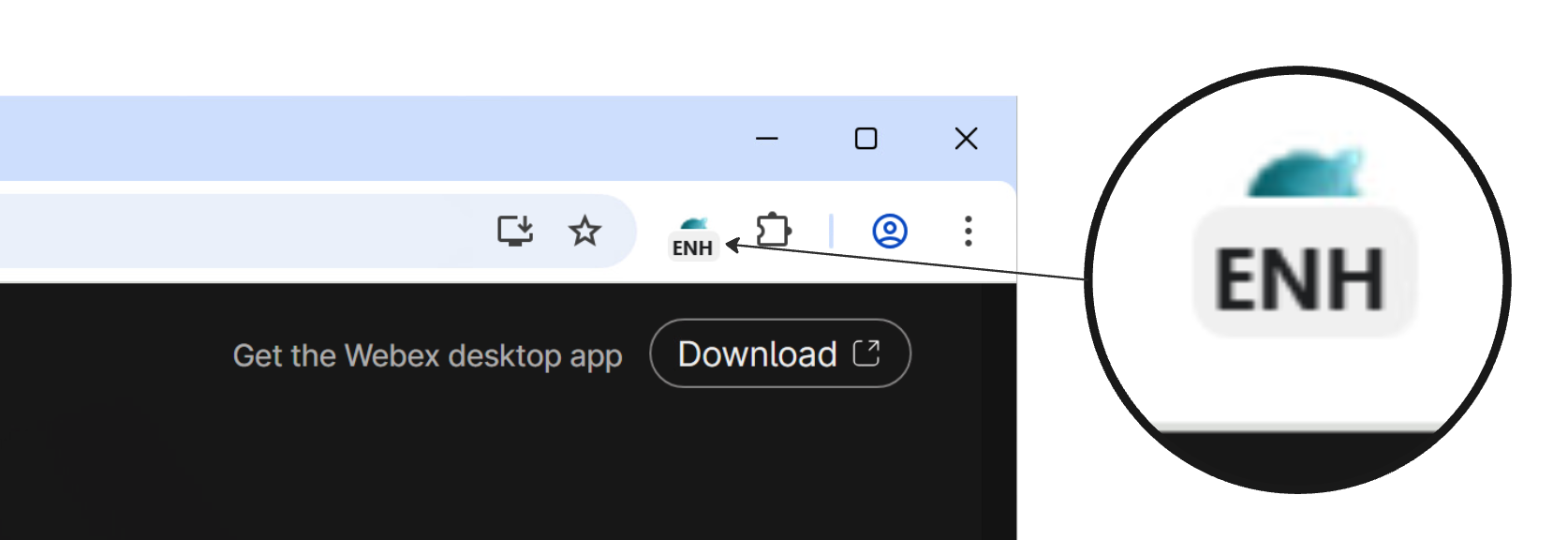
If the Omnissa Horizon extension in the browser's toolbar shows REDR, that indicates that you are configured for standard BCR–not Enhanced BCR. 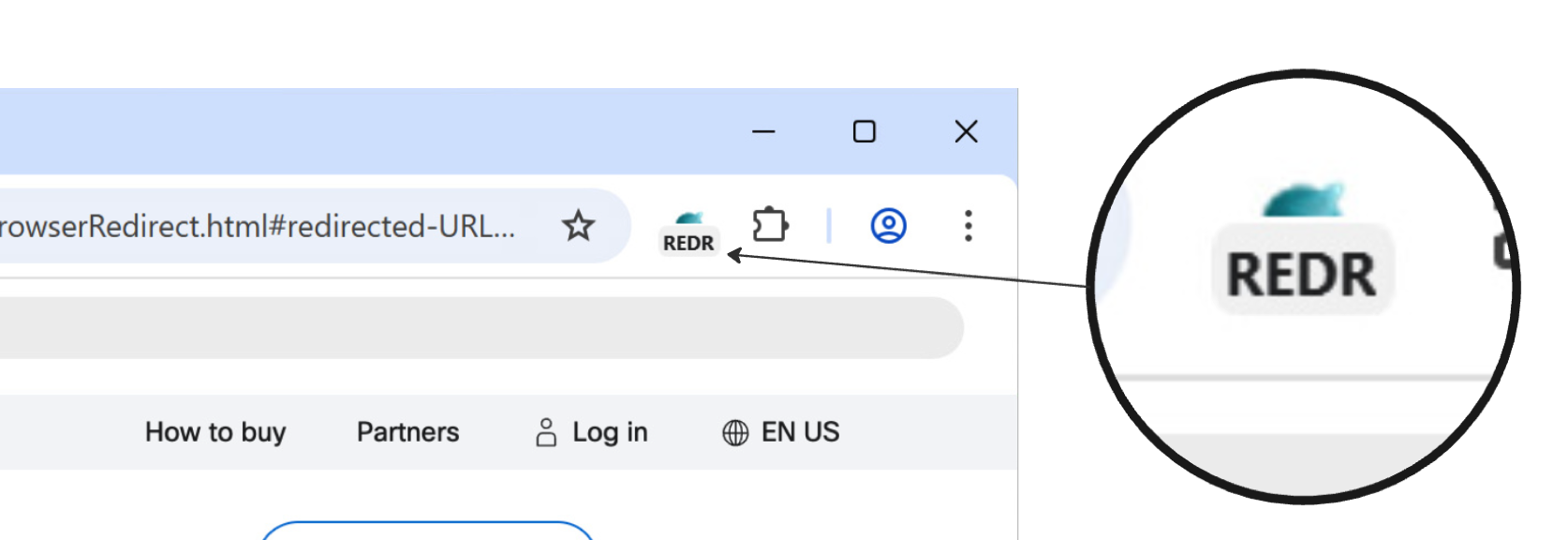
|
What to do next
For additional information about Browser Content Redirection with Horizon, see:


