
Thanks for your feedback.
 Feedback?
Before you begin
-
Your administrator must have enabled this feature for you to access and configure it. If you don’t see this setting, check with your administrator.
-
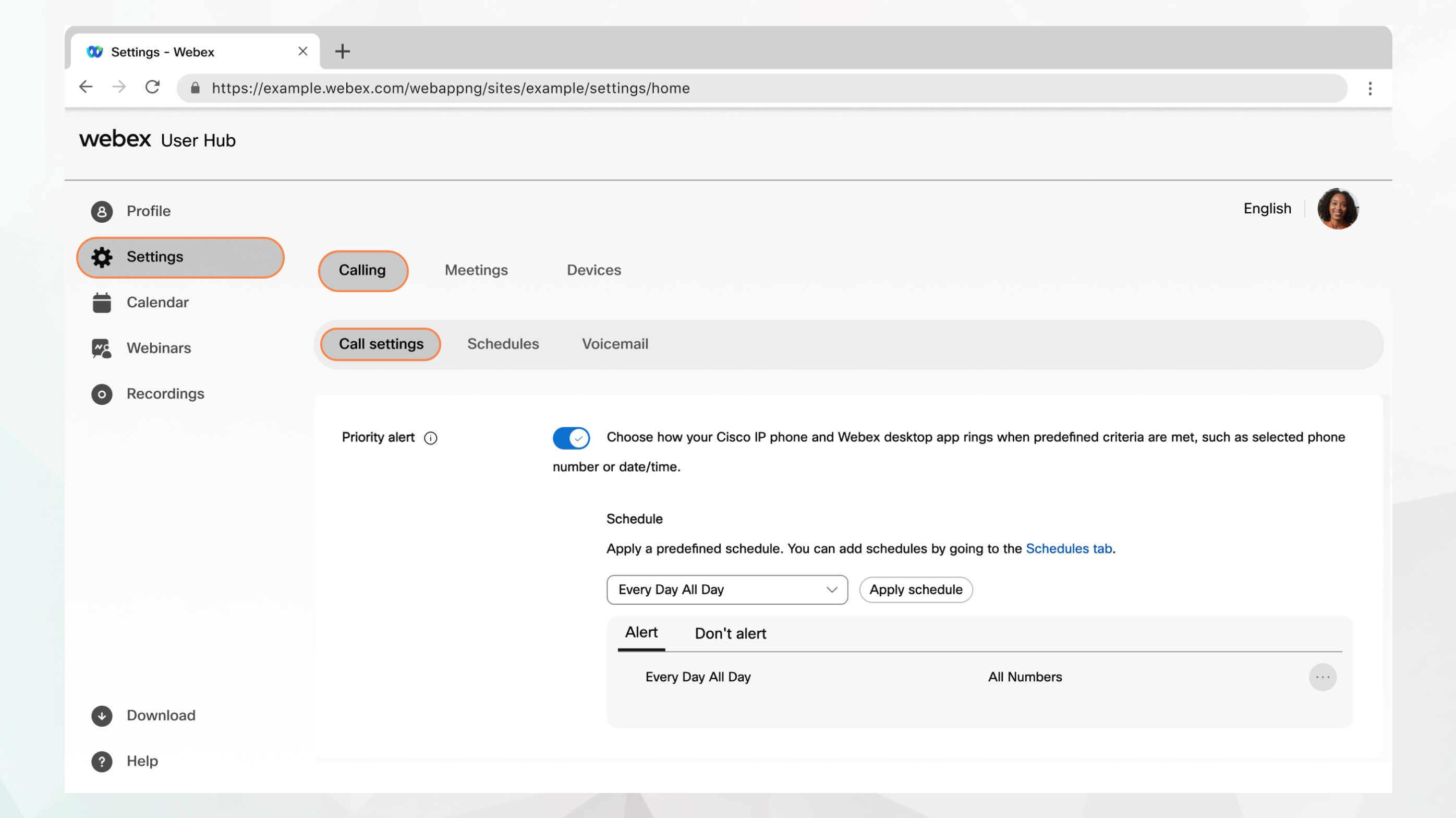
You can configure all the call settings from User Hub by navigating to .
The Calling option is available only for users with a Webex Calling license. If you don’t see the Calling option, it means you don’t have a Webex Calling license.
If you want to find out which calling service you’re set up with, you can check from Webex App. For more details, see Find out what calling service you have.
-
RoomOS devices don't support Priority alert.
| 1 |
Sign in to User Hub. |
| 2 |
Go to . |
| 3 |
Go to the Priority Alert section and turn on the toggle. |
| 4 |
Select a predefined schedule from the drop-down list. If you don’t see a schedule that you want to use for this setting, you can add a schedule from the Schedules tab. For more information, see Create a schedule to apply to call settings. |
| 5 |
Click Add Schedule to set the following parameters:
|
| 6 |
Click Save to save your priority alert parameters. The schedule appears in the Alert or Don’t alert table. You can edit or delete the schedule from the table as needed. Don't alert takes precedence over Alert. The system checks the rules from top to bottom and applies the first rule that matches the call. Rules are listed in the table from oldest to newest, so the rule higher in the list has higher priority. To lower a rule’s priority, delete it and add it again. The rule moves to the bottom of the list as the newest rule. |
| 7 |
Click Save. |


