
Thanks for your feedback.
 Feedback?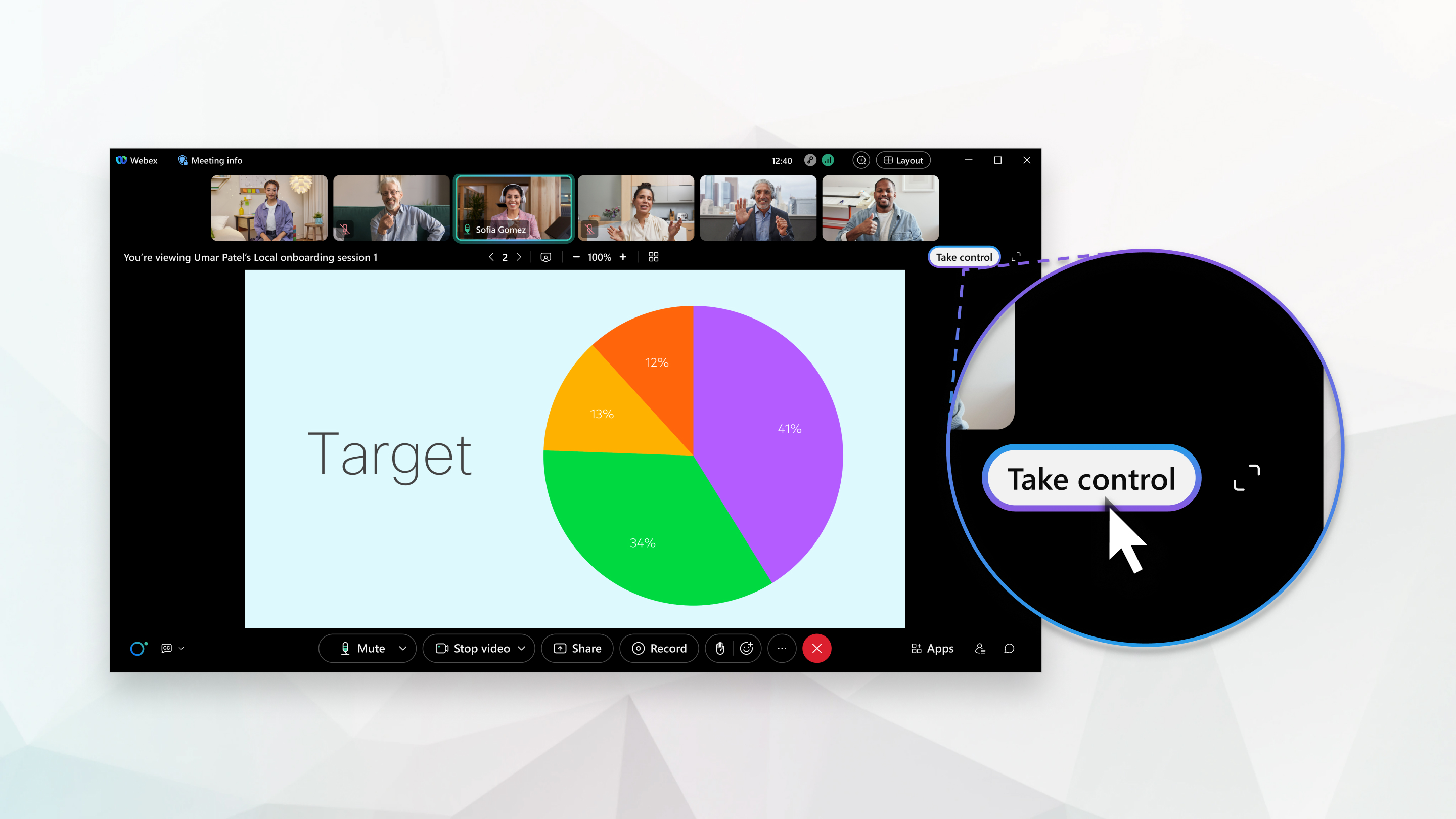
The next active participant can take control of a shared file without restarting the share or becoming the presenter.
Before you begin
This feature is available on our Webex Suite meeting platform. Find out if your meetings use the Webex Suite meeting platform.
In meetings and webinars, active participants can use Take control to continue presenting a shared file. In webinars, attendees who are view-only can't use Take control.
| 1 |
If you're the first person who's presenting, share the file in the meeting or webinar. When it's your turn to present next, click Take control.
|
| 2 |
Click Go to the next page |
| 3 |
While you’re presenting, you can do the following:
|
| 4 |
If you're the last person to present content in the file, click Stop sharing when you finish presenting. |


 that appear in the area that separates the thumbnails from the content that you're sharing. When your cursor changes to
  , drag to the right to enlarge the thumbnails.


