- Home
- /
- Article

Thanks for your feedback.

Set the voicemail greetings using voice portal
 In this article
 Feedback?
From your phone or Webex App, use the call voice portal to record greetings such as Personalized name, Busy, No Answer, and Extended Away.
Prerequisite for using the voice portal
Read these pointers before you begin using the voice portal:
-
Your administrator must have configured the voice portal for your location. Otherwise, your call to voice portal fails.
-
You need to enter your passcode to begin the recording process. The passcode refers to your voicemail PIN. You can use the passcode given by your administrator. Otherwise, you can set your passcode from the User Hub. For details, see Set or reset your voicemail PIN.
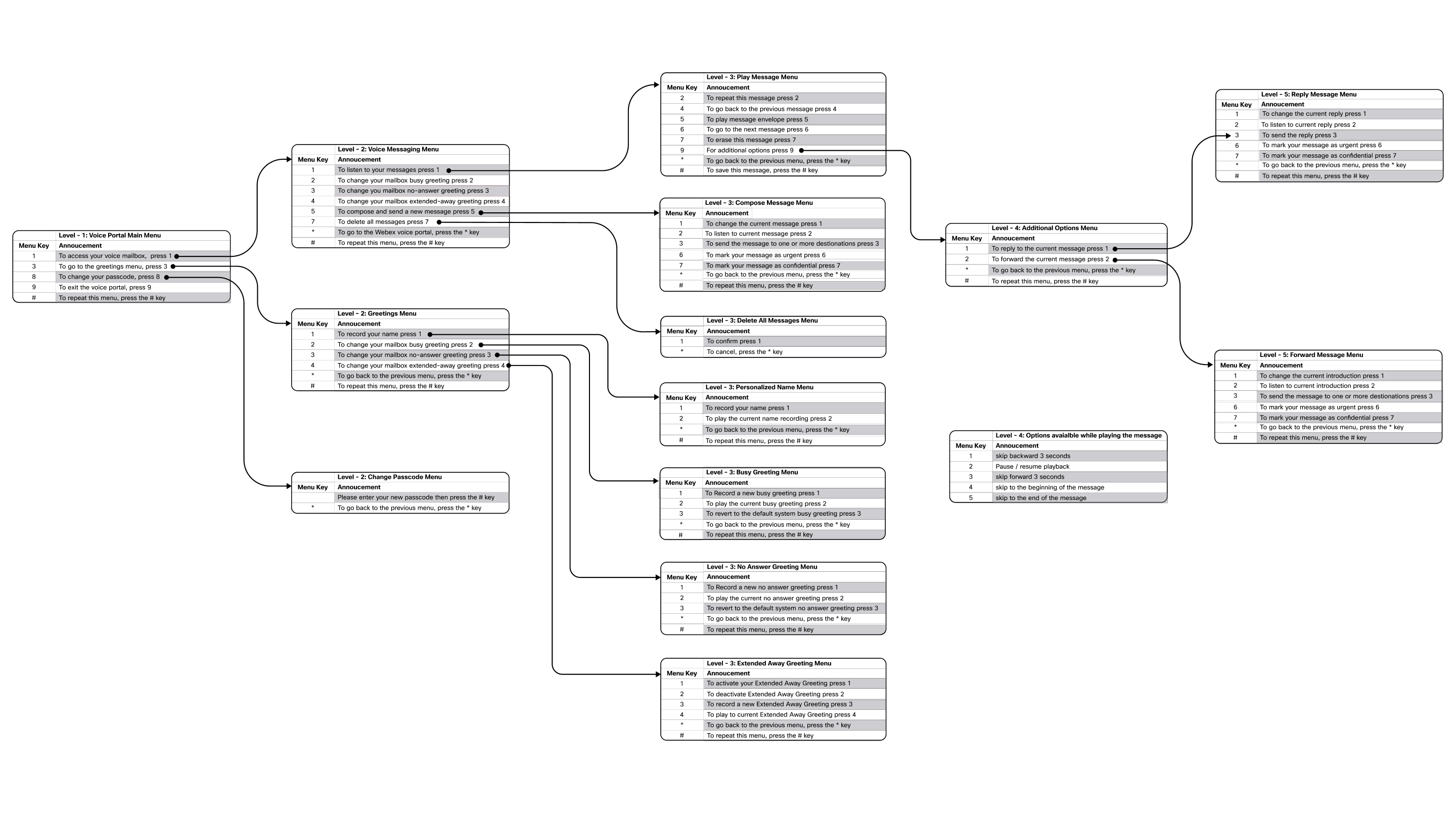
Refer to the image for the menu options that are available on the Voice portal:
Adding your personalized name
Follow these steps to record or re-record a personal name for the menu:
| 1 |
Dial *62 from your phone or Webex App to call the voice portal. | ||||||||||
| 2 |
Perform one of the following actions:
| ||||||||||
| 3 |
Press 3 to go to the Greetings menu then Press 1 to record your name. Here is the menu options available on the Greetings menu.
| ||||||||||
| 4 |
On the Personalized name menu Press 1 to record your name. Here is the menu options available on the Personalized Name menu:
| ||||||||||
| 5 |
Record your name after the tone, and press # to end the recording. Recording a new name automatically overrides the previous recording. To listen to the recorded name, follow the preceding steps, and Press 2 when prompted. |
Record or update Busy greeting
You can record and play a busy greeting to the callers when you’re on another call.
| 1 |
Dial *62 from your phone or Webex App to call voice portal. | ||||||||||||
| 2 |
Perform one of the following actions:
| ||||||||||||
| 3 |
Press 3 to go to the Greetings menu.
| ||||||||||||
| 4 |
Press 2 to change your busy greeting. Here is the Busy Greeting menu:
| ||||||||||||
| 5 |
Press 1 to record a new busy greeting. | ||||||||||||
| 6 |
Record your greeting after the tone, and press # to end the recording. Recording a new greeting automatically overrides the previous greeting. To listen to the recorded greeting, follow the preceding steps, and Press 2 when prompted. To return to the system default busy greeting, follow the preceding steps, and Press 3 when prompted. |
Record or update no-answer greeting
You can record and play the no-answer greeting to callers when you’re unable to answer the call, or out of the office.
If you’ve activated the extended away greeting, it automatically deactivates the no-answer greeting.
| 1 |
Dial *62 from your phone or Webex App to call voice portal. | ||||||||||||
| 2 |
Perform one of the following actions:
| ||||||||||||
| 3 |
Press 3 to go to the Greetings menu.
| ||||||||||||
| 4 |
Press 3 to change your no-answer greeting. Here are the options available in the no-answer Greeting menu:
| ||||||||||||
| 5 |
Press 1 to record a new no-answer greeting. | ||||||||||||
| 6 |
Record your message after the tone, and press # to end the recording. Recording a new greeting automatically overrides the previous greeting. To listen to the current greeting, follow the preceding steps, and Press 2 when prompted. |
Set up and manage your Extended Away greeting
If your away for an extended period and wish you inform the callers about your non-availability, use the extended away greeting.
If you have activated extended away greeting, then callers cannot leave a voice message.
| 1 |
Dial *62 from your phone or Webex App to call the voice portal. | ||||||||||||||
| 2 |
Perform one of the following actions:
| ||||||||||||||
| 3 |
Press 3 to go to the Greetings Menu. The following options are available:
| ||||||||||||||
| 4 |
Press 4 to change your extended-away greeting. Here are the options available in the Extended Away Greeting menu:
| ||||||||||||||
| 5 |
Press 3 to record a new extended away greeting and then Press 1 to activate your extended away greeting. To deactivate the greeting, follow the preceding steps, and Press 2 when prompted. To listen to the recorded greeting, follow the preceding steps, and Press 4 when prompted. If you're going on vacation or a business trip and want to set a greeting and specify the away time in advance, you can use the personal call routing feature. This feature also lets the callers leave a voice message. For details, see Configure Personal Call Routing in User Hub and Set up call routing for when you're away. |


