- Home
- /
- Article

Thanks for your feedback.


Configure Cisco Call for Government for Microsoft Teams
 In this article
 Feedback?
Install the Cisco Call for Government as the default calling option for all users in your organization.
Use this article to configure your Microsoft Teams app with Cisco Call for Government options. The  icon is added to the left navigation and as a Messaging
extension. With the Teams calling option turned off, everyone in the organization uses the
same platform to make and receive calls.
icon is added to the left navigation and as a Messaging
extension. With the Teams calling option turned off, everyone in the organization uses the
same platform to make and receive calls.
Prerequisites
-
Make sure you’re a Microsoft Teams administrator.
-
Make sure you have access to the Control Hub.
-
Verify that users have assigned licenses in Control Hub and registered to Cisco Unified Communications Manager, or Webex Calling for making calls.
-
Users must have Webex App and Microsoft Teams installed.
-
For the Cisco Call for Government for Microsoft Teams integration to work with the Unified CM call control backend (on-premises or UCM Cloud), ensure you are on Unified CM 15 SU2 or SU3. Previous versions are not supported.
-
For On-prem Unified CM customers, ensure Unified CM & CUC clusters are on-boarded to Webex Cloud-Connected UC (CCUC).
For more information, see Webex Cloud-Connected UC for Government
-
The users need to be synced either from on-prem Active Directory or from Cloud AD such as Azure to Control Hub Common Identity (CI).
-
For on-premises, Configure Cisco Unified CM—The line number on Cisco Unified CM needs to be associated to the User ID for the Call History to be populated with the username. From Cisco Unified CM Administration, use the Device → Phone, select the phone and click on the Device Name (Line) and then click the required line from Association panel to get to User Associated with Line.
-
Make sure that the Unified CM Mail ID matches the Control Hub Primary email which is used to obtain the Universally Unique Identifier (UUID).
-
Virtual Desktop Infrastructure (VDI): When Cisco Call for Government integration for Microsoft Teams is used in a VDI environment, both Cisco Call for Government and Microsoft Teams must be running in the same virtual machine.
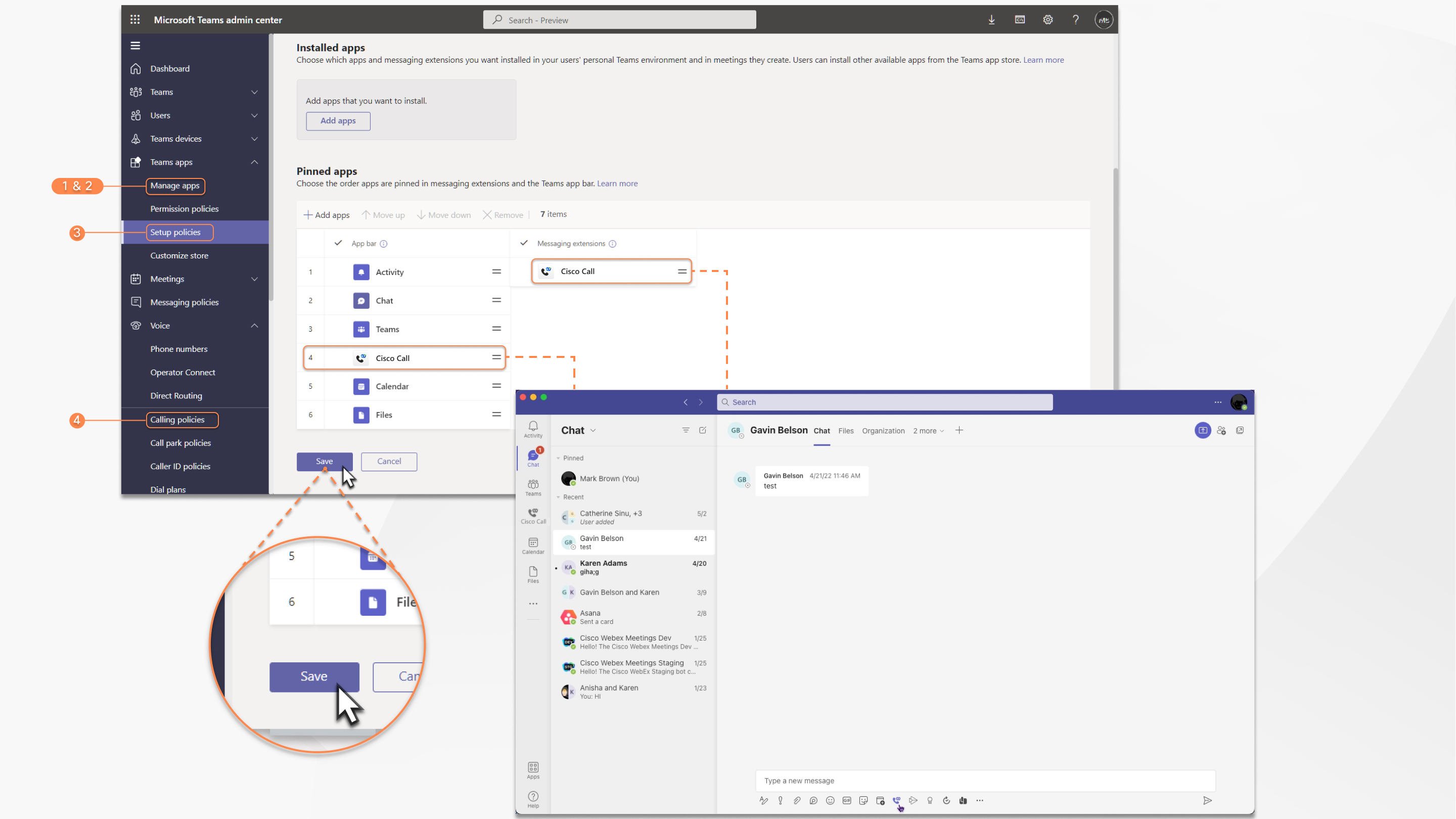
Microsoft Teams configuration
| 1 |
Sign in to Teams admin center to manage your apps and allow Cisco Call for Government. |
| 2 |
Manage who can install Cisco Call for Government. |
| 3 |
Install Cisco Call for Government, then add the icon to the Webex App and unpin the built-in calling option. |
| 4 |
Optional––disable the built-in calling option org-wide and make Cisco Call for Government the only call option:
|
Customize Cisco Call for Government app
Customize the Cisco Call for Government app to align with your organization’s branding. You can create multiple customizations of the app and assign them to specific users or groups.
As a Microsoft Teams administrator, you can change the following properties of the app:
-
Short name
-
Short description
-
Full description
-
Privacy policy URL
-
Website URL
-
Terms of use URL
-
App icon
-
Outline color of the icon
-
Accent color
You can customize the Cisco Call for Government app in the following ways:
-
Default customization: Customize the app for all users within the organization, providing everyone a single customized version.
-
Additional customization: Create up to 10 additional customizations of the app, besides the default one. This way, you can give different users or groups their own customized version.
For more information on the general considerations, limitations, and troubleshooting of this feature, see Use app customization to update branding of apps in your org store.
Create default customization for Cisco Call for Government
You can customize the default look of the app for all users in the organization.
| 1 |
Sign in to Teams admin center. |
| 2 |
In the Dashboard menu, go to . |
| 3 |
In the search field, enter |
| 4 |
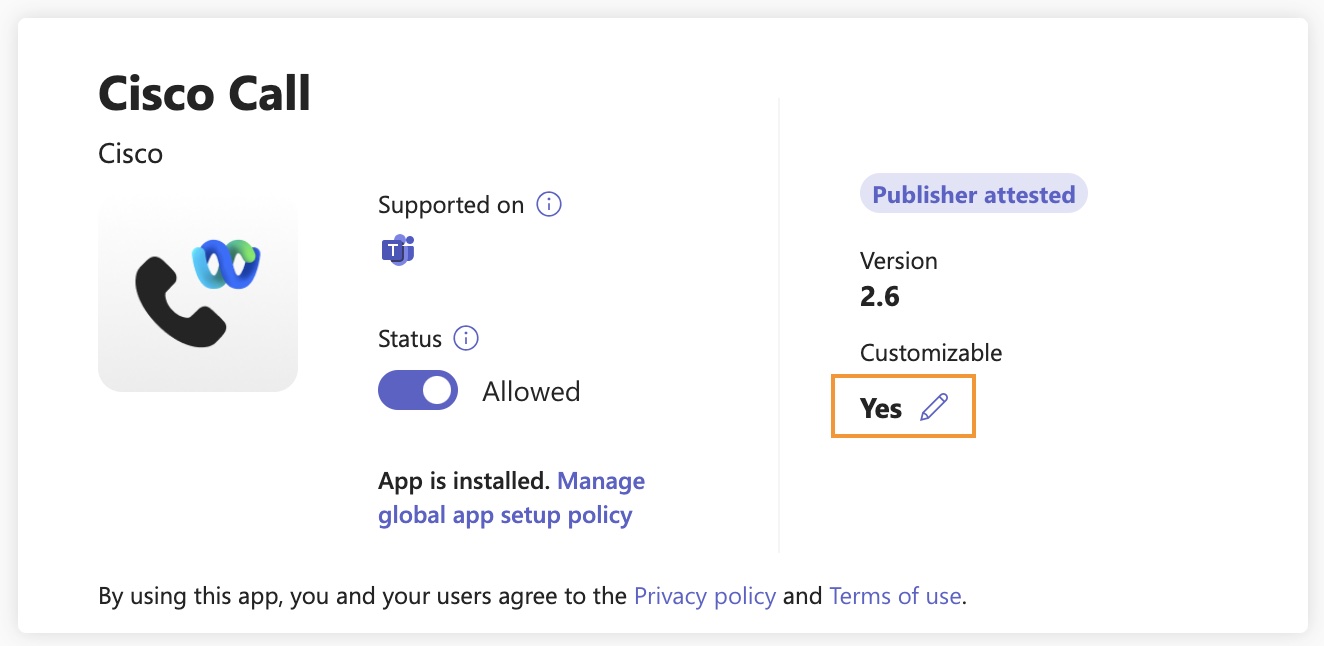
Click the edit icon under Customizable.
|
| 5 |
In the right sidebar, enter the details of the app, and click Apply.
|
| 6 |
Select Publish to publish the customized app to your organization's store. You can see the customized app in the Manage apps page, in the Teams store, and in all clients (web, mobile, and desktop) with the updated details. It takes a few hours for the changes to apply. To revert the changes made, go to the app details page and click Reset to default option from the Actions menu. |

Create additional customization for Cisco Call for Government
You can create 10 additional customizations of the Cisco Call for Government app and assign them to specific users or groups.
| 1 |
Sign in to Teams admin center. |
| 2 |
In the Dashboard menu, go to . |
| 3 |
In the search field, enter |
| 4 |
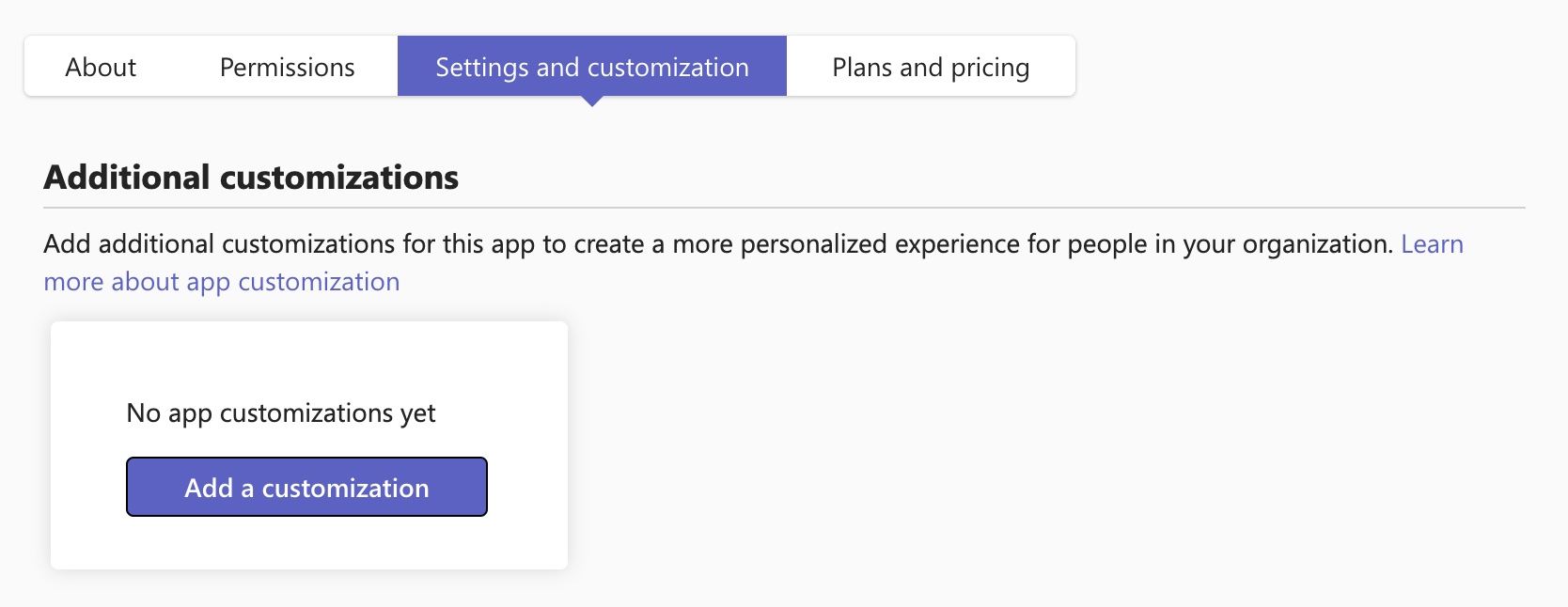
Click the Settings and customization tab, and then click Add a customization or Add.
|
| 5 |
In the right sidebar, enter the app details that you want to customize and click Apply. |
| 6 |
After you create it, select the customized app and click Manage assignments. |
| 7 |
Search for and select the suitable app setup policy to apply to the additional customization and click Close. Users assigned to this setup policy can access the additional customized app. You can assign only one app setup policy to an additional customization. To edit or remove the additional customization, select the app and click Edit or Remove. |
Permissions for Cisco Call for Government and Microsoft Teams integration
The integration service uses Webex and Microsoft APIs to access data, such as call history, for displaying and updating statuses, such as marking voicemails as read, without storing any user data. All data transfers between the integration and the Webex/Microsoft backends occur over encrypted HTTPS channels. Thereby, the service ensures that user data are not stored in the cloud, strengthening the data privacy and security.
We request the minimum required permissions from Microsoft to call Microsoft API for enabling the integration functionality.
Only Global Administrators can grant consent to the Graph permissions that an app requests. Teams administrators can only view the required permissions in admin center.
The following table describes each permission that we request and why it's required.
| Permission | Reason |
|---|---|
|
offline_access |
Allows the integration service to generate a new access token without asking the user to re-authorize often |
|
User.Read |
Allows the integration service to read the user's basic information such as the email address |
|
User.ReadWrite |
Allows the integration service to store speed dials in user profiles |
|
User.Read.All |
Allows the integration service to search for users in the active directory to make calls |
|
Contacts.Read |
Allows the integration service to search for the user's outlook contact to make calls |
|
ChannelMember.Read.All |
Allows the integration message extension to read members of a channel so that the user can search for a specific channel member to call |
|
Chat.ReadBasic |
Allows the integration message extension to read members of a group chat so that the user can search for a specific member to call |
|
Presence.Read.All |
Allows the integration service to read presence information of all users in the directory on behalf of the signed-in user |
|
Presence.ReadWrite.All |
Allows the integration service to read all presence information and write activity and availability of all users in the directory without a signed-in user |
|
Presence.ReadWrite |
Allows the integration service to read the presence information and write activity and availability on behalf of the signed-in user |
Control Hub configuration
You can configure and enable the following features in Control Hub to make them available for Microsoft Teams users.
Hide the Webex App window for an organization
The settings configured at the organization level automatically apply to all users under the organization.
| 1 |
Sign in to Control Hub, under Services click Calling, then click Settings. |
| 2 |
Click Webex App, go to the Microsoft Teams integration section and toggle on Hide Webex windows. 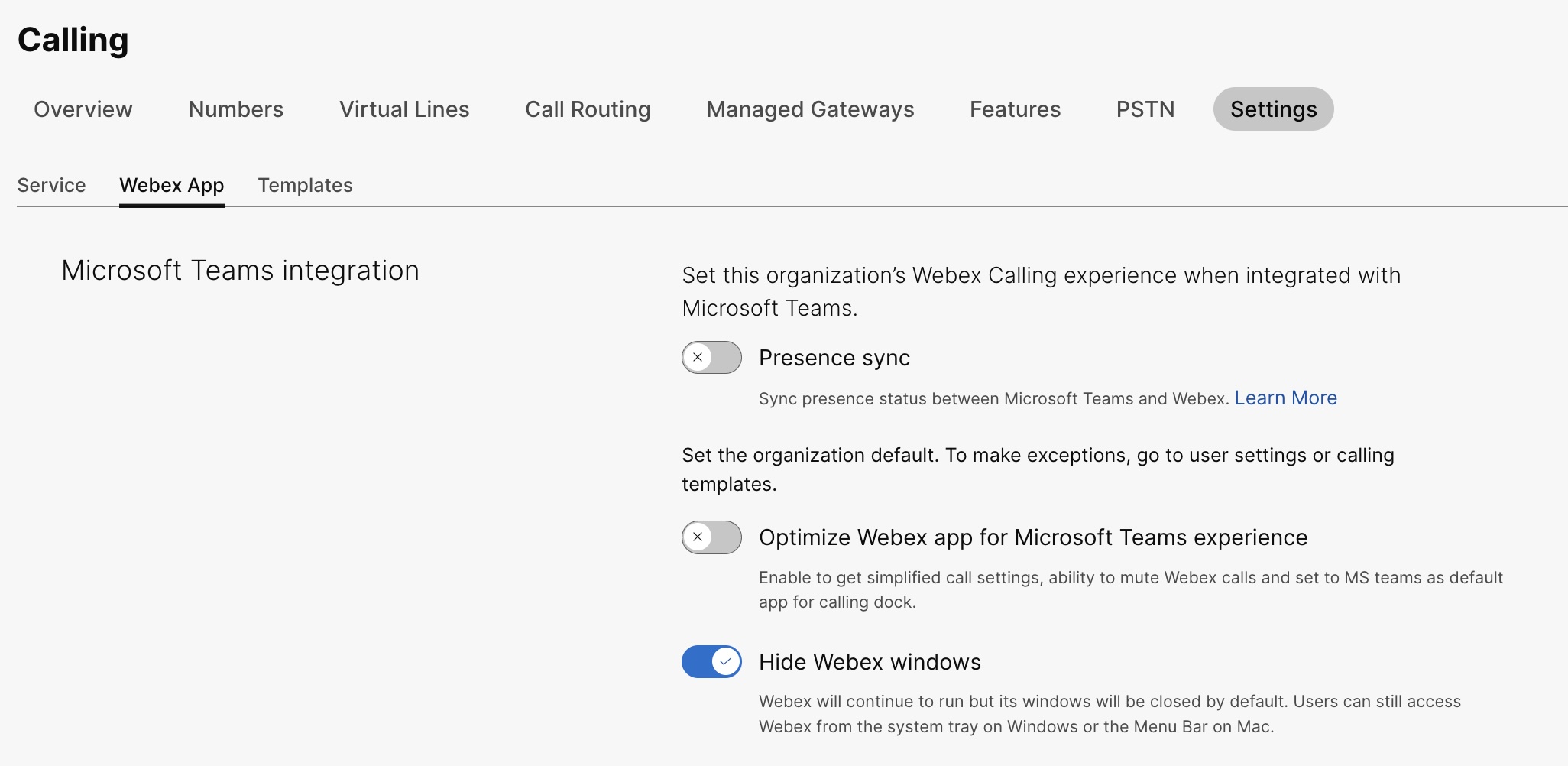
You can hide the Webex App window for all users in an organization that use the Cisco Call for Government integration with Microsoft Teams. For more information, see developer-usgov.webex.com. |
Hide the Webex App window for a user group
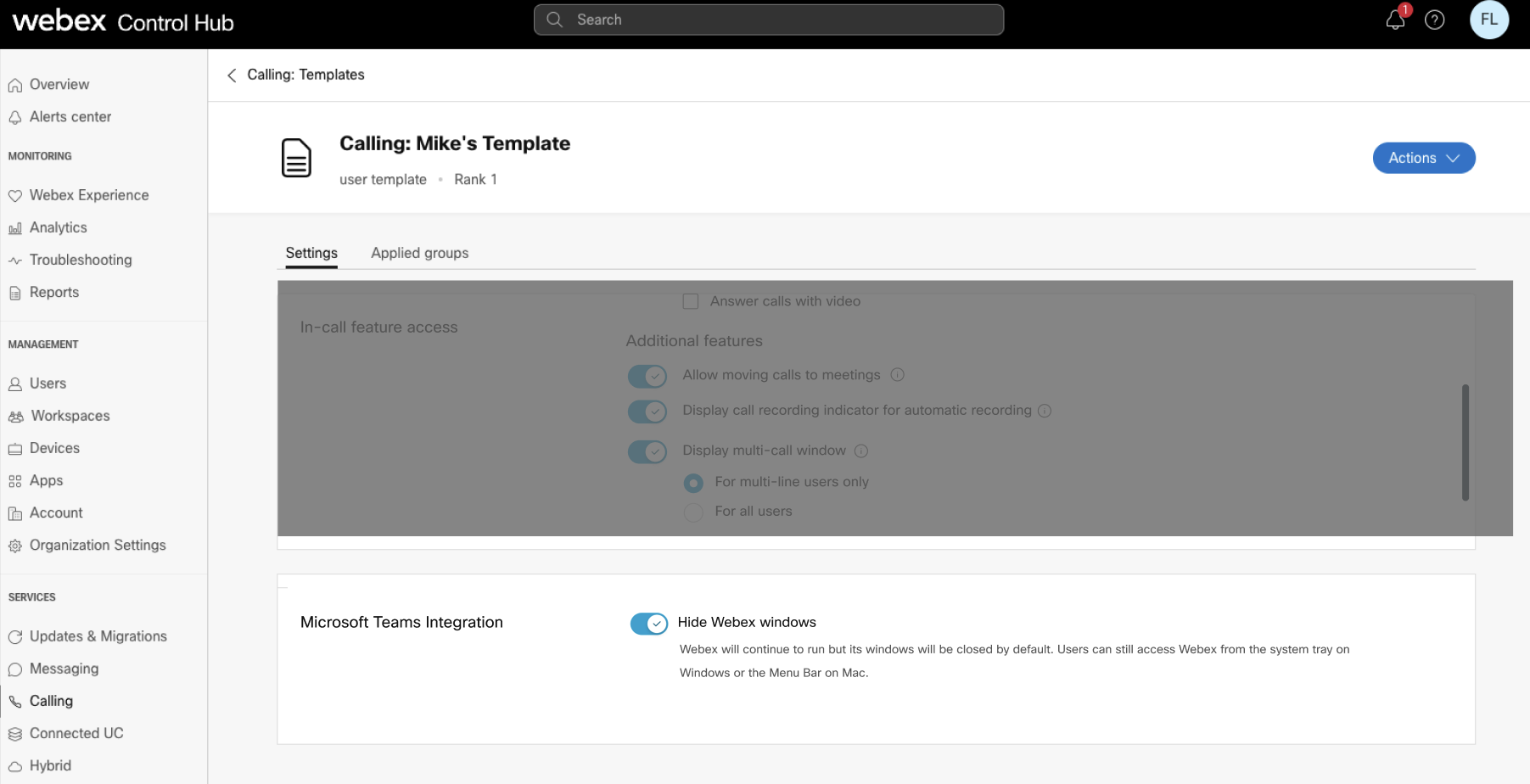
In order to hide the Webex App window for a user group, create a Calling template and assign it to a user group. The configuration in the template applies to all users in the group.
To create a new template to hide Webex App window:
| 1 |
Sign in to Control Hub, under Services click Calling, then go to . |
| 2 |
Click Create template. |
| 3 |
In the General section, type the Template name and description. |
| 4 |
In the Microsoft Teams integration section, turn on Hide Webex windows. |
| 5 |
Click Create template and next. |
| 6 |
Search and select a group for this template. |
| 7 |
Click Done.
|
Apply template to a user group
Considerations when applying Calling templates to a user group
-
When a user is onboarded to an organization, the user inherits the settings from the organization-level.
-
If the user is added to a user group, then the settings from the Calling template apply.
-
If a user belongs to multiple user groups, then the template with the highest rank (Rank 1) takes the highest precedence and that template's settings apply.
-
If the user has individual user settings, then these settings take precedence over user group or organization-level settings.
See Configure settings templates for more information about managing your templates.
You can apply the existing template either from Group section or Calling section.
- To apply template from the Group section, see Configure settings template.
- To apply from the Calling section, complete the following steps.
| 1 |
Sign in to Control Hub, under Services click Calling, then go to . |
| 2 |
Click ⋮ next to an existing template, then click Apply template. |
| 3 |
Type the group name to which you want to apply the template, then choose the group. |
| 4 |
Click Done. |
Hide the Webex App window for a user
The individual user settings override the organization-level and user group level settings.
| 1 |
Sign in to Control Hub, then go to . |
| 2 |
Choose the user, then click Calling. |
| 3 |
Go to User Call Experience and click Microsoft Teams Integration. |
| 4 |
Turn on Hide Webex windows. 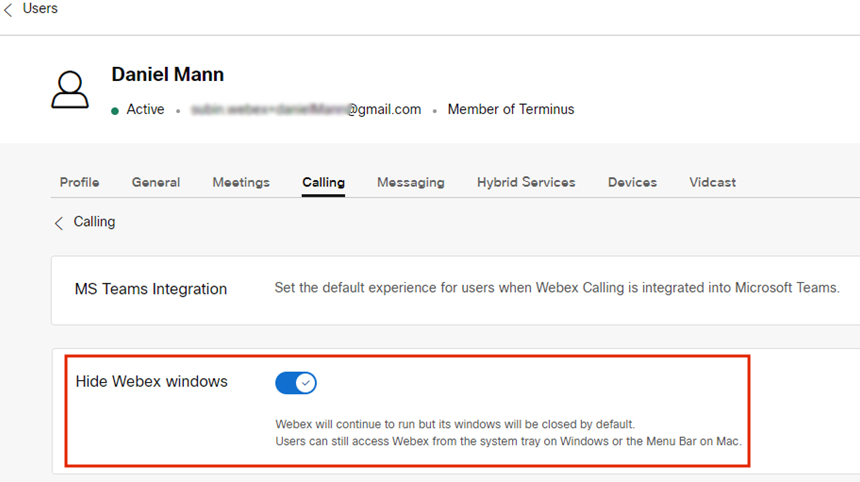
Once you've configured the settings for a user, you can further modify settings at the user-level. User settings don't automatically return to the default setting of an organization. You can use the public API to hide the Webex App window from the Microsoft Teams client for an individual user. See Configure a person's MS Teams setting and Retrieve a person's Application Service Settings in developer-usgov.webex.com. |
Once you've configured the settings, users need to restart their Webex App, and sign in to view the change.
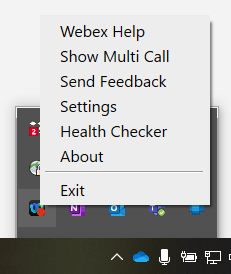
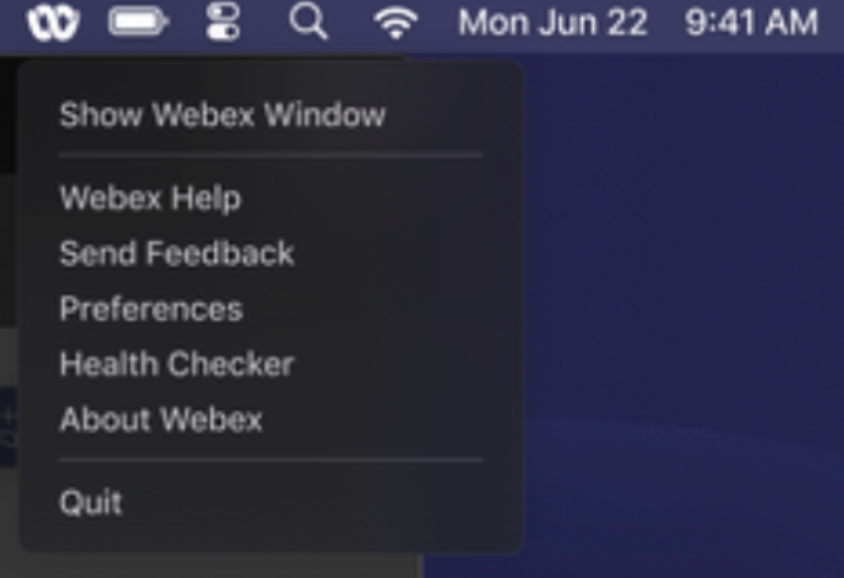
If users want to interact with Webex App itself, they can access it from the system tray on Windows and the menu bar on Mac. Webex App is visible only in the Windows taskbar or macOS dock when a window is active and in use.
|
Webex App in Windows system tray |
Webex App in Mac menu bar |
Enable calling dock window
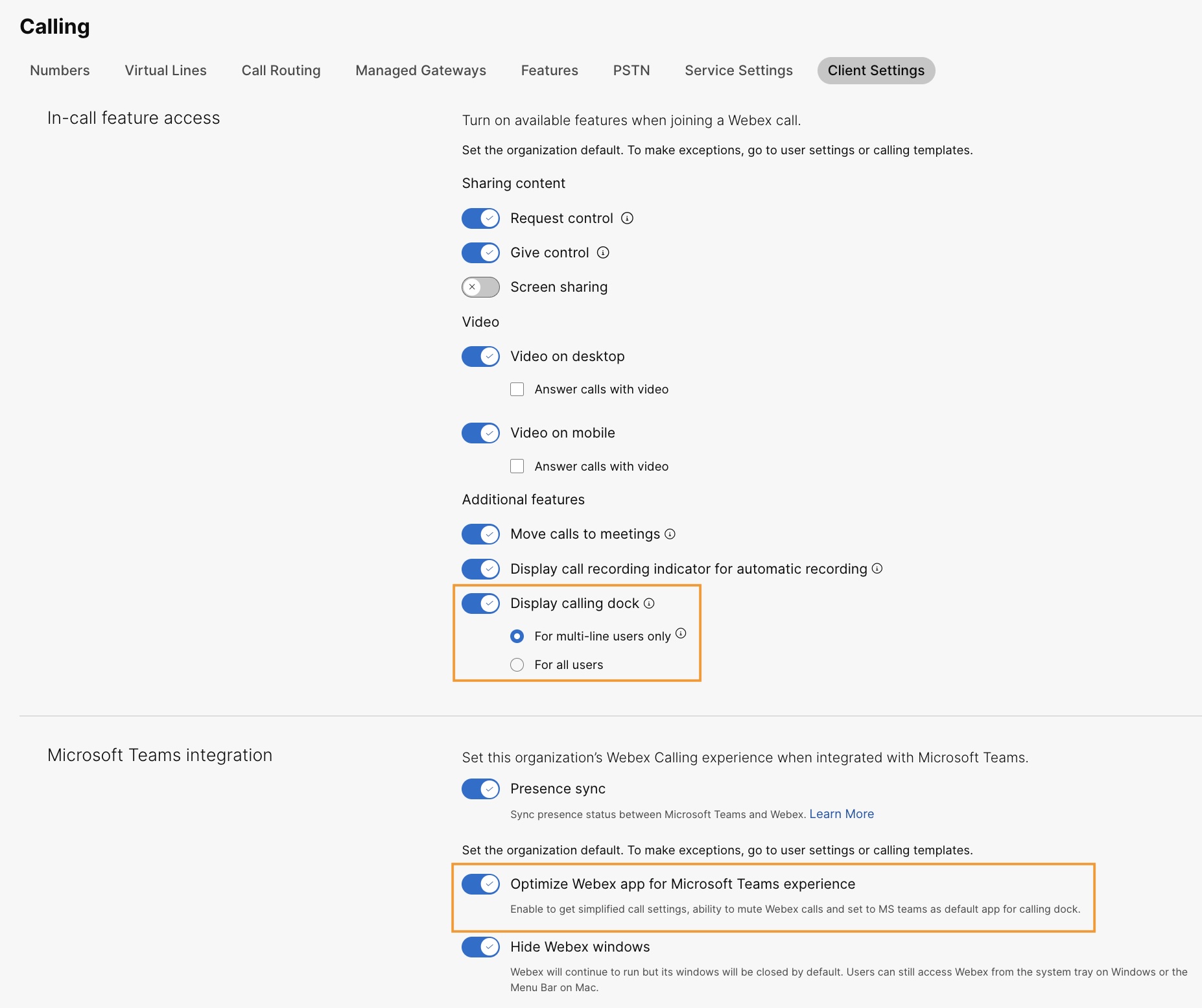
Calling dock (multi call) window is a separate, floating window that helps users to manage multiple or shared lines in a single window. Users can make and receive calls, see the status of all lines, and have better access to features like hold, transfer, and barge, without changing to another window.
| 1 |
Sign in to Control Hub. |
| 2 |
Under Services click Calling and then click Settings. |
| 3 |
Click Webex App, go to In-call feature access section, and under Additional features, toggle on Display calling dock and choose one of the following options:
You can also configure this feature at user group level and user level.
|
Optimize Webex App for Microsoft Teams experience
This feature provides users the following experiences:
-
Simplified call settings—The call settings display only the options necessary for integration. Enabling this feature simplifies only the call settings accessible through the Calling Dock. The call settings accessible from the Cisco Call for Government integration remain simplified by default.
-
Mute Cisco calls—The incoming Cisco calls are muted when a user is in a Microsoft Teams call or meeting. For this feature to work, you must enable this feature in Control Hub and the user must enable the Only mute notifications when I’m in a meeting or on a call option from the call settings in Cisco Call for Government integration.
If you disable this feature in Control Hub, then the user settings work only when the user is in a Cisco call or meeting. If you enable this feature, the user settings work when the user is in either a Microsoft Teams call or meeting or a Cisco call or meeting.
-
Single app experience—When a user clicks the voicemail and call history icons from the calling dock, it redirects them to the Microsoft Teams Cisco Call for Government instead of Webex App.
For Windows users: Clicking the Webex App in the system tray opens the calling dock instead of Webex App.
| 1 |
Sign in to Control Hub. |
| 2 |
Under Services click Calling, then click . |
| 3 |
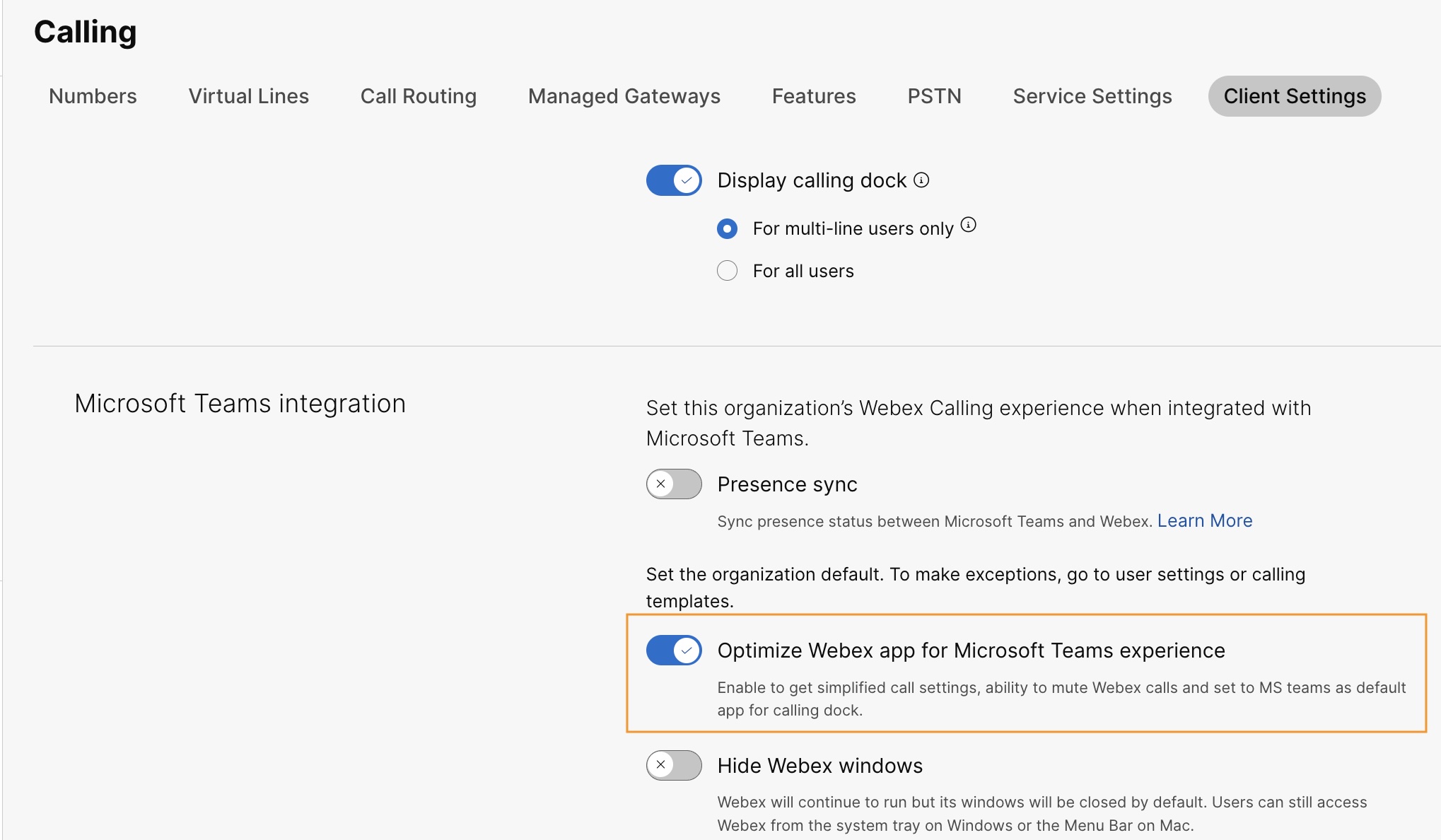
Click Webex App, go to Microsoft Teams integration section, and toggle on Optimize Webex app for Microsoft Teams experience.
This toggle is disabled if you haven't enabled the Display calling dock toggle in the In-call feature access. You can also configure this feature at user group level and user level.
|
Enable voicemail, centralized call history, and presence sync
Voicemail and Call history
The voicemail and call history features are enabled by default for Webex Calling.
For more information on enabling voicemail for Webex Calling users, see: Configure and manage voicemail settings for a Webex Calling user.
Bidirectional presence sync
This feature enables bidirectional synchronization of presence status between Microsoft Teams and Webex, supporting multiple Microsoft Teams tenants in the same Webex organization. The presence status includes In a call, In a meeting, Presenting, and Do not disturb.
After enabling this feature, when a user makes or receives a Webex call, their Microsoft Teams status gets changed to In a call. When they enable Do not disturb in the Webex App or any Webex device, the status is automatically synchronized to Microsoft Teams. Similarly, the In a meeting and Presenting statuses synchronizes between applications.
When Do not disturb is enabled on user's Webex App or any Webex device, they won’t get any notification of incoming call and messages in Webex App, Webex device or Microsoft Teams.
You can also use public API to enable Webex presence synchronization with the Microsoft Teams client. See Update an organization's MS Teams setting for details.
The following table shows the bidirectional status sync representation between Webex and Microsoft Teams.
|
Webex status |
Microsoft Teams status |
|---|---|
|
|
|
|
|
|
|
|
|
|
|
|
 On a call
 In a call
 In a meeting (This status syncs only from
Webex to Teams)
In a meeting (This status syncs only from
Webex to Teams) Presenting
 Presenting
 Do not disturb
Currently, you can configure this feature only at the organization level.
| 1 |
Sign in to Control Hub. |
| 2 |
Under Services click Calling, then click Settings. |
| 3 |
Click Webex App, go to the Microsoft Teams integration section and turn on the Presence sync toggle. You can turn on the Hide Webex Window toggle for the best experience, but it's optional. |
| 4 |
Go to the Do Not Disturb (DND) Status Sync section and turn on the toggle. |
Additional configuration for Unified CM users
To enable voicemail, call history and bidirectional presence sync service for on-prem Unified CM customers, perform the following steps:
Voicemail service enabled for on-prem customers takes a maximum of 12 hours to activate.
| 1 |
Sign in to Control Hub. | ||||
| 2 |
Go to . On the UC Management card, click Inventory. The list of cluster groups appears with the description, status, clusters, and nodes. | ||||
| 3 |
Perform the following actions:
The Inventory page appears, showing the list of clusters belonging to the selected cluster group. | ||||
| 4 |
Click Details next to the cluster to which the particular product node belongs. The Node name with the version, product, and status appears. | ||||
| 5 |
Click the ellipsis ⋮ icon next to Event History and choose Service Management. The Service Management page appears with the list of services. | ||||
| 6 |
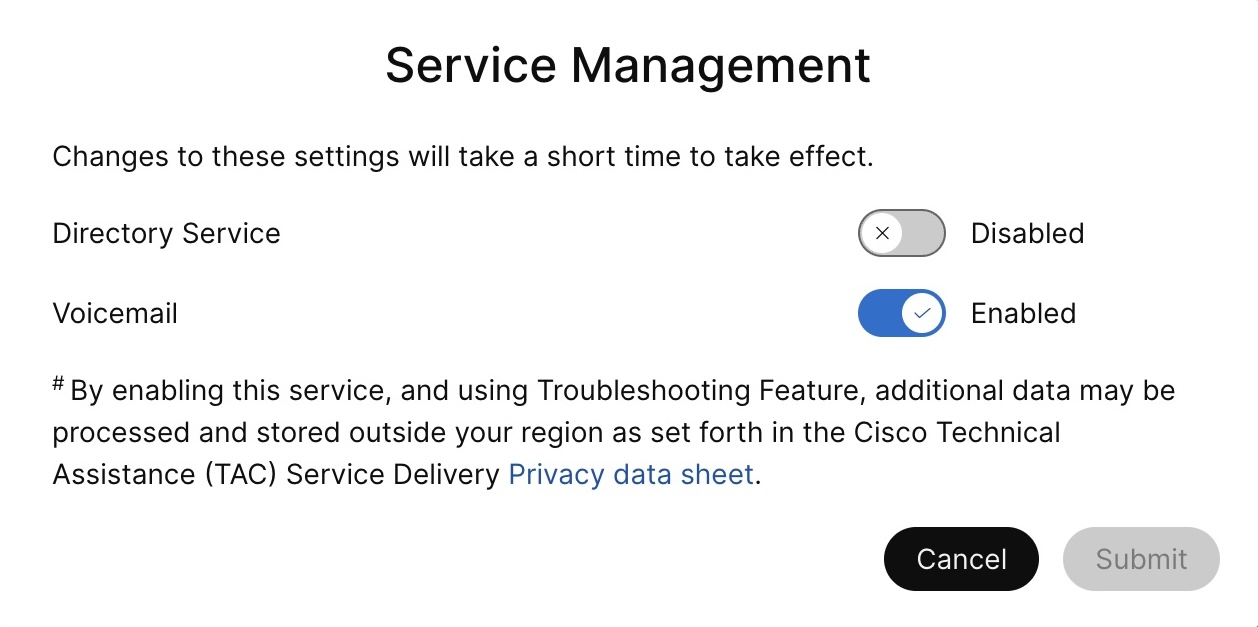
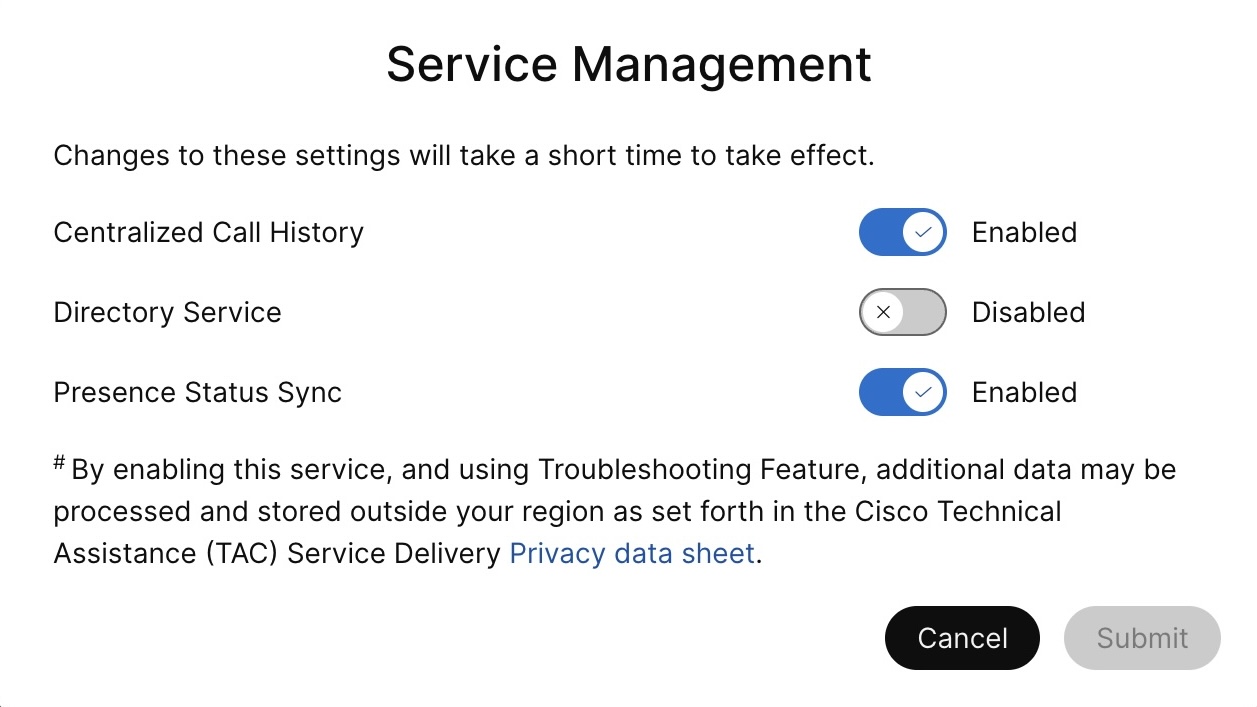
Use the toggle button to enable the Voicemail, Centralized Call History and Presence status sync.
| ||||
| 7 |
Click Submit. | ||||
| 8 |
If the Data Collection Confirmation pop-up is displayed, agree to it by enabling the check box and click Submit. |