Thanks for your feedback.
 Feedback?
Control Hub administrators can't enable this setting.
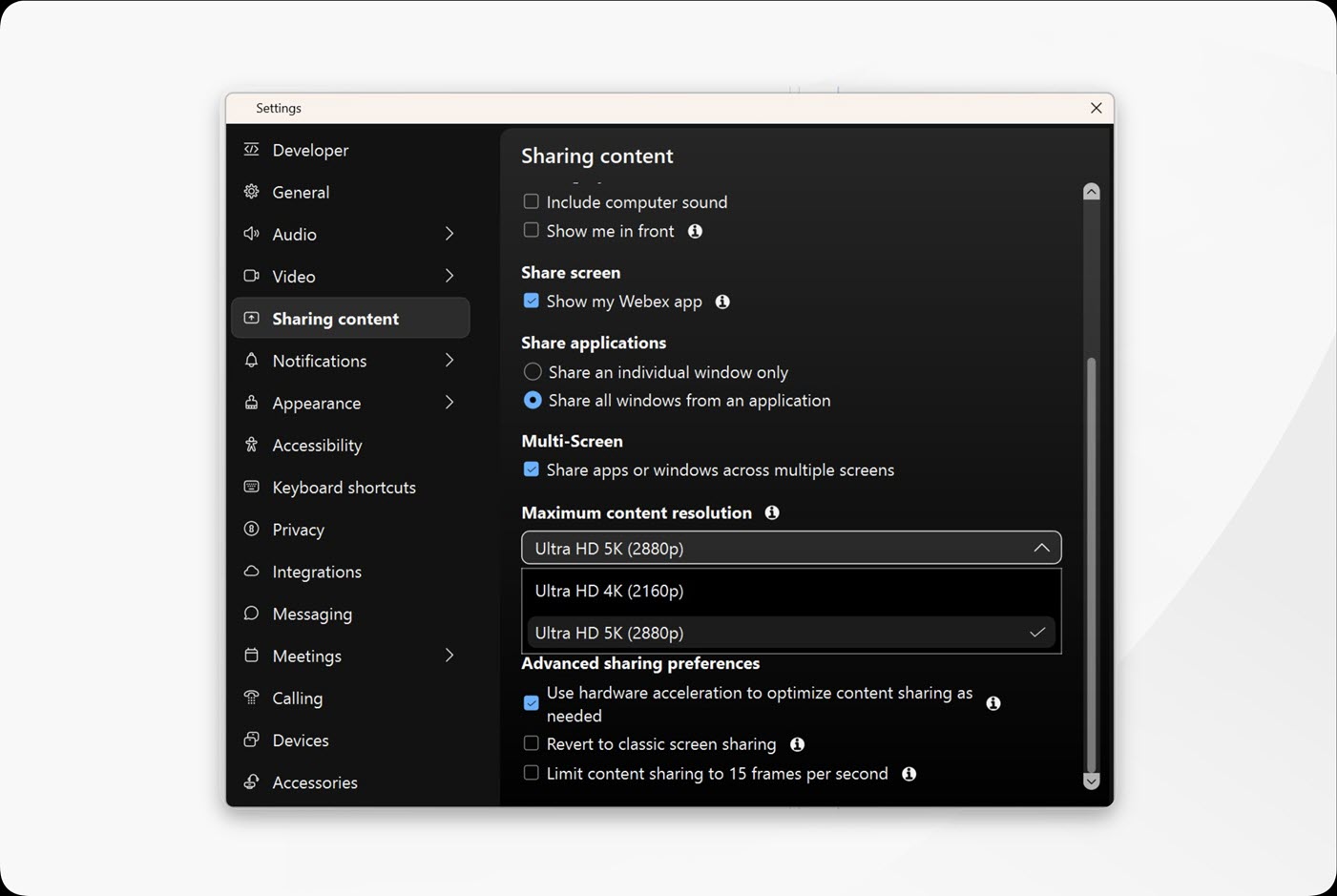
Before you begin
To send content at 5K, you need a 5K or higher display and you must share an app or screen that is 5K in resolution.
To send or receive 5K content, your computer must have at least 4 GB of RAM and either 4 physical CPU cores at 1.4 GHz or 8 physical CPU cores.
If someone in the meeting can't support 5K, sharing falls back to up to 4K.
| 1 |
Open Webex and sign in. |
| 2 |
When you're not in a call or meeting, click Settings
When you're in a call or meeting, to set the maximum content resolution, click Video options |