- Home
- /
- Article

Thanks for your feedback.

Troubleshoot and maintain your Cisco Headset 520 Series and 530 Series
 In this article
 Feedback?
Follow these suggestions to troubleshoot any headset issues and to maintain your Cisco Headset 520 Series and 530 Series.
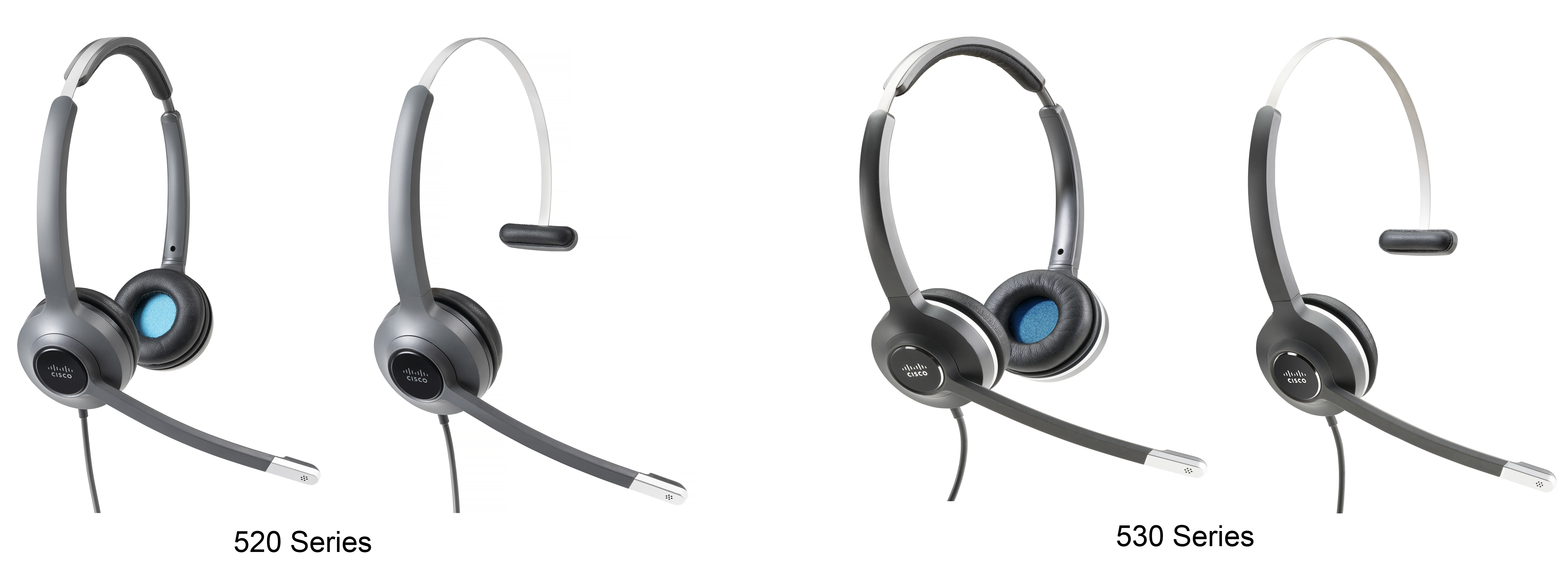
You may experience issues related to the following scenarios:
-
Your headset cannot communicate with your selected call device.
-
The sound in your headset speakers is poor.
-
You cannot be understood when you speak into the headset microphone.
If you experience problems, your administrator can help troubleshoot the root cause of the problem.
What to do first
Try these actions first if you have trouble with your Cisco Headset 520 and 530 Series.
-
Unplug and replug your headset into your call device
-
Check your device settings to see if your headset is detected.
-
On a Cisco IP phone connected to Cisco Unified Communications Manager: Press Applications
 and select Accessories.
 -
On a Cisco IP phone with Multiplatform Phone Firmware: Press Applications
and select . -
On a Webex Desk Series: Tap on the screen and select from the available audio devices in the upper right corner.
-
On Cisco Jabber: Click .
-
On Webex: Click on your profile picture and select .
-
On Webex Meetings: Click .
-
-
Test a different headset with your device to determine if the problem is with your headset or your device.
-
Check whether your headset is up-to-date.
If you are using your headset with a Cisco IP phone, make sure that your headset software and phone firmware version is up-to-date.
-
If you are using your headset with Jabber or Webex on a Windows or Mac device, close other open soft clients.
- If the issue persists and none of the above solutions work, visit Cisco Headset Warranty Overview to find your headset’s warranty terms and open a TAC case for more assistance.
You hear garbled or inconsistent sound in your Cisco Headset 520 or 530 Series
Problem
There's sound coming through your Cisco Headset 520 or 530 Series, but it's inconsistent or full of static.
Solution
-
Unplug your headset from the call source. Reconnect the headset.
-
Check the connectivity of your call source.
You can't hear sound through your Cisco Headset 520 or 530 Series
Problem
There is little or no sound coming through your Cisco Headset 520 Series or Cisco Headset 530 Series.
Solution
-
Check the volume level on your headset. Press the volume controls on your inline controller to adjust the sound level.
-
Ensure that the audio output on your device is set to Cisco Headset.
-
On a Cisco IP phone connected to Cisco Unified Communications Manager: Press Applications
and select Accessories. -
On a Cisco IP phone with Multiplatform Phone firmware: Press Applications
and select . -
On Cisco Jabber: Click .
-
In Webex: Click on your profile picture and select .
-
In Webex Meetings: From the Select Audio Connection drop-down list, select Cisco Headset.
-
-
Close any other calling soft clients.
Other people can't hear you on your Cisco Headset 520 or 530 Series
Problem
You cannot be heard when using your Cisco Headset 520 or 530 Series.
Solution
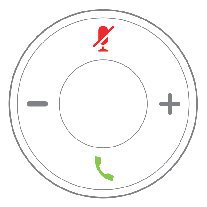
Check to make sure your microphone is not muted. Press Mute on your controller or to mute and unmute your microphone. When you are muted on a call, Mute on your inline controller shows solid red.
-
Make sure that the microphone boom has been lowered. For optimal sound, the headset microphone should be no further than 1 in (2.5 cm) from your mouth.
-
Make sure that your headset is properly plugged into your preferred call device.
-
Check that your desired call device detects your headset.
Your headset doesn't alert you to incoming calls on a Cisco IP phone
Problem
Your Cisco Headset 520 Series or Cisco Headset 530 Series doesn't play a tone when you have an incoming call.
Solution
This is a known limitation in the Cisco Headset 520 Series and Cisco Headset 530 Series with firmware release 1.0(2) or older. Update your headset firmware to the latest firmware release.
Report headset issues through your Cisco IP phone
You can use the Cisco Collaboration Problem Report Tool (PRT) to collect and send phone logs, and to report problems to your administrator. The PRT also logs information about your headset. If you see a message that the PRT upload has failed, the problem report is saved on the phone and you should alert your administrator.
| 1 |
Press Applications |
| 2 |
Select . |
| 3 |
Enter the date and time that you experienced the problem in the Date of problem and Time of problem fields. |
| 4 |
Select Problem description. |
| 5 |
Select a description from the displayed list, then press Submit. |
Report headset issues through your multiplatform phone
You can use the Problem Reporting Tool (PRT) to collect and send phone logs, and to report problems to your administrator. The PRT also logs information about your headset. If you see a message that the PRT upload has failed, the problem report is saved on the phone and you should alert your administrator.
| 1 |
Press Applications |
| 2 |
Select . |
| 3 |
Enter the date and time that you experienced the problem in the Date of problem field. The current date appears in this field by default. |
| 4 |
Enter the time that you experienced the problem in the Time of problem field. The current time appears in this field by default. |
| 5 |
Select Problem description. |
| 6 |
Select a description from the displayed list. |
| 7 |
Press Submit. |
Report issues in Cisco Jabber
To report headset-related issues with Cisco Jabber, make sure to send call logs, which provide more detailed audio information to our engineers.
| 1 |
In Cisco Jabber, click the gear icon |
| 2 |
In the window, select the area of the problem you had and describe the problem in as much detail as you can. |
| 3 |
Include any relevant files or screen shots that may be useful. |
| 4 |
Click Send. |
 and select
 Report headset issues through your Webex Desk Series
You can send device logs to your Webex Desk Series device administrator. The device logs also include information about your headset.
| 1 |
Tap the device name in the upper left corner of your device and select the Settings application. |
| 2 |
Select Issues and diagnostics. |
| 3 |
Press Send logs. |
Maintain your headset
Many headset-related issues may stem from using out-of-date firmware. You can check and update your headset firmware using the Webex or Accessory Hub desktop app as well as on any supported Cisco IP phone or with the latest version of Cisco Jabber.
Update your headset in Webex
Firmware updates improve your audio experience or add new functionality to your headset. We recommend that you always install the latest software version to your headset when possible. The Webex Desktop app alerts you whenever there is new software available.
| 1 |
Connect your headset to your device by using the USB port on your device. |
| 2 |
Open your Webex App. |
| 3 |
Follow the on-screen prompts. |
Update your headset in Accessory Hub
Firmware updates improve your audio experience or add new functionality to your headset. We recommend that you always install the latest software version to your headset when possible. The Cisco Accessory Hub app alerts you whenever there is new software available.
| 1 |
Connect your headset to your device by using the USB port on your device. |
| 2 |
Open the Cisco Accessory Hub Desktop app or web app. |
| 3 |
Follow the on-screen prompts. |
Update your Cisco headset firmware with a Cisco IP phone
You can update your headset software on any supported Cisco IP phone. During a headset firmware upgrade, you can view the progress on your phone screen.
| 1 |
Connect your headset to a Cisco IP phone. |
| 2 |
If the headset does not automatically begin to update, restart the phone. The phone downloads the latest headset version file when the phone restarts and uploads it to the headset. |
Update your headset firmware on Cisco Jabber
You can update your headset software on any computer running Cisco Jabber version 12.5 or later. Jabber automatically begins the update process if a new firmware release is available.
Jabber version 12.9 or later displays the headset update progress.
| 1 |
Connect your headset via the USB cable to a computer running Cisco Jabber. |
| 2 |
Follow the on-screen instructions. |
Check your headset firmware on on-premises phones
You can check your headset software on any supported Cisco IP phone.
| 1 |
Press Applications |
| 2 |
Select Accessories. |
| 3 |
Highlight Cisco Headset and press Show detail. |
Check your headset firmware on multiplatform phones
You can check your headset software on any supported Cisco IP phone.
| 1 |
Press Applications |
| 2 |
Select . |
| 3 |
Highlight Cisco Headset and press Details. |
Check your headset firmware on Cisco Jabber
You can check your Cisco headset firmware on Cisco Jabber version 12.8 or later.
| 1 |
In Cisco Jabber, click the gear icon |
| 2 |
Under the Speaker slider, click Advanced Settings. Your headset model, serial number, and current firmware version displays at the top of the window. |
Locate your headset serial number
You can find your Cisco Headset 520 and 530 Series serial number in the following places.
-
On the outside of the box your headset shipped in.
-
Underneath the Cisco Headset 520 Series or Cisco Headset 530 Series inline controller. Scan the QR code to see the headset serial number.
-
On a connected Cisco IP phone.
- Press Applications .
- Select Accessories.
- Highlight Cisco Headset and press Show detail.
- Press Applications
Clean your headset
To clean your headset, use only a dry soft cloth to gently wipe the ear pads and microphone. Do not apply liquids or powders directly to the headset. As with all non-weatherproof electronics, liquids and powders can damage the components, cause failures, and will void the headset warranty.
Replace your earpads
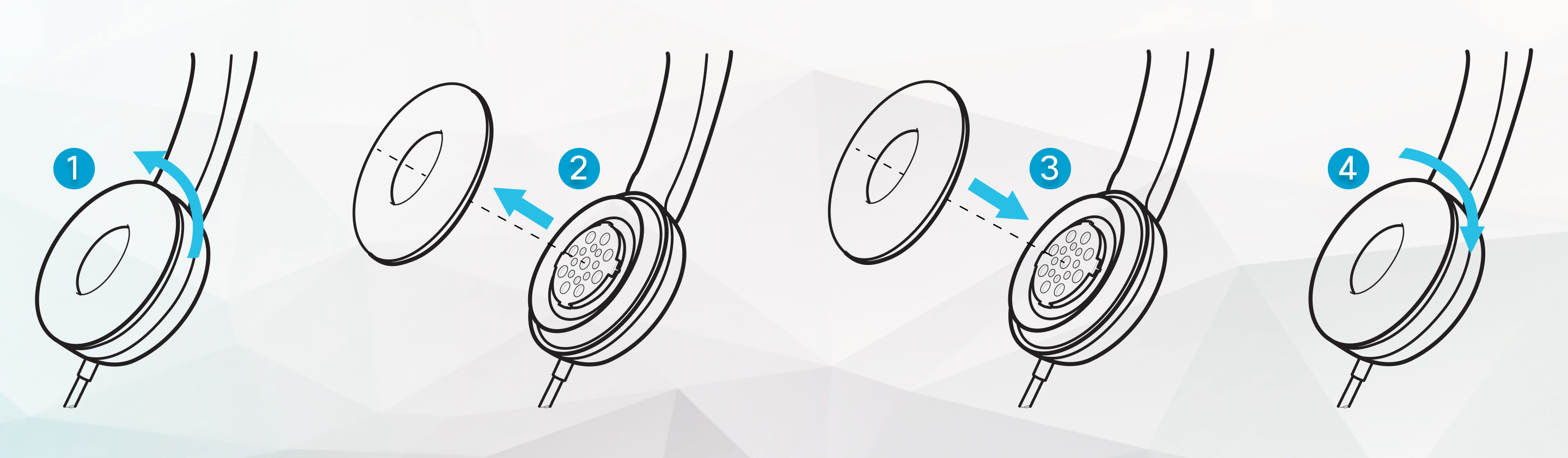
Before you begin
Make sure you have the correct ear pads for your headset model. Cisco Headset 560 Series ear pads are not compatible with the Cisco Headset 520 Series and Cisco Headset 530 Series.
| 1 |
Rotate the old ear pad counterclockwise. |
| 2 |
Pull the old ear pad away from the speaker. |
| 3 |
Push the new ear pad toward the speaker. |
| 4 |
Rotate the new ear pad clockwise. |


