- Home
- /
- Article

Thanks for your feedback.

 In this article
 Feedback?
Centrally allocate and manage Webex licenses for multiple organizations using license pools in Control Hub. Use a single subscription to efficiently distribute licenses across different departments or entities.
License pools enable you to efficiently allocate Webex licenses to multiple organizations from a central entity such as a school district or government agency. Rather than having to purchase a separate subscription for each specific suborganization, administrators can now distribute licenses from a single subscription to multiple organizations.
For example, a university IT administrator can create multiple license pools from a single Webex subscription and assign each of them to a different university organization. If the law school expands and needs more Meetings licenses, the IT department can reallocate any unused licenses from other departments to the law school's license pool.
You can create up to 100 license pools for a single organization. A license pool can include any or all Webex licenses contained in a single subscription. When you create a license pool, you select a subscription to draw licenses from. One subscription can provision multiple license pools as long as there are still licenses available to allocate. If a subscription is cancelled or expires, all associated license pools lose access.
-
License pooling allows Webex administrators to create suborganizations for their users and affiliates. These suborganizations are subject to the same legal obligations as presented in the general terms.
-
Only paid Enterprise subscriptions are eligible for license pooling. In addition, you can't currently assign Contact Center, Calling Dedicated Instance, Webex Events (formerly Socio), or Webex VIMT licenses to a license pool.
-
Subscriptions with licenses allocated to license pools can't transfer to another partner through the Cisco Commerce Workspace.
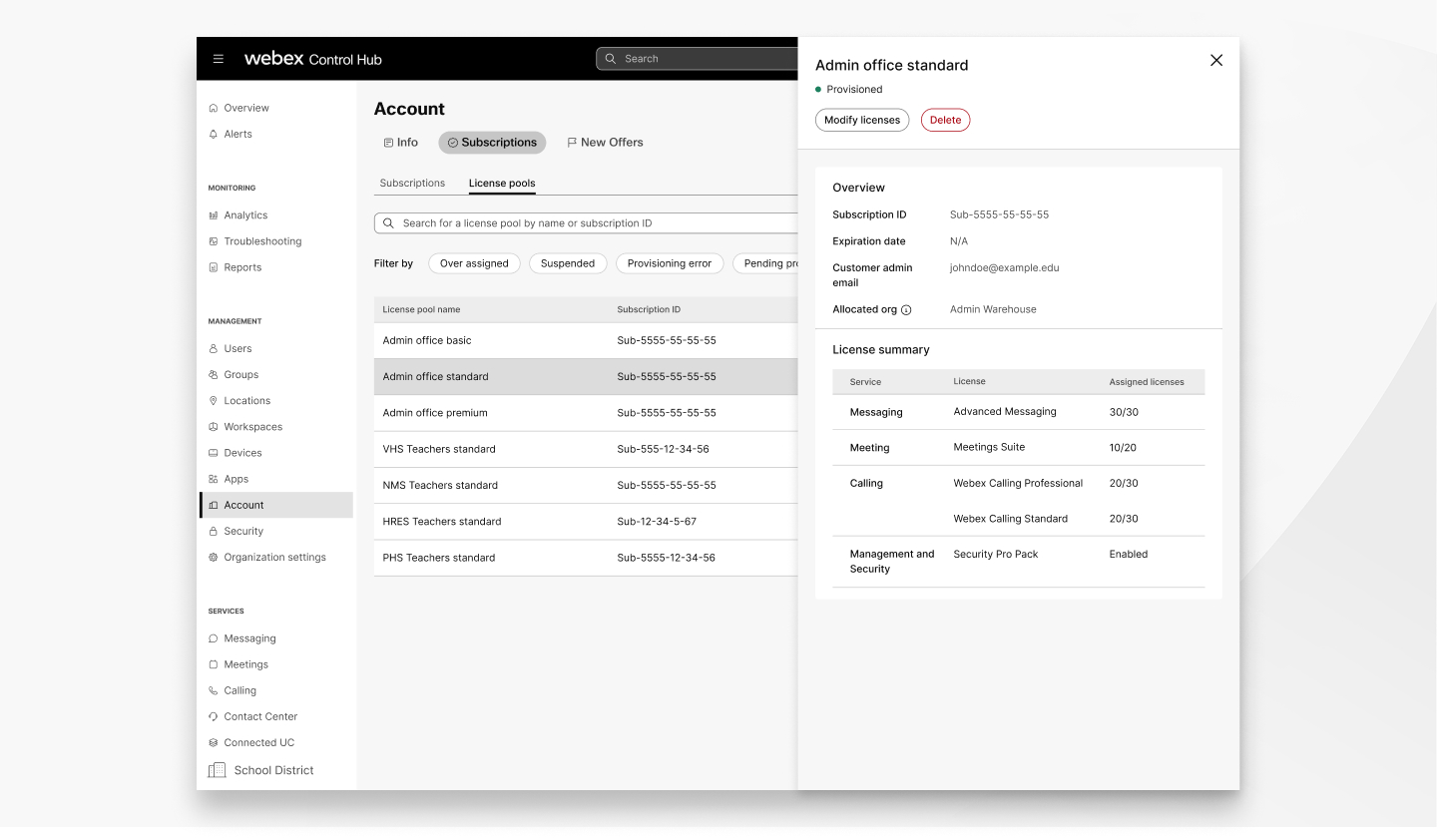
Created license pools can be in the following states:
- Provisioned—The license pool is set up and is active.
- Pending provisioning—The license pool has been created, but not yet set up by the administrator in the assigned organization.
- Provisioning error—There has been an error in the provisioning process that has prevented set up.
- Suspended—The licenses assigned to the license pool are sourced from a suspended subscription.
Assigned vs allocated licenses
Control Hub distinguishes between the licenses you assign to users within your own organization, and those you allocate out to other organizations from the same subscription. By default, one license is always assigned to the provisioning administrator. For example, if your subscription has 1000 licenses, you can assign up to 999 of those licenses to members of your organization before you begin to incur overage charges.
However, when you begin to set up a license pool, you see that you still have 1000 licenses available to allocate to other organizations. This is because you’re allocating licenses from the subscription and not your organization. Allocating licenses from that subscription reduces the number of available licenses in your organization. To prevent users from losing access to Webex services, you may incur overage charges.
It's important to keep in mind that the same principle that prevents users in your main organization from losing access to Webex services also applies when you reduce the number of licenses in your subscription.
By reducing the total number of licenses available in a subscription, that reduction proportionately impacts all allocated license pools associated with the subscription. If the total number of licenses allocated across your pools exceeds the new subscription limit, the subscription incurs overage charges.
Example:
Let's say you have a subscription with 1,000 licenses distributed evenly across 10 license pools. If you later reduce the subscription total to 500 licenses, the available licenses for each pool will also be reduced. However, none of the users in any of the suborganizations lose access to their Webex services. Instead, the allocating subscription incurs overage charges to make up the difference.
Make sure that you review your license distribution in Control Hub and reallocating licenses as necessary before you modify the number of licenses in the allocating subscription.
Create a new license pool
A license pool makes it easy to allocate licenses from a subscription to other organizations. If you don't have a suborganization to assign a license pool to, creating a new license pool automatically creates a new organization.
| 1 |
Sign in to Control Hub. |
| 2 |
Go to . |
| 3 |
Click Create a license pool. |
| 4 |
Enter a unique name for the license pool and the administrator email and click Next. To provision the license pool in another organization, enter the email address of a full or provisioning administrator in that organization. To provision the license pool in your own organization, enter the email address of a full or provisioning administrator in your organization. Keep the following in mind when you assign the license pool:
|
| 5 |
Select the subscription you want to draw licenses from. You can only provision a license pool from one subscription. |
| 6 |
Enter the number of licenses you want to allocate and click Next. You can see the number of available licenses on the right side of the screen. |
| 7 |
Review the license pool and click Create license pool. An email is sent to the email address you provided with information on how to provision and set up the allocated licenses. The subscription locks until the assigned administrator provisions the license pool. You can't modify, create new meetings sites, or provision any other license pools from a locked subscription. |
View your license pools
You can view and sort all your created license pools in the Account page in Control Hub. You can sort the list by name, subscription, allocated organization, and status. You can also filter the list to only view license pools with a specific status.
| 1 |
Sign in to Control Hub. |
| 2 |
Go to . |
| 3 |
(Optional) Enter the name or subscription ID of the license pool you want to view in the search bar. |
| 4 |
(Optional) Click on any of the following license pool filters:
|
| 5 |
Select the license pool you want to view. The license pool card includes the pool status, Subscription ID, Customer admin email, Allocated org, and a summary of the assigned licenses. |
Edit an existing license pool
It's easy to modify a license pool after you've created it. Once you've saved your changes, the assigned administrator needs to provision the changes before they can take effect. You can add or remove license types from a license pool in addition to modifying the total number of allocated licenses.
Decreasing the number of allocated licenses from a license pool doesn't automatically unassign licenses from the allocated organizations. However, completely removing a service from a license pool revokes that service from the assigned users.
Before you begin
Unassign Calling licenses from users before you remove or reallocate those licenses from the license pool.
| 1 |
Sign in to Control Hub and go to . |
| 2 |
Click on the license pool you want to modify and select Modify licenses. |
| 3 |
Enter the number of licenses you want to allocate and click Next. You can see the number of available licenses on the right side of the screen. |
| 4 |
Review the changes you have made and click Save. An email is sent to the provisioning email address with information on the license updates. |
Delete an existing license pool
If a license pool is no longer useful or you want to simply streamline your license distribution, you can easily delete it in the Accounts page in Control Hub.
Keep in mind that when you delete a license pool, you're revoking Webex service for the assigned organizations. Any users in the organization that haven't been assigned another license will lose access to Webex services such as Messaging or Calling. Make sure the affected organization is properly provisioned from a different license pool or subscription before you delete a pool.
Before you begin
Unassign Calling licenses from users in the allocated organization before you delete a license pool that includes those licenses.
| 1 |
Sign in to Control Hub and go to . |
| 2 |
Select the license pool you want to delete. |
| 3 |
Click Delete. If the license pool you're deleting contains Meetings licenses from more than one meetings site, you need to manually reassign them. Each site in the organization must have at least one Meetings license. |
| 4 |
Confirm that you understand the impact of deleting the license pool and click Delete. |
Change the administrator email
Has there been a change in the provisioning organization's IT department? Was the original provisioning email address incorrect? You can easily change the provisioning administrator email for a license pool.
If the pool isn't provisioned yet, the provisioning email will be resent. If you’re assigning a new administrator to an already provisioned license pool, there will be no impact to the organization until the next change in the allocated licenses.
| 1 |
Sign in to Control Hub. |
| 2 |
Go to . |
| 3 |
Select the license pool you want to modify and click |
| 4 |
Enter the new email address and click Save. Future provisioning emails will be sent to the new address. |
 next to
 Frequently asked questions
Is there a limit on how many license pools I can create?
You can create and provision up to 100 license pools.
Why can't I select a subscription for a license pool?
You can't create a license pool from a locked, suspended, or unprovisioned subscription. If you've already created a license pool from a subscription, the subscription stays locked until the assigned administrator has provisioned it. Subscriptions containing at least one eligible license are included in the list, regardless of whether it also contains ineligible licenses.
Only paid Enterprise subscriptions are eligible for license pooling. In addition, you can't currently assign Contact Center, Webex Events (formerly Socio), or Webex VIMT licenses to a license pool.
Why can't I see the name of the allocated organization?
The organization name on the license pool will display after the pool has been provisioned.
If I assign a license to a new user in my primary organization, will that mean a user in another org may lose their license?
No, users provisioned through license pools won't lose service if the parent organization needs to assign more licenses.
Can I create a license pool from an organization that's provisioned through a license pool?
No, you can only create a license pool from an active subscription.


