- Home
- /
- Article

Thanks for your feedback.

Enable Business Texting
 In this article
 Feedback?
Business Texting seamlessly integrates into the Webex App, providing a flexible and efficient communication method designed to support hybrid work environments. Users can send and receive SMS text messages by typing a mobile phone number directly within the Webex App interface, without needing to switch applications.
This feature allows employees to maintain a professional business persona by using their work phone number for texting, enhancing customer and partner interactions.
Administrators can centrally provision and manage Business Texting through Control Hub, enabling easy configuration and compliance with retention and purging policies.
Prerequisites:
-
Purchase the Business Texting Add On license with Cisco Calling Plans to register your brand and campaign. Work with your US or Canadian partner to purchase the Business Texting Add-On license. You need an EIN in the US or Provincial or Federal Corporation/Registry ID Numbers in Canada to register your brand for 10 DLC registration. See the Business Texting 10DLC registration FAQ for details.
-
You must have a Cisco Calling Plan in the U.S. or Canada to use the feature.
-
This feature is available only to Enterprise customers. Online customers and trial customers are currently not eligible to use Business Texting.
-
Every user must have a primary telephone number (TN) assigned by Cisco Calling Plan in U.S. or Canada locations, else you can't use Business Texting.
-
Ensure you’re on Webex App version 42.12 or higher.
-
Ensure to configure the location with Cisco PSTN.
-
You must register to the 10 DLC campaign registration for using business cloud Calling services for text messaging. See the Business Texting 10DLC registration FAQ and video for details.
Here are a few benefits of using Business Texting:
For End Users
-
Be reachable and reach out to your customers using texting, which is a universal and effective modality.
-
Use your business persona and work phone number as opposed to your personal identity.
-
Access Business Texting from the familiar and efficient Webex App, an environment that you have and are comfortable.
For an Administrator
-
Easy to configure and manage the feature using Control Hub.
-
Adds the critical customer-facing channel to ease collaboration
Register for the 10DLC campaign
Ensure that the organization has an existing Cisco Calling Plan customer in the United States or Canada.
Ensure that you purchase the Business Texting Add-on license from your partner to register and campaign your brand. If you don’t have the Add-on license for Business Texting, then the Business Texting tab isn’t visible. This is a requirement for 10DLC campaign registration. See the Business Texting 10DLC registration FAQ and video for details. Only authorized numbers can register to the 10 DLC campaign.
| 1 |
Sign in to Control Hub. |
| 2 |
In Services menu, go to . |
| 3 |
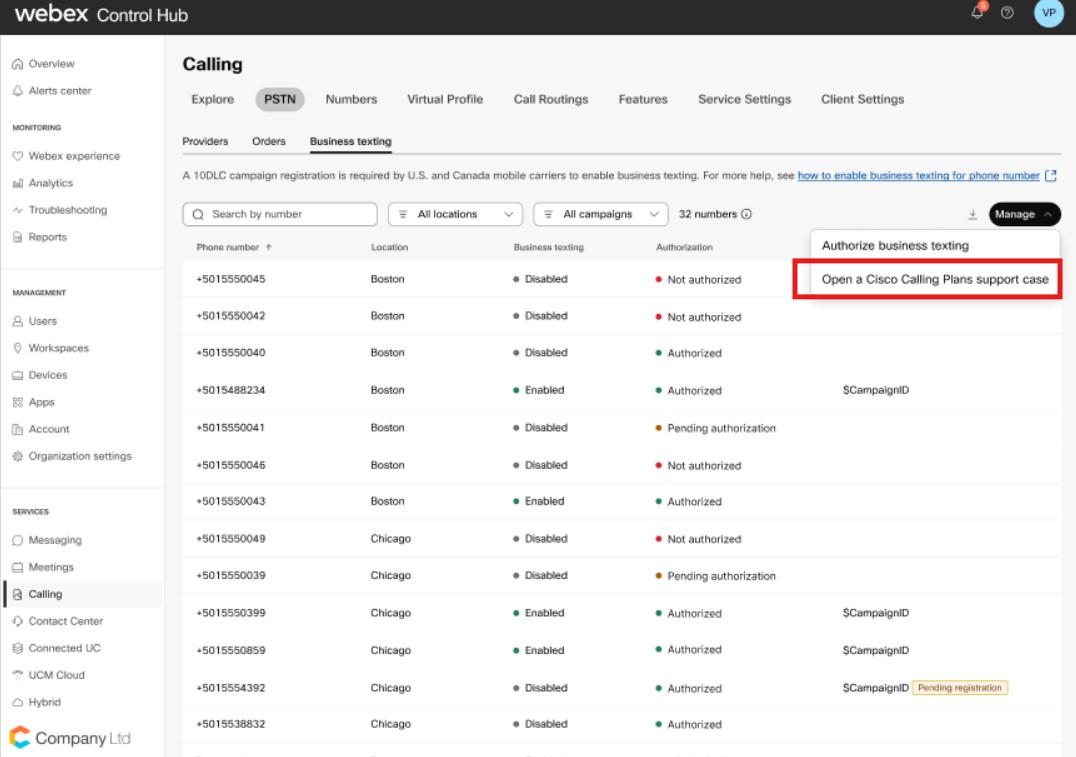
Click Manage.
|
| 4 |
The Cisco PSTN Technical support team sends the 10DLC registration form. Complete and submit the registration process. The registration process takes close to four weeks for completion.
|
Authorize Business Texting
Webex Calling Business Texting is now a A2P service. Any customers using Business Texting must register their brand and campaigns. Assign all numbers to a registered campaign so that the mobile carriers don't block these messages. Only authorized numbers can register to the 10 DLC campaign.
| 1 |
Sign in to Control Hub. |
| 2 |
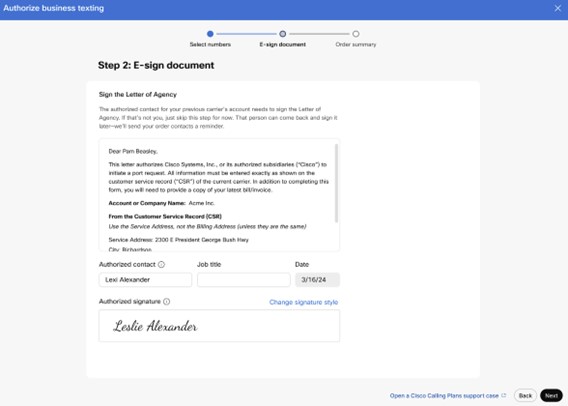
Click Manage. Use the drop-down to select Authorize business texting.
The Authorize Business Texting page displays.
|
| 3 |
Select the Cisco Calling Plan location to authorize using business texting. The Control Hub displays the numbers available in the location that can be authorized for Business Texting.
|
| 4 |
The order summary screen displays with the list of numbers ordered. The administrator can continue with Authorize more
numbers or click Done.
|
Limitation for Business Texting
Here are the known limitations with this feature:
-
eDiscovery is currently not available.
-
MMS and International Texts (both incoming and outgoing) aren’t supported.
-
Group texting is not supported.
-
The Business Texting feature doesn’t provide unlimited texting.
-
Cisco, our vendors, or destination carriers may block or throttle texting traffic that doesn’t conform to appropriate usage, including but not limited to fraudulent, excessive volume or bursts, SPAM, unauthorized or inappropriate content, and so on. This decision to block Business Texting is at the sole discretion of Cisco or the vendor.
Refer to the Offer Document for authorized use of Business Texting.


