
Thanks for your feedback.
Webex App | Schedule your meetings with Cisco AI Assistant
 Feedback?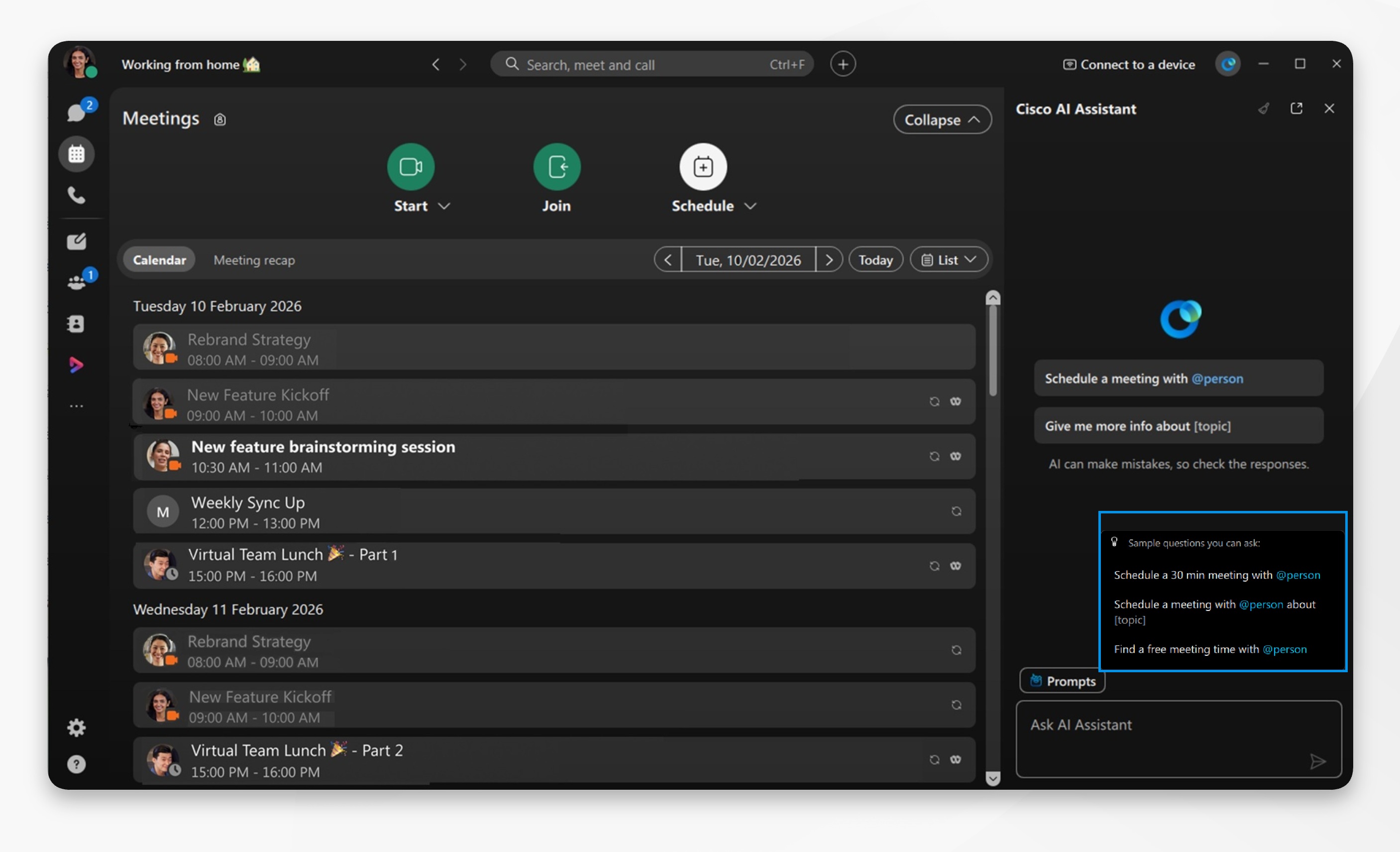
Before you begin, check that your Google or Microsoft 365 calendar is connected, and ensure you're on Webex App version 45.12 or later.
AI Assistant scheduler must be enabled by your organization administrator, If you don't see the option, reach out to your administrator to have it enabled.
| 1 |
Open Webex and sign in. |
| 2 |
Go to Meetings |
| 3 |
Click Schedule a meeting with @person, or click and select from:.
Enter the persons name, then click send. AI Assistant suggests meeting options, select your preferred option and confirm. AI Assistant will then schedule the meeting. Verify that the meeting appears on your calendar and that the invites are sent. You can also go to the AI panel directly and just ask AI Assistant to schedule a meeting. AI Assistant will prompt you for further details and then suggest meeting options. |
| 4 |
To review any assigned scheduling Action items from previous
meetings, go to Meetings If a scheduling Action item is assigned to you—click the highlighted link and you can schedule a meeting from an action item. Meeting hosts have the ability to edit and update action items and assign them to different attendees. Once changes are made, AI Assistant will re-analyze and provide an updated meeting summary with action items. |

 to open the AI panel.


