
Thanks for your feedback.
Webex App | Tag speakers in your meeting recordings
 Feedback?
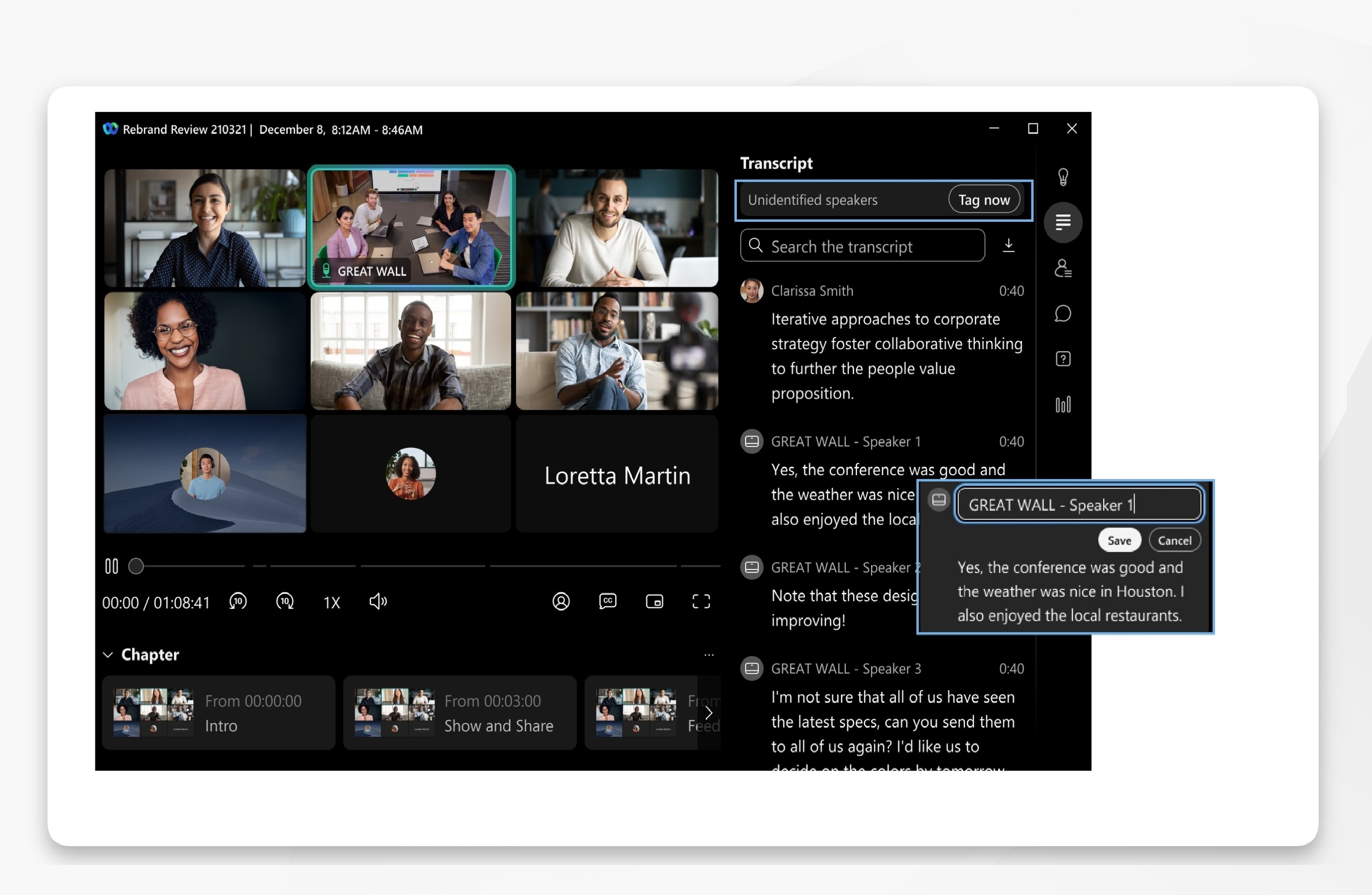
Only the meeting host, who also owns the recording, can tag speakers.
| 1 |
Sign in to Webex App. |
| 2 |
Click Meetings
To see a list of available recordings shared in a space, click . |
| 3 |
Select and open a recording, then click Transcript
You'll see a notification if there are unidentified speakers in the transcript. Click Tag now to open the first segment of the conversation.
When you edit the speakers name for a specific conversation segment, it's reflected across the transcript for that speaker. While the transcript reflects the speaker tag updates, notes and action items remain unchanged and don't reflect the new speaker tags. |
 , then select
  .
. on the conversation segment, to replace the generic
speaker label with the speakers name, then click
on the conversation segment, to replace the generic
speaker label with the speakers name, then click 


