- Home
- /
- Article

Thanks for your feedback.


 In this article
 Feedback?
The Workspaces MCP server gives supported agentic apps read-only access to workspace and device insights from Control Hub.
Workspaces MCP server capabilities
Overview
The Workspaces Model Context Protocol (MCP) server makes workspace and device insights from Control Hub available to supported agentic apps. After the server is enabled in Control Hub, approved tools can provide read-only access to workspace health, device status, configuration information, utilization data, and historical diagnostics.
The server helps IT administrators troubleshoot workspace issues, monitor device health, review configuration state, and understand space utilization without leaving their preferred agentic app.
Who can use the Workspaces MCP server
The Workspaces MCP server is for administrators who manage workspaces and devices in Control Hub.
Access is based on the administrator's Control Hub role:
- Full administrators can access workspace and device information across the organization.
- Location administrators can access the workspaces and devices allowed by their role settings.
Capabilities
The Workspaces MCP server can provide read-only information for these use cases:
| Use case | What admins can review |
|---|---|
| Workspace monitoring | Workspace and device health across the organization. |
| Device diagnostics | Device issues, event history, and error code information. |
| Configuration insights | Current device configurations, configuration history, configuration schema information, and comparisons of configuration templates. |
| Utilization analytics | Occupancy, booking, environmental, and usage trends that can help identify spaces with low or high utilization. |
| Historical troubleshooting | Device and workspace history that can help identify recurring issues. |
| Inventory | Workspace, location, and device inventory information for your organization. |
Example prompts
Admins can ask supported agentic apps questions such as:
- Show me the top workspaces that need attention.
- Which rooms have the lowest utilization rates?
- Show me all devices with connectivity issues.
- Compare device settings across all rooms on Floor 5.
- Show me devices that need firmware updates.
- Generate a health report for all meeting rooms before 9 AM.
Limitations
- The Workspaces MCP server provides read-only access. It doesn't change devices, workspaces, or configurations.
- Users can access only the workspaces and devices allowed by their Control Hub role.
Enable the Workspaces MCP server in Control Hub
Enable the Workspaces Model Context Protocol (MCP) server from Agentic Apps in Control Hub so approved agentic apps can use read-only workspace and device data.
The Agentic Apps area in Control Hub lets administrators provision agentic apps for their organization, configure user access and authentication, and define governance controls for the agentic capabilities that are available to users.
Cisco official servers are automatically included in the agentic apps list, but administrators must enable and review authentication, tool access, and schema changes before the server is available to users.
Before you begin
- You can sign in to Control Hub as an administrator.
- Your organization has access to Agentic Apps in Control Hub.
- You have reviewed your organization's governance, security, and liability requirements for MCP applications.
- You understand that your organization is responsible for reviewing, complying with, and managing the liability framework for MCP applications.
| 1 |
Sign in to Control Hub. | ||||||||||||
| 2 |
Go to . The Agentic Apps page lists public agentic apps and private apps that users in your organization have onboarded. 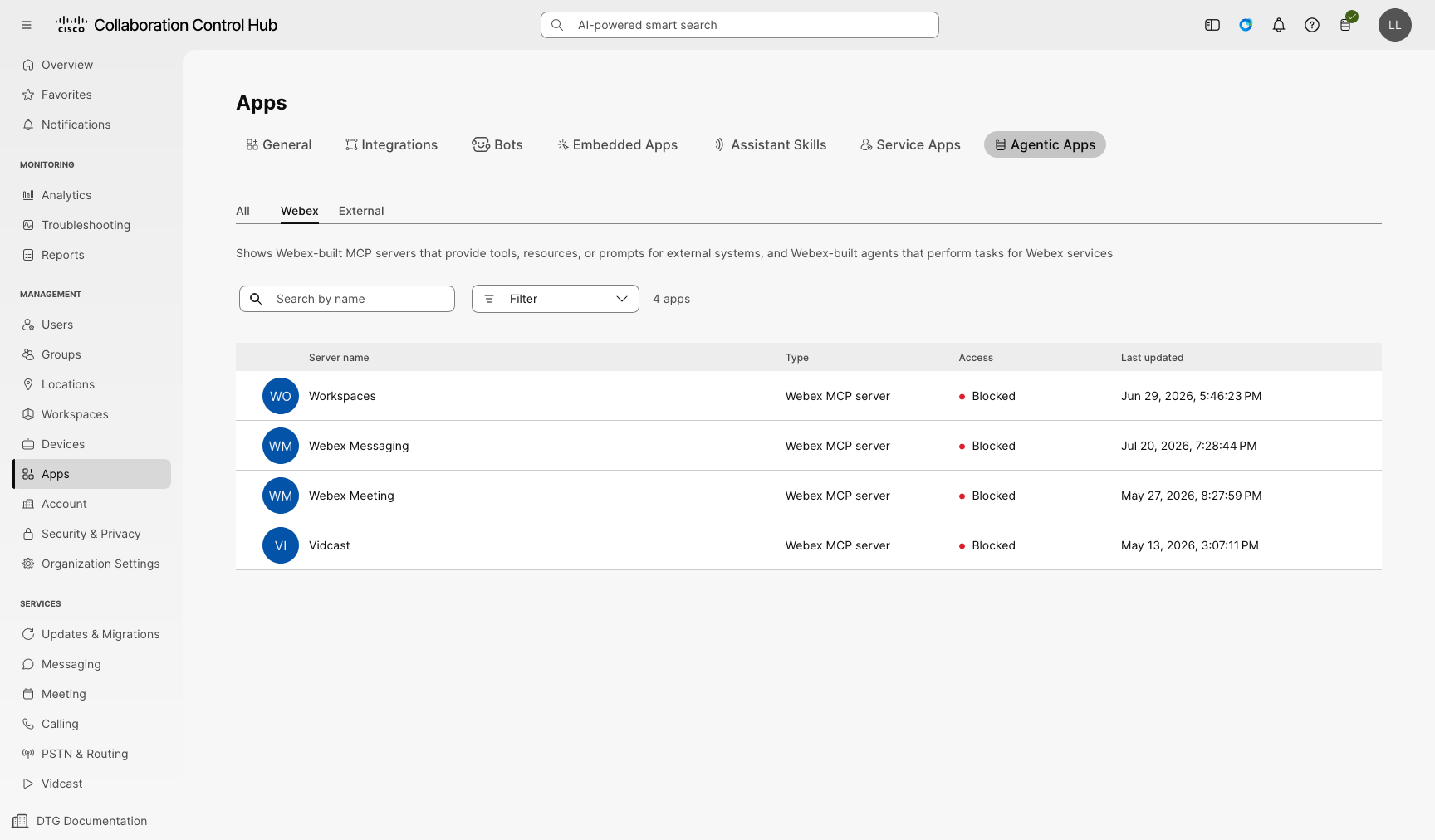
| ||||||||||||
| 3 |
Open the Workspaces MCP server from the app list. | ||||||||||||
| 4 |
On the General tab, choose whether to allow or block the server for all users in your organization. 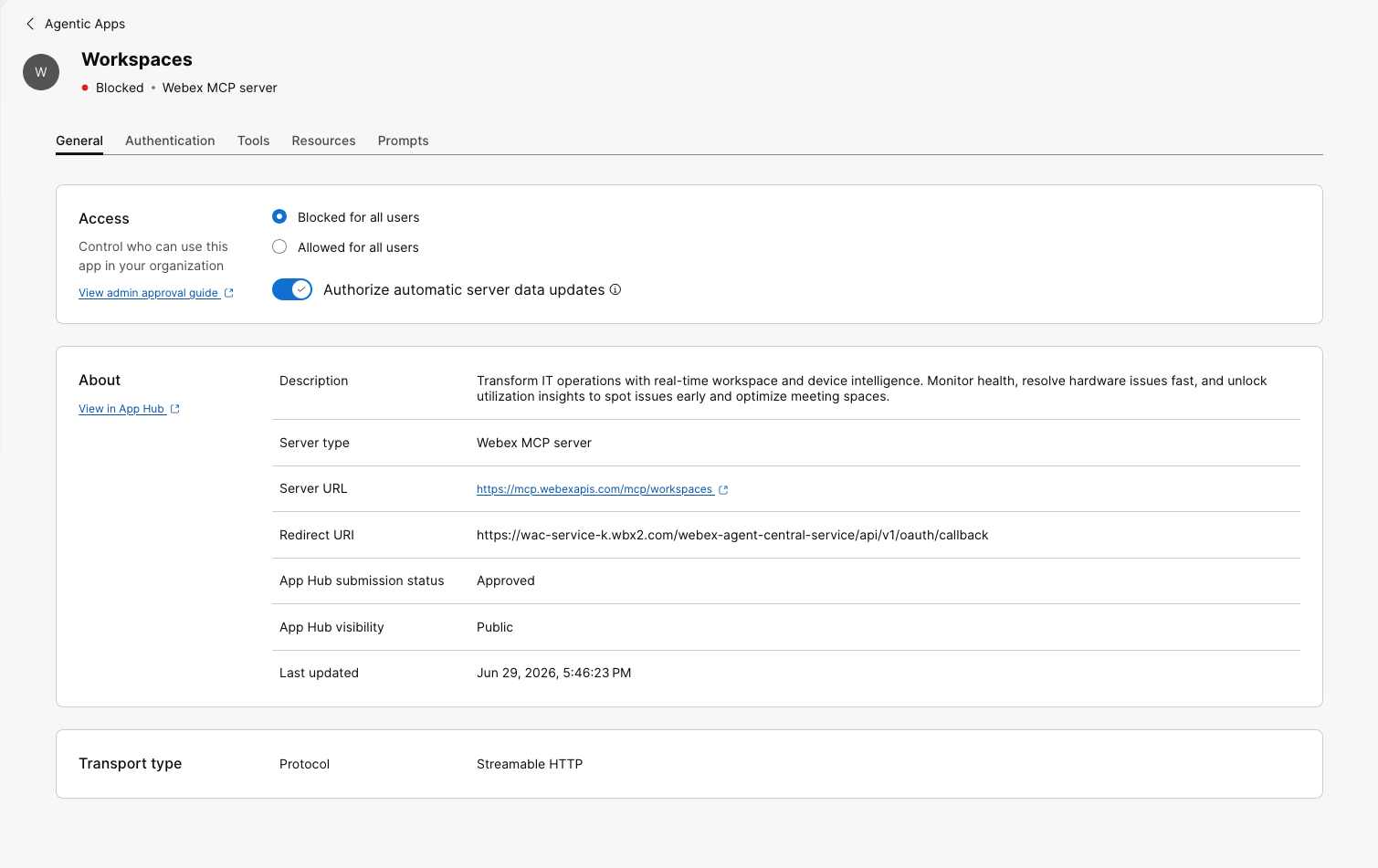
Optional: Authorize automatic server data updates. When enabled, updates to the server name, description, URL within the same domain, transport type, or other metadata don't require reauthorization before they take effect. Control Hub still shows an indication that changes occurred, and you can reauthorize the server at your discretion. Click Save to confirm the changes. | ||||||||||||
| 5 |
On the Authentication tab, review the authentication settings. 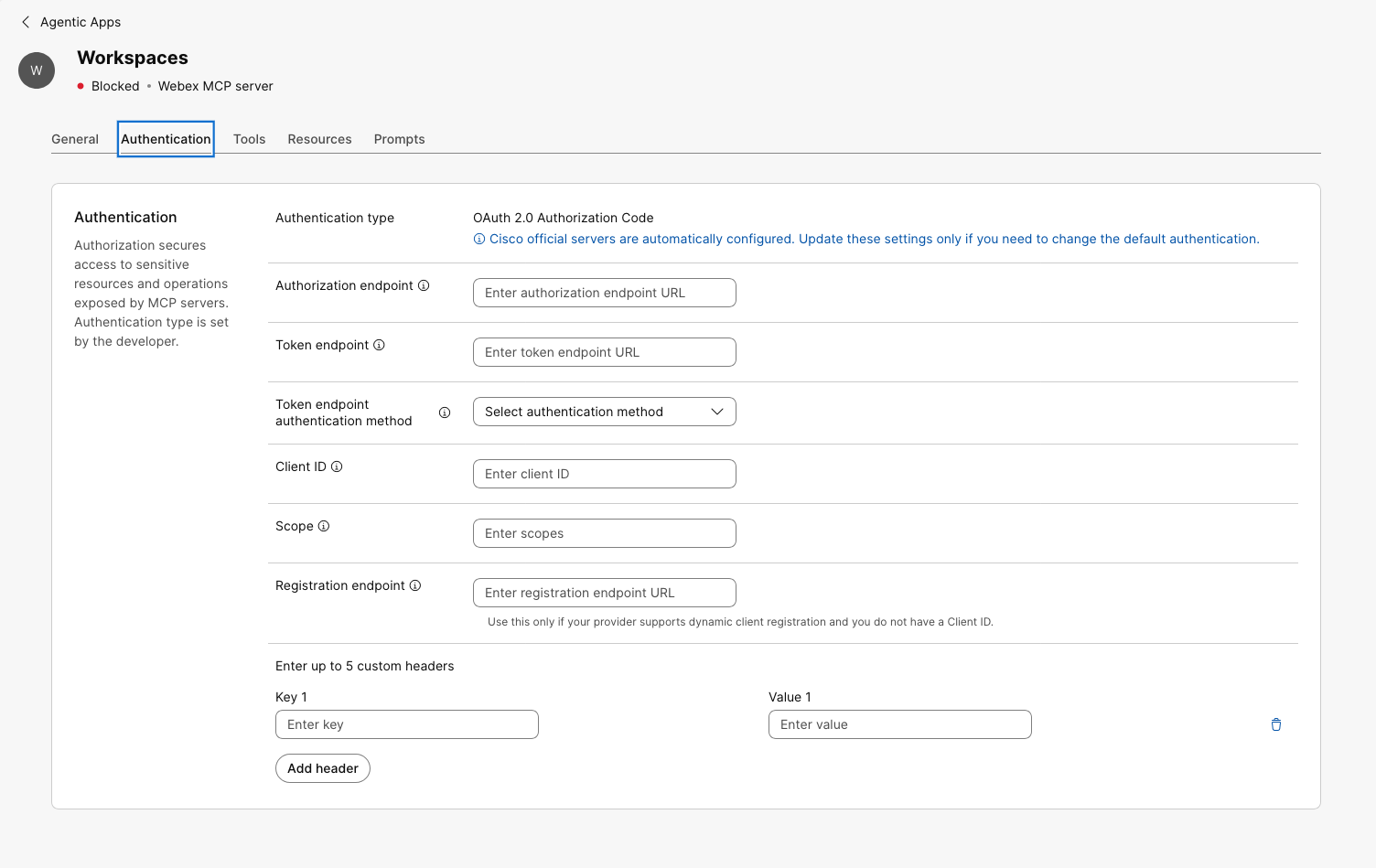
Cisco official servers are automatically configured. Change authentication settings only when you need to change the default authentication. The available authentication methods depend on how the app is configured in the Developer Portal.
For OAuth 2.0 client credentials, the token endpoint authentication method can be You can configure custom headers for all authentication types. | ||||||||||||
| 6 |
Review the server capabilities. For MCP servers, Control Hub shows separate tabs for Tools, Resources, and Prompts. | ||||||||||||
| 7 |
On the Tools tab, enable or disable the tools that users in your organization can use. 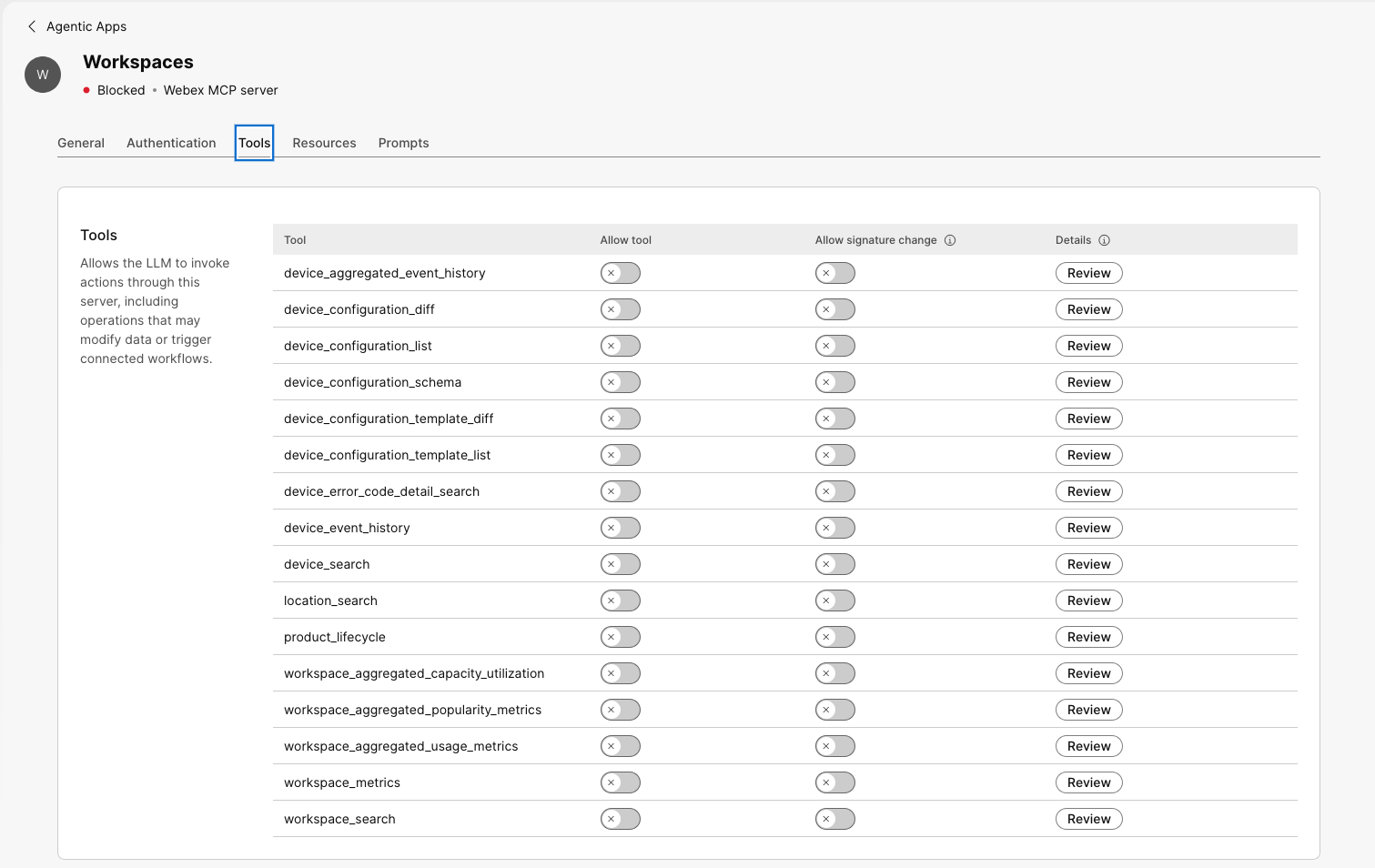
When a tool is enabled, users can discover and use it from supported clients according to the access that you configure. When a tool is disabled, it isn't visible or available to users. If you turn on Allow signature change, the tool can be used after its schema changes. Control Hub still shows that the tool signature has changed, and you can review and reauthorize the tool to approve the updated schema. We recommend that you turn on Allow signature change to avoid disruptions. If you leave Allow signature change turned off, the tool can't be used after a schema change until an administrator reviews and reauthorizes it. Depending on how your MCP client handles versioning and schema caching, additional steps may be required before the updated schema becomes available. | ||||||||||||
| 8 |
Review individual tool details and schema changes. You can review each tool's input schema, output schema, and annotations to understand what data the tool accepts, what response it returns, and what additional metadata is associated with the tool. | ||||||||||||
| 9 |
Review and configure the Resources and Prompts tabs. The Resources and Prompts tabs let you review and manage available resources and prompts. | ||||||||||||
| 10 |
Complete any remaining authorization prompts in Control Hub. |
The Workspaces MCP server is available to users according to the access, authentication, and capabilities that you configured in Control Hub.
Visit developer.webex.com to read about how to connect the Workspaces MCP server to your MCP client.
Other resources:
- Connect to Microsoft applications: https://learn.microsoft.com/connectors/ciscoworkspaces/
- Connect to Google Gemini: https://docs.cloud.google.com/gemini/enterprise/docs/connectors/cisco-workspaces


