- Home
- /
- Article

Thanks for your feedback.


Elevate your hybrid meetings and webinars with Webex Relay
 In this article
 Feedback?
Webex Relay transforms hybrid meetings and webinars into more immersive experiences for local audiences. Whether you’re hosting a virtual conference or broadcasting a large event, it can send up to 25 live media streams from your Webex Suite meetings platform to a local display. This transforms the way you manage and present your remote participants and content.
Key features
- Crystal-clear video: Show a single video participant in stunning 1080p (full HD) resolution. Output composited layouts or shared content in 2160p (4K UHD).
- Pick your audio: Choose exactly whose audio you want to hear and route audio only
from selected sources. Active Speaker output includes all audio.
- Flexible layouts: Arrange up to 25 sources, and set up your screen just how you like it.
- Easy source control: Find, manage, and preview sources from the participant list.
System requirements
-
Apple macOS (Apple Silicon M1 or newer).
Permissions required
- Authentication: You must authenticate to attend meetings with Webex Relay.
- Preview access: Any authorized user can preview participants.
- You don't need user permissions to relay sources to an available display.
- To output to NDI, you must have "Enable Live Streaming / NDI" user permissions and be the host or cohost of the active meeting or webinar. For instructions on configuring live streaming permissions, see here.
Download Webex Relay
| Version | Download link |
|---|---|
| 45.10 | https://binaries.webex.com/webex-macos-arm-relay-gold/20251127085241/Webex%20Relay.pkg |
| 45.8 | https://binaries.webex.com/webex-macos-arm-ndi/Webex%20Relay.pkg |
Update Webex Relay
Webex Relay won’t autoupdate due to desired predictability in video production environments.
You can manually check for updates following the steps below:
- Open Webex Relay.
- Go to the menu and select About Webex Relay.
- Click Check for updates.
User experience highlights
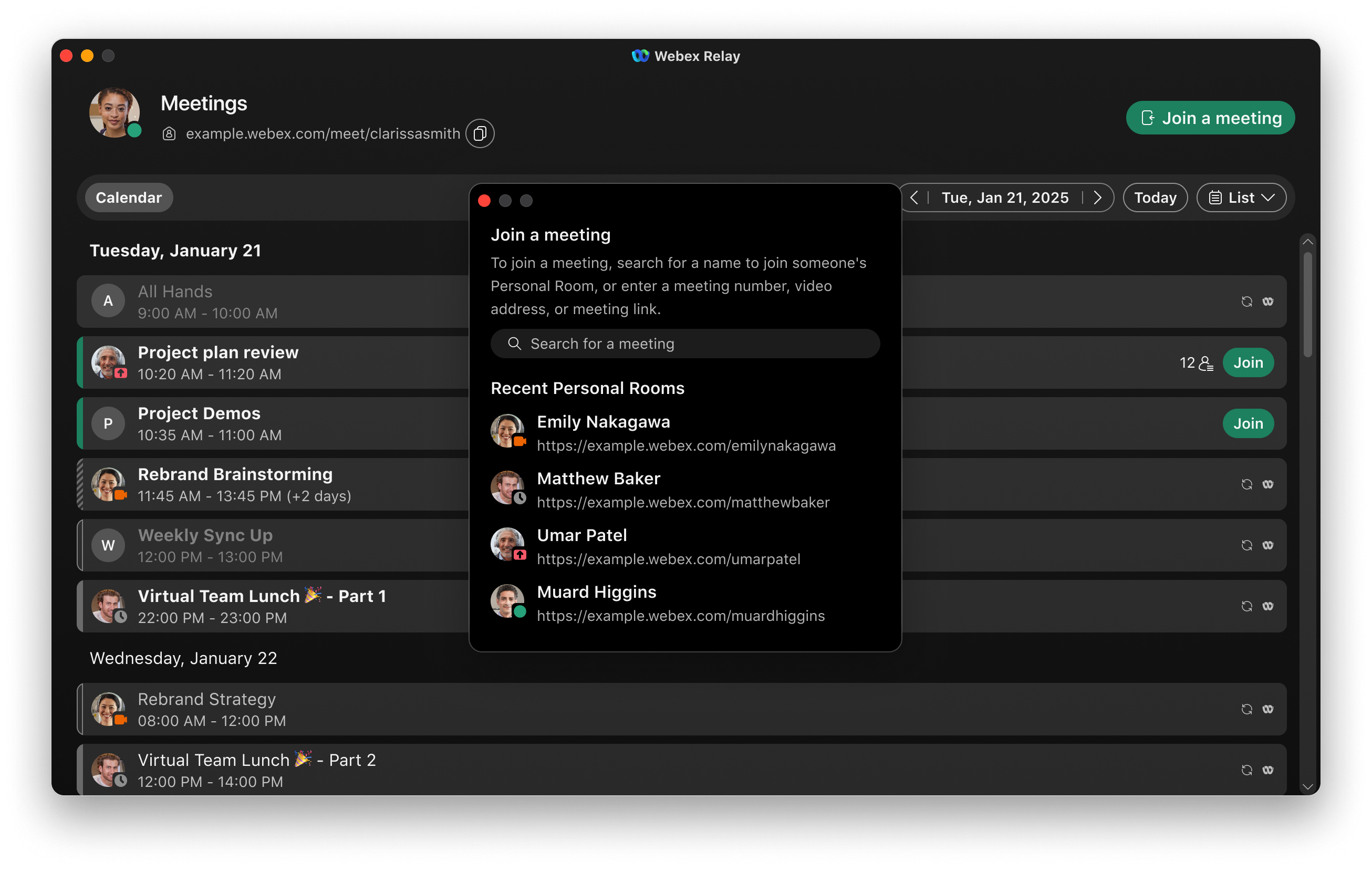
Join a meeting
You can join a meeting directly from the Webex Relay app by entering a meeting number, video address, or link. If the meeting is already visible on your calendar, simply click the join option that appears there.
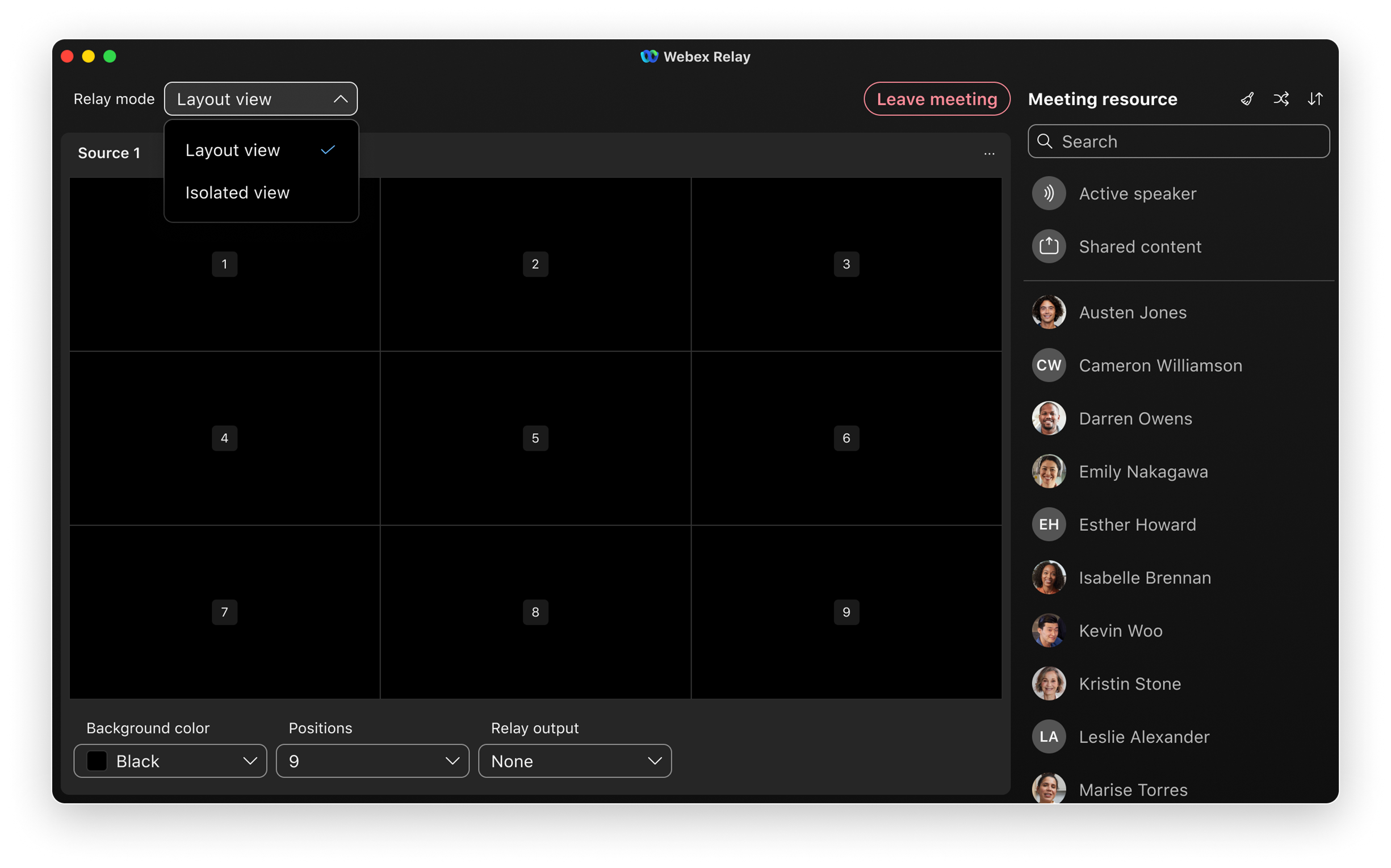
Select the relay mode
Webex Relay supports two modes of operation.
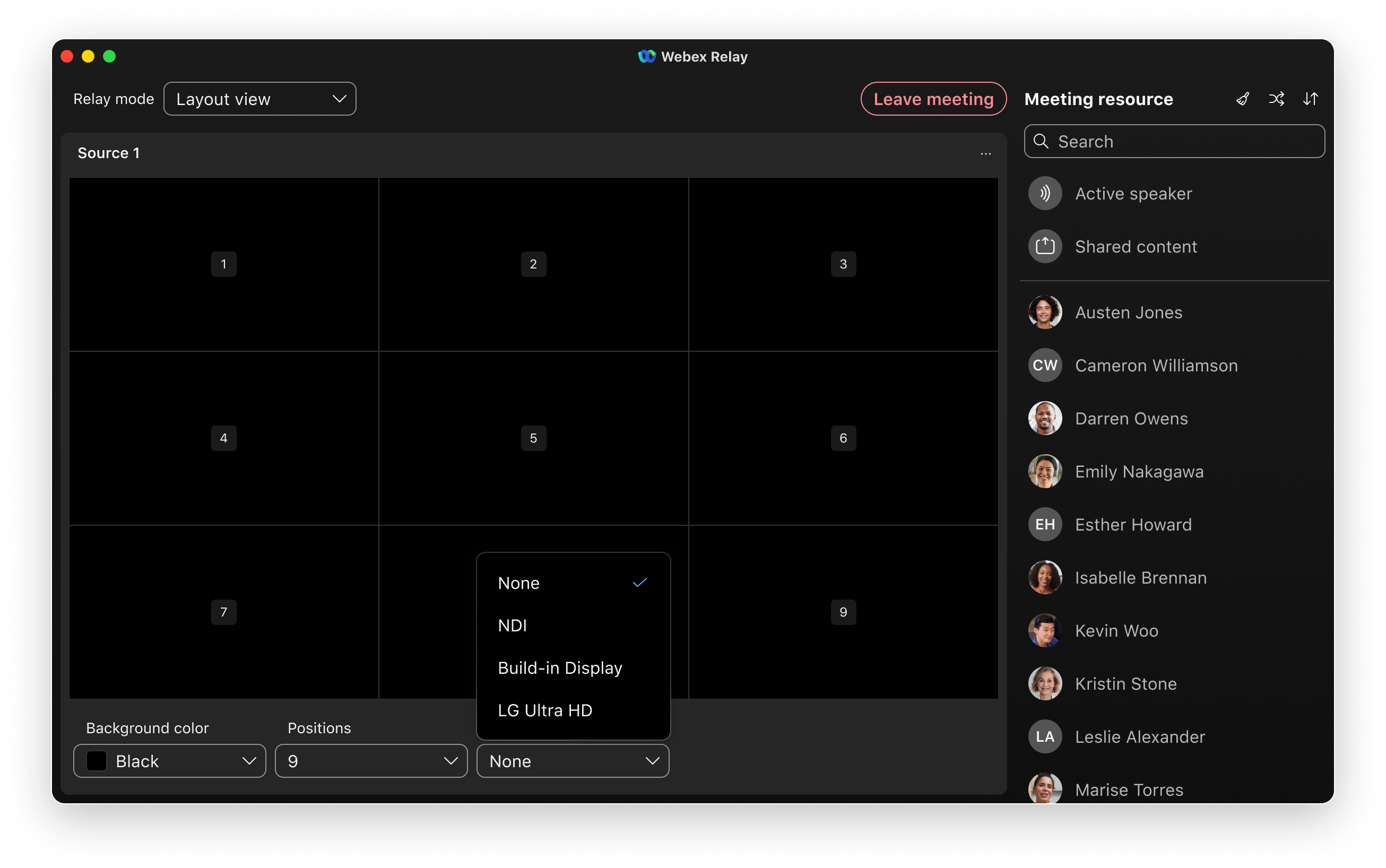
- Layout view: Allows the operator to output up to 25 sources into a single composited layout. You can use it to fill video walls with participants in hybrid events or to composite participants before sending the video to a production environment.
- Isolated view: Provides eight individual outputs that can relay participants, shared content, or the active speaker as NDI sources to the local network. You can send only one output to a connected display at a time.
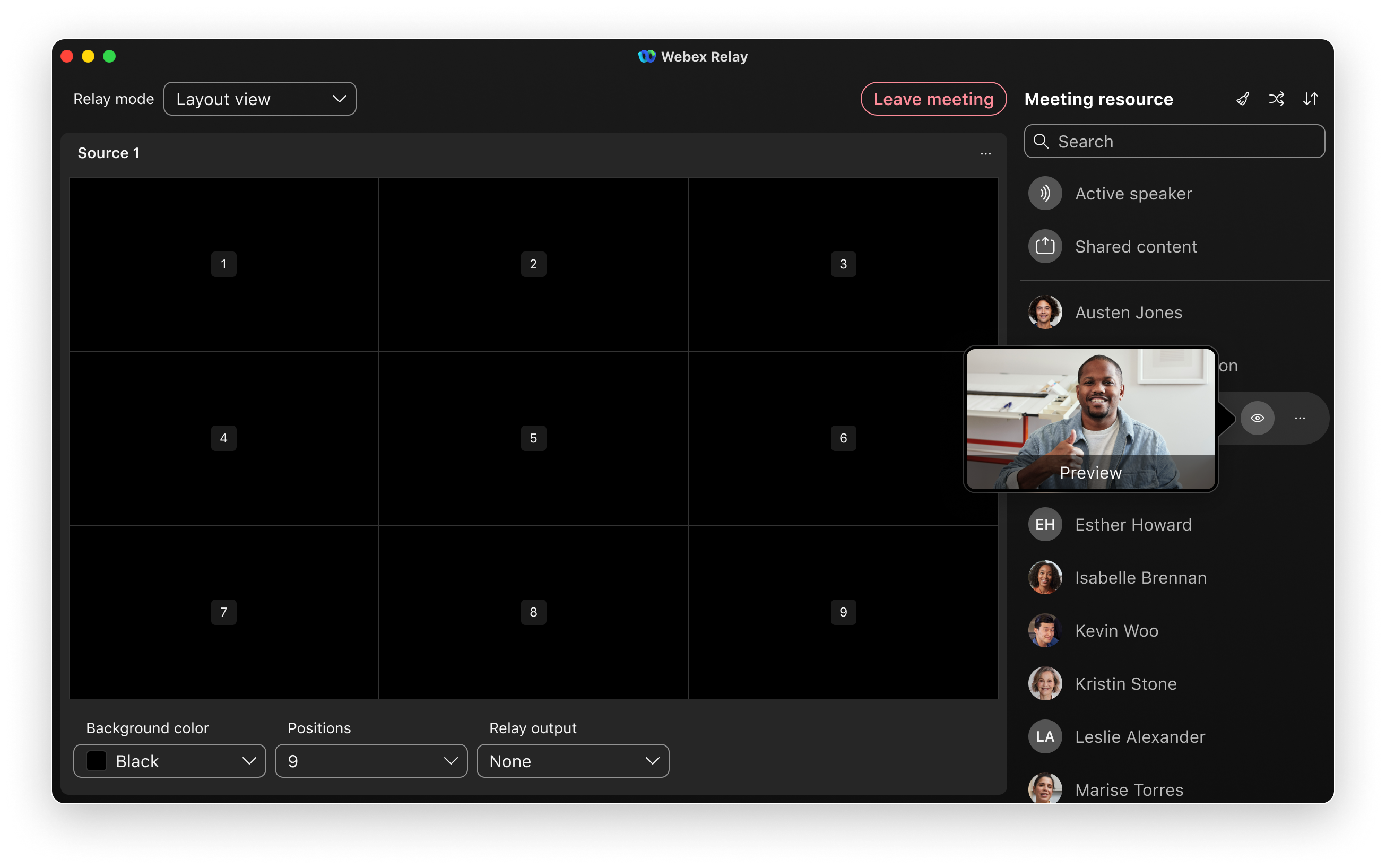
Select and preview video sources (Layout view and Isolated view)
Use the participant list to easily search for and preview video sources. Hover over the preview icon to see a live preview of a participant’s video before adding them to a position.
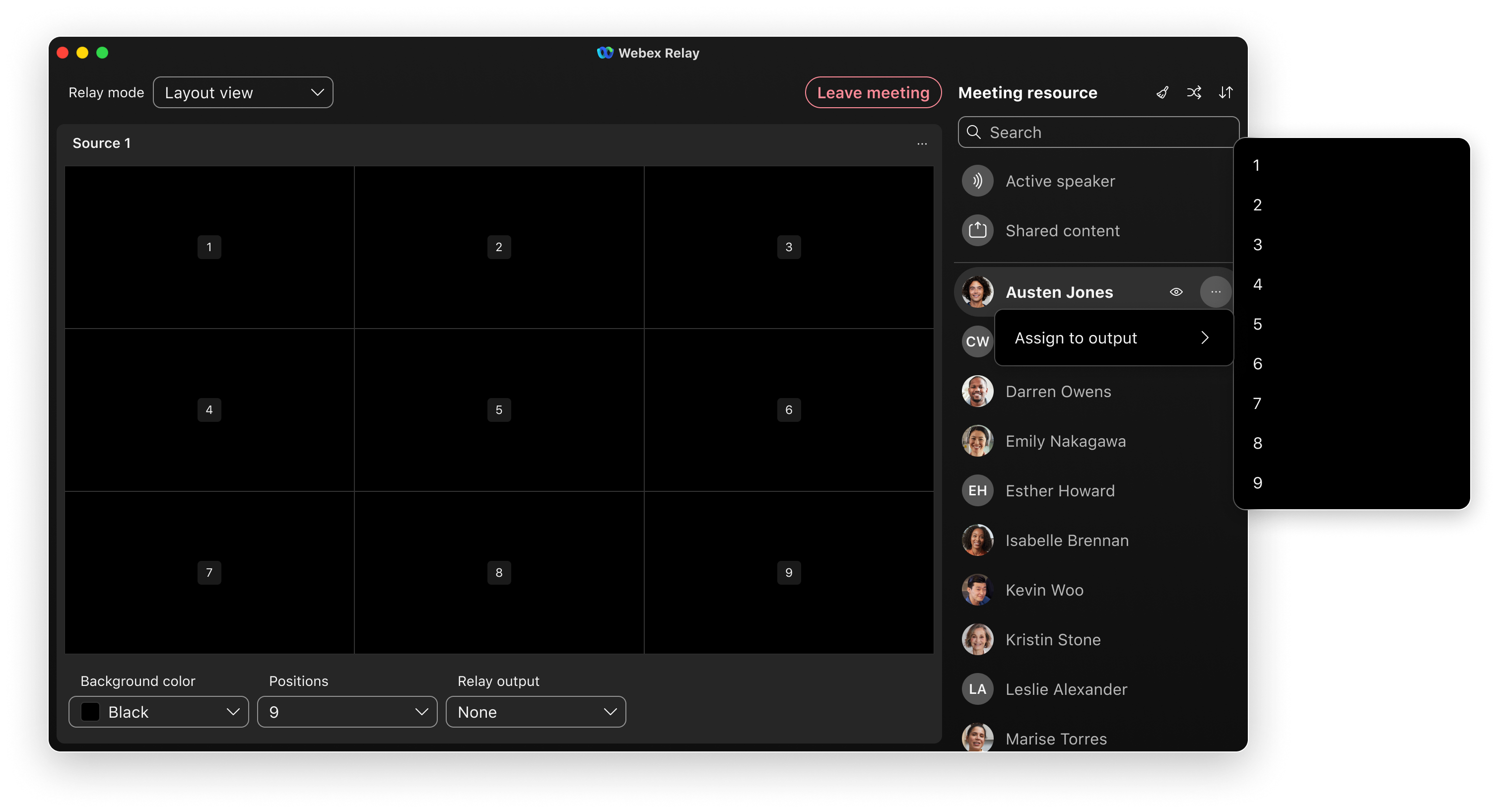
Arrange your layout (Layout view)
Drag and drop participants from the source list into a layout position to customize your layout. You can also use a contextual menu to assign sources or let Webex Relay assign random participants automatically. You can sort the source list to help find participants you need to add or remove from the layout.
Customize the display (Layout view)
Adjust the number of layout positions and set the background color as needed. The background color applies to the entire background of the display, including areas where Picture-in-Picture (PIP) feeds are empty or not used. Black, green, and blue are offered by default, but you can use any custom color required. This allows you to use a color for its visual aesthetic or as a chroma key for replacement in your production environment.
Choose and start relay output (Layout view and Isolated view)
For connected displays, select the display and then Start relay to go live.
For NDI, the stream begins immediately; you don’t need to start or stop the relay manually.
Limitations
You can only join meetings directly from the list view. Joining meetings from a day or week view is not supported.
NDI® is a registered trademark of Vizrt NDI AB
Please see https://ndi.video/ for more information.


