
Thanks for your feedback.
 Feedback?
The WxCC Data Connector-Splunk streams selected Webex Contact Center data to a customer-managed Splunk HTTP Event Collector (HEC) endpoint for near-real-time analysis. When the connector is active, it streams these record types:
| Record Type | Name |
| AAR | Agent Activity Record |
| ASR | Agent Session Record |
| CAR | Contact Activity Record |
| CSR | Contact Session Record |
All four supported record types are streamed when the connector is active. Control Hub does not provide per-record-type selection for this connector.
Configure the Splunk destination
Before you begin:
- A Splunk Cloud or Splunk Enterprise instance with permission to create an index and an HTTP Event Collector token.
- Have permission to create or use a destination index and create an HEC token.
- Create a destination index for WxCC data.
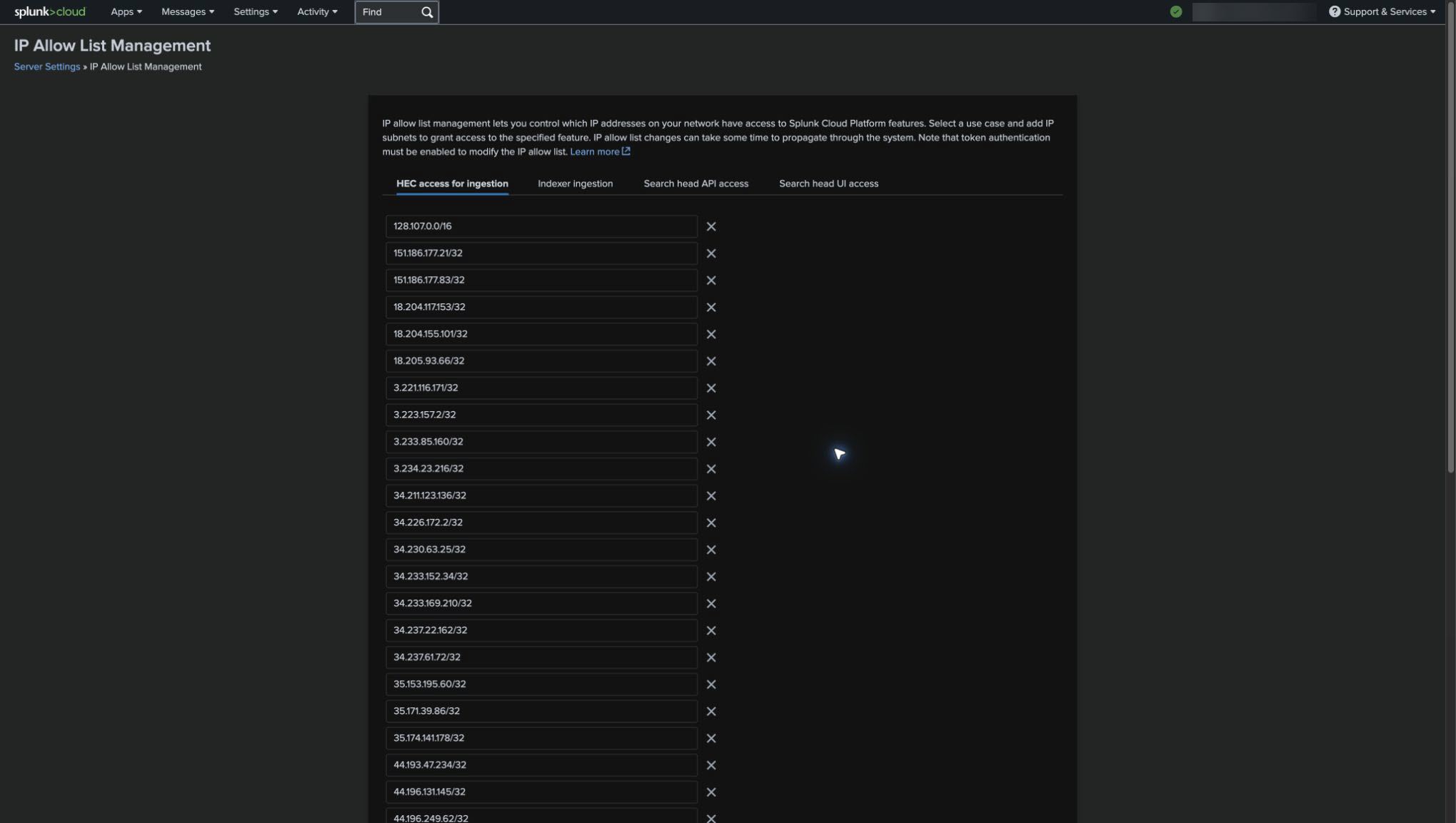
- The WxCC production egress subnets added to the Splunk HEC access for ingestion IP allow list.
Data privacy and compliance
- CSR global variables are removed before delivery to Splunk to support PCI compliance.
Customer data-protection responsibility
Customers are responsible for ensuring that their Splunk configuration and handling of delivered data comply with applicable privacy and data-protection requirements, including GDPR.
Steps to configure Splunk
Allow WxCC HEC ingestion traffic
- Use the Webex Contact Center security setup article to
identify the NAT gateway IP addresses for the customer’s data center and express each
address as a
/32CIDR subnet—for example,203.0.113.10/32. - In Splunk, open Settings > Server settings > IP allow list.
- Select HEC access for ingestion, add the resulting
/32subnet records, and save the allow list. Allow-list changes can take time to propagate.
Allow-list WxCC production egress subnets. If the required subnets are not added under HEC access for ingestion, WxCC data cannot reach the configured Splunk index.
Create a destination index
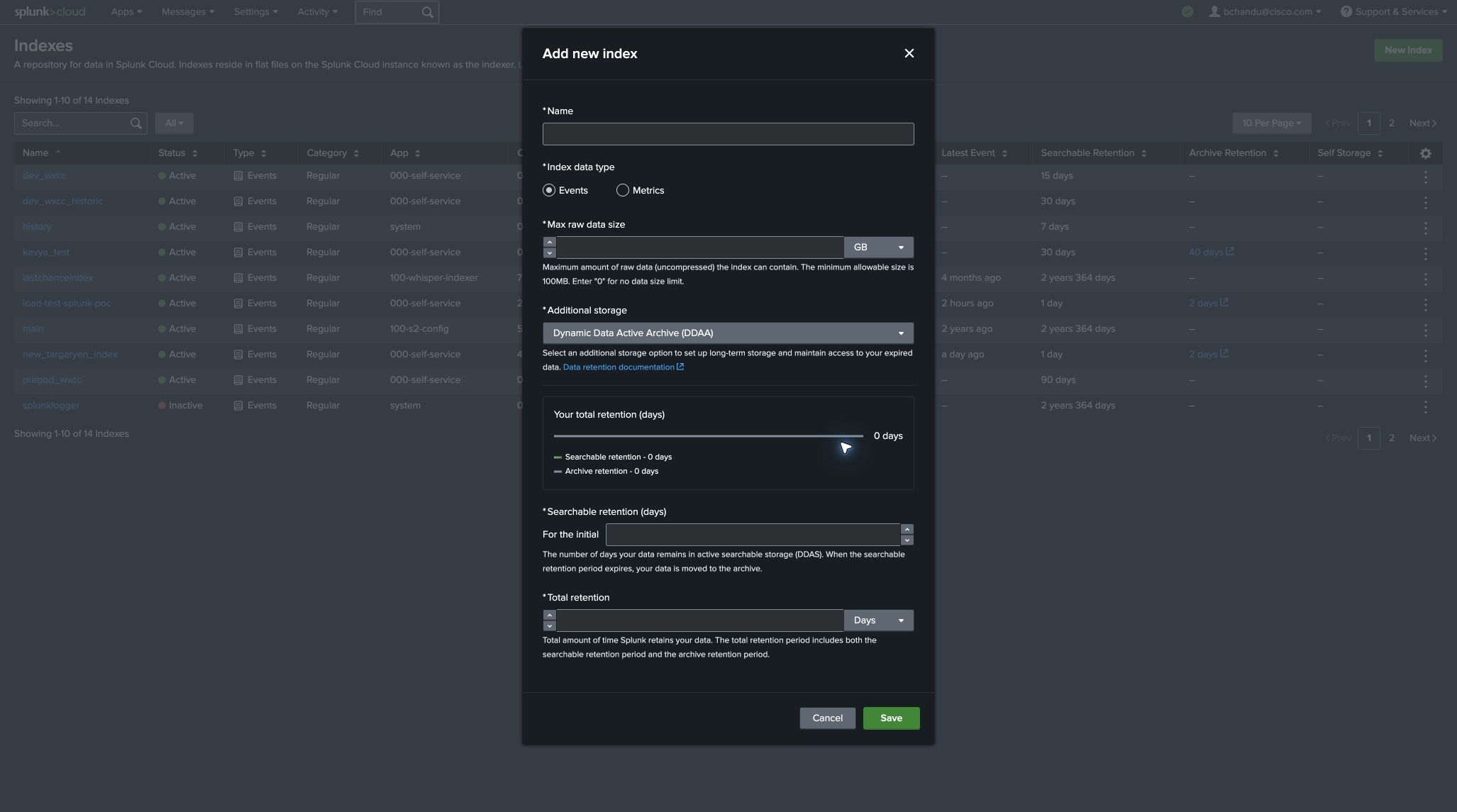
- In Splunk, open Settings.
- Go to Data > Indexes.
- Select New Index.
- Enter an index name and choose retention and storage settings that meet the customer’s requirements.
-
Save the index.
An organization with 100 agents produces approximately 16 events per second, or about 2.64 GiB of payload per day at a conservative 2 KiB per event. Scale the estimated payload capacity linearly with the number of agents, then allow additional capacity for Splunk indexing overhead, retention, and usage patterns.
Create an HEC token
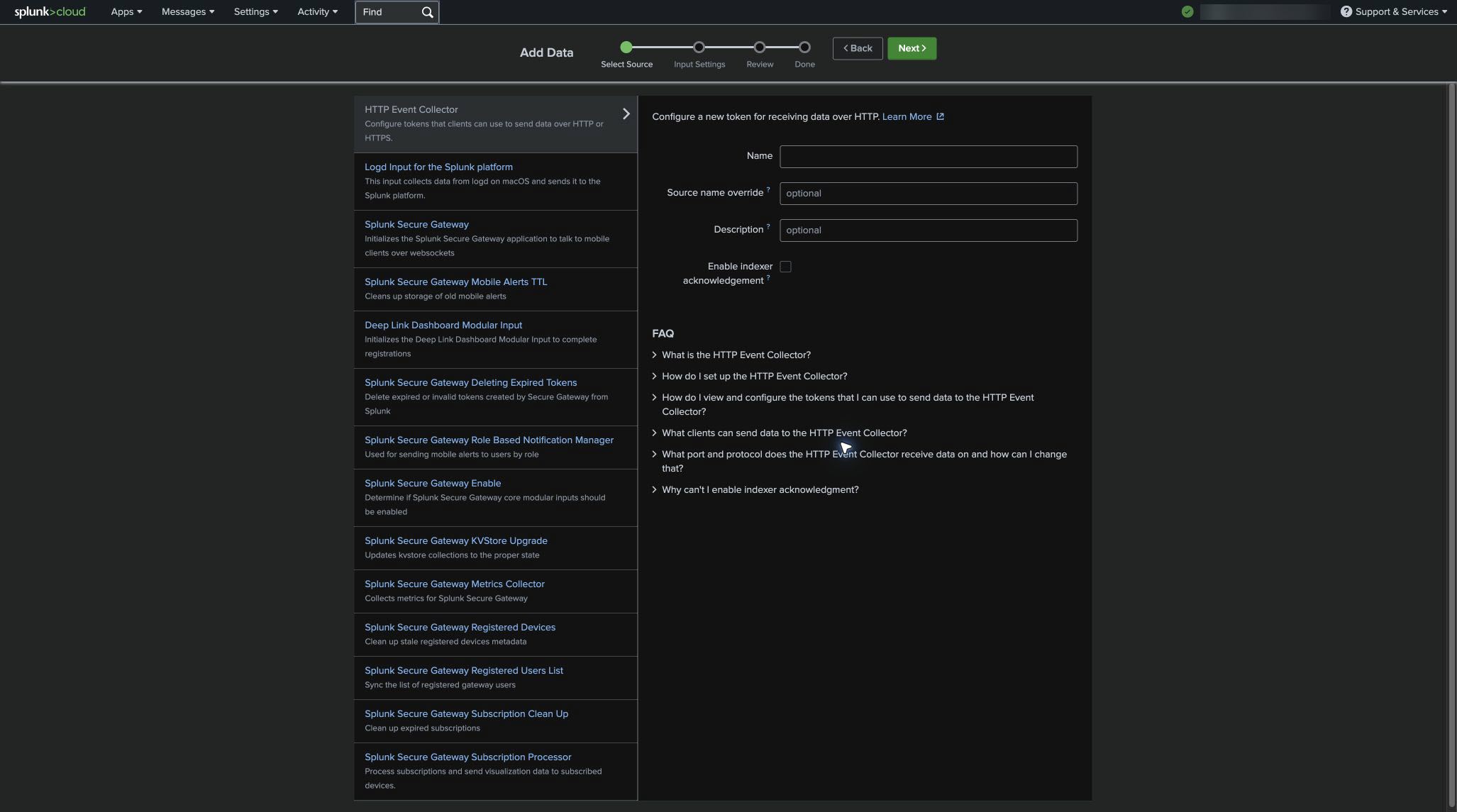
- In Settings, search for and open HTTP Event Collector.
- Select New Token and provide a descriptive name.
- Leave Enable indexer acknowledgement unchecked.
- Associate the token with the index created in the previous step.
- Save the token and securely copy its value. The token value is needed only when configuring the connector in Control Hub.
Keep Enable indexer acknowledgement disabled. The WxCC Data Connector — Splunk does not support indexer acknowledgement. Enabling it prevents successful connector delivery.
Identify the HEC URL
The connector sends batched JSON payloads to the HEC collector endpoint:
https://http-inputs-<splunk-cloud-domain>/services/collector
For a Splunk Cloud instance named cisco-wxcc-connector.splunkcloud.com, the URL is:
https://http-inputs-cisco-wxcc-connector.splunkcloud.com/services/collector
Use the correct HEC endpoint
The connector sends batched JSON payloads. Enter the HEC URL ending in
/services/collector. Do not use
/services/collector/event, which is the single-event
endpoint.
Adding the connector in Control Hub
- Sign in to the customer organization at https://admin.webex.com.
- Navigate to Services > Contact Center > Tenant Settings > Integrations > Connectors.
- On the WxCC Data Connector — Splunk card, select Add connector.
- Enter the following values:
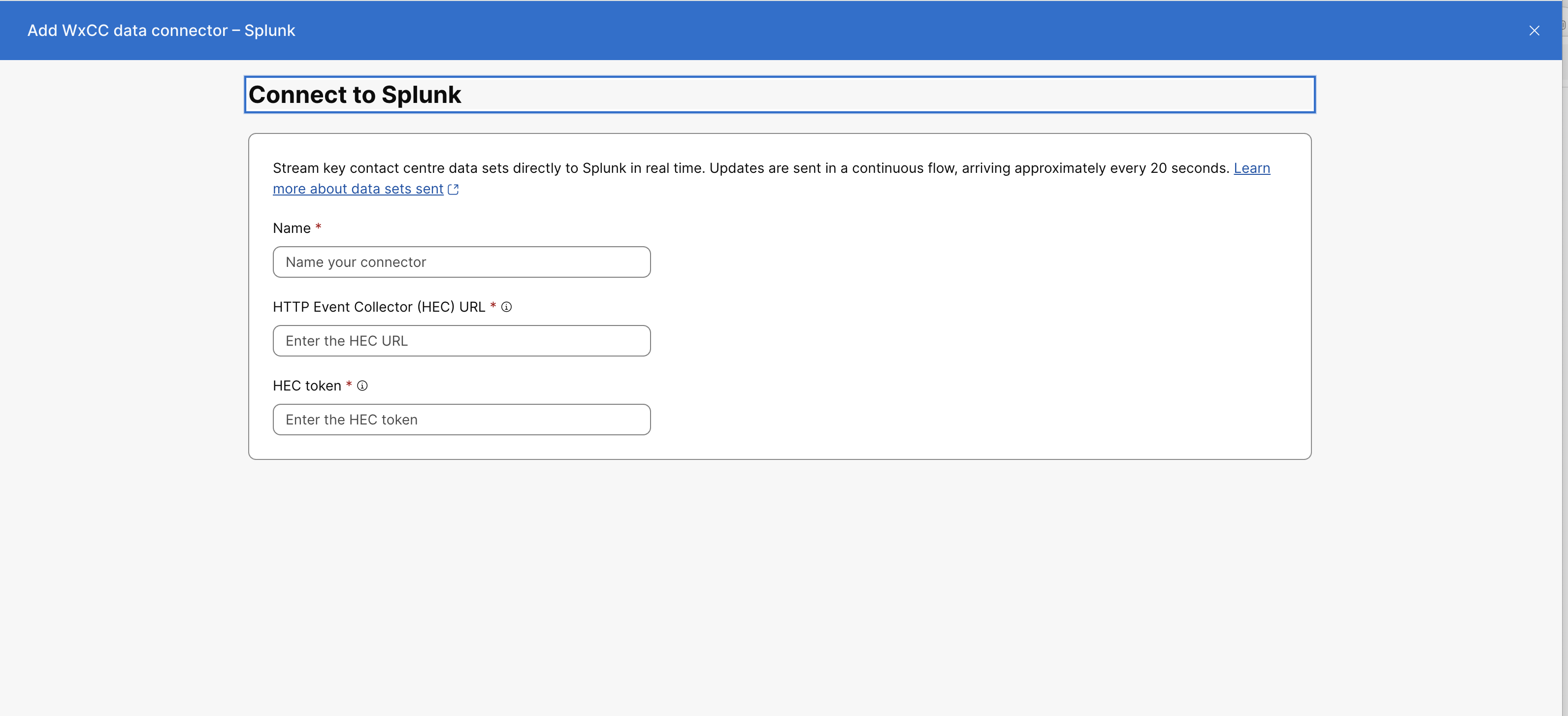
Field Value Name A recognizable name for the connector. HTTP Event Collector (HEC) URL The HTTPS batched HEC URL ending in /services/collector.HEC token The token created for the destination index. Enter the token value without a Bearerprefix. - Select Save.
- Confirm that the connector appears under Active Connectors.
View WxCC data in Splunk
- From the Splunk home page, open Search & Reporting.
- Search the configured index, for example:
index="<index-name>"
Use the sourcetype field to filter by record type:
| Record Type | Source Type |
| AAR | wxcc:aar |
| ASR | wxcc:asr |
| CAR | wxcc:car |
| CSR | wxcc:csr |
ASR and CSR records can have multiple delivered updates. Use the greatest
processingTime value to identify the latest update.
Edit, deactivate, reactivate, or delete the connector
To manage the connector, open Services > Contact Center > Tenant Settings > Integrations > Connectors and select the connector name.
- You must deactivate the connector before editing its credential fields.
- Deactivating the connector stops delivery for the organization. Events generated while it is inactive are not sent to Splunk.
- After editing, select Reactivate to resume delivery.
- To delete the connector, deactivate it first and then select Delete.
- When replacing a connector, deactivate and remove the existing connector before adding the replacement.


