- Home
- /
- Article

Thanks for your feedback.


Configure ELIN for Webex Calling
 In this article
 Feedback?
As an administrator, enable ELIN (Emergency Location Identification Number) in Control Hub to provide users with accurate, location-based callback numbers for emergency calls in Webex Calling. This ensures compliance and direct emergency response for your users.
Overview
ELIN is a feature that dynamically assigns a location-based telephone number to emergency calls. This ensures that emergency services receive accurate caller information and can return calls directly to the user or workspace that initiated the emergency call, including extension-only users. ELIN helps organizations meet regulatory requirements, enhance safety, and provide a seamless callback experience in case of emergencies.
ELIN availability and automatic assignment
Emergency calling with ELIN is available by default as part of Webex Calling emergency services. You don’t need to enable ELIN as a separate feature.
- When a user dials an emergency number, the system uses the Emergency Service Address (ESA) of the caller’s location and applies an available ELIN for that location, if one exists.
- If no ELIN is available, the system uses the fallback Emergency Callback Number (ECBN) routing.
- ELIN assignment is automatic and dynamic. You don’t assign ELINs to individual users or workspaces. The system automatically assigns an ELIN from the location whenever it’s needed for an emergency call, if ELIN is enabled for the user or workspace.
- To ensure emergency calls are handled correctly, ensure each location has enough ELINs to cover all users and devices at that location.
- An ELIN assigned to one user or device can’t be reused until it is automatically released after the location-level ELIN expiry timer.
How ELIN works
Dynamic selection and assignment
When an emergency call is initiated from a Webex Calling device or Webex App, the system first checks if the ELIN usage is allowed for that caller and device. If allowed, the system selects an available ELIN from the pool of numbers assigned to the caller’s location. This ELIN is temporarily assigned to the emergency event. It ensures that a unique, traceable number is linked to the caller. Emergency services can then call back the correct individual.
ELIN assignment duration
The ELIN remains assigned to the emergency caller for a configurable period, known as the ELIN expiry time. You can set this duration at the location level, anywhere from 10 to 1440 minutes, with a default of 60 minutes.
While the emergency call is active, the system resets the ELIN expiry timer every 5 minutes and again at the end of the call. This means the ELIN assignment duration always starts from the most recent refresh, so the ELIN stays available for callback for the full configured period after the emergency call ends.
Emergency call flow using ELIN
Webex Calling uses the following process to assign and route emergency calls using ELINs, ensuring fast and accurate callbacks from emergency services.
- Emergency call initiation—A user dials an emergency number. For example, 911, 999, or 112.
- ELIN validation—The system checks if the user or workspace is eligible to use an ELIN and if one is available.
- ELIN assignment—If allowed and available, an ELIN is dynamically assigned to the caller for the duration of the emergency event.
- Call routing—The emergency call is sent to the Public Safety Answering Point (PSAP) with the assigned ELIN as the callback number and the correct ESA.
- Callback handling—If the PSAP calls back the assigned ELIN while it’s still active, the
callback is immediately routed to the user or workspace assigned to the ELIN.
- Webex Calling temporarily disables call forwarding, voicemail, and similar services for the emergency callback to ensure the call reaches the intended recipient without diversion.
- If emergency call recording is enabled, it also applies to the callback.
- The callback doesn’t affect the ELIN assignment duration. The ELIN remains assigned until its expiry time.
- If the callback arrives after the ELIN assignment has expired, see the ELIN fallback mechanism section in this article.
ELIN fallback mechanism
Webex Calling ensures that an emergency callback number is always available, even if an ELIN isn’t available or is no longer assigned.
- No ELINs configured or available—If no ELIN is available, the system uses the configured ECBN for the user, workspace, or location.
- ELIN usage not allowed—If ELIN isn’t permitted for the caller or device, the system uses the ECBN directly.
- Workspace fallback—If a workspace is configured to use its own number as a callback
(workspace number as ELIN) and no ELIN is available, the workspace number is used as the
callback number.
If ELINs are available in the location’s pool, the system uses an ELIN from the pool for emergency calls. The workspace number is used only if no ELINs are available. ELIN pool usage takes precedence over using the workspace number as ELIN.
- Callback to an expired ELIN—If emergency services call back an ELIN that is no longer
assigned (expired), the system checks for an assigned ECBN at the location:
- If the ECBN is assigned, the callback is routed to the designated entity (such as a reception desk or emergency contact). If the call is marked as an emergency callback, service inhibition and emergency call recording apply.
- If the ECBN is unassigned or not configured, the call is rejected with a "User Not Found" message.
- Internal calls or redirection to ELINs—ELINs are reserved for external emergency callbacks only. Internal calls or redirections within the organization to an ELIN aren’t supported and are rejected with a "User Not Found" message.
- Webex Meetings and click-to-call—Calls made within Webex Meetings or via click-to-call aren’t routed to ELINs, including any ECBN fallback scenarios.
- Emergency test calls—Emergency test calls (933) use an ELIN when available, but don’t create an assignment.
ELIN supported options and limitations
Supported PSTN Options
ELIN is supported across all available PSTN options within Webex Calling:
- Cloud Connected PSTN Provider (CCPP)
- Premises-based PSTN
- Cisco Calling Plan
Supported devices
- Fixed devices (desk phones)
- Webex App (with Allow ELIN for Webex App enabled for the user).
For more information, see Enable ELIN for users.
Unsupported devices and scenarios
- Webex Go mobile devices
- Network interface-originated calls (such as Single Number Reach)
- Blind transfers to emergency destinations
ELIN usage rules and scenarios
ELINs are dynamically used for emergency calls based on several conditions related to the caller’s device, location, and administrative settings. We recommend that you consider the following scenarios to understand when and how ELINs are assigned.
Non-hotdesking usage
When a user or workspace is using their dedicated device (non-hotdesking), emergency calls are made using the user’s or workspace’s assigned line on the device. This can be a primary or shared/virtual line. ELINs can be used for these calls if:
- The device owner has Allow ELIN enabled in Control Hub. For more information, see ELIN for users.
- The device owner uses the location's default ESA for their primary number. If a custom ESA is set, then ELINs aren’t used.
- The device owner and line owner (for shared or virtual lines) are from the same location.
Hotdesking usage
When a user is hotdesking, emergency calls are always made using the primary line of the host workspace. ELINs can be used for these calls if:
- The host workspace uses the location's default ESA for its primary number.
- The host workspace has Allow ELIN enabled in Control Hub. For more information, see ELIN for workspaces.
- ELINs are assigned from the host workspace’s location pool and temporarily assigned to the guest user for the emergency call.
RedSky or PIDF-LO integration
- The ELIN feature doesn’t impact RedSky or PIDF-LO (Presence Information Data Format - Location Object) integration. Emergency calls are still routed to RedSky or include PIDF-LO information when applicable, regardless of whether an ELIN or ECBN is used.
- Admins can enable ELIN support for users or workspaces if their devices/clients support HELD/HELD+ (for RedSky) or PIDF-LO.
General usage
- ELINs are never used for blind transfers to an emergency destination.
- A user or workspace can have multiple ELIN assignments if they make several emergency calls within the ELIN expiry duration.
ELIN provisioning and management in Control Hub
You can provision standard or service numbers as ELINs. You can also convert ELINs back to standard or service numbers, depending on your PSTN provider’s capabilities.
Rules for modifying numbers to ELINs
A number can only be changed to an ELIN if all of these conditions are met:
- The number isn’t assigned to any Webex Calling entity (user, workspace, virtual line, or feature), including as a primary, secondary, or fax number.
- The number is active.
-
The number isn’t toll-free, restricted non-geographical, or mobile.
- The number isn’t assigned as a location's main number or charge number.
- The number isn’t used for caller ID by any Webex Calling entity, either through External caller ID phone number or Additional external caller ID phone numbers.
- The number isn’t enabled for business texting.
ELIN limitations
- For Cisco Calling Plan locations, your subscription must have service numbers enabled. This may require a subscription change or modification in Cisco Commerce.
- ELINs aren’t supported in trial organizations, as trials don’t yet support service numbers.
- If an ELIN has an active (unexpired) assignment from an emergency call, it can’t be modified, deleted, disconnected, or moved until the assignment expires.
- ELINs can’t be assigned to users, workspaces, virtual lines, or features.
- ELINs aren’t supported for PSTN providers that require external number management. The external number management APIs aren’t enhanced to support modifying numbers to ELIN as part of this feature.
- Partner-level APIs aren’t available for ELIN management in wholesale environments. All ELIN management must be performed in Control Hub.
Call forwarding and similar redirecting services don’t block setting an ELIN as a destination. However, ELINs don’t appear in search results for these services, since they are unassigned numbers. If an ELIN is set as a redirection destination, the redirection fails because internal calls to ELINs aren’t supported.
Number filters and ELIN management
Control Hub provides filters to help you manage your numbers efficiently. Understanding these filters makes it easier to perform actions like modifying, moving, or deleting numbers.
- Available—These are unassigned numbers you can use for new assignments or modifications. This excludes ELINs.
- Unavailable—These are numbers that can’t be assigned, including assigned numbers, all ELINs (whether or not they have an active assignment).
- Assigned—These are numbers currently in use by users, workspaces, or features. This also includes ELINs with an active assignment.
- Unassigned—These are numbers not assigned to any entity. This includes ELINs with no active assignment.
These filters determine which numbers you can select for different actions. For example, ELINs with an active assignment appear as Assigned and can’t be moved or deleted until the assignment ends. Only numbers shown as Available can be assigned to users, workspaces, or modified to ELINs.
Modifying numbers to ELINs in Control Hub
Modify numbers to ELINs for a location
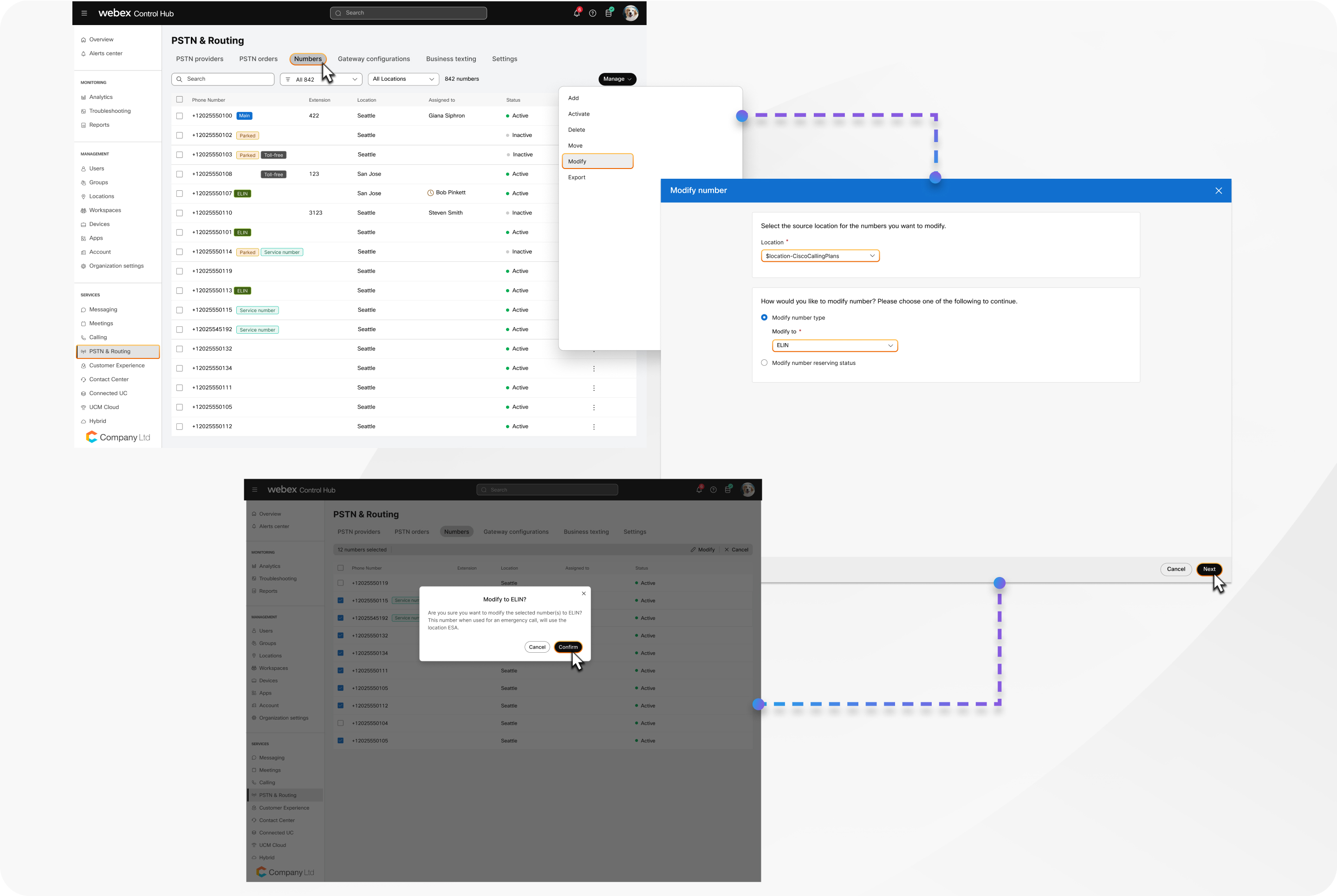
ELINs aren’t created directly. Instead, you convert existing standard or service numbers to ELINs in Control Hub. Once a number is designated as an ELIN, it becomes part of the location’s ELIN pool. You can also change an ELIN back to a standard or service number if needed.
| 1 |
Sign in to Control Hub. |
| 2 |
Go to . |
| 3 |
Click . |
| 4 |
Select the Location for the numbers you want to modify. |
| 5 |
Select Modify number type to, and then choose ELIN from the drop-down list. |
| 6 |
Click Next. A list of standard and service numbers eligible to be modified to ELIN is displayed. |
| 7 |
Select the numbers to convert and click Modify. |
| 8 |
Click Confirm. After conversion, the modified numbers display an ELIN badge. |
What to do next
You can view order confirmation details under .
Modify selected numbers to ELINs
You can convert multiple standard or service numbers to ELINs at once in Control Hub. All selected numbers must be in the same location. You can also change any ELIN number back to a standard or service number if needed.
| 1 |
Sign in to Control Hub. |
| 2 |
Go to . |
| 3 |
Select the numbers you want to convert and click Modify. The Modify option appears only if all selected numbers are from the same location. |
| 4 |
Select Modify number type to, then choose ELIN from the drop-down list. The system validates if the selected numbers can be modified to ELINs. If any numbers aren’t eligible, they are highlighted and an error message is displayed. |
| 5 |
Click Remove invalid numbers if applicable. |
| 6 |
Click Modify. After conversion, the modified numbers display an ELIN badge. |
What to do next
You can view order confirmation details under .
Modify a single number to ELIN
You can also convert an individual number to ELIN directly from the numbers list.
| 1 |
Sign in to Control Hub. |
| 2 |
Go to . |
| 3 |
Find the number you want to convert, click |
| 4 |
Select Modify number type to, and then choose ELIN from the drop-down list. |
| 5 |
Click Save. After conversion, the modified number display an ELIN badge. |
 next to it, and select
 Configure ELIN expiry time
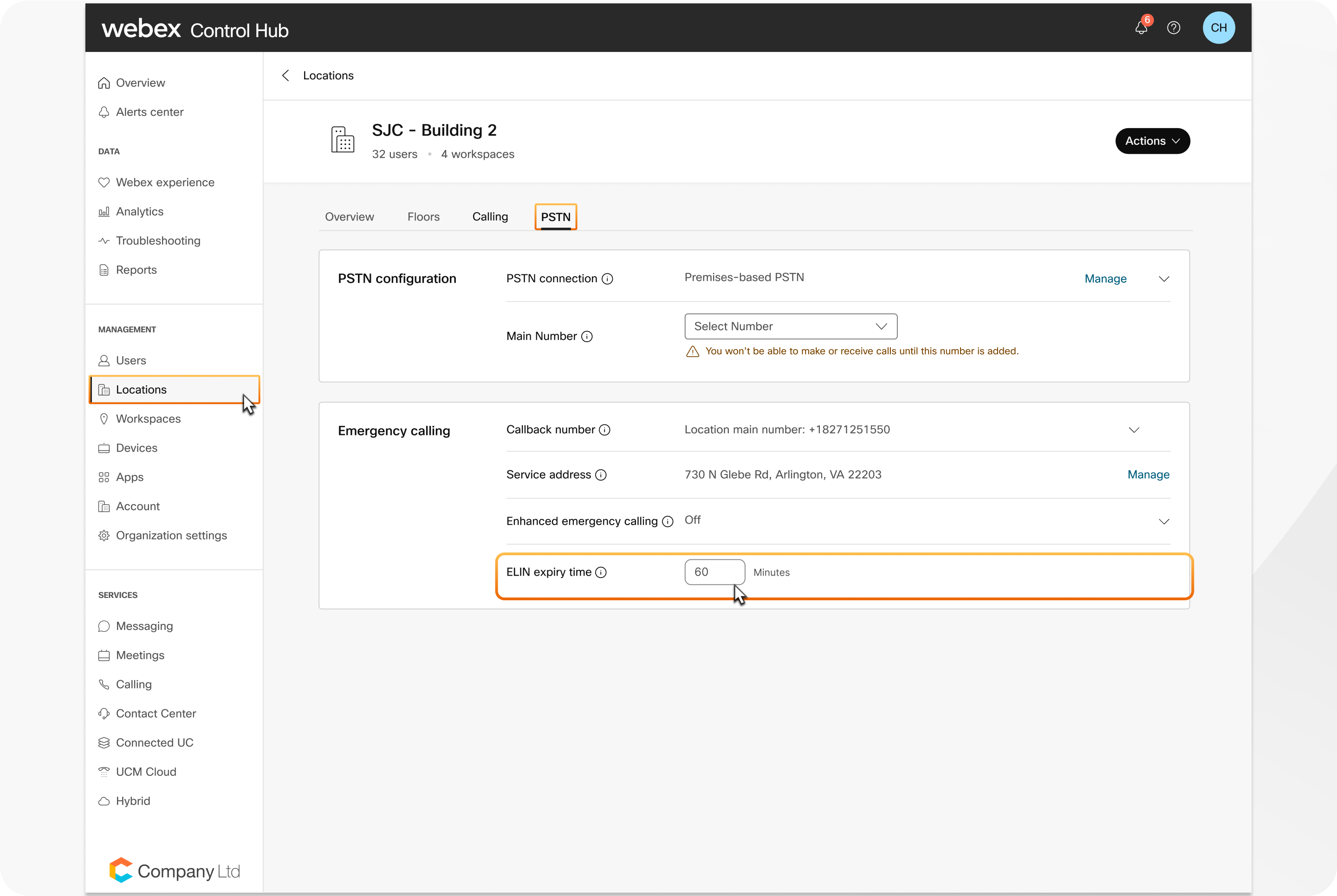
You can set how long an ELIN remains assigned to a caller after an emergency call at the location level. This setting controls the duration for which an ELIN is available for emergency callbacks. Changes to the expiry time affect only future ELIN assignments and don’t impact currently active assignments.
| 1 |
Sign in to Control Hub. |
| 2 |
Go to . |
| 3 |
Select a location and click the PSTN tab. |
| 4 |
Go to the Emergency calling section and set the ELIN expiry time. You can set a duration from 10 to 1440 minutes. The default is 60 minutes for both new
and existing locations.
|
| 5 |
Save your changes. If an ELIN is assigned to a user or workspace, the Assigned column on the Numbers page displays the active ELIN along with its release timestamp. |
ELIN for users
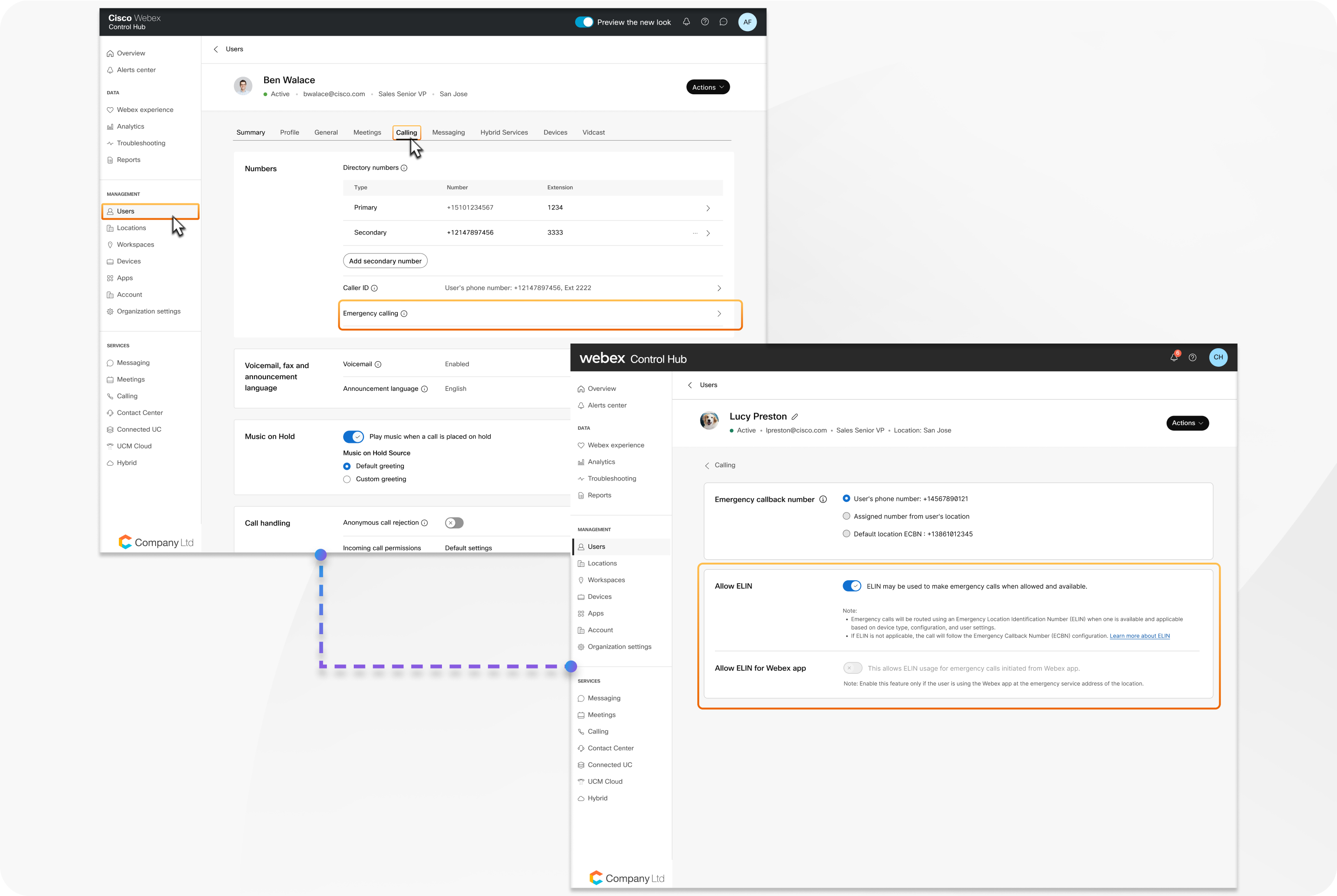
You can control whether individual users are allowed to use ELINs for emergency calls. By default, ELIN is enabled for all new and existing users, but you can disable it for users whose devices are typically outside the location’s ESA.
| 1 |
Sign in to Control Hub. |
| 2 |
Go to . |
| 3 |
Select a user and click the Calling tab. |
| 4 |
In the Numbers section, click Emergency calling. |
| 5 |
Toggle Allow ELIN on to enable ELINs for emergency calls for a user. By default, it's enabled for all users.
|
| 6 |
Toggle Allow ELIN for Webex App on if the user should be allowed to use ELINs for emergency calls placed from Webex App. This setting can only be enabled if Allow ELIN is also enabled for the user. By default, Allow ELIN for Webex App is disabled for all users. Enable this setting only if the user primarily uses Webex App within the location’s ESA. For users who frequently work remotely or outside the ESA, we recommend you leave this setting disabled to avoid incorrect ELIN assignment. |
Bulk management of ELIN users
You can manage ELIN settings for multiple users at once using the bulk user features CSV template in Control Hub. The CSV file includes two columns: Allow ELIN and Allow ELIN for Webex App. For more information, see Manage multiple users in Control Hub with the CSV template.
ELIN for workspaces
You can control whether individual workspaces are allowed to use ELINs for emergency calls. By default, the ELIN is enabled for all new and existing workspaces, but you can disable it for workspaces whose devices are typically used outside the location’s ESA.
| 1 |
Sign in to Control Hub. |
| 2 |
Go to . |
| 3 |
Select a workspace and click the Calling tab. |
| 4 |
In the Numbers section, click Emergency calling. |
| 5 |
Toggle Allow ELIN on to enable ELINs for emergency calls for a workspace. By default, its enabled for all workspaces.
|
Billing information for Cisco Calling Plan
If your organization uses the Cisco Calling Plan, we recommend you review these key billing considerations for ELINs.
- ELINs are billed as service numbers under the Cisco Calling Plan.
- To use ELINs, your subscription must have service numbers enabled. This may require a change or modification to your subscription in Cisco Commerce.
- In Control Hub subscription pages, ELINs appear as service numbers and are counted accordingly. There is no separate line item for ELINs.
- ELINs aren’t supported in Cisco Calling Plan trial organizations, as trials don’t yet support service numbers.
- ELIN counts are included in regulatory reports.


