- Home
- /
- Article

Thanks for your feedback.

Webex Meetings accessibility and inclusivity
 In this article
 Feedback?
We've designed Webex meetings with inclusivity in mind, offering a range of features tailored to provide a comfortable and customizable experience for users with varying needs. Take a look at our tips on how to set up and make the most of your meetings experience.
Meetings best practices
To ensure that meetings on Webex are inclusive and accessible to all participants, consider implementing the following tips:
- Pre-Meeting setup:
- Arrange for a translator or sign language interpreters , if needed.
- Assign an interpreter so that the participant is shown with the interpreter role during the meeting
- Enable closed captioning to ensure it is on when the meeting starts
- Avoid locking the stage view
- Pre-Meeting Communication:
- Share the agenda and any relevant documents in advance. Ensure the documents are in an accessible format
- Inquire about accommodations participants may need.
- Provide interpreters with any necessary materials in advance, such as agenda or presentation slides, to ensure accurate interpretation
- Provide clear instructions on how to join the meeting and who to contact for technical assistance. See Join a meeting
- Visual Accessibility
- Ensure video quality for attendees and interpreters. See Select video settings
- Use high-contrast slides and large, readable fonts for presentations.
- Describe visual content out loud for participants who might not be able to see it.
- Enable real time translations and closed captioning for those with hearing impairments. See Show real-time translation and transcription in meetings and webinars
- Avoid busy or animated (flashing, flickering) virtual background
- If video content contains imaging that is triggering provide a warning and give time for photosensitive users to prepare
- Auditory Accessibility
- Use a high-quality microphone and ensure all speakers are clearly audible. See Select audio settings for Webex Meetings and Webex Webinars
- Encourage participants to mute themselves when not speaking to reduce background noise. See Remove background noise during Webex Meetings and webinars and Mute yourself in a meeting or call
- Offer alternative communication options, such as chat, for those who may have difficulty speaking or hearing.
- Technical Ease
- Provide a brief tutorial for anyone who may need it
- Highlight common shortcuts mute/unmute. See Keyboard shortcuts
- Have technical support available during the meeting to assist with any issues.
- Participant Engagement
- Regularly check in with participants to ensure they are engaged and able to follow along.
- Encourage raise hand feature or chat function to ask questions or provide comments. See Raise your hand in a meeting
- Allow for regular breaks, especially in longer meetings, to accommodate varying attention spans and physical needs.
- Inclusive Language and Behavior
- Use clear, concise language and avoid jargon or slang.
- Speak at a moderate pace to accommodate those who may be using assistive technology and sign language interpreters.
- Be mindful of using inclusive language that does not discriminate against any group.
- Post-Meeting Resources
- Share minutes or a summary of the meeting, including any action items or decisions made.
- Provide meeting recording for attendees
- Provide contact information for follow-up questions or feedback on the meeting's accessibility.
By thoughtfully preparing and conducting your Webex meetings with these inclusive practices, you can create a more welcoming and effective environment for all participants, regardless of their abilities or needs.
Accessibility in meetings
Set up Webex in a way that works best for you when you host or join meetings.
- Remove unnecessary distractions: When you rely more on auditory information, you
can minimize extra noises during meetings to help you catch every word without
distractions. And if you prefer having a neat visual space to help you stay focused, we've
got that covered too.
- Manage Screen Reader Notifications: You can choose what your screen reader tells you during meetings. This keeps you focused on the important information without overwhelming you with too much information. Manage which notifications your screen reader announces
- Hide Non-Video Participants: If you're finding it distracting to see the tiles of participants who don't have their video on, you can simply hide them. Hide or show non-video participants during meetings
- Remove Background Noise: To help you concentrate better, activate the background noise removal feature. It works like a charm to block out all those distracting sounds. Remove background noise during Webex meetings or webinars
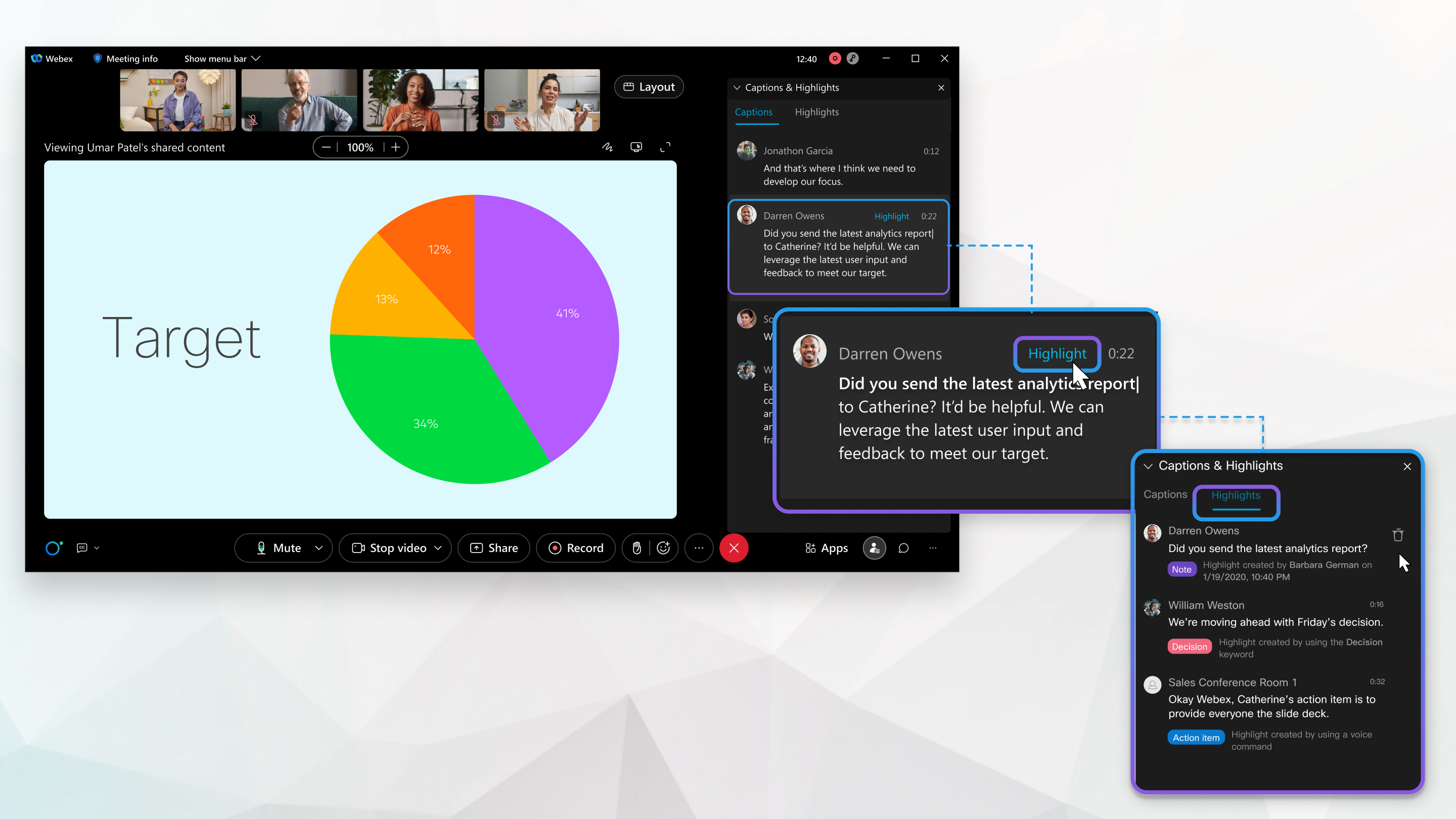
- Create Meeting Highlights: Keep track of the most important parts of your
meeting by creating highlights. This way, you don't have to worry about missing or
forgetting key information. Capture meeting highlights during a
meeting
-
If you struggle with concentration or want a more comfortable and engaging experience you can use some of the following settings to create a more focused environment that in turn helps you contribute more effectively.
- Pinning the Important Information: If there's someone or something in the meeting that you really need to keep an eye on, like the main speaker or a presentation, you can pin it. Adjust how many participants appear in the stage views in meetings, webinars, and events
- Your Interpreter, Front and Center: If you're using simultaneous interpretation, you can pop their video out into a separate window. This way, you can place it wherever you like on your screen, making it easy to see without any distractions getting in the way. Simultaneous interpretation in Webex meetings, webinars and Personal Rooms *
- See More or See Less: You get to control how many people you see on your screen at once. If a busy screen is too much, you can simplify it. Or if you like to see everyone's faces, that can happen too. It's all about what makes you the most comfortable. Change your video layout during a meeting
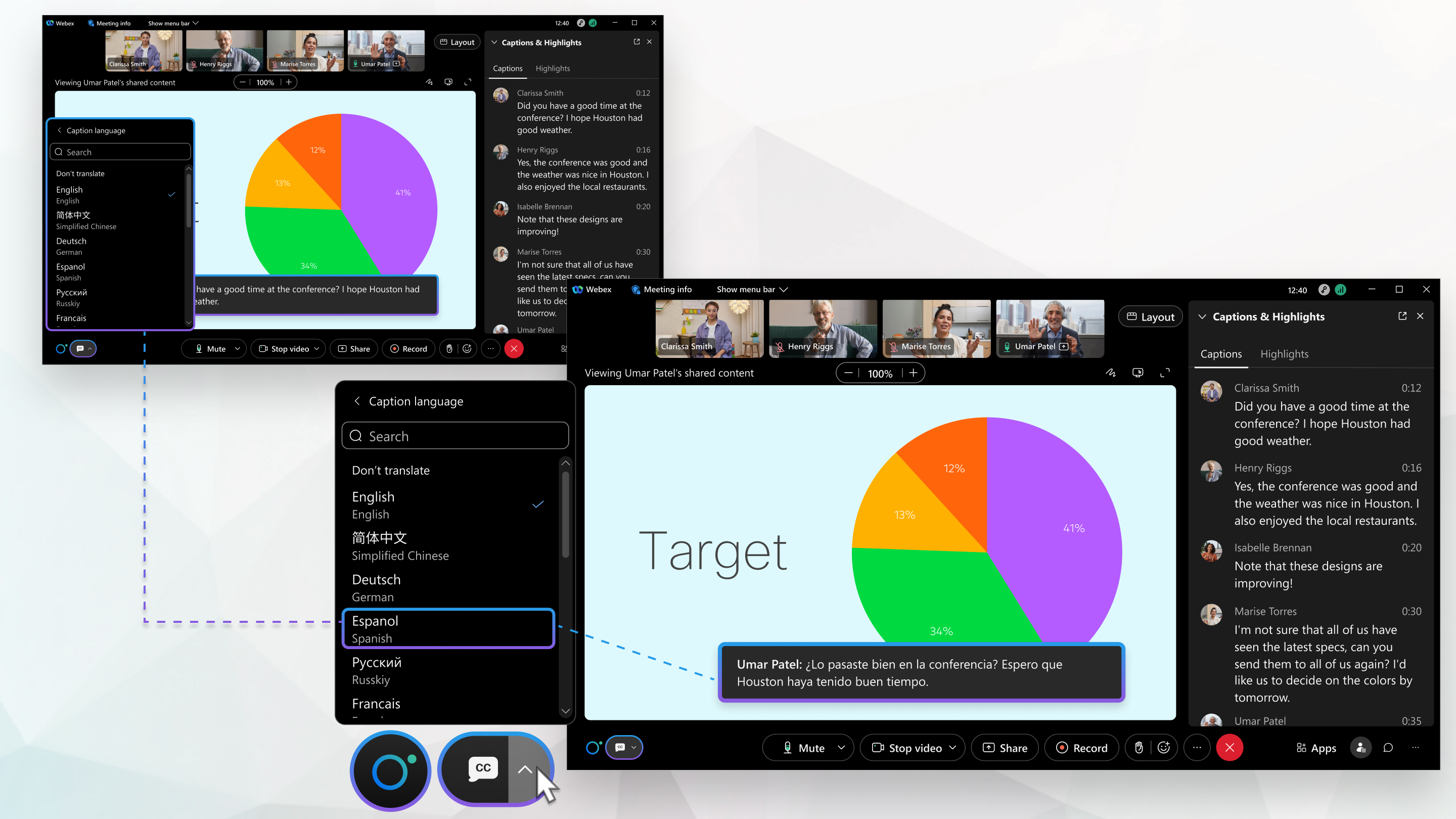
- Speaking Your Language: If you find it easier when conversations are in your
preferred language, we've got automated translations you can turn on. These can help
make sure you're catching all the important points in the language you're most at ease
with. Show real-time translation and transcription in
meetings
-
Transform how you interact in a meeting, the following adjustments are here to make meetings a place where you feel right at home and ready to contribute your ideas.
- Turn on/off Automated Closed Captioning: If you find it easier to follow along with what's said in meetings by reading, you can turn on automated closed captioning. It's like having your own personal stenographer typing out everything live! And if you don't need it, you can easily turn it off too. Show real-time translation and transcription in meetings
- Set Custom Keyboard Shortcuts: Create your own custom keyboard shortcuts for actions you use often during meetings or calls. It's all about making things quicker and easier for you. Customize shortcut commands
- Use Full-screen Functionality: Sometimes you just need a closer look at what's being shared, right? You can switch to full screen for shared content to make it bigger and easier to see. Switch between shared content and the speaker during a Webex meeting, webinar or event
- Personalized Interaction: You can review and customize keyboard shortcuts to provide control and autonomy. You can define your own interaction with meetings, to create a setup that aligns with your specific processing style, attention span, and memory requirements.


