- Home
- /
- Article

Thanks for your feedback.


 In this article
 Feedback?
The integration of Webex Contact Center voice capabilities with Salesforce Service Cloud Voice Omni-gadget enables agents to manage voice interactions seamlessly within Salesforce, leveraging Bring Your Own Telephony (BYOT) for a unified experience. This simplifies workflows, enhances data integrity, and improves agent productivity and customer satisfaction by embedding contact center functions directly into the Salesforce platform.
Overview
The integration of Webex Contact Center’s voice capabilities with the Salesforce Service Cloud Voice Omni-gadget enables agents to handle voice interactions seamlessly within the Salesforce Lightning Experience. It leverages Bring Your Own Telephony (BYOT), allowing customers to connect their existing telephony infrastructure through Webex Contact Center for a unified agent experience and streamlined contact center operations inside Salesforce.
This integration addresses the challenge of agents operating across separate CCaaS and CRM systems, which leads to inefficiencies such as excessive context switching, fragmented customer data, and suboptimal customer experiences. By embedding Webex Contact Center voice into Salesforce, the solution simplifies workflows, enhances data integrity, and enables advanced automation through Salesforce Omni-Channel. This unified experience improves agent productivity, customer satisfaction, and provides richer data for analytics and AI-driven insights. Without this integration, Cisco risks losing market share to competitors offering unified CCaaS-CRM solutions, while customers face operational inefficiencies and higher costs.
To find out how to interact with the Service Cloud Voice Implementation please consult the official Salesforce Documentation
Prerequisites
Before using Service Cloud Voice, ensure the following prerequisites are met:
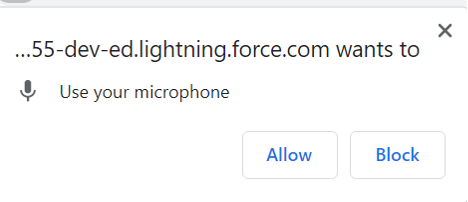
- The browser must have permission to access the microphone to use Service Cloud Voice.
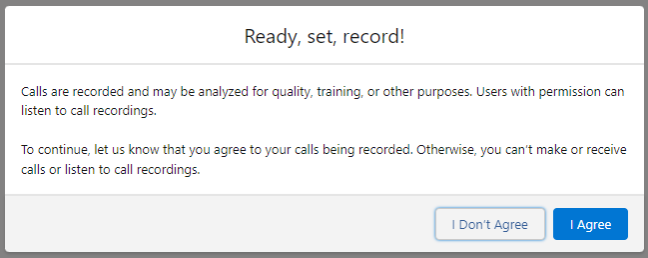
- Permission to record calls must be granted to enable call recording functionality in Service Cloud Voice.
Firefox users
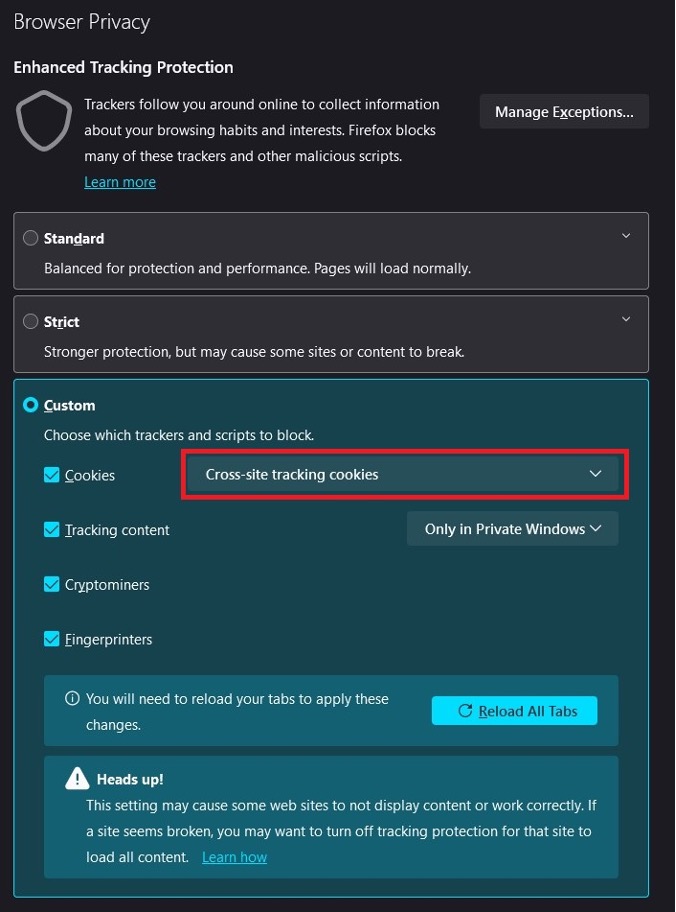
Firefox blocks third party domains by default. Because Webex Contact Center for Service Cloud Voice is hosted as a Visualforce Page, it is blocked.
Every Firefox user must disable the Enhanced Tracking Protection for the Salesforce domain.
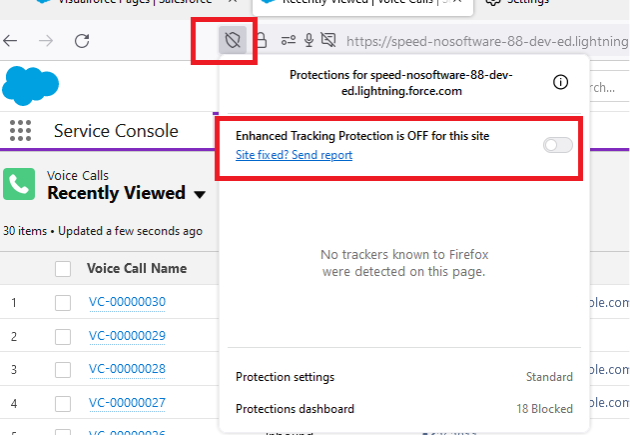
If Webex Contact Center for Service Cloud Voice is still blocked, change the Enhanced Tracking Protection to Custom mode and disable cookie blocking.
Additionally, ensure that only Cross-site tracking cookies (or none) are blocked in the Privacy & Security settings. Either use the Standard setting, or the Custom setting. For tCustom setting, see below.
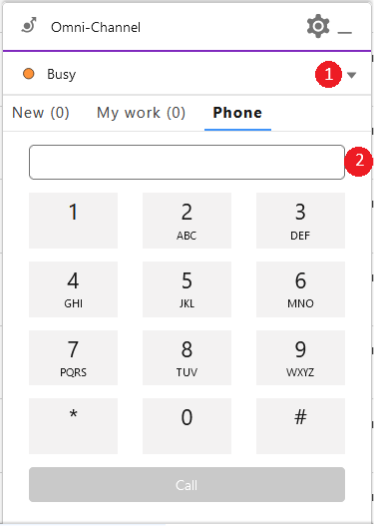
Omni-widget
| 1 |
Change Agent state, including Logout, as indicated by 1>.
|
| 2 |
Initiate an outgoing call, as indicated by 2>. |
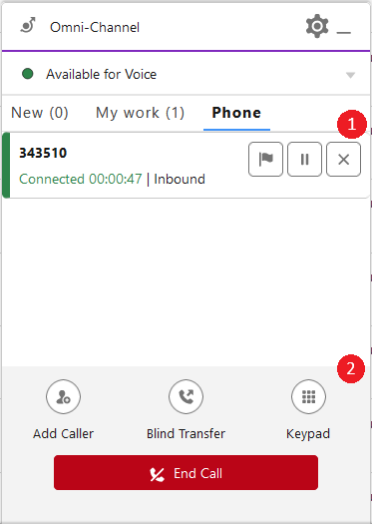
| 3 |
Call controls specific to certain calls, as indicated by 3>.
|
| 4 |
General call controls, as indicated by 4>. |
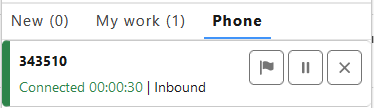
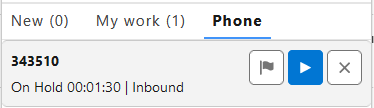
Call States
The following table displays the different call states:
|
Icon |
Description |
|---|---|
|
|
Call is ringing |
|
|
Call is active |
|
|
Call is on hold |
|
|
Call is in wrap-up state |
Call controls
Some available call controls are summarized in the table below:
|
Icon |
Description |
|---|---|
|
|
Answer call |
|
|
If call is still ringing: Reject call If call has been accepted: Hang up (end) a specific call |
|
|
Hang up (end) or transfer conference call |
|
|
Set call on hold |
|
|
Retrieve call from hold |
|
|
Consultation call |
|
|
Blind transfer |
|
|
Conference call |
|
|
Warm transfer |
|
|
Swap calls |
|
|
End wrap-up |
|
|
Open keypad to send DTMF tones |
|
|
Pause call recording |
|
|
Resume call recording |
|
|
Mute call (with webRTC only) |
|
|
Unmute call (with webRTC only) |










Call Control
In Service Cloud Voice (SCV), if the agent is in a call, the presence does not change in Omni, but the capacity is on 100%. This means that no other Omni tasks are routed to the agent.
Incoming call
To receive a routed incoming call, the agent state must be Available.
Outgoing call
Webex Contact Center for Service Cloud Voice provides several ways to initiate an outgoing call.
The Webex Contact Center for Service Cloud Voice solution automatically removes all characters except numbers, hashtags (#), asterisks (*), commas (,) and leading plus signs (+). It also removes the first occurrence of (0).
The CRM Administrator can configure additional dialing rules that can alter the dialed number further. For more information, please contact your CRM Administrator.
Enter a phone number to make a new outgoing call
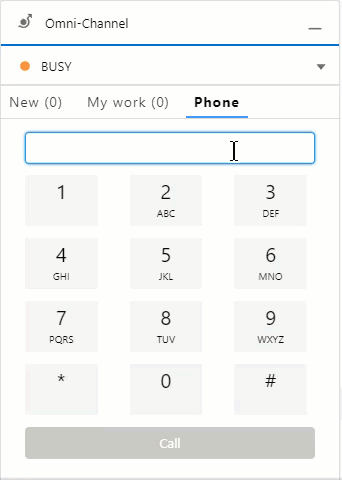
- Enter the phone number of the person or company to be called (including any dial prefix necessary).
- Press the Call button.
Initiate an outgoing call from Salesforce (Click-to-dial)
Clicking on a phone number field within Salesforce will initiate a new outgoing call or a consultation call if there is already an active call.
Consultation Call
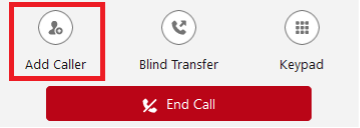
To initiate a consultation call:
Before you begin
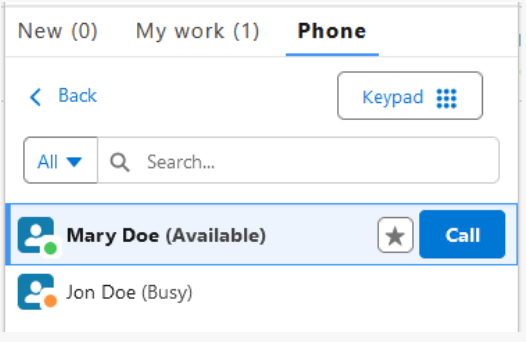
Consultation calls are used to consult with a coworker or supervisor while keeping the customer call on hold. When consulting a queue, the call might not be displayed immediately. If no agent is available, the call stays in the queue and displays only when the consultation call is routed to an agent.
| 1 |
Click Add Caller.
|
| 2 |
Select a contact and click Call
|
| 3 |
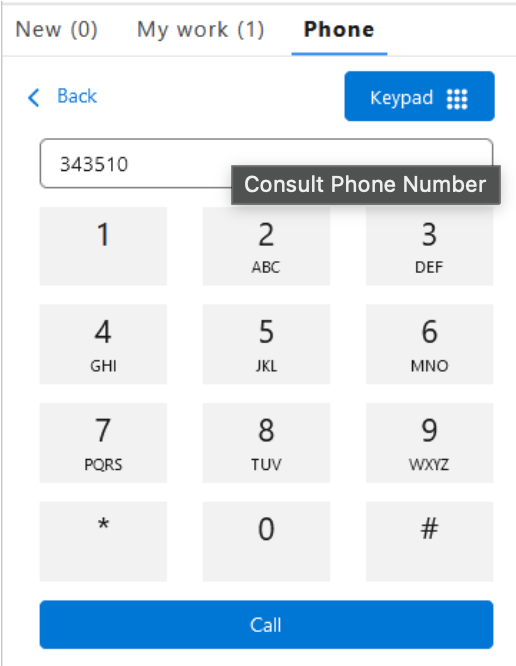
OR Open the keypad, enter the phone number, and click Call.
|
| 4 |
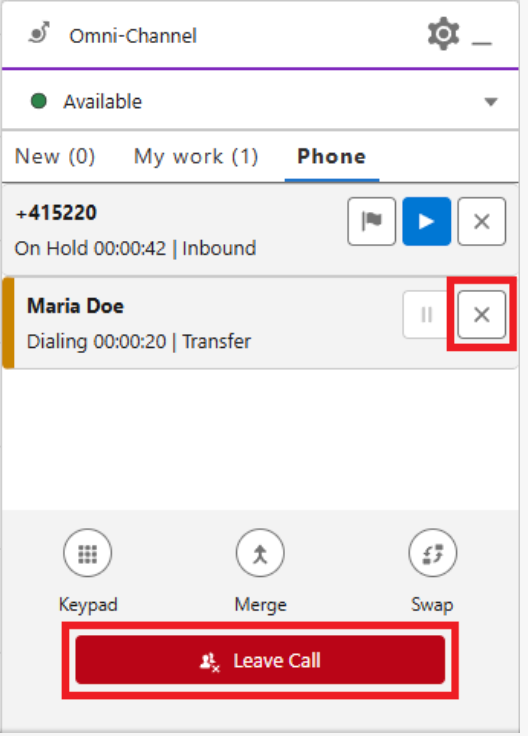
Click X to end the consultation call. If the call is still ringing, click Leave call.
The |
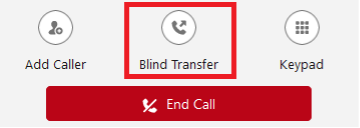
Blind Transfer
To initiate blind transfer:
Before you begin
Blind Transfers are used to directly transfer a customer to a coworker or supervisor. When calls are transferred directly, customers will hear the call ring prior to the coworker or supervisor accepting the call.
| 1 |
Click Blind Transfer.
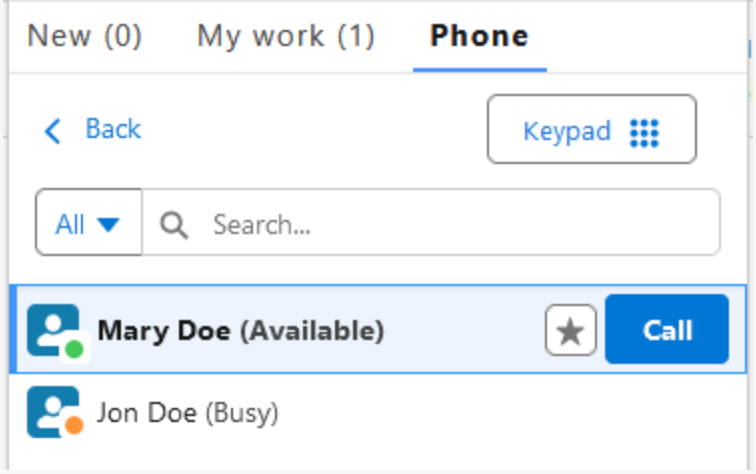
|
| 2 |
Select a contact and click Call.
|
| 3 |
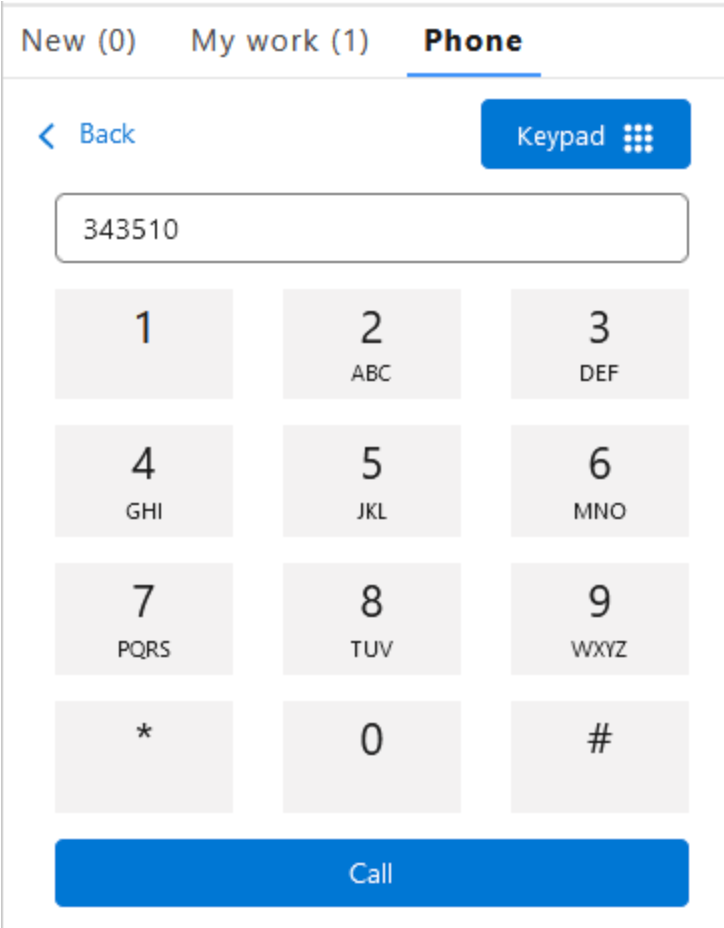
OR Open the keypad, enter the phone number, and click Call.
It is not possible to directly transfer calls in status |
Warm Transfer
Before you begin
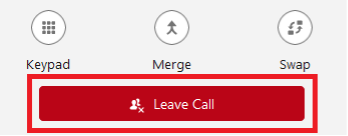
In order to transfer a customer to the consulted coworker or supervisor, it is necessary to first place a consultation call. When transferring to a consulted coworker or supervisor, customers need not wait for the call to be accepted by the consulted party. Warm transfer can only be performed when consultation call is activated.
|
To leave the call, click Leave Call.
|
Conference
Before you begin
In order to start a conference with a customer and the consulted coworker or supervisor, it is necessary to first place a consultation call.
| 1 |
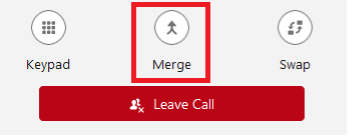
Click Merge to start the conference the call between all parties.
|
| 2 |
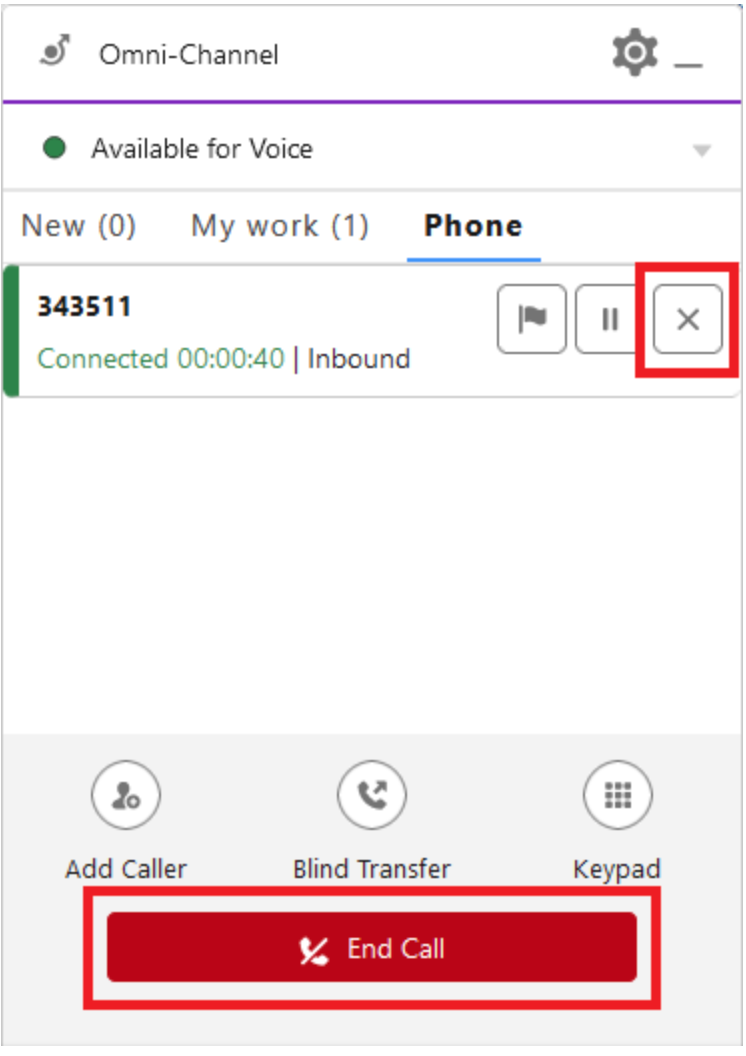
Click X to end the conference call for all participants. If the call is still ringing, click Leave call.
After the call ends for all participants, only the agent who created the conference goes into |
Wrap-up
The Wrap-Up state provides extra time to finish work after a call has ended. If Wrap-Up is not configured for your agent, the Voice Call record closes directly after the call has ended.
To end Wrap-Up, close the Voice Call record or change the Omni-Channel state.
Keypad
Oy clicking on the Key pad button, a number pad is shown on the agent's Omni-Widget. It is only available during active incoming or outgoing calls and is meant to send DTMF tones.
The keypad does not allow users to initiate new calls or delete numbers that have already been sent.
Call recording
When call recording is set up and activated for you and a call is active, the system displays an additional call control button at the bottom of the Omni-Widget.
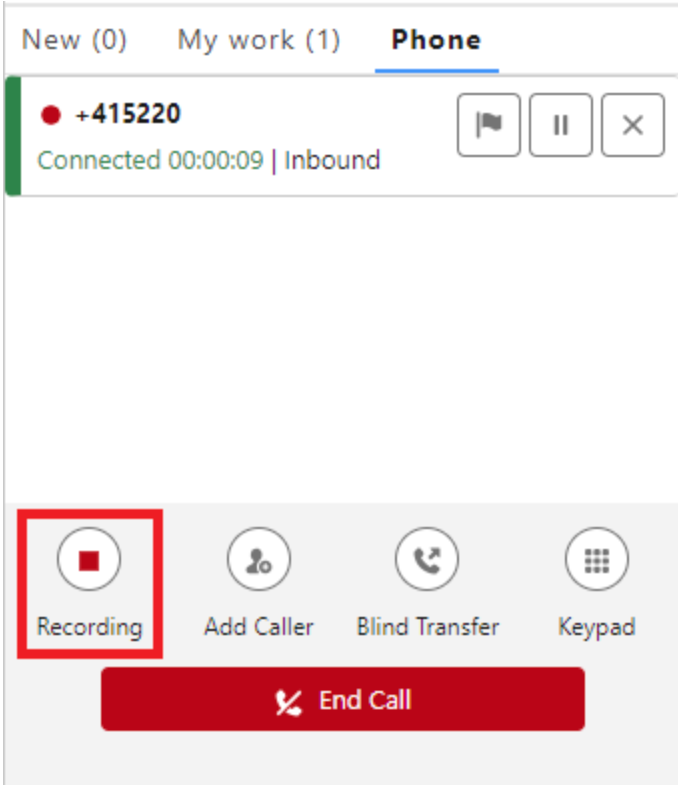
The system displays a red dot next to the phone number or customer name to indicate that the recording is running. You can click the red Recording button to pause it.
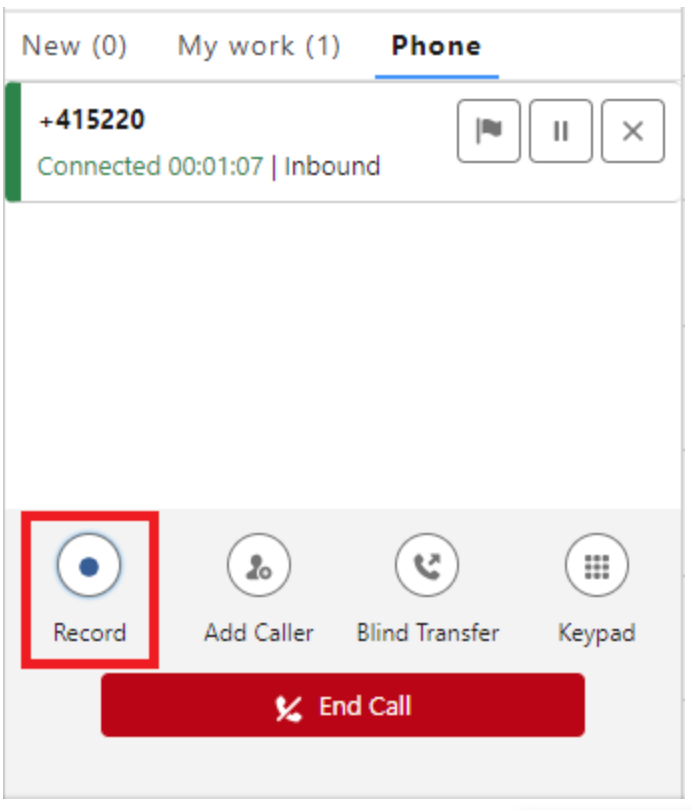
The system pauses the call recording when it hides the red dot next to the phone number or customer name and displays the Record button at the bottom. To resume the recording, click the Record button again.
Recording Playback
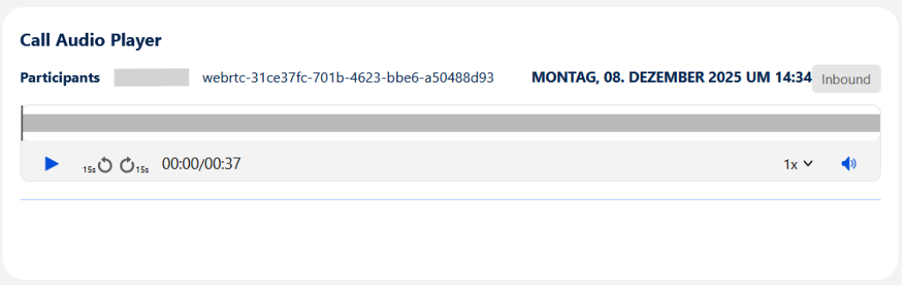
If the recording link is saved in the Voice Call record, the agent can listen to it using the native Salesforce Call Audio Player.
There are some limitations to this feature:
- Webex requires the agent to have supervisor privileges to access call recordings; therefore, the agent cannot play back the recording without these privileges.
- The agent must log in to the Omni-Widget to enable it to retrieve a valid recording link.
- The system populates the recording link as soon as the Wrap-Up ends, so the agent might not see the recording playback immediately after the call.
Phone Contact Search for Add Caller or Blind Transfer
When you add a caller to an established call using Add Caller or blind transfer the call using Blind Transfer option, you see a list of all agents in your team and their states, along with a queue, phone book, and entry point list. You can search the list by Name, State, or Phone Number.
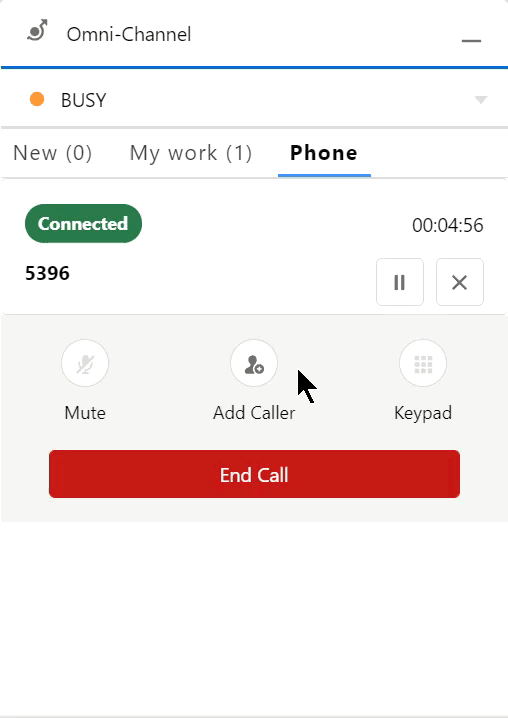
For more information about Phone Contact Search and Consultation Calls please consult the official Salesforce Documentation.
Phone Contact Search for Outgoing Calls
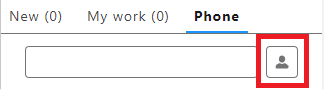
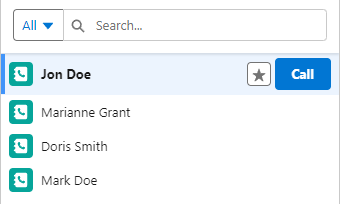
The agent can select entries from the WxCC address book to initiate outgoing calls. Calling an agent, queue or entry point is not possible. To search outgoing calls using phone contact:
| 1 |
Click Phone Book icon.
|
| 2 |
Select a contact and click Call.
|
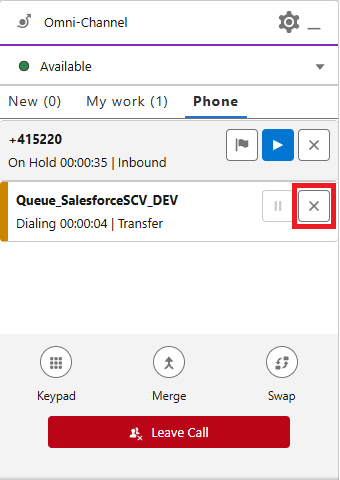
Consult to queue
Agents handle interactions by selecting a queue from the WxCC address book entries to initiate outbound calls. A queue temporarily stores and manages incoming or outgoing interactions until an agent can handle them. The system redirects the call to the first available agent in the queue. If no agents are available, the system drops the call after 60 seconds.
Click X to cancel the consult to queue.
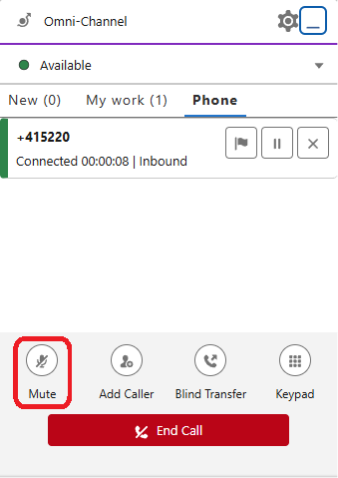
WebRTC
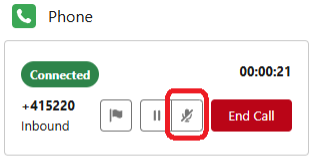
Click Mute to mute or unmute the call.
State Control
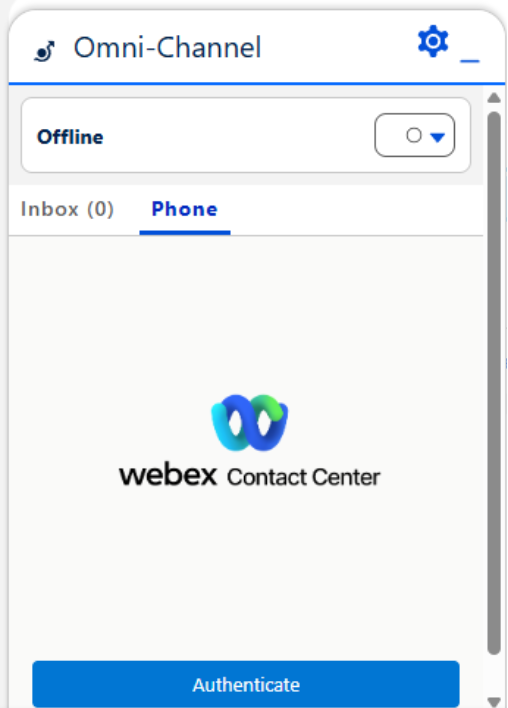
Login
| 1 |
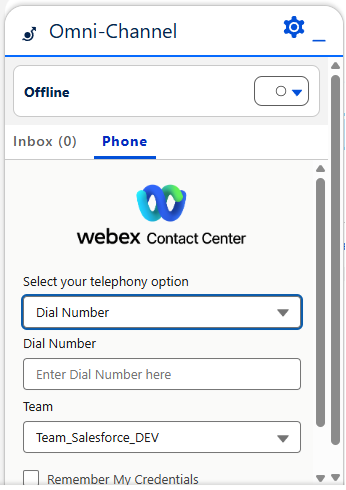
Click Authenticate.
|
| 2 |
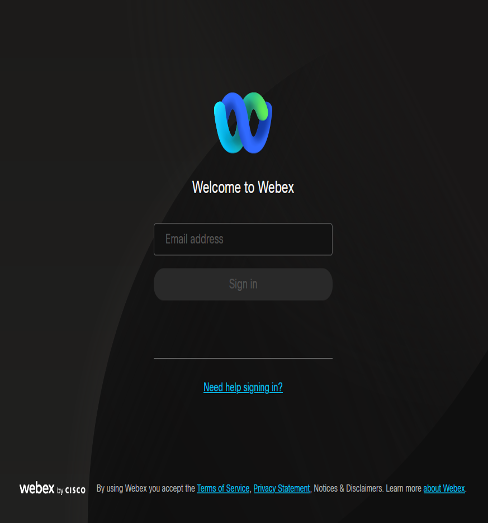
A pop-up window opens. Login using your WxCC login credentials.
|
| 3 |
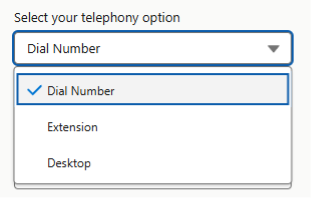
Choose a telephony option.
|
| 4 |
Choose your team.
|
| 5 |
If you want to save your credentials for the next login session, check the Remember My Credentials check box. |
| 6 |
Click Login.
|
Change Agent State
- Open the Omni-Channel state drop-down list.
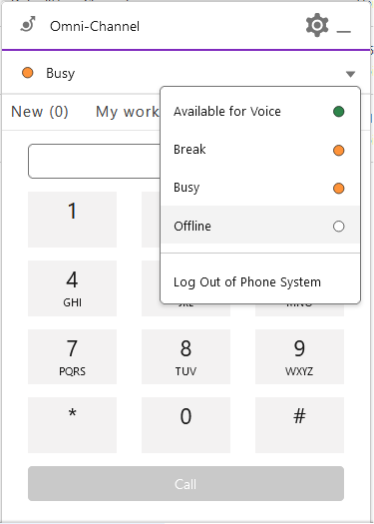
- Choose the state to enter.
Change Agent State During Call
Agents can change their state during a call in the same way they change it outside of a call. The changed state is used to sync the WxCC state after Wrap-Up ends.
For example, the agent changes from Available to Busy during the call. After the call ends, the WxCC state is also set to Busy.
Logout
| 1 |
Open the Omni-Channel state drop-down list. |
| 2 |
Click either You can log out only if your current state is |
VoiceCall record
Call Status
The Call Status field is updated according to this table:
| Call Status | Description |
|---|---|
| new | The VoiceCall record is created. |
| in-progress | The agent accepted the call. |
| completed | The agent ended wrap-up. |
If the agent receives RONA, the VoiceCall record remains in the New status.
Disconnect Reason
Whenever Wrap-Up is ended, the Disconnect Reason field is updated with one of the values below:
| Disconnect Reason | Description |
|---|---|
| RONA | The agent didn't pick the call and received a RONA. |
| Transferred | The agent transferred the call to another agent (blind transfer or warm transfer). |
| Agent Left | The agent ended an outbound call before the customer accepted it. |
Received Cisco reason, like Agent Left or Customer Left | The call was ended without transferring, either by the customer, the agent or the contact center. |
| Call Ended | None of the reasons listed above for ending the call apply. |
Troubleshooting
This chapter contains valuable information that you, as an agent, can use to actively help ensure the smooth operation of day-to-day business.
Device cannot be reached
Depending on the type of phone in use, Webex Contact Center for Service Cloud Voice might not be able to login because the phone cannot be reached by the Contact Center System.
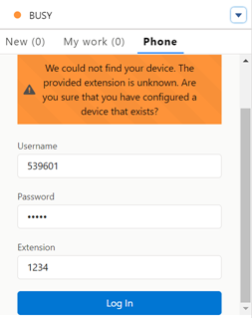
If Jabber, IP Communicator or other Softphones are used, ensure that:
- The phone was started on your computer and is currently running.
- The phone does not show any errors.
- The phone can be used to initiate calls.
Call is stuck
Depending on the internet connection, Webex Contact Center for Service Cloud Voice might not be able to remove all calls from the Omni-Widget correctly.
If you think a call is stuck, try one or all of the following steps:
- Reload the page.
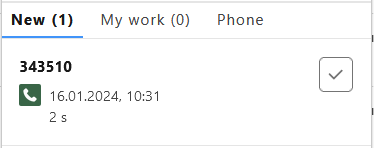
- Navigate to the
Newtab in the Omni-Widget in case it shows more than zero (0) calls. Accept the new call and end it directly if no customer is on the line. Please close the corresponding Voice Call record tab as well.
Reporting issues
Generated bug reports are helpful to find and fix problems on a technical level. Unfortunately, not all problems are technical in nature. For this reason, it is important to report problems to your supervisor or administrator as well.
The more precisely a problem is described, the more efficiently it can be solved. The following step-by-step instructions can help to describe a problem with all the necessary information:
- Provide a high-level problem description.
- Mention detailed steps to replicate the issue.
- Include the expected behavior.
- Verify the problem in the Webex Agent Desktop (if access is granted) and provide the information.
- Verify the problem in other browsers (if applicable) and provide the information.
- Include screenshots, if they might help.
To guarantee the quickest possible resolution of a problem, the problem report includes all incoming and outgoing data, as well as information about how the application was used. In other words, administrators receive a detailed record of what users clicked, when, and in what order.
Session Cache
To guarantee speed and uninterrupted use across page reloads, Webex Contact Center for Service Cloud Voice stores configuration and call data locally.
Especially when testing different settings, situations may occur where you need to clear the local cache. For technical reasons, a simple page reload (even a hard reload with CTRL+F5) does not suffice.
In this case, close all browser tabs and windows running Webex Contact Center for Service Cloud Voice.
This action deletes all cached session data.
Browser Cache
There might be situations where you are requested to clear your browser's cache. To not have the full cache wiped out (including all sites, saved passwords, etc.) use the following commands to simply refresh the page or to delete the current page's cache with the refresh:
| Keyboard shortcut | Clears the cache | Google Chrome | Firefox | Microsoft Edge |
|---|---|---|---|---|
| F5 or CTRL+R | No | Yes | Yes | Yes |
| SHIFT+F5 or CRTL+SHIFT+R | Yes | Yes | Yes | Yes |
Tips for Google Chrome
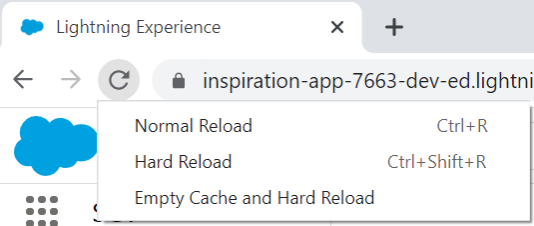
To clear all cached data for just one specific site (domain):
- Click
F12orCTRL + SHIFT + Ito open the Dev Tools. - Right-click the reload button next to the address bar.
- Choose Empty Cache and Hard Reload.
Tips for Firefox
To clear all cached data for just one specific site (domain):
- Select the Firefox Menu.
- In Firefox version 57 or newer, select Library.
- Select the History icon.
- Scroll to the bottom and select
Show All History. - Search for the site using the Search History field on the upper-right corner.
- Within the search results, right-click the appropriate page and select
Forget About This Site.
This method takes situations into account where web pages may download additional content using JavaScript, after the initial page load process is done.
This clears all saved passwords for the site.
Conference/Merge call when consultation call is not yet connected
It is not possible to hold a conference call if the consultation call has not been connected. This issue occurs due to the following limitation: We cannot disable the merge button during a consultation call in the 'dialing' state.
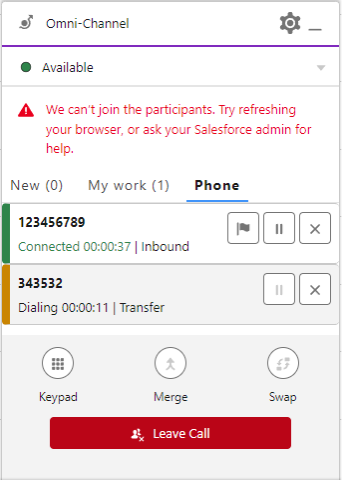
In case the agent starts a consultation call before the call is connected, the call is in 'dialing' state and if during this state the agent clicks on the merge button, the call conference will not be carried out and the gadget will be left frozen.
To solve the problem, the agent must reload the page.
Blind transfer is not allowed during conference call or consultation
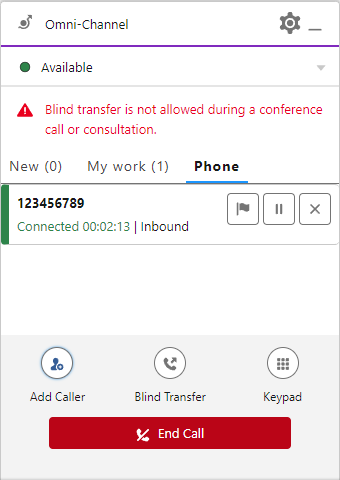
It is not possible to blind transfer during a conference or consultation call. In a conference call or consultation, only three operators and two telephone calls are allowed.
If Blind transfer is pressed during a conference call or consultation, when the new participant is added, the following error is displayed on the gadget:
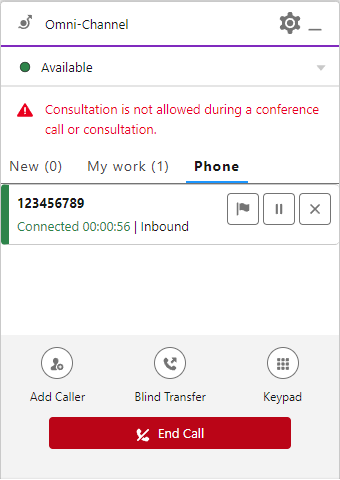
Consultation is not allowed during conference call or consultation
It is not possible to add a caller during a conference call or consultation. In a conference call or consultation, only three operators and two telephone calls are allowed.
If Add Caller is pressed during a conference call or consultation, when the new participant is added, the following error is displayed on the gadget:
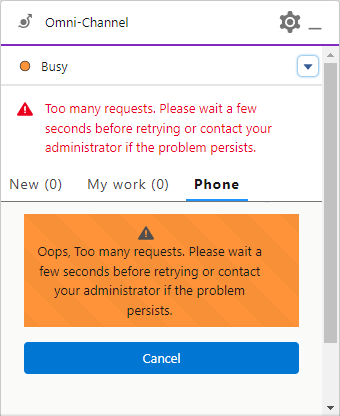
Status code error 429 (Too many requests)
When an action receives too many requests, Webex Contact Center for Service Cloud Voice stops working for a few seconds and the agent will need to wait until Webex Contact Center for Service Cloud Voice is stable again. If the problem persists the administrator must be contacted.
Webex Contact Center for Service Cloud Voice displays an alert message, when it receives too many requests: Too many requests. Please wait a few seconds before retrying or contact your administrator if the problem persists.