- Home
- /
- Article

Thanks for your feedback.


 In this article
 Feedback?
Integrate Webex Calling Customer Assist call center capabilities into BroadWorks through a hybrid model with seamless call routing and collaboration.
Overview
Webex Calling Customer Assist brings advanced call center capabilities, with AI integration, to your on-premises BroadWorks customers. This solution establishes a hybrid deployment model. Customer Assist agents and supervisors use the features of Webex Calling Customer Assist, with their Webex App and devices registered to Webex Calling. Other employees within the organization continue to use the BroadWorks platform for standard telephony needs.
Key benefits
-
Advanced call center features—Provides intelligent call routing, agent management, and AI-driven insights.
-
Integrated agent workspace—Agents access an integrated environment within the Webex App for calls, messaging, and meetings.
-
Enhanced collaboration—Enables communication between Customer Assist agents (on Webex Calling) and other employees (on BroadWorks).
-
Deployment flexibility—Allows organizations to maintain core business operations on BroadWorks while deploying Webex for specialized customer service roles.
Understand the hybrid model
This hybrid model supports phased adoption of advanced customer experience features without replacing your entire phone system.
In this hybrid model, you provision the users within the organization in the following ways:
-
Webex Calling Customer Assist for agents and supervisors—Provision users who need call center functionalities on the Webex Calling platform. They use Webex App to access Customer Assist features and calling capabilities.
-
BroadWorks for other employees—Continue using BroadWorks to manage users who don't need call center features.
Interconnection and call routing
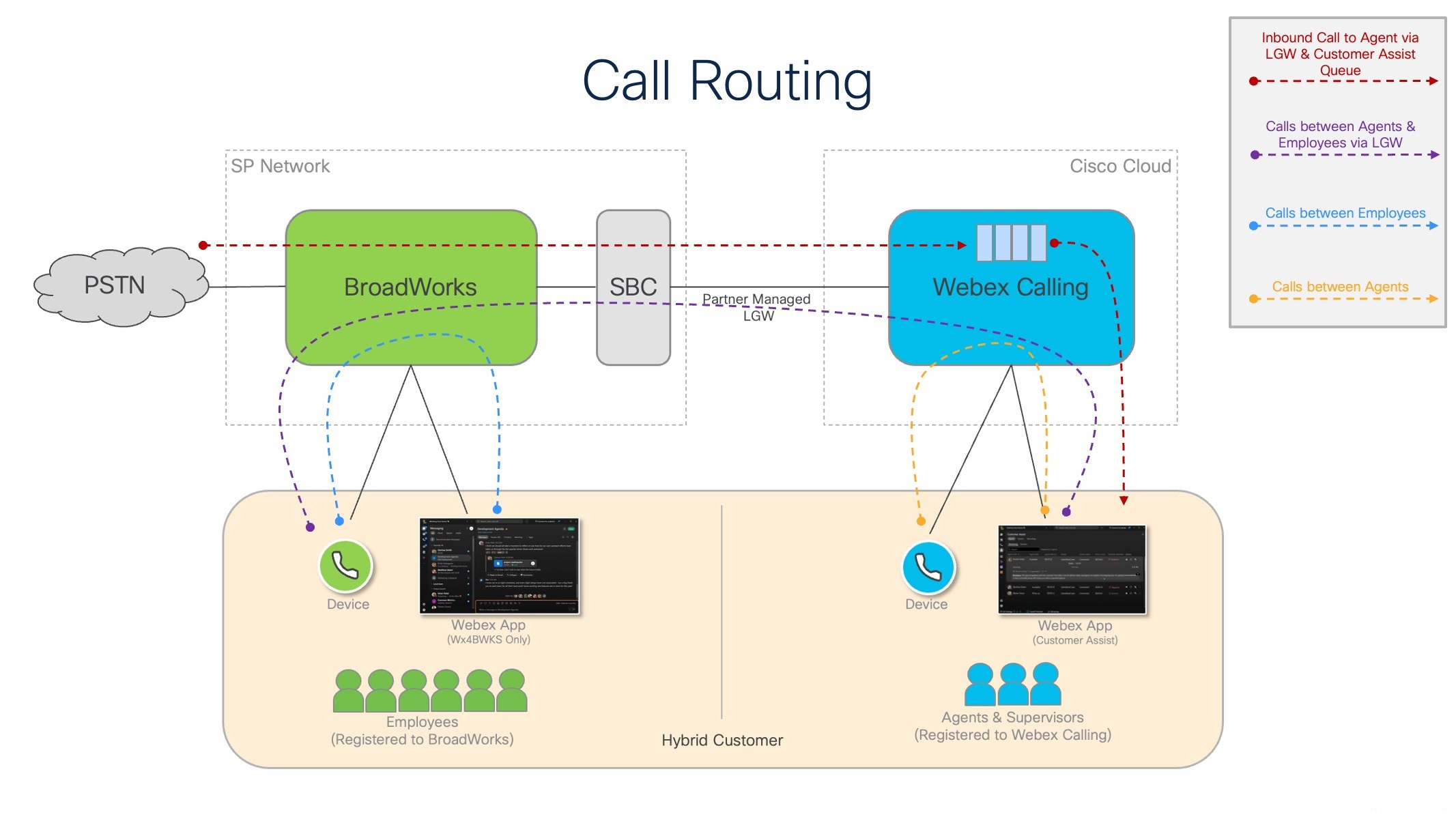
The Partner-Hosted Gateway plays a critical role in this hybrid setup. It routes calls and enables communication between the Webex Calling environment (where agents reside) and the BroadWorks environment (where other employees reside). With the gateway, agents interact with their BroadWorks-based colleagues, and the system directs calls appropriately across both platforms.
High-level call flows:
-
PSTN to Customer Assist agent—External PSTN calls to Webex Calling hosted Customer Assist queue are routed through BroadWorks and the premises-based PSTN to reach Webex Calling agents.
-
Agent to BroadWorks employee—Webex Calling agents can call employees on the BroadWorks platform through the premises-based PSTN.
-
BroadWorks employee to agent—BroadWorks employees can call Customer Assist agents through premises-based PSTN.
-
Internal calls (platform-specific)—Agent-to-agent calls remain on Webex Calling, and employee-to-employee calls remain on BroadWorks.
-
Agent PSTN calls—Customer Assist agents can make and receive PSTN calls directly through BroadWorks or optionally through Webex Calling PSTN connectivity.
While Webex Calling PSTN connectivity is an option, we encourage you to use your own PSTN to avoid potential charges for internal calls (for example, when using 10-digit dialing). You must use a certified PSTN solution.
Role of Webex for Cisco BroadWorks in hybrid deployments
Enabling Webex for BroadWorks for the BroadWorks customer organization is mandatory to enhance the overall collaboration experience in a hybrid deployment.
Benefits of Webex for BroadWorks integration:
-
BroadWorks directory sync—Automatically synchronizes BroadWorks users and entities (with phone numbers or extensions) to Cisco Common Identity. This allows Customer Assist agents on Webex Calling to easily search for and call their BroadWorks-hosted colleagues.
-
BroadWorks authentication—Provides you with the option to manage credentials for all users (both BroadWorks and Webex Calling) within the customer organization using their BroadWorks platform as the authentication source.
-
Improved collaboration—BroadWorks users with Webex for BroadWorks packages can use Webex App to send messages and join meetings with Customer Assist agents and supervisors.
Key features and capabilities
Webex Calling Customer Assist features
Customer Assist provides the following capabilities:
-
Advanced call queues—Supports intelligent routing, queue management, and customizable call flows.
-
Agent management—Provides tools for agents to manage their availability, handle calls, and access customer context.
-
Supervisor features—Includes real-time monitoring, reporting, and coaching capabilities.
-
AI integration roadmap—AI features in Webex App, offering capabilities like caller intent, suggested responses, call summaries, sentiment analysis, and AI assistants.
For more details, see Webex Calling Customer Assist.
Interoperability features
The hybrid solution ensures seamless interaction across platform and provides the following capabilities:
-
Unified communications—Agents can call and collaborate with BroadWorks employees using Webex Messaging and Meetings.
-
PSTN Access—Customer Assist agents can make and receive external PSTN calls, routing them efficiently through the integrated architecture.
-
Centralized directory—BroadWorks Directory Sync provides a unified contact list for easy lookup and dialing.
User authentication
Customer Assist agents and supervisors can authenticate using either BroadWorks or Webex. You can define the authentication method during the customer onboarding process within the Partner Hub template. For details, see User Login and Configuration Retrieval section in the Webex for Cisco BroadWorks Solution Guide.
Outbound caller ID management
Agents can manage how to display their identity to end customers when making outbound calls. They can select their personal phone number, a custom configurable Calling Line Identification (CLID), or a group or queue number. For details, see Select Caller ID section in the Webex for Cisco BroadWorks Solution Guide.
Customer onboarding and provisioning
Partner prerequisites
Before onboarding the BroadWorks customers for Webex Calling Customer Assist, you must align your licensing and subscription models with Cisco Wholesale requirements. Use the following table to determine the necessary actions based on your current deployment status.
|
Partner’s current onboarding status |
Required action |
|---|---|
|
BroadSoft Licensing (Legacy) |
Contact your Cisco account representative to transition to a Wholesale BroadWorks subscription and deploy Wholesale Webex for BroadWorks. |
|
Webex for BroadWorks (Legacy Paper) |
Contact Cisco to implement a Wholesale BroadWorks subscription and update existing Webex for BroadWorks users to the Wholesale platform. |
|
Wholesale BroadWorks subscription but no Webex for BroadWorks |
Complete the deployment of Wholesale Webex for BroadWorks to establish the foundation for Customer Assist. |
|
Wholesale BroadWorks subscription and Webex for BroadWorks |
No further subscription actions required. You're ready to proceed with customer onboarding. |
|
Wholesale BroadWorks subscription, Webex for BroadWorks, and Wholesale Webex Calling |
No further subscription actions required. You're ready to proceed with customer onboarding. |
Webex App requirements
To support Webex Calling Customer Assist features and ensure smooth hybrid functionality, all agents and supervisors must use the minimum Webex App version 46.2 or later.
Onboard customers for Webex for BroadWorks
Your customers must have Webex for BroadWorks before you can enable Wholesale services like Customer Assist. This onboards the customer on the Webex platform and enables the desired Webex for BroadWorks service. This ensures a proper foundational setup for coexistence.
Complete the following prerequisites before onboarding the customers:
-
You must be a Webex for BroadWorks partner before you can bring customers onto Webex for BroadWorks. For details, see Webex for Cisco BroadWorks Solution Guide.
-
You must configure BroadWorks clusters, templates, and Webex for BroadWorks settings (including branding) in Partner Hub.
-
You must configure all relevant firewall ports to allow access to and from the Webex cloud.
Customer onboarding
If you've already onboarded the customer to Webex for BroadWorks, you only need to add the Wholesale service. For details, see Add Wholesale to an existing Webex for BroadWorks template section.
For new customers, onboarding starts when you add the first user from the BroadWorks enterprise. At least one user must always remain onboarded with a package per customer for Webex for BroadWorks. This ensures the BroadWorks directory and phone list stay synced. If you remove the onboarded user, you need to make significant changes to the customer provisioning.
Webex for BroadWorks customer onboarding follows the standard processes. For details, see Webex for Cisco BroadWorks Solution Guide.
In Partner Hub, you can create a combined template to onboard the customer to both Webex for BroadWorks and Wholesale services. For details, see Create a new onboarding template section.
After onboarding the customer, the initial synchronization may take up to one week.
Onboard customers for Webex Calling Customer Assist through Wholesale RTM
This onboarding process adds Wholesale services to the customer on Webex, enabling Webex Calling Customer Assist and auto-creates their initial Webex Calling location.
You can onboard the customers in the following ways:
-
Create a new onboarding template—Create a new combined template to onboard the customer to both Webex for BroadWorks and Wholesale services.
-
Add Wholesale to an existing Webex for BroadWorks template—If you’ve already onboarded the customer to Webex for BroadWorks, then add the Wholesale service.
Create a new onboarding template
You can create a new combined template in Partner Hub to onboard the customer to both Webex for BroadWorks and Wholesale services.
Before you begin
You must have a Wholesale administrator role to configure the onboarding templates and manage the Wholesale services. For more details on administrator roles, see Partner Administrator Roles for Wholesale RTM.
| 1 |
Sign in to Partner Hub and click Customers. |
| 2 |
Click Onboarding templates to view the existing templates. |
| 3 |
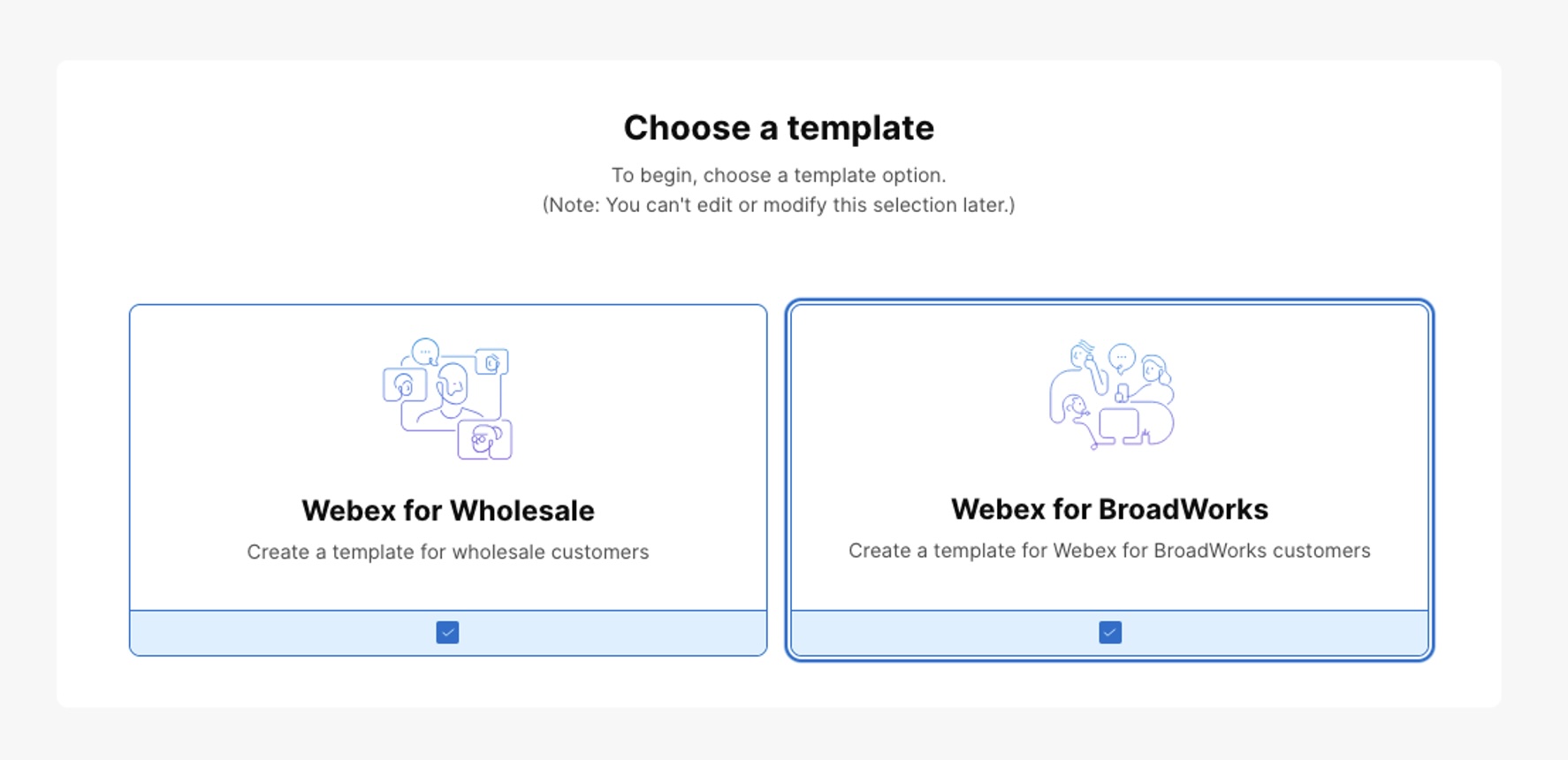
Click Create template and select both Webex for Wholesale and Webex for BroadWorks templates and click Next.
|
| 4 |
Fill in all the required details such as template details, service settings, Authentication, and Common settings. |
| 5 |
Review the details and click Submit. |
What to do next
The template is now created. You can create the customer and add users. For details, see Wholesale Route-to-Market Solution Guide.
Add Wholesale to an existing Webex for BroadWorks template
Before you can attach Wholesale service to an existing Webex for BroadWorks customer organization, you must add Wholesale to your existing Webex for BroadWorks template.
| 1 |
Sign in to Partner Hub and click Customers. |
| 2 |
Click Onboarding templates to view the existing templates. |
| 3 |
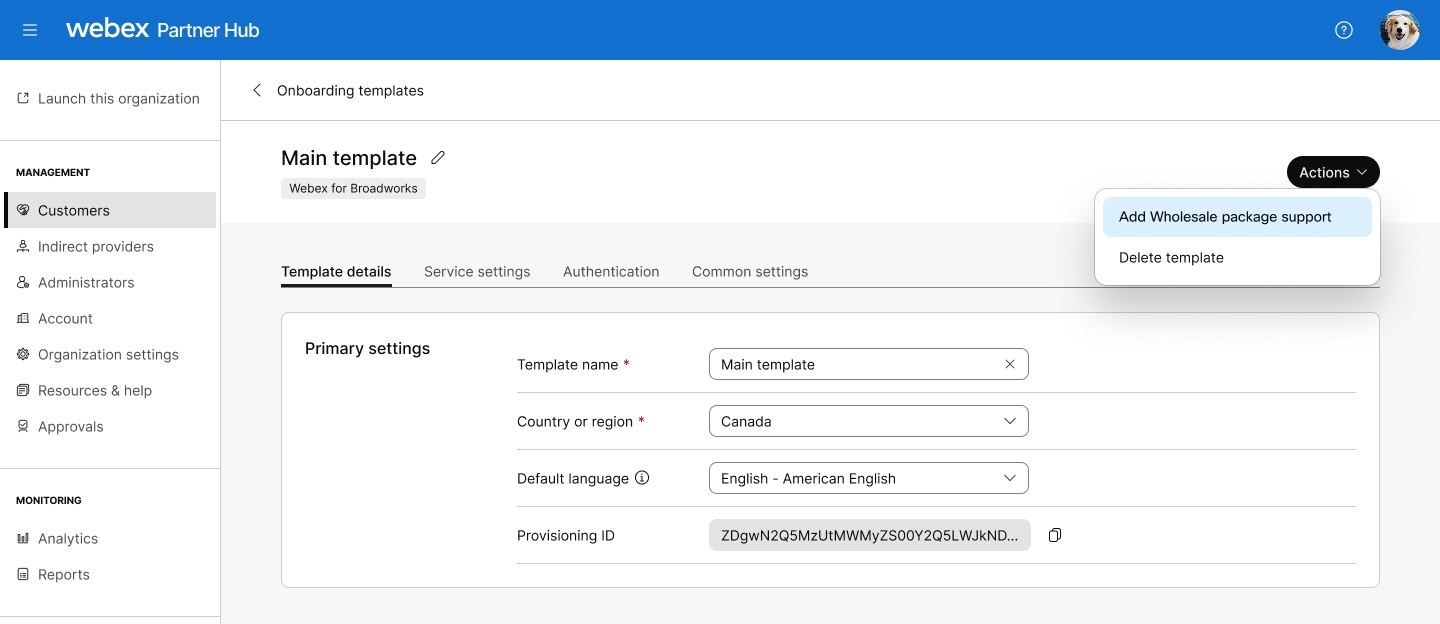
Click a Webex for BroadWorks template and click Add Wholesale package support from the Actions drop-down list.
|
| 4 |
Update the following details:
|
| 5 |
Click Save Changes. The template is now ready to support Wholesale. (Optional) To enable directory synchronization, click the onboarding template, click Service settings, and toggle on Enable phone directory sync for all new customer organizations. (Optional) To enable BroadWorks authentication, click the onboarding template, click Authentication, and choose BroadWorks authentication. Attach Wholesale service to an existing customer organization Once you've configured your template to support both the services, you can add Wholesale service to an existing Webex for BroadWorks customer organization. You can add the Wholesale service using API or through Partner Hub (Coming in April). To add Wholesale service through API, see https://developer.webex.com/wholesale/docs/api/v1/wholesale-provisioning/update-a-wholesale-customer.
You're required to enter a |
What to do next
Once the Wholesale service is attached, you can proceed to create the customer and add users. For details, see Wholesale Route-to-Market Solution Guide.
Dial plan and call routing configuration
This section details the necessary configuration across Webex Calling, the Partner Hosted Gateway (SBC), and BroadWorks to enable call routing and dial plan integration. These configurations are important for facilitating calls between the BroadWorks environment and Webex Calling, allowing Customer Assist to function as an overlay service.
Create a SIP Trunk in Webex Calling
Before you begin
You must onboard the customer as a Wholesale Webex Calling customer and create an initial location.
| 1 |
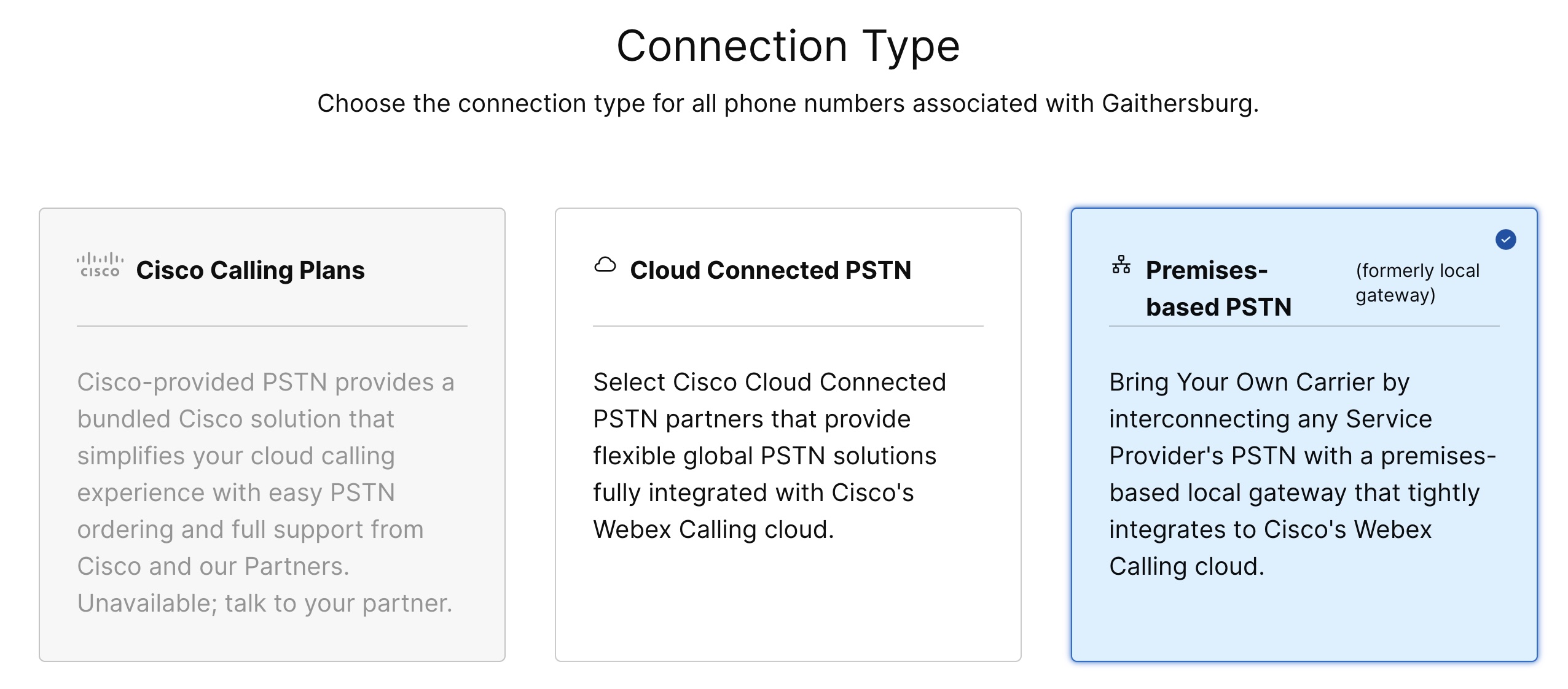
Configure a SIP Trunk to premises-based PSTN for each customer.
If you already use Cloud Connected PSTN (CCP) and it connects to the Webex Cloud through a physical trunk device, you can reuse that same device for Webex Calling Customer Assist. To support both services on a single device, the device must route CCP and Customer Assist traffic separately according to their respective routing rules. You must provision each service in Control Hub based on its unique requirements. To configure through Control Hub, go to . To configure through Public API, see https://developer.webex.com/calling/docs/api/v1/call-routing/create-a-trunk. |
| 2 |
Configure a Route Group and add each trunk to the Route Group.
To configure through Control Hub, go to . To configure through Public API, see https://developer.webex.com/calling/docs/api/v1/call-routing/create-route-group-for-a-organization. |
| 3 |
Configure the local gateway as a selected PSTN connection.
To configure through Control Hub, go to , then select a location and click PSTN.
To configure through Public API, see https://developer.webex.com/calling/docs/api/v1/pstn/setup-pstn-connection-for-a-location. |
| 4 |
Add the required E.164 numbers to the customer's locations for assignment to Customer Assist queues or users. To configure through Control Hub, go to . To configure through Public API, see https://developer.webex.com/calling/docs/api/v1/numbers/add-phone-numbers-to-a-location. |
| 5 |
Configure dial plans as appropriate for each customer to internal call routing between Webex Calling and BroadWorks.
To configure through Control Hub, go to . To configure through Public API, https://developer.webex.com/calling/docs/api/v1/call-routing/create-a-dial-plan. . |
| 6 |
Configure Internal Dialing settings for each customer as appropriate.
To configure through Control Hub, go to or go to , then select a location and click . Your Webex Calling location configuration determines emergency call routing in a hybrid deployment. If you configure Emergency Calling in Webex Calling, the system routes emergency calls to the Webex Calling emergency service provider. If you don’t configure Emergency Calling in Webex Calling, the system routes these calls to the BroadWorks environment over the SIP trunk. For configuration details, see Enhanced emergency calling for Webex Calling and Emergency Callback Number (ECBN) in Control Hub. |
Configure a SIP Trunk in BroadWorks
Complete following configuration steps for each customer on the BroadWorks platform to set up the SIP trunk and dial plan for routing calls to Webex Calling.
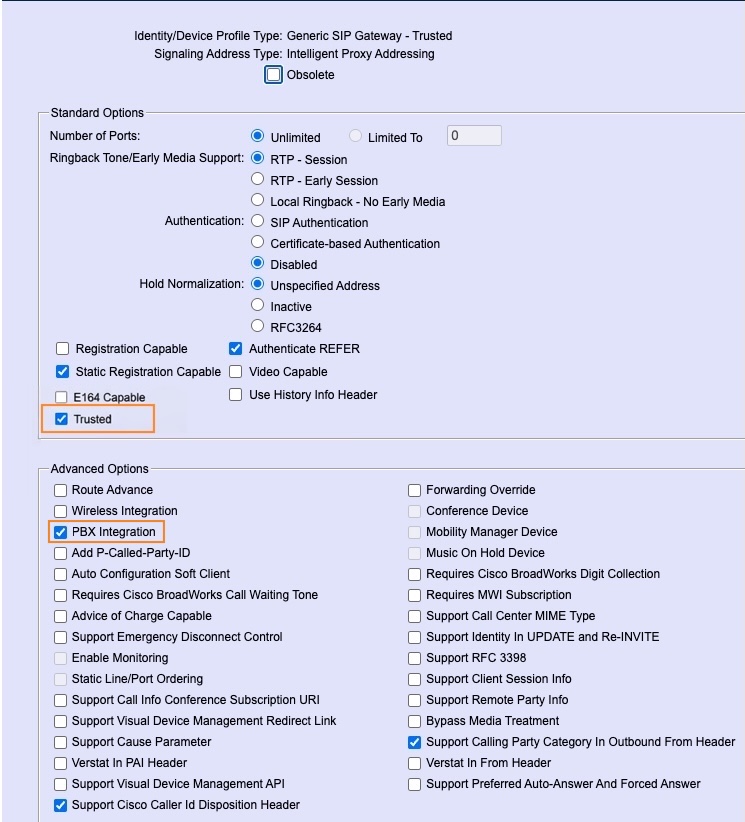
| 1 |
Create a Device Profile type with the following settings:
|
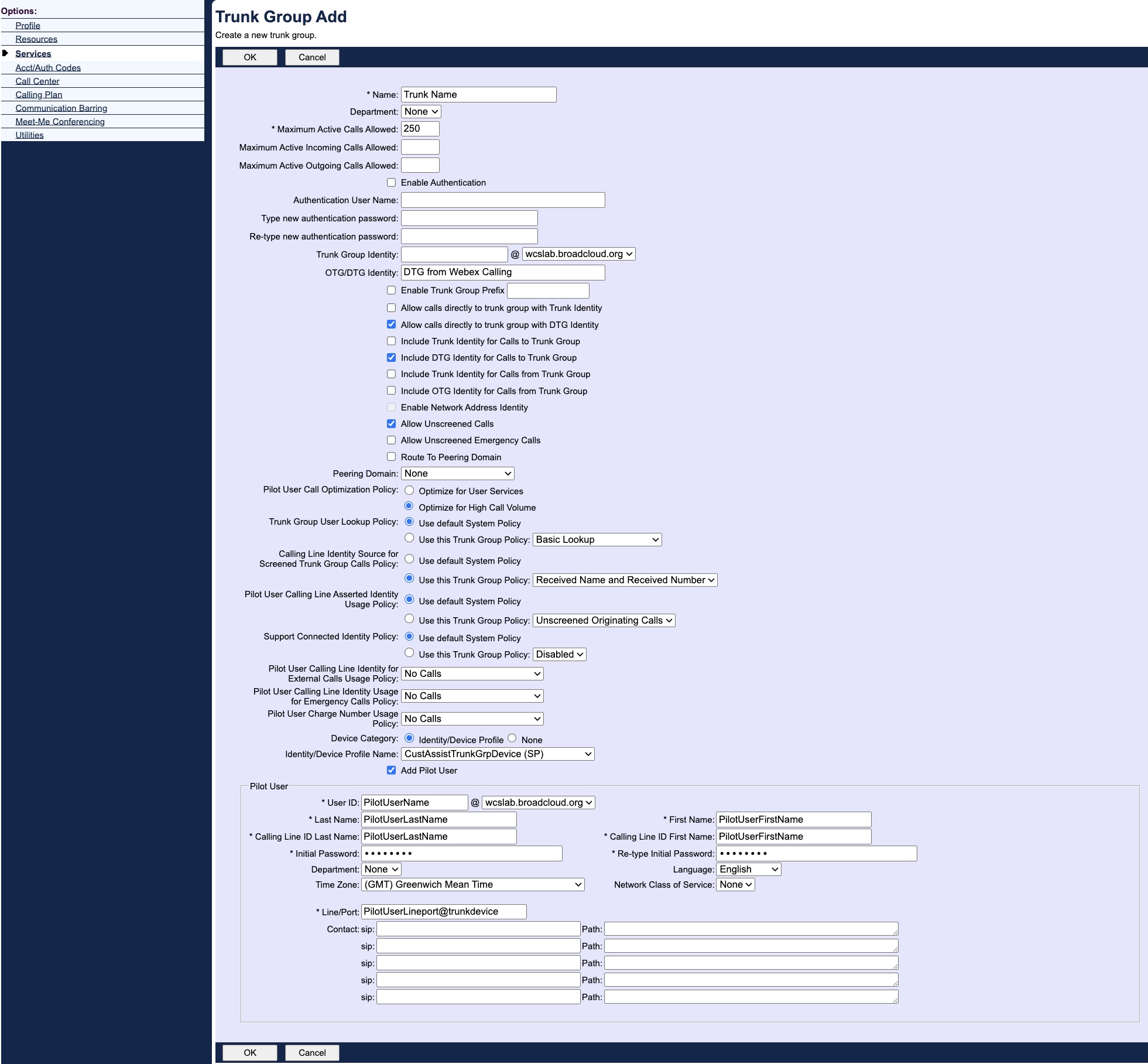
| 2 |
In a group, create a Trunk Group with the following settings:
|
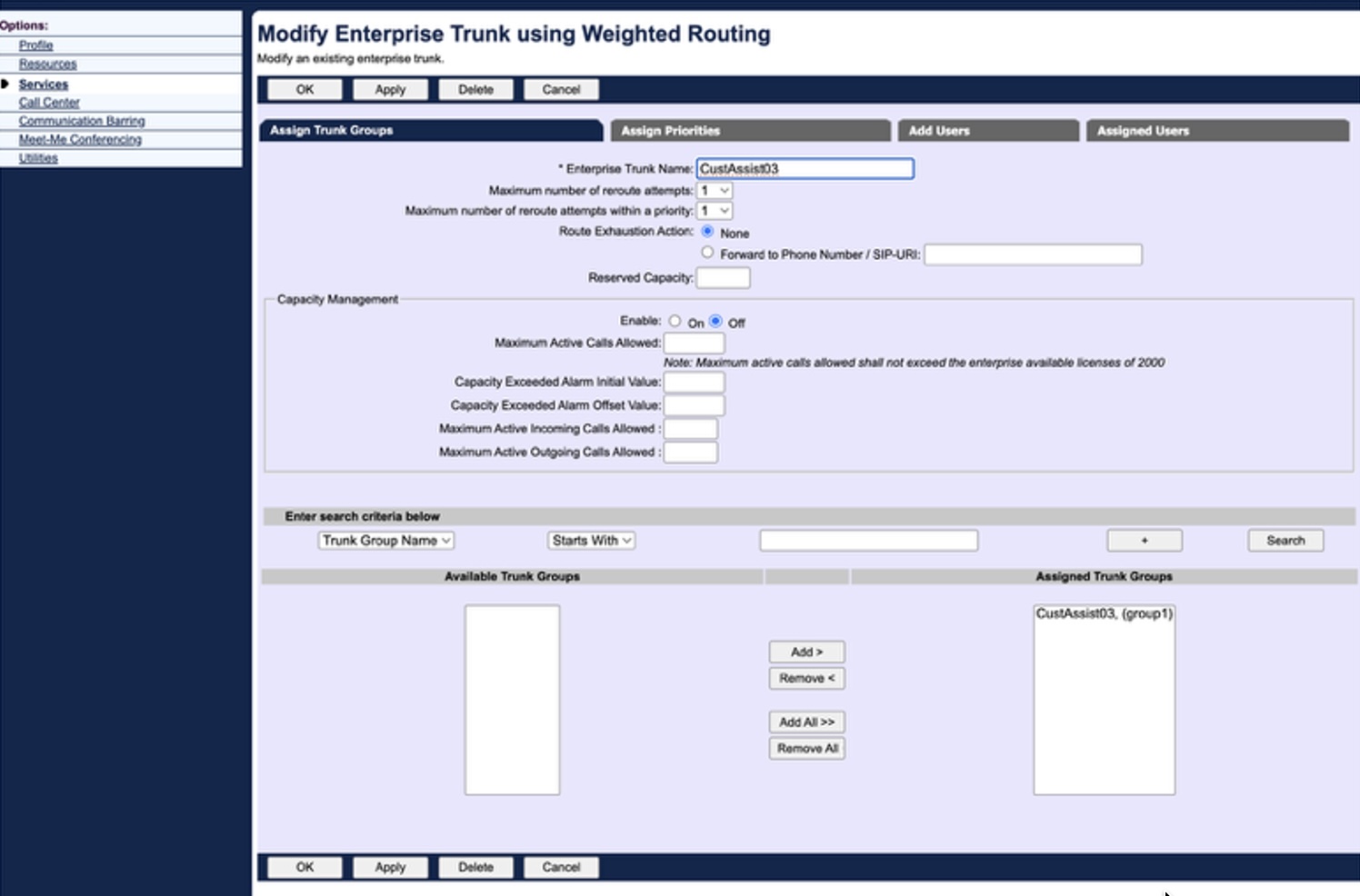
| 3 |
Create an Enterprise Trunk and add the trunk group created in the preceding step.
|
| 4 |
Go to and make sure the Route List service is available in the enterprise and assignable to users. |
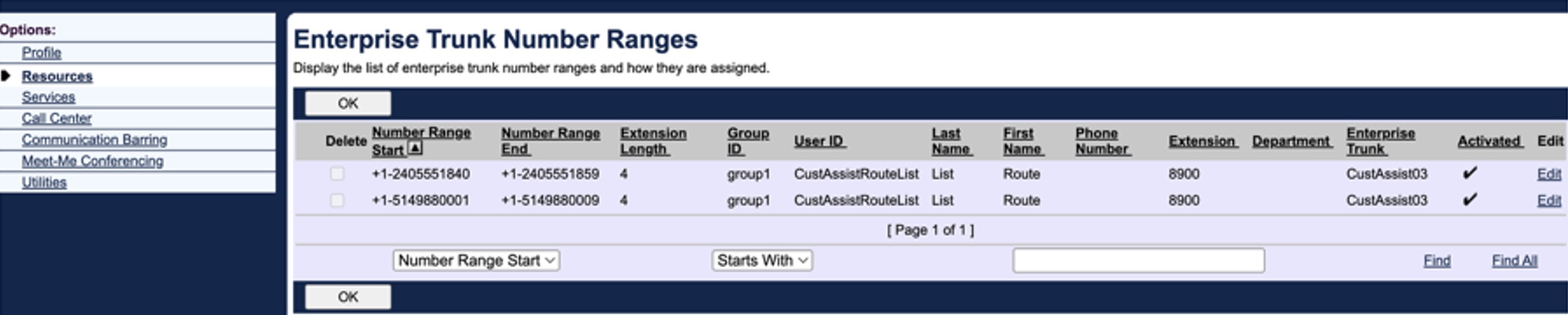
| 5 |
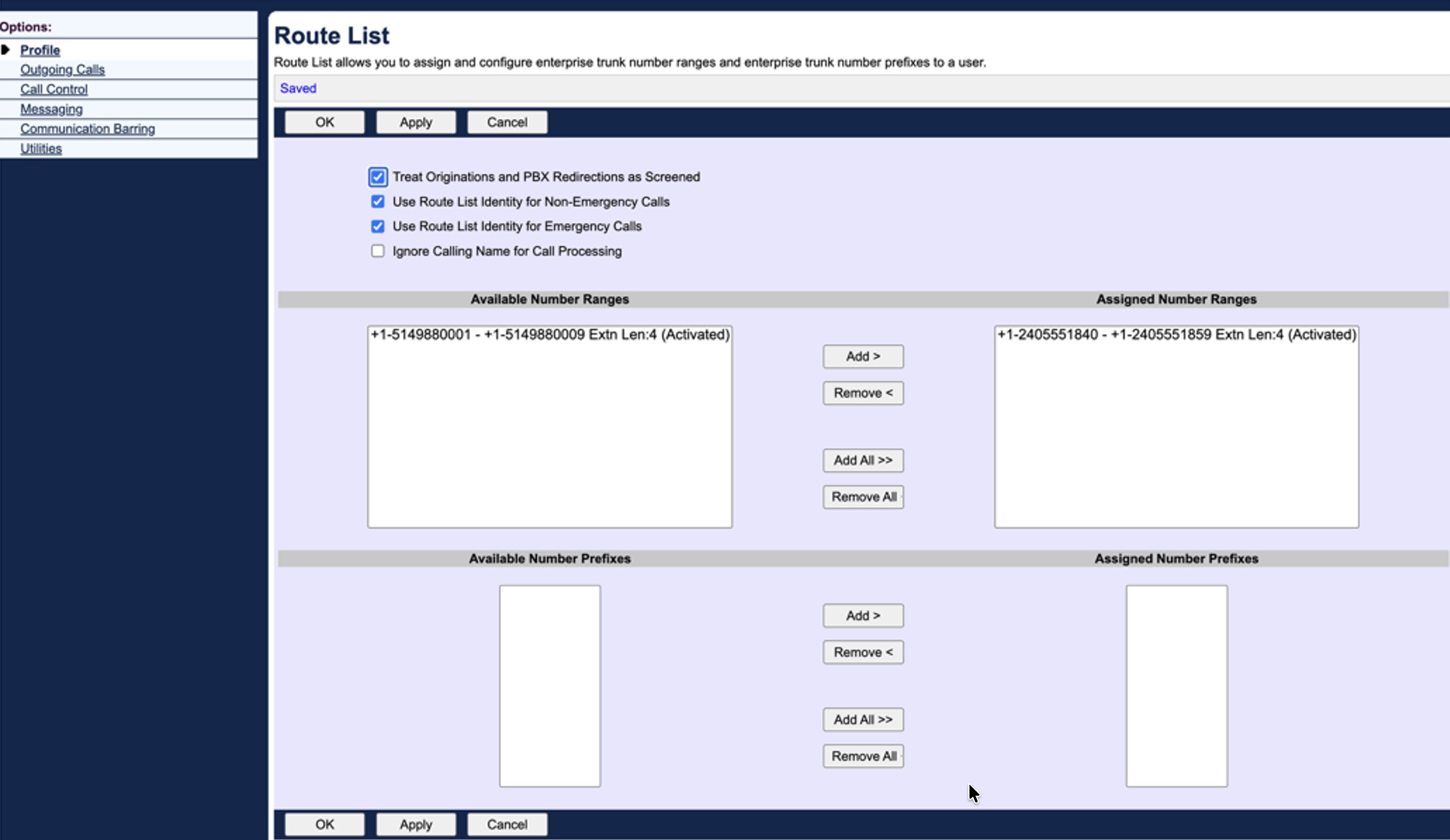
Define the Enterprise Trunk Number Ranges using all PSTN numbers hosted in Webex Calling.
|
| 6 |
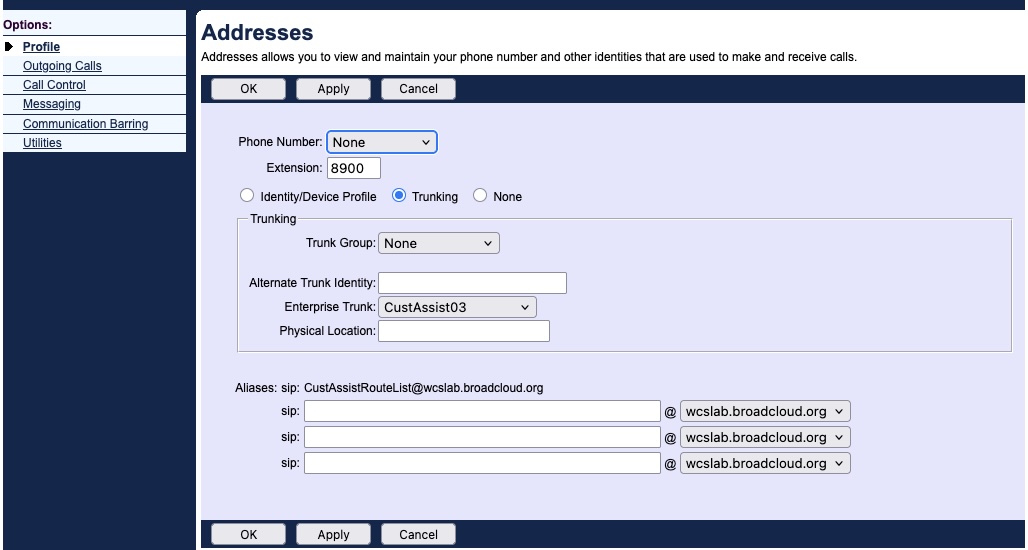
Create a phantom user (extension only) and assign the enterprise trunk number ranges in the Route List service.
When creating the phantom user and assigning it the route list feature, you must select the enterprise trunk as the device in the user's .
|
Configure an SBC to bridge the trunks
You need to configure the SBC to bridge the SIP trunks between BroadWorks and Webex Calling, ensuring secure connectivity. The SBC must be set up to relay SIP INVITEs in both directions—from BroadWorks to Webex Calling and from Webex Calling to BroadWorks. While relaying these SIP INVITEs, you must also ensure that the SBC modifies the SIP headers to update the otg/dtg parameter as required.
For example, in a Cisco CUBE, a rule similar to the following is used to append the OTG parameter to the From header of outgoing SIP INVITEs:
rule 80 request ANY sip-header From modify ">" ";otg=bwks0000000000_lgu
      >
We’re developing a new feature to simplify the trunk group deployment on BroadWorks, eliminating the need for SBC manipulation.
For guidance on configuring other SBCs to interoperate with Webex Calling, refer to the following vendor-specific documentation:
Configure Customer Assist and add agents and supervisors
You can create Customer Assist queues and assign agents and supervisors. For details, see Webex Calling Customer Assist.
For customers currently using BroadWorks call center services, you can manually recreate the call queues in the Control Hub and assign the agents and supervisors after completing the Webex for BroadWorks and Wholesale RTM onboarding. After verifying all the configurations, you can remove the BroadWorks call center setup and any associated third-party integrations.
Frequently asked questions
Customer Assist user and licensing
-
Can Customer Assist agents and supervisors use BroadWorks authentication even if they are hosted on the Webex Calling platform?
Yes. To use BroadWorks Authentication for these users, you must create a user entry in BroadWorks for each agent or supervisor by updating their email address in the Alternate ID attribute. These specific BroadWorks users don't need a phone number or a physical device associated with them on the BroadWorks platform. Instead, their phone numbers are associated with the SIP trunk group, which routes incoming calls directly to Webex Calling for handling.
-
Can an existing Webex for Cisco BroadWorks user act as a Customer Assist agent?
No. Customer Assist agents must be provisioned as Webex Calling users. If a user is currently provisioned only as a Webex for Cisco BroadWorks user, you must convert or re-provision that user as a Webex Calling user before assigning the user as a Customer Assist agent.
-
Can migration scripts move only selected BroadWorks users to Wholesale RTM?
Support for migration scripts to migrate only selected users from BroadWorks to Wholesale RTM is on the roadmap.
-
Where should the Customer Assist license be provisioned?
The Customer Assist license must be provisioned within the customer organization. The partner organization defines and manages the customer relationship, but the customer organization receives the Customer Assist license and user entitlements.
-
Can Webex Calling users and Customer Assist agents be provisioned through the API?
Yes. Webex Calling users can be provisioned using either the API or Control Hub, depending on your operational model. For API-based provisioning, use the Webex Public API with calling data enabled, and assign the required calling and Customer Assist entitlements as part of the customer organization setup.
-
Can Wholesale BroadWorks support be enabled in a staging environment?
Yes. In a staging environment, We can enable the Wholesale BroadWorks subscription and associated toggles through the Early Partner Testing program. For production environments, a live Wholesale subscription is required.
Emergency Calling and HELD
-
How is the HELD URL populated for Webex Calling clients?
Webex Calling automatically populates the HELD URL when the deployment uses the default RedSky emergency-calling model. If your deployment uses a different emergency provider, such as Intrado ERS, the default RedSky HELD URL behavior doesn't apply.
-
What values must be associated with the HELD URL for an Intrado ERS deployment?
An Intrado ERS deployment requires a Level 1 account for the provider and a Level 2 account for each BroadWorks group. You must provision the Level 2 account ID and token (retrieved from Intrado ERS) to ensure Webex Calling clients perform HELD transactions against the correct emergency services account.
-
How does emergency calling align between Webex for Cisco BroadWorks and Webex Calling?
The goal is to align Webex Calling behavior with the existing Webex for Cisco BroadWorks emergency-calling model. Typically, desktop clients route emergency calls through the configured emergency provider, whereas mobile clients may use the local dialer for emergency calls.
-
How are emergency calls placed by Customer Assist agents routed?
Emergency call routing depends on the configuration of the agent's Webex Calling location. If emergency calling isn’t configured for the location in Webex Calling, emergency calls placed by Customer Assist agents are routed to BroadWorks over the SIP trunk. If emergency calling is configured for the location in Webex Calling, the calls are routed by Webex Calling to the configured emergency provider, such as RedSky or Intrado.
-
Will non-user devices on BroadWorks, such as lobby phones or conference room phones, be able to reach Customer Assist users?
Yes. The BroadWorks directory sync is comprehensive. It pushes not only standard user data but also group features (such as hunt groups and auto-attendants) and non-user entities (such as conference room and lobby phones) to the Webex Common Identity (CI). This ensures that all devices and services across the hybrid environment remain reachable and can search for Customer Assist users.
Trunks, domains, and SIP requirements
-
Should this integration use a registration-based or certificate-based trunk?
Certificate-based trunking is recommended for the BroadWorks to Webex Calling integration. This method is preferred for deployments that require customer-specific FQDN identity, SRV-based routing, and higher concurrent call capacity. Verify the required trunk type for your specific deployment before implementation.
-
Can multiple customers share the same FQDN for certificate-based trunking?
No. Requests sent from the partner or customer SBC to Webex Calling must use a unique customer FQDN in the SIP Contact header for all request types, including INVITE, OPTIONS, and CANCEL. While you may use a shared SBC, the identity in the Contact header must remain unique for each customer.
-
Do the LGW cert management enhancements remove the unique Contact-header FQDN requirement?
No. These enhancements don't change the contact-header requirement. Requests sent from the SBC to Webex Calling must continue to include a unique customer FQDN in the Contact header.
-
Which domain should be used in the Request-URI for requests sent to Webex Calling?
Use the Cisco-generated Webex Calling FQDN as the domain in the Request-URI when sending requests to Webex Calling. The Contact header should contain the configured unique customer FQDN.
-
Where can I find the OTG/DTG value for a Webex Calling trunk?
You can retrieve this value using the Webex Calling call routing "Get Trunk" API, which includes the
otgDtgIdfield in its response. If you don't know the trunk ID, use the "List Trunks" API first to identify it, and then call the "Get Trunk" API for that specific trunk. -
For a certificate-based trunk, are linePort, pilotUserId, and sipAuthenticationUserName required in BroadWorks or SBC configuration?
No, these fields aren’t required for certificate-based trunk configuration. The
peerIdentityfield is used to represent the SBC SRV record. Verify these requirements against the current Webex Calling trunk API and your specific SBC configuration. -
Is the password in the Create Trunk API used for certificate-based trunks?
No. The password isn’t used for certificate-based trunks. If the API requires a password field during creation, generate one according to internal policy, but don't design the certificate-based call flow to depend on it.
-
What are the concurrent-call limits for certificate-based trunks?
Certificate-based trunks support a range of 250 to 6,500 concurrent calls. In contrast, registration-based trunks are capped at 250 concurrent calls. Note that billing isn’t determined by the configured concurrent-call limit.
-
Can Webex Calling edge proxy addresses be assumed to remain consistent across trunks or over time?
No. Don't hardcode edge proxy addresses, as they may vary between trunks and are subject to change. Always retrieve current trunk details from Control Hub or the Webex Calling APIs during configuration and operational validation.
-
How should SRV records and route groups be used for redundancy?
Route groups provide redundancy across trunks. Webex Calling supports route advancement on timeout when a SIP trunk uses SRV and the SRV record resolves to multiple A records. If a route group contains both primary and secondary trunks, Webex Calling can advance the call based on route-group behavior when the primary path times out.
Routing, dial plans, and BroadWorks interworking
-
When are SIP trunks required for extension dialing between BroadWorks and Webex Calling?
SIP trunks are required if extension dialing between BroadWorks and Webex Calling is necessary. Cloud Connected PSTN (CCP) doesn't support extension dialing between these environments and shouldn’t be used for this specific use case.
-
How is a Webex Calling dial plan associated with routing?
In Control Hub, a dial plan is associated with a routing choice, either a trunk or a route group. When a location is configured to use a specific trunk or route group for PSTN or interworking, the dial plan associated with that routing choice applies.
-
Does Webex Calling use the directory to validate BroadWorks employee extensions?
No. Webex Calling doesn't use the directory to validate BroadWorks employee extensions for routing. You must configure dial-plan patterns that match BroadWorks employee extensions, for example, 22XX, and associate those patterns with the trunk or route group that routes calls to BroadWorks.
-
How should agent-to-employee extension dialing be configured?
Add the BroadWorks employee extension patterns to the Webex Calling dial plan and route those patterns over the appropriate trunk or route group. For example, if all BroadWorks employee extensions use the format 22XX, configure 22XX as a dial-plan pattern and route it to BroadWorks.
-
Are Webex Calling dial-plan entries the same as endpoint digit maps?
No. Webex Calling dial-plan entries are routing patterns, not endpoint digit maps, and they don’t use the T (timeout) marker commonly found in phone-based digit maps. If a dialed number doesn’t match a configured dial-plan pattern, the system follows default routing behavior, which may result in the call being rejected.
-
How should a Route List user be associated with an enterprise trunk?
Under the Route List user's Profile > Addresses configuration, select the Trunking device type and choose the appropriate Enterprise Trunk. Assign the enterprise trunk number range to the Route List user so BroadWorks can route the relevant numbers over the correct enterprise trunk.
-
If the enterprise trunk number range already includes the enterprise trunk, is additional Route List user configuration required?
Yes. You must explicitly configure the Route List user by navigating to their Profile > Addresses, selecting "Trunking" as the device type, and choosing the appropriate Enterprise Trunk. This step is necessary to ensure proper routing.
Administration and SSO
-
Can partner administrators use a claimed corporate domain and corporate SSO?
Yes. If the Wholesale organization is managed within the main corporate Webex organization, a partner administrator can use corporate SSO, provided they are already a user within that organization. Once the user is provisioned in the Webex organization, they can be granted Partner Hub permissions and access the platform using the corporate SSO flow.
-
What steps should be taken if administrators can’t be added using a corporate domain?
Verify that the domain is claimed in the target Webex organization and that the user is already provisioned within that organization. Also, ensure that the Wholesale or partner organization relationship allows the user to receive Partner Hub permissions. If these conditions are met and the issue persists, investigate potential organization or domain configuration conflicts before scaling administrator access.


