- Home
- /
- Article

Thanks for your feedback.

 In this article
 Feedback?
Use this article to configure multi-language support for AI Assistant in the call flows associated with the required queues.
If you have purchased the AI Assistant SKU and your contact center handles multiple languages, administrators can set the required languages in Flow Builder. This configuration sets the transcript language used by the AI Assistant for all it's features. Refer to Multi-language support article to see the languages supported by AI Assistant.
Once configured in a flow, the specified language automatically applies to all calls that pass through that flow path.
How language selection works in flows
The transcript language configured in the Flow Designer is passed to the AI Assistant services for all calls processed by the flow path.
- Configured per Flow Path: Define the desired transcript language using the Global_Language global variable and Set Variable activity in your call flow. For example, a flow associated with 'French Support' queue will have the Global_Language set to French language - fr-FR.
- Automatic Application: Every call that is routed through that specific path in the flow will automatically inherit the configured transcript language.
- Call-wide Application: The chosen language applies for the entire duration of the calls, including consult, transfer, and conference scenarios.
- Default Behavior: If no language is explicitly selected within the Flow Designer for a particular call's path, the AI Assistant will default to English (en-US).
How to enable multi-language support
Before you begin
| 1 |
Sign in to Control Hub. |
| 2 |
Navigate to . |
| 3 |
Choose the required flow and click the Go to Flow Designer icon beside the flow. |
| 4 |
In the main flow canvas, before you direct the call using the Queue Contact activity, add the Global_Language global variable as follows: |
| 5 |
Identify queues requiring multi-language support for AI assistant features. |
| 6 |
Before the Queue Contact activity, place a Set Variable activity and configure it as follows: 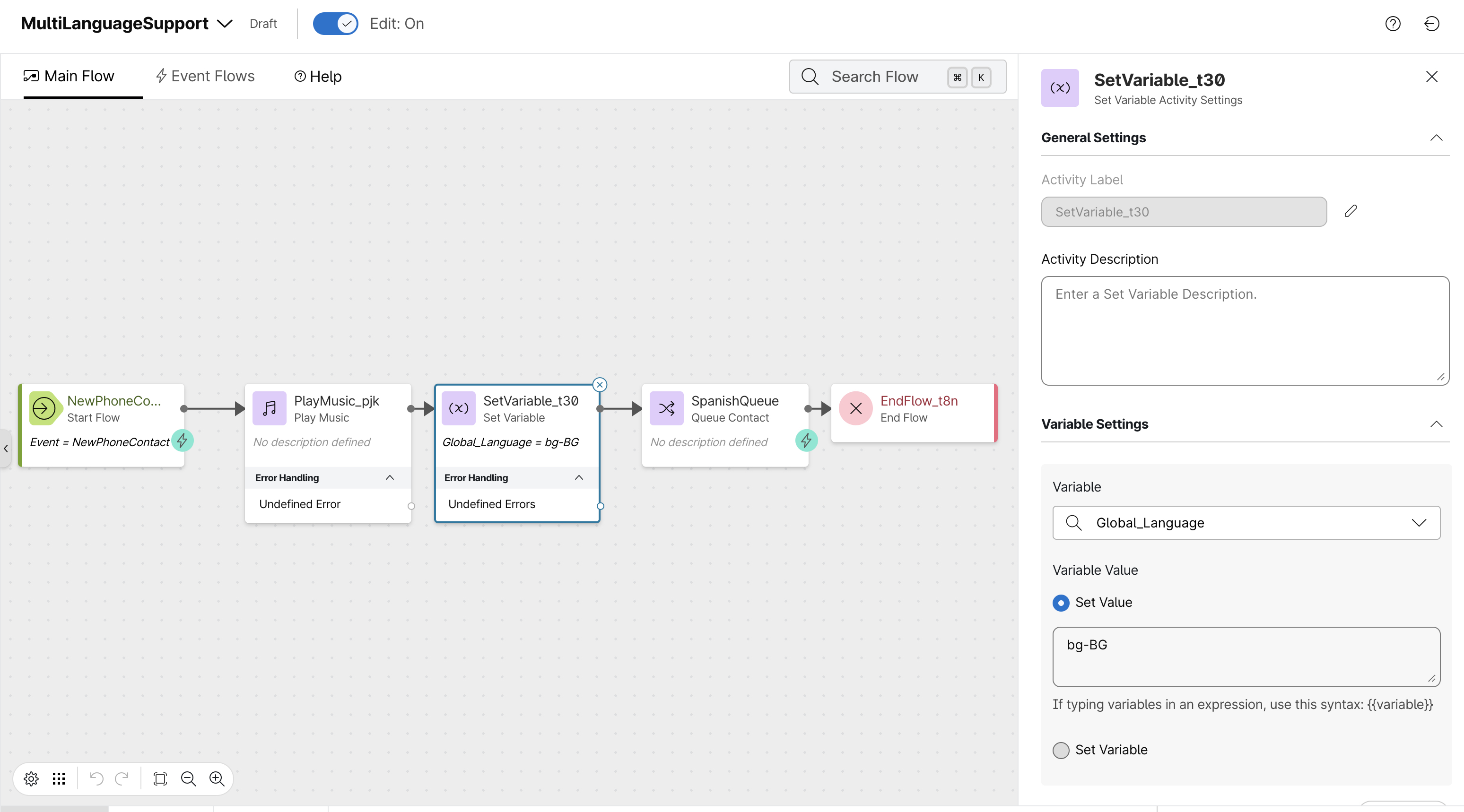 |
| 7 |
In the event flow canvas, drag and drop the Start Media Stream activity. Configure the following parameters:
|
| 8 |
Click Save. |
| 9 |
Click Publish to deploy the updated flow and make the changes active and operational. |
What to do next
Expected Transcription Behavior: During a call, the live transcript is generated in the language selected for transcription. For example, if Spanish is selected and the conversation is in Spanish, the agent will see the transcript in Spanish.


