- Home
- /
- Article

Thanks for your feedback.

Review activity logs in Control Hub for Webex Contact Center
 In this article
 Feedback?
As a Webex Contact Center administrator, you can audit activities in the administrator activity log within Control Hub. This log tracks site configuration changes and recording management actions. You can use filters to refine search results by date and export data to CSV or via administrator audit event APIs.
Audit log migration for Webex Contact Center
Webex has migrated audit logs from the Management Portal to Control Hub to improve your user experience and streamline admin activities. Here's what you need to know about this change:
- Migration of events: All events from the Management Portal will start flowing into Control Hub.
- Data backfill: Control Hub will backfill one year of historical audit data for your organization during the migration.
- Historical data download: You'll have until March 31st, 2026 to download any historical data from the Management Portal that dates back further than one year. On April 1st, 2026, you won't be able to access older data from the Management Portal. Make sure to download any records you want to keep.
- Custom role access: A new custom role will allow non-full administrators to access audit logs in Control Hub. Documentation will clarify how to access and use these audit logs for Contact Center users.
To know more about all site configuration changes and recording management activities, see Review your administrator activity log in Control hub.
Audit administrator activity
Your site must be Control Hub managed or linked, to display all site configuration changes and recording management activities.
Each report has a limit of 20,000 audit events that you can export. If your organization has more than 20,000 events, adjust the date or filters to reduce the number of events.
The audit cluster in India retains administrator activities for three years.
Other audit clusters retain administrator activities for one year. When you search by date range, you can only include activities from the past year (counting from the current date).
| 1 |
Sign in to Control Hub. |
| 2 |
Go to and click the Admin activities tab. |
| 3 |
To filter administrator activities by a specific category, select the Filter icon, and then check the categories you want to view. 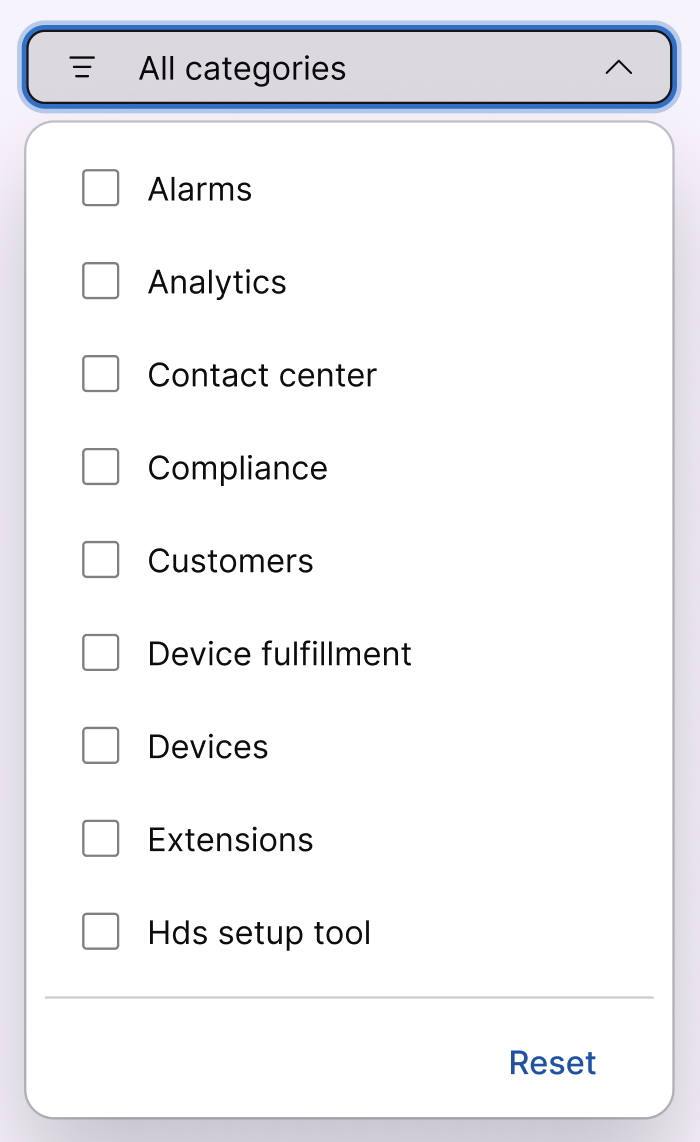
|
| 4 |
Select the Audit cluster drop-down to view administrator activities based on your data centers’ locations. |
| 5 |
Select an activity log to view the following information:
|
| 6 |
Click Export to CSV to download the events to a file. For more information about the administrator activity log, see Control Hub audit events reference. |


