- Home
- /
- Article

Thanks for your feedback.


Manage accessibility and inclusivity settings in Control Hub
 In this article
 Feedback?
As an administrator, Webex wants to ensure that you give your users the most inclusive and accessible experience. This article highlights features and settings that are managed via Control Hub that when enabled can create the optimal inclusive experience while using the app for your users.
App experience
The ability to organize and customize Webex can be crucial in helping your neurodiverse user base to focus, stay organized, and quickly complete tasks.
Customization can also help keyboard users and screen reader users to navigate more quickly through the Webex App. This enables you to create an inclusive environment for all users, regardless of need or preference.
Pronouns
You can enable Webex App users to share their pronouns if they want to. This gives people the opportunity to express themselves, and normalizes respect for each others' preferred pronouns.
This feature can minimize uncertainty when addressing colleagues and facilitates inclusive communication.
However, you should be aware of the implications of enabling this feature, and comply with your organization's policy. Please read Pronouns in your Webex organization for more information.
Set default landing screen
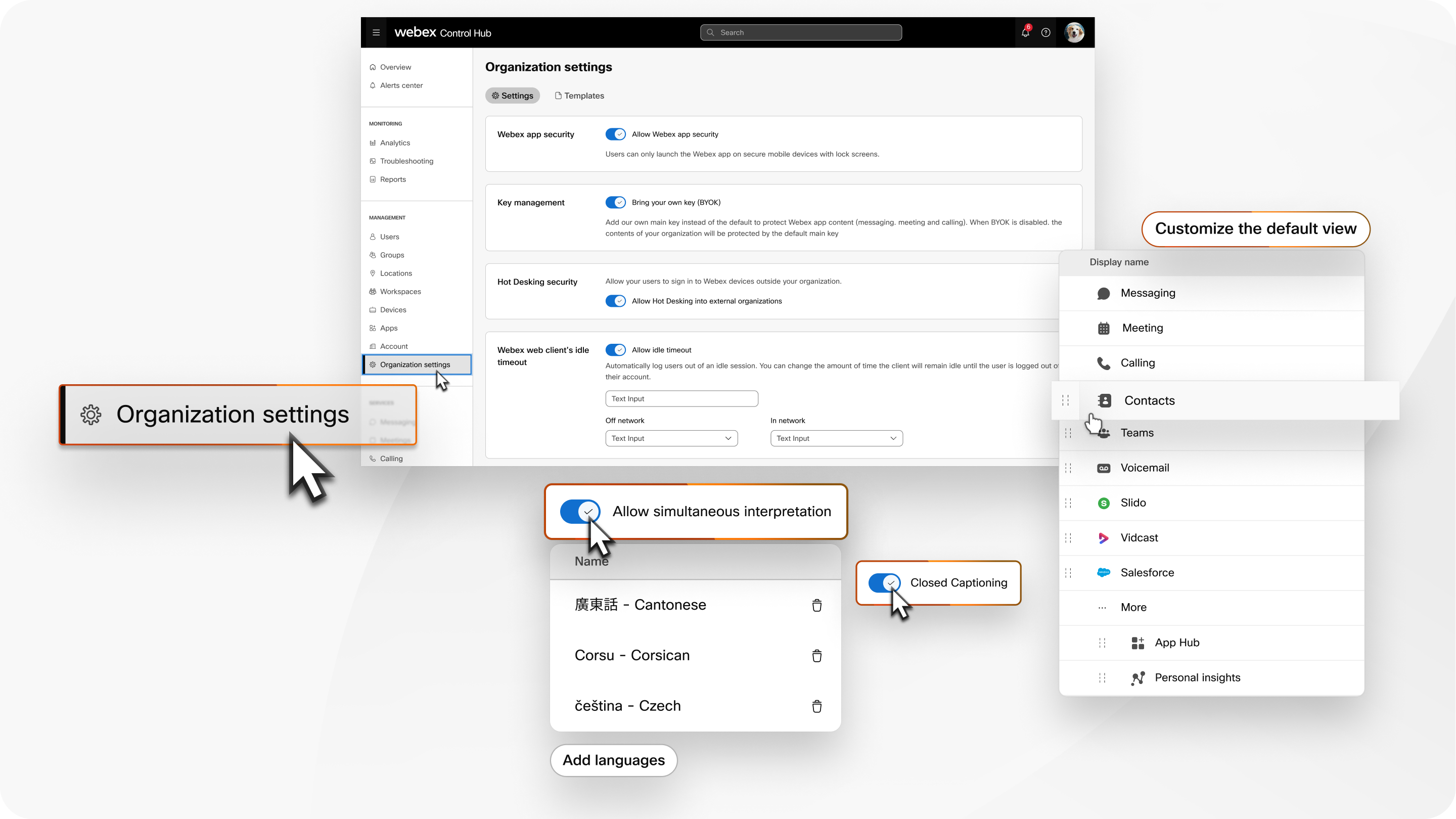
You can choose which screen shows to App users by default. Even better, you could enable them to set the default for themselves.
Remember that everyone works differently. Some people might want to read messages more often, while others are making calls all day.
More importantly, this customization enables people to reduce the number of navigation steps to get to their most frequently used collaboration mode.
You can find this setting on the Organization Settings page. Check the box labeled Allow users to choose custom landing screen.
Sidebar customization
Another way to foster easier navigation is to enable Webex App users to personalize the tools on the sidebar. Each person can reorder the icons, and pin or unpin workloads, to focus on what's important to them.
Read how to Customize the navigation sidebar in Webex App.
Migrate content with new account
You may need to move users from one organization to another, and this process can cause them to lose their previous conversations. Losing conversation history can be very disruptive for people, so give people an opportunity to migrate their content.
You can find this setting on the Organization Settings page. Check the box labeled Allow users to bring their Webex conversations with them.
Webex Meetings and Calling experience
Control Hub enables you to customize the meeting and calling functionality for some or all users. You should customize features in the most inclusive way possible, and consider how your choices affect people who experience the meeting differently to others.
Customize settings for groups, or override restrictions for specific users
You can use Control Hub to configure features for the whole organization all at once, or specific features for different groups of people.
This is convenient to get everyone using the same features, but can also result in a less accessible experience for some users. So, you can override restrictive settings for the affected people, or move them into a less restrictive group.
For example, consider a user who is hard of hearing and is in a group that is blocked from using closed captioning. You could override that restriction for the specific user, or you could create a template that allows closed captioning.
Read Configure settings templates which explains more about custom feature sets and how to apply them to groups. The article also explains how user-level settings can override the group or organization settings.
Stage customization
The ability to rearrange the "stage" is a helpful part of the meeting experience. Encourage meeting hosts to avoid locking the synced stage for attendees. Then people can still move panels, video feeds, and content sharing windows to suit their needs.
Read about how hosts can sync their stage.
Prevent Host override
We should'nt assume that our choices are suitable for all people in our meeting, and you can prevent that happening inadvertently.
In the , disable Override participant settings when hosting to give attendees more control over their own experience.
Closed Captioning
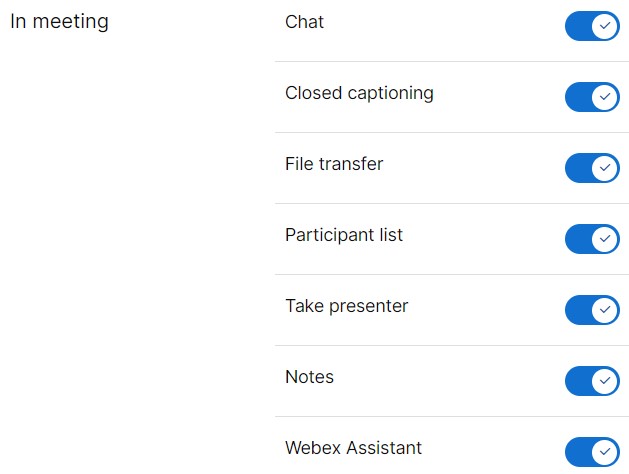
This feature is especially important for those that are deaf or hard of hearing, but also helps people who comprehend better with captions.
Enable closed captioning for meetings and recorded content for all meetings whenever possible.
You can do this for the whole organization at .
If you must restrict closed captioning, then you should consider using a template to allow exemptions. Otherwise you risk excluding some users who need this feature.
Sharing
Sharing your screen, or application, is a good way to demonstrate or clarify your meaning when you're meeting with others. You should consider enabling sharing features for everyone, at .
If you must restrict sharing, then you should consider using a template to allow exemptions. Otherwise you risk excluding some users who need this feature.
Chat
You may consider that chat during meetings is a distraction from the meeting's agenda, so you may want to disable it in some or all meetings. We urge you to remember that people often use chat to seek clarification from others without interrupting the speaker.
If you must disable chat for all meetings, consider using Q&A. If you have somebody to answer text-based questions, you can really improve the meeting experience.
Recording and transcripts
Enabling recordings is a great way to include people who need more time to review meeting content, or who find meetings cognitively challenging. A recording, especially if it has a transcript and closed captions, is a very helpful resource to have, and it's not just for people who couldn't attend the meeting at the time.
If you must restrict recording, then you should consider using a template to allow exemptions. Otherwise you risk excluding some users who need this feature.
You can also enable to make it possible for everyone to Generate AI summaries and chapters in Webex Meetings.

Webex Assistant
Individuals with mobility disabilities may benefit from using voice commands with the Webex Assistant. For more information, see Enable Webex Assistant for Webex Meetings.
Simultaneous interpretation
If you are expecting users from different language backgrounds, you can enhance meeting inclusivity by enabling simultaneous interpretation.
You can set this up for the whole organization at .
Virtual background
Virtual backgrounds enable users to express themselves, or celebrate a special occasion or colleague. You can foster a culture of consideration, by encouraging people to think about how others might react to their custom backgrounds.
You can allow custom virtual backgrounds for everyone, but if people abuse the feature, you can also restrict the backgrounds to those chosen by your organization.
The settings are available in
High definition meetings
You can increase the default resolution to improve visibility and enhance the distinction between interface elements. This makes it easier for users to interact with the meeting.
You can enable high definition mode in in Control Hub. Check the box labeled High definition (720p)
Voicemail transcription
Enable users to manage their voicemail and voicemail settings in Control Hub, so they can redirect calls to voicemail when they can't answer. This ensures individuals have control over their communication preferences, regardless of their circumstances or abilities.
Read Configure and manage voicemail settings for a Webex Calling user.
More information
For more information on using these features and exploring other accessibility options, visit the following Webex articles:
- Webex App | Accessibility support features
- Webex App | Keyboard navigation and shortcuts
- Webex App | Screen reader support
- Accessibility features for meetings and webinars
By implementing these practices, you can ensure Webex meetings are accessible and inclusive for everyone. Prioritizing accessibility, you can demonstrate a commitment to diversity, equity, and inclusion.


