- Home
- /
- Article

Thanks for your feedback.

 In this article
 Feedback?
Enhance customer engagement with Webex Calling Customer Assist. Seamlessly send and receive SMS messages to follow up on calls and exchange information in real-time. Manage all your business text communications directly within the app.
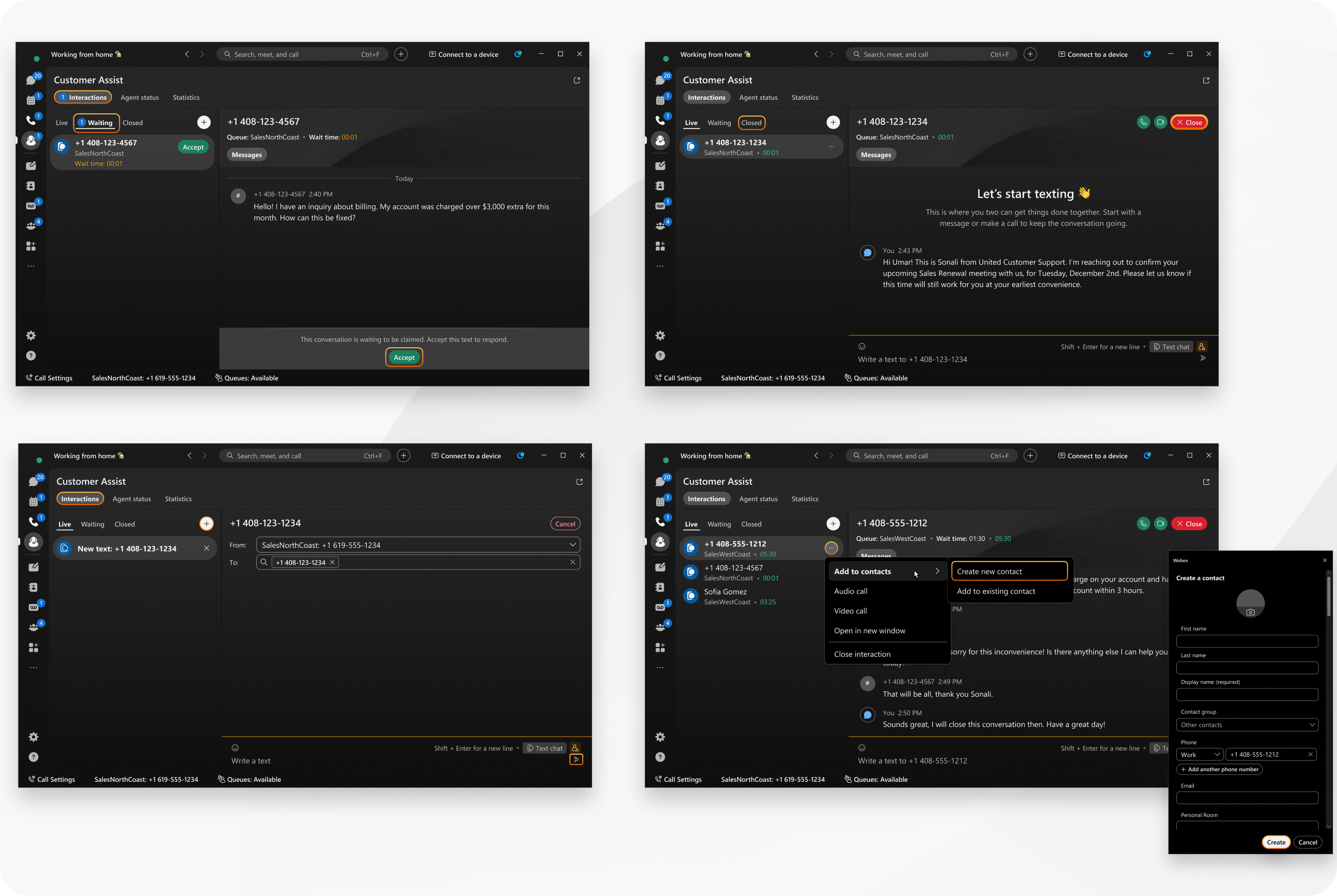
SMS business texting for Webex Calling Customer Assist is available for customers with Cisco Calling Plans with Service Numbers and SMS enabled in the US and Canada only. See Get started with the Cisco Calling Plans.
The Customer Text Queue feature streamlines customer interactions by centralizing SMS communications within the Webex App. When enabled, all agents assigned to a queue receive simultaneous notifications for new messages, ensuring rapid response times regardless of individual availability status.
To enable business texting as an administrator, see Enable business texting.
Message Lifecycle
- Waiting: Incoming messages appear in the shared Waiting tab. All agents can view these messages and select Accept to claim ownership.
- Live: Once claimed, the interaction is moved to the assigned agent's Live interactions tab, and is visible only to the assigned agent. The assigned agent can now respond and manage the interaction.
- Closed: When an interaction is completed, agents can close the interaction.
Agent Experience and Capabilities
Agents have access to historical interactions for up to ten hours. However, after this set period of time they will disappear permanently. Interaction tabs (Waiting, Live, Closed) allow agents to manage their workload efficiently.
Beyond standard messaging, agents are empowered with several advanced tools:
- Direct Calling: Place calls to customers using the Call Queue's Caller ID while maintaining the context of the interaction.
- Multi-channel Support: Share information via SMS while simultaneously engaged in a voice call.
Agents should monitor their interactions regularly to ensure that all customer inquiries are addressed promptly, maintaining high service standards across the team. For more information on other Customer Assist features, see Get started with Webex Calling Customer Assist for Agents..
Read and accept a new SMS message
If your administrator has setup your organization for business texting, you can read and accept those messages.
| 1 |
Select You can see message requests that have been sent to the queue, but are not claimed by any agent at that time. |
| 2 |
Click on a message to open the message preview. |
| 3 |
Click Accept to claim the message. Clicking on the Accept button removes the message from the waiting list from all agents, and is now claimed by the user. The message is moved to your Live tab. You can now manage the text, and the interaction duration timer starts. |
Send an SMS message
| 1 |
Go to Interactions. |
| 2 |
Click |
| 3 |
Perform the following actions: |
| 4 |
Enter the text and press Send
The sent text opens a new live interaction, and appears in the
Live tab.
|
 to start a new text.
 .
.Send an SMS message when on a call
When on a call with a customer, you can simultaneously send a message, for example, to confirm an appointment.
| 1 |
When on a call, in the call window, click Open text panel |
| 2 |
Enter a message, and click Send
|
| 3 |
Click Close text panel when finished. |
 .
.Close a text interaction
In any text interaction, once the issue or question is resolved, you can close the interaction.
| 1 |
In the text interaction window, click Close. |
| 2 |
Click Close in the the confirmation dialog. You can check the option not to be prompted with the confirmation dialog in the
future.
|
| 3 |
To see all your closed interactions, click . |
Manage your contacts
You can create new contacts, or add details to existing contacts, from text interactions.
| 1 |
Click on an interaction and click More
|
| 2 |
To create a new contact, perform the following:
|
| 3 |
To add a number to an existing contact, perform the following:
|
 .
.More menu interactions
From the list of text interactions, you can access quick tasks for each one.
| 1 |
Click on an interaction from the list, and click More
|
| 2 |
Choose from the following options:
|


