- Home
- /
- Article

Thanks for your feedback.

Cisco Call for Government for Microsoft Teams
 In this article
 Feedback?
Seamlessly place a call through Cisco Call for Government from Microsoft Teams without interrupting your workflow or switching between applications.
Overview
With Cisco Call for Government for Microsoft Teams, Microsoft Teams users can access the enterprise-grade Cisco Call for Government experience directly in the Microsoft Teams app. With a single click from the Microsoft Teams interface, you can access a complete suite of calling features. The features include directory search, PSTN dialing, speed dial, voicemail, call history, and artificial intelligence-powered background noise removal.
This integrated app works with both Webex for Government Calling and Cisco Unified Communications Manager (UCM) call-control solution.
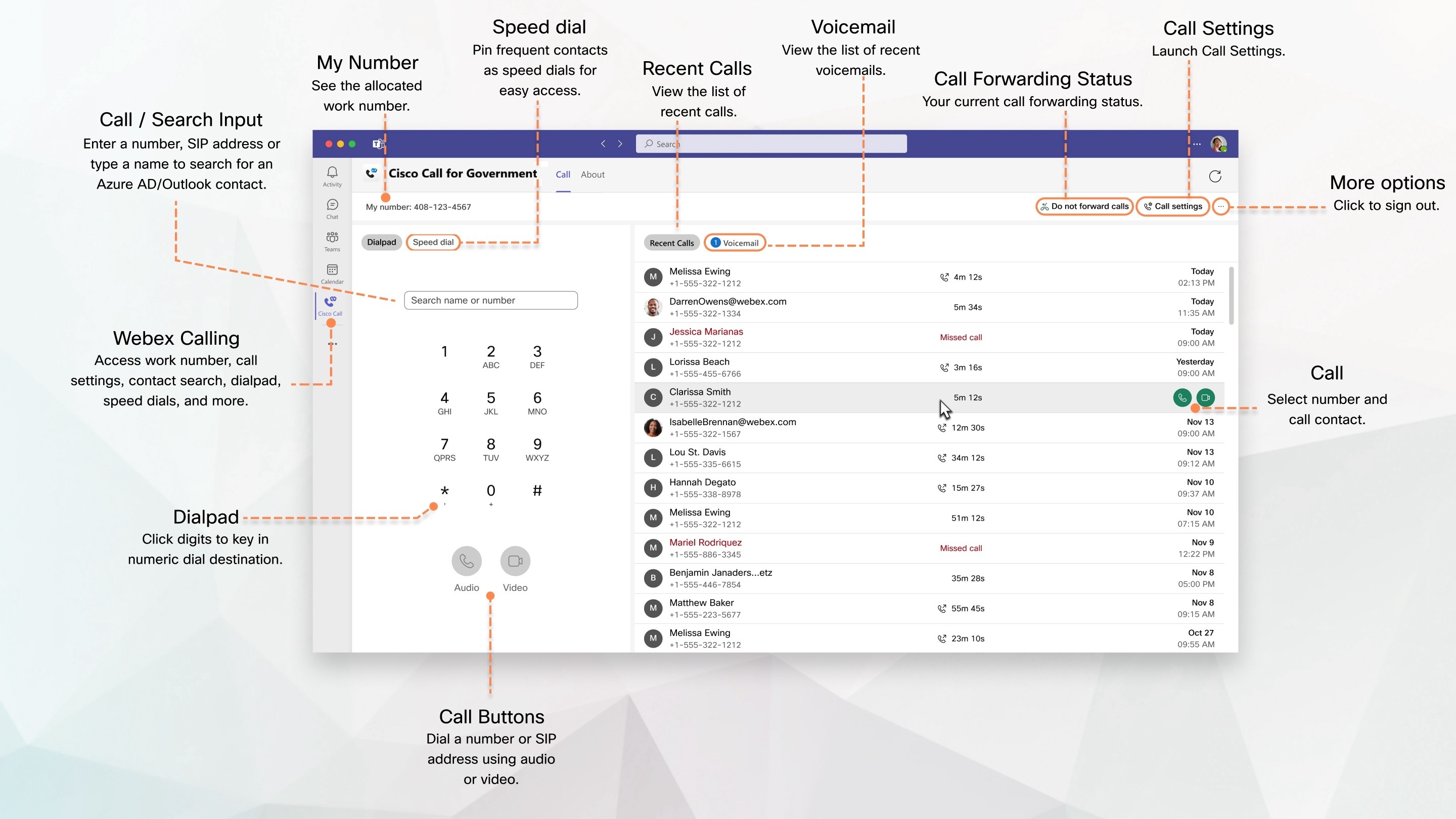
This app is listed as "Cisco Call for Government" in the Microsoft Teams app store, it is customizable and your Microsoft Teams administrator may have renamed it. These instructions refer to the default name.
Prerequisite
- Ensure that you’ve installed and signed in to the Webex App on Desktop and Mobile.
- Your administrator must have granted access for the organization to access the Cisco Call for Government integration.
Sign in
To start using Cisco Call for Government, you must sign in to your Webex account first.
Open Webex App, sign in to your Webex account, and then close the app. After you sign in, you're ready to start using the Cisco Call for Government integration in Microsoft Teams.
You only need to open and sign in to Webex App once. If Webex App isn’t visible on your desktop, it's likely that your administrator has hidden it to enhance the experience. In this case, you need to search for Webex App initially to open it.
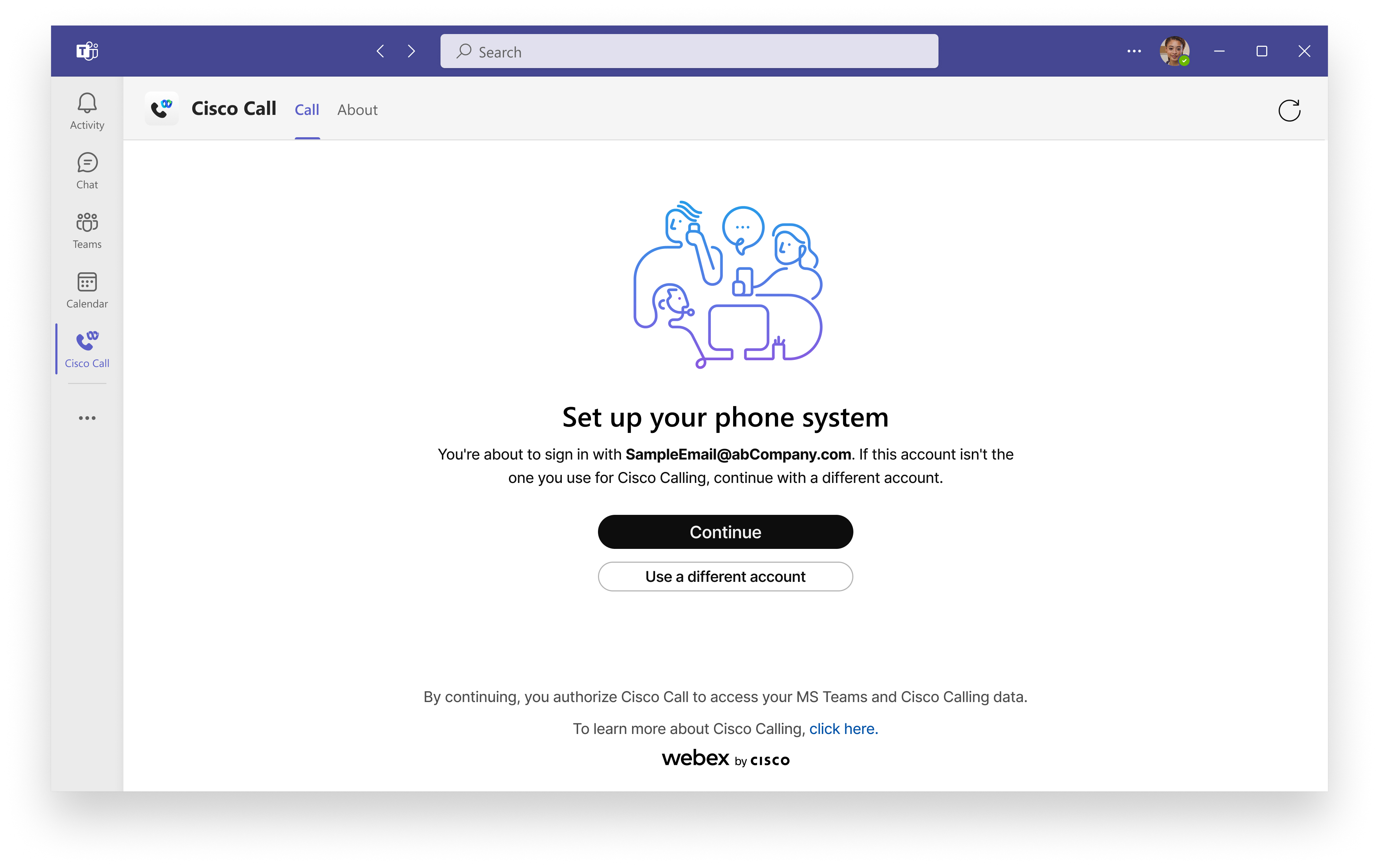
Go to Microsoft Teams, click Cisco Call for Government
 , and then click
Continue if you’re using the same Microsoft Teams account for
Webex.
, and then click
Continue if you’re using the same Microsoft Teams account for
Webex.
If you're using a different account for Webex, then click Use a different account and sign in with your Webex email address and password.
When you sign in, you can find all the calling features under Cisco Call for Government
option.
| 1 |
Go to Microsoft Teams, tap the |
| 2 |
Tap Continue if you’re using the same Microsoft Teams account for Webex. If you're using a different account for Webex, then tap Use a different account and sign in with your Webex email address and password. After signing in, you can find all the calling features under Cisco Call for Government
|
 .
.Make a call
You can make a call directly from Microsoft Teams app using the dialpad of the Cisco Call for Government app or using the Cisco Call for Government app as a messaging extension in a one-on-one chat.
From dialpad
| 1 |
Click Cisco Call for Government
|
| 2 |
Select the contact and click |
 or
or  to connect.
From chat
| 1 |
In direct chat, click |
| 2 |
Click Cisco Call for Government
|
| 3 |
From the contact card, select a number from the drop-down list. |
| 4 |
Click The app opens in a new window.
|
 at the bottom.
From Cisco Call for Government dialpad
| 1 |
In Microsoft Teams, tap More
|
| 2 |
Enter a phone number and tap You can click Open Webex to find more options such as call history, voicemail, and contacts. |
From chat
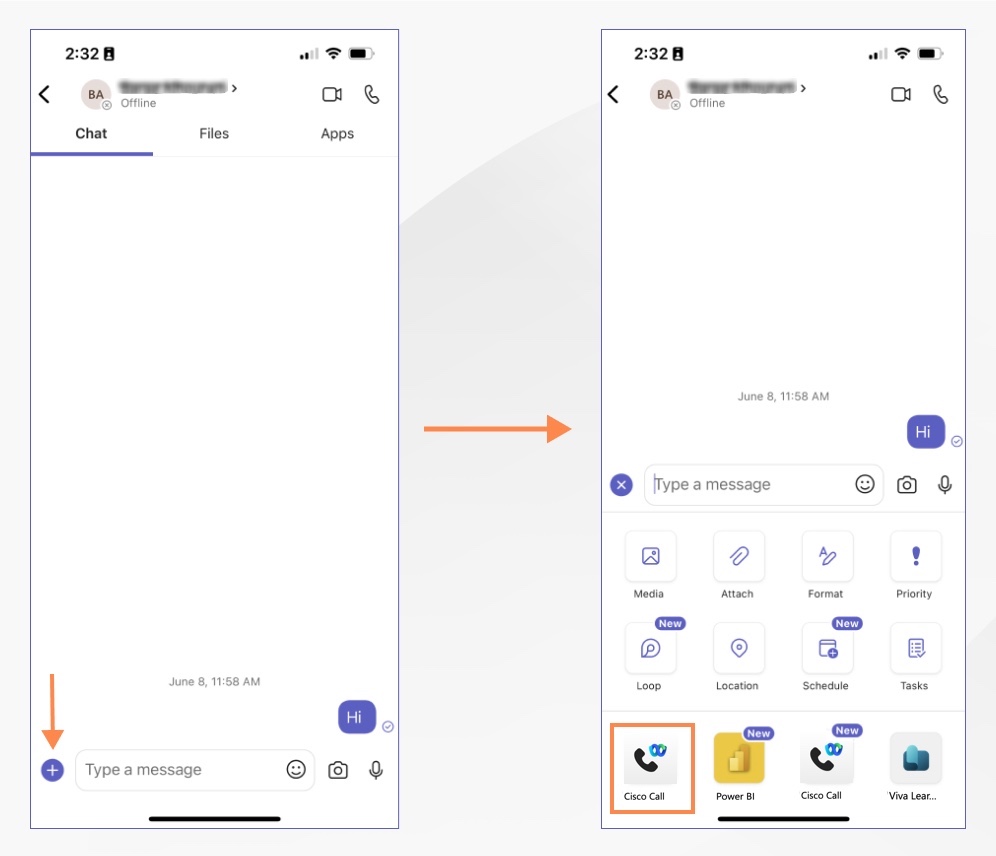
To make a call from chat using the Cisco Call for Government app as a messaging extension:
| 1 |
In Microsoft Teams, go to Chat and choose a chat. |
| 2 |
Tap
|
| 3 |
Perform one of the following actions:
|
Manage speed dial
Add up to 20 contacts inside or outside of your Outlook or Azure Active Directory as speed dials. The app saves your speed dials to your Microsoft 365 profile so you can call your most frequent contacts quickly and easily.
| 1 |
Click Cisco Call for Government
|
| 2 |
Type the name of a directory contact, or search for a custom contact.
The Name field has a maximum character limit of 100, and the Phone field has a maximum character limit of 50. |
| 3 |
Click Add. You can also edit, re-arrange, and delete the speed dial contact. |
View recent calls
See up to 20 of the calls you've made, received, and missed in the last 7 days in your Recent calls. You can even call them back at the same number they called you from. The contact name, phone number, and call type isn't displayed for unknown numbers.
| 1 |
Click Cisco Call for Government
|
| 2 |
To quickly connect, hover over a call log and click |
| 3 |
To delete a call log, hover over a call log, click Recent calls list is auto-refreshed every one minute so that you have the visibility of the latest recent call records. For on-prem Unified CM customers, recent calls are listed only when call history is enabled for the cluster where the device is registered. For more information, see To enable voicemail, call history, and bidirectional presence sync service for on-prem Unified CM customers section of Configure Cisco Call for Government for Microsoft Teams. |
Listen to voicemails
You can view up to 20 voice messages received in the last 7 days. A blue badge appears next to the voicemails that are unread.
Before you begin
-
Your administrator must have enabled the voicemail feature for you to access it.
-
Voicemail and transcription are available only for your primary line.
| 1 |
Click Cisco Call for Government
|
| 2 |
Hover over a voicemail and click You see the voicemail transcription only if you're set up with Webex Calling. To quickly connect with the person who sent you the voicemail, hover over a voicemail
and click To listen to your voice messages from the voicemail portal, click Call
Voicemail
The voicemail list is auto-refreshed every minute so that you have the visibility of the latest voicemail records. |
 to listen to the message.
 at the right corner and follow the
prompts.
at the right corner and follow the
prompts.Find your work phone number and access call settings
Click Cisco Call for Government
and you can find My
number at the top left corner which shows your work number.
Access and update Webex App call settings directly from the Cisco Call integration in the Microsoft Teams, without having to interact directly with the Webex App.
| 1 |
Click Cisco Call for Government
|
| 2 |
Update your settings and click Save. |
Calling dock
Before you begin
-
Administrator must enable this feature for you to access it.
-
Currently only available on Windows.
You can enable this feature directly from the integration landing page or from call settings.
To enable it from the integration landing page, click the More option  at the right corner and then enable or disable the
Calling dock toggle.
at the right corner and then enable or disable the
Calling dock toggle.
To enable it from call settings, perform the following steps:
| 1 |
Click Cisco Call for Government
|
| 2 |
Go to . |
| 3 |
Choose one or both of the available options to turn on the calling dock:
|
| 4 |
Click Save.
For more information on common call features in the calling dock window, see Manage all your phone calls in one place. |
Forward your phone calls
If you're going to be away but don't want to miss an important call, you can forward your calls to another phone number. Or, if you don't want to be interrupted, you can send all your calls to voicemail instead.
| 1 |
Click Cisco Call for Government
|
| 2 |
Under Call Forward, click After you've enabled the call forwarding, the call forwarding status appears beside
the Call settings option on the landing page.
Currently, the call forwarding status is available only for Webex Calling (Cloud/Multi-Tenant), Dedicated Instance, and UCM users. |
 to add a number to forward the calls to or choose
Bidirectional presence sync
Before you begin, your administrator must have enabled this feature for you.
As a Microsoft Teams user using Cisco Call for Government integration, you now have the ability to see whether your contacts are currently in a Webex call, Meeting, or in Do not disturb mode. This feature synchronizes the presence status between Microsoft Teams and Webex bidirectionally.
When you make or receive a Webex call, your Microsoft Teams status gets changed to In a call. When you enable Do not disturb in the Webex App or any Webex device, the status is automatically synchronized to Microsoft Teams. Similarly, the In a meeting and Presenting statuses synchronizes between applications.
When Do not disturb is enabled on Webex App or Webex device, you won’t get any notification of incoming calls and messages in Webex App, Webex device or Microsoft Teams.
The following table shows the bidirectional status sync representation between Webex and Microsoft Teams.
|
Webex status |
Microsoft Teams status |
|---|---|
 On a call On a call |
 In a call In a call |
 In a meeting (This status syncs only from Webex
to Teams) In a meeting (This status syncs only from Webex
to Teams) |
In a call |
 Presenting Presenting |
 Presenting Presenting |
 Do not disturb Do not disturb |
Do not disturb |
Mute Cisco calls when on Teams meeting or call
You can mute notifications for incoming Cisco calls when you're in a Microsoft Teams meeting or call. You can also set up to decline the calls automatically. Any unanswered calls are listed as missed calls under Recent Calls.
Before you begin
To mute notifications when you’re in either a Microsoft Teams call or meeting, or a Cisco call or meeting, your administrator must the Optimize Webex App for Microsoft Teams experience option in Control Hub, and you need to enable the following settings.
If your administrator has disabled the feature and you’ve enabled it, then it only mutes notifications when you’re in a Cisco call or meeting.
| 1 |
Click Cisco Call for Government
|
| 2 |
Go to . |
| 3 |
Under Direct calls, choose Only mute notifications when I’m in a meeting or on a call. If you want to decline the call, select Automatically decline incoming calls. |
| 4 |
Click Save. |
Update your location for emergency services
Depending on how your administrator has set up your account and whether the country you're in supports Enhanced 911 (E911) integration, Cisco Call for Government integration may prompt you to update your location.
You're prompted to update your location when you're first set up with E911 service and every time you change locations after that.
An alert appears next to the More option at the right corner when the address needs to be updated.
| 1 |
Click the More option |
| 2 |
Update your address and click Save. |
Phone service disconnection
The Cisco Call for Government integration displays an alert banner if your phone service is disconnected.
This can occur in the following scenarios:
-
You’re signed into the Webex App on one desktop and then sign into the Webex App on another desktop using the same username.
-
The Webex App isn’t running in the background, either because it was accidentally closed, or you were signed out.
To restore the service, you can click the suggestions in the banner.
Related videos
Upcoming Experience - Cisco Call integration with Microsoft Teams


