- Home
- /
- Article

Thanks for your feedback.


 In this article
 Feedback?
This article guides Contact Center administrators on how to enable AI Quality Management features in Control Hub for Webex Contact Center.
What is Webex AI Quality Management?
Webex AI Quality Management features can be configured at different levels:
-
Organization level—Enables the feature for the organization and makes additional configuration available where supported.
-
Queue level—Applies the feature only to selected queues or to all queues, depending on the feature.
-
Agent level—Applies the feature to all agents or to selected agents, depending on the feature.
Prerequisites
-
Customers need to purchase the AI Quality Management add-on SKU (A-FLEX-AI-QM) or the AI Assistant and AI Quality Management bundled SKU (A-FLEX-AI-QMMB).
-
Users need the AI Assistant included in their user profile access. To provide this access, configure the setting as part of the Desktop Experience within their profile. See how to manage user profiles, including their Desktop Experience, in the Manage user profiles of contact center users article.
List of AI Quality Management features
Once you have purchased the AI Quality Management Add-on, you can enable the following features for your organization in Control Hub:
|
Feature |
Description |
When to use |
How to use |
Included in |
Enablement scope |
|---|---|---|---|---|---|
|
Evaluation and Speech Analytics |
Helps supervisors and quality teams score interactions against evaluation criteria and use speech signals to identify interactions that need attention. |
To standardize quality reviews, monitor performance consistently, and focus review efforts on the interactions that matter most. |
Enable the feature in Control Hub and then create evaluation forms in Webex Contact Center. |
AI Quality Management |
Org |
|
Coaching Insights |
Uses historical interaction data, quality results, and KPI thresholds to generate coaching recommendations for supervisors. |
To identify what an agent is doing well, highlight areas for improvement, and support coaching discussions with evidence. |
Enable the feature in Control Hub, then enable it for teams and configure KPI thresholds. |
AI Quality Management |
Org |
|
Sentiment analysis* |
Calculates customer sentiment for completed interactions and classifies the result as positive, neutral, or negative. |
To identify interactions that may need review and add more context to agent performance and customer experience discussions. |
Enable sentiment analysis for the required queues in Control Hub. |
Both |
Queue |
|
Auto CSAT* |
Auto CSAT scores help predict customer satisfaction by analyzing conversations between agents and callers. |
To provide AI-based insight into customer satisfaction, helping organizations improve service quality and make data-driven decisions. |
Both |
Agent | |
|
Real-time transcriptions* |
Provides live transcription of customer-agent conversations, enabling agents and supervisors to follow conversations in real time. |
To improve accessibility, provide live interaction insights, and assist with compliance and quality monitoring. |
Both |
Queue |
If your organization purchased the AI Assistant and AI Quality Management bundle, AI Assistant features are also available for enablement on the same Control Hub page. See the link to enable AI Assistant features in Control Hub.
How to access AI Quality Management features in Control Hub
- Sign in to Control Hub and navigate to .
- Open AI Features under Desktop Experience in the navigation pane.
How to enable Evaluations and speech analytics
Administrators can enable Evaluations and speech analytics in the AI Features area in Control Hub to support quality reviews and AI-assisted evaluation workflows. Once enabled, supervisors and quality managers can create evaluation forms and use speech-based signals to identify interactions that need attention.
You can enable Evaluations and speech analytics in Control Hub by following these steps:
- Sign in to Control Hub and navigate to .
- Open AI Features in the navigation pane.
- In the Org level settings section, turn on Evaluations and speech analytics.
- Click Save.
How to enable Coaching Insights
Administrators can enable Coaching insights in the AI Features area in Control Hub to support supervisor coaching workflows. Once enabled, supervisors can later enable Coaching insights for their teams and configure KPI thresholds in Webex Contact Center.
You can enable Coaching insights in Control Hub by following these steps:
- Sign in to Control Hub and navigate to .
- Open AI Features in the navigation pane.
- In the Org level settings section, turn on Coaching Insights.
- Click Save.
How to enable Sentiment Analysis
Before you begin
- Make sure real-time transcription is enabled for the queues where you want to use Sentiment Analysis.
- Make sure the related flows are updated so transcription starts for the selected queues.
Administrators can enable Sentiment analysis in the AI Features area in Control Hub to classify customer sentiment for completed interactions. Once enabled, the system classifies sentiment as positive, neutral, or negative, helping supervisors identify interactions that may need review.
You can enable Sentiment Analysis in Control Hub by following these steps:
- Sign in to Control Hub and navigate to .
- Open AI Features in the navigation pane.
- In the Queue level settings section, turn on Sentiment analysis.
-
Select apply to all queues if you wish to enable AI-generated summaries for all queues.
-
If you wish to enable it to selective queues, select the list of queues from Queues tab, toggle on generate summaries on the next page and select the summary types.
- Click Save.
How to enable Auto CSAT feature
Before you begin
-
Enable call recording to facilitate post-call processing, which is necessary to produce Auto CSAT predictions.
Administrators can enable the Auto CSAT feature in the AI Features area in Control Hub to predict customer satisfaction for interactions in the contact center. Once enabled, Auto CSAT provides AI-based customer satisfaction scores that supervisors and analysts can use to review service quality and identify trends.
You can enable Auto CSAT in Control Hub by following these steps:
-
Sign in to Control Hub and navigate to .
-
Open AI Features in the navigation pane.
-
Turn on Auto CSAT from Queue level settings section and select all queues if you wish to enable the feature to all queues.
-
Select Experience Management to choose the CSAT questions from your surveys to train the Auto CSAT model or Global Variable to choose the global variable used to store survey responses.
-
If you wish to enable it to selective queues, select the list of queues from ‘queues’ tab , toggle on generate summaries on the next page and select the summary types.
-
Click Save.
Auto CSAT configuration is only available for administrators and can be managed through user profiles. For detailed information on the model we use to predict Auto CSAT, the data sources we use for training, the frequency of training and evaluation, and more, see AI Transparency Technical Note.
How to enable real-time transcriptions
You can enable real-time transcriptions in Control Hub by following these steps:
- Sign in to Control Hub and navigate to .
- Open AI Features in the navigation pane.
- Turn on Real-time transcriptions from queue level settings.
- Choose whether the feature applies to all queues or select the necessary queue from Queues tab and turn on the feature.
- Click Manage flows to navigate to the Flow Designer and identify the call flows that are linked to the queues where transcription is required.
- To activate real-time transcriptions:
-
For specific queues, see Enabling media streaming for specific queues article to configure media streaming within the Flow Designer, using conditional logic as described.
For all queues: In the Flow Designer, for your relevant call flow(s), navigate to the event flow canvas and add the Start Media Stream activity directly after the
AgentAnsweredevent. This action starts transcription for every call routed through this flow, bypassing the need for conditional logic used for specific queues. After adding the activity, ensure you Save and Publish the updated flow(s) to apply the changes.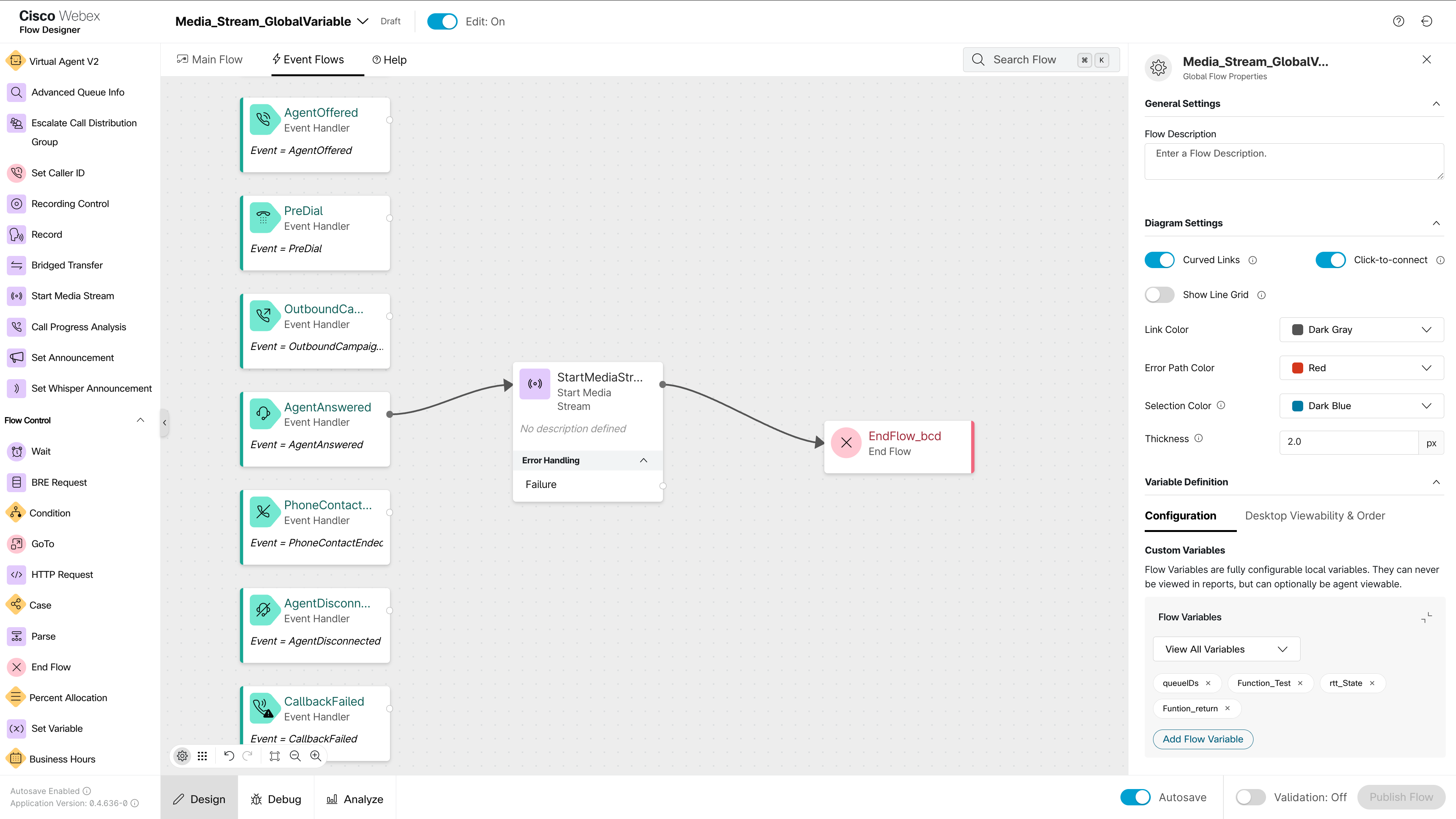
-
Media streaming allows audio streams to be duplicated and processed for real-time transcription, ensuring that audio from customer interactions is forked, enabling the transcription engine to process and convert spoken words into text.
Real-time transcription is automatically enabled with the Global Desktop Layout. If you are using a Custom Layout and want to enable real-time transcription, you need to ensure that the RT_TRANSCRIPT visibility is properly configured in the panel section of your layout for all relevant personas—agent, supervisor, and agent-supervisor. For detailed instructions, refer to the Enable real-time transcription in custom layouts section.
Update to desktop layouts
The AI Assistant is available automatically if you are using the Global Desktop Layout, so no additional action is needed.
If you are using a Custom Layout to personalize Agent desktops, you will need to make the following edit to enable the AI Assistant:
-
Locate the advancedHeader: In your custom layout JSON configuration, find the
areasection for each relevant persona (agent, supervisor, agent-supervisor). Inside theareasection, locate the advancedHeader array. -
Add the AI Assistant component: Add the following JSON snippet as a new, separate item within the advancedHeader array:
{"comp": "ai-assistant"}
For a comprehensive guide to creating and modifying custom desktop layouts, refer to the Create custom desktop layout article. For more details on desktop layouts, refer to the Manage desktop layouts article.
Enable real-time transcription in custom layouts
If you are using a custom layout and want to enable the real-time transcription feature, you need to ensure that the RT_TRANSCRIPT visibility is properly configured in your layout JSON.
Locate the panel section: In your custom layout JSON configuration, find the area section for each relevant persona (agent, supervisor, agent-supervisor). Inside the area section, locate the panel section.
Verify RT_TRANSCRIPT configuration: Within the panel section, ensure that the following code snippet (or a similar configuration for real-time transcription) is present:
{
"comp": "md-tab",
"attributes": {
"slot": "tab",
"class": "widget-pane-tab"
},
"children": [
{
"comp": "slot",
"attributes": {
                  "name":
                "RT_TRANSCRIPT_TAB"
}
}
],
"visibility": "RT_TRANSCRIPT"
},
{
"comp": "md-tab-panel",
"slot": "panel",
"class": "widget-pane"
},
"children": [
{
"comp": "slot",
"attributes": {
"name": "RT_TRANSCRIPT"
}
}
],
"visibility": "RT_TRANSCRIPT"
},
Ensure RT_TRANSCRIPT visibility is enabled: The key is the "visibility": "RT_TRANSCRIPT" attribute. Make sure this attribute is present and that the value RT_TRANSCRIPT corresponds to a defined visibility setting in your system. If the visibility attribute is missing or set to a different value, the real-time transcription tab will not be displayed.
Save and apply: Save the modified custom layout JSON file and apply it to the relevant users or profiles in the Control Hub.
AI Transparency Technical Notes
At Cisco, we leverage AI to create an inclusive and innovative future. Our AI-powered features are designed responsibly to mitigate potential harm while delivering improved functionality. Cisco adheres to our Responsible AI Framework, grounded in six core principles: Transparency, Fairness, Accountability, Privacy, Security, and Reliability. These principles guide our product development processes, ensuring AI technologies are integrated responsibly and ethically.
Each AI feature is developed with these principles at the core, enhancing user experience while maintaining high standards of safety, fairness, and privacy.
These features are optional, allowing organization administrators the flexibility to enable or disable them based on specific needs. We provide comprehensive technical notes detailing the architecture, usage guidelines, safety considerations, and ethical implications of each feature. These documents serve as a reference for administrators enabling these features within their organizations:


